Turning down the noise on your server’s logs with Fail2Ban

Access Denied!

If you’re running services exposed to the public internet, you’ll obviously need a way to remotely administer the machine. By far, the most common method is SSH, typically via OpenSSH. It is used on the vast majority of BSD and Linux systems.

One of the best improvements you can make to your SSH security model is to simply disallow password authentication entirely. A password can be guessed, leaked, or brute-forced. While an SSH private key could also be leaked or stolen, it is still widely considered to be the more secure and preferred option.

That said, there are situations where you may want or need to allow login from arbitrary machines. In those cases, requiring a private key may not be practical, since you would need to carry it with you everywhere, which isn’t always possible or convenient.

Basic SSH Hardening

First things first: do not allow anyone to log in as root using a password.

Really, you should not allow root login over SSH at all. But if you must allow it, then ensure it is key-only authentication.

If your server is exposed to the public internet, and especially if it listens on the default port 22, you can absolutely expect it to be hammered by bots and automated attacks. These will attempt logins constantly, probing for weak credentials.

They will also crawl your web services, checking endpoints and attempting to fingerprint your system. From that fingerprint, they can infer what vulnerabilities might apply. This is not hypothetical — expect hundreds or thousands of attempts per day.

Enter Fail2Ban

This is where Fail2Ban comes in.

Fail2Ban monitors logs for suspicious activity and reacts automatically. You define patterns (for example, repeated failed SSH logins), and when those patterns are matched, Fail2Ban takes action.

The most common setup is simple:

If an IP fails to authenticate 3 times, ban it at the firewall level.

Fail2Ban does this by inserting firewall rules (via iptables, nftables, or UFW depending on your system). Once triggered, traffic from the offending IP is dropped immediately.

This drastically reduces the effectiveness of brute-force attacks. Instead of allowing unlimited guesses, attackers get cut off almost instantly and must switch IPs to continue.

More Advanced Uses

You can go further if you want.

For example:

  • Ban entire subnets instead of single IPs
  • Aggressively block repeat offenders
  • Target other services (nginx, mail, etc.)

You can even block large geographic regions if you map IP ranges, though that requires more care and maintenance.

Whitelisting (Very Important)

The opposite is also possible — and recommended.

If you have a static IP at home, work, or another server, you should whitelist it. This ensures you never accidentally lock yourself out.

Even if you are using key-based authentication, having a whitelist adds an extra layer of safety and peace of mind.

Debian Setup (Minimal and Clean)

Install Fail2Ban:

sudo apt update
sudo apt install -y fail2ban

Create a local configuration file (do not edit defaults):

sudo nano /etc/fail2ban/jail.local

Paste the following:

[DEFAULT]

# NEVER ban these IPs (add your own here)
ignoreip = 100.100.100.100 200.200.200.200

# Ban settings
bantime = -1
findtime = 10m
maxretry = 3

# Backend auto works fine on Debian
backend = auto

# Use nftables (modern Debian) or iptables fallback
banaction = ufw
#nftables-multiport

[sshd]

enabled = true
port = ssh
logpath = %(sshd_log)s


If you are NOT using UFW, use this instead (this will always work on Debian)

Enable and start the service:

sudo systemctl enable fail2ban
sudo systemctl restart fail2ban

If using UFW, make sure it is enabled and allows SSH:

sudo ufw allow ssh
sudo ufw enable

Verify everything is working:

sudo fail2ban-client status
sudo fail2ban-client status sshd

What this configuration does:

  • 3 failed SSH attempts results in a ban
  • Ban is permanent (bantime = -1)
  • Your IPs are never banned
  • Firewall rules are handled via UFW (or iptables if you chose that route)

Final Thoughts

Fail2Ban is not a silver bullet, but it is an extremely effective first line of defense. It turns constant background noise from the internet into something manageable and largely harmless.

Combined with disabling password authentication, using SSH keys, and disabling root login, you end up with a setup that is simple, clean, and very difficult to attack in practice.
$5 CPU Activity LED Indicator for your Server made with RP 2040 (Pi Pico)

Because who doesn’t love a little das-blinkenlights??

Pi Pico CPU Meter
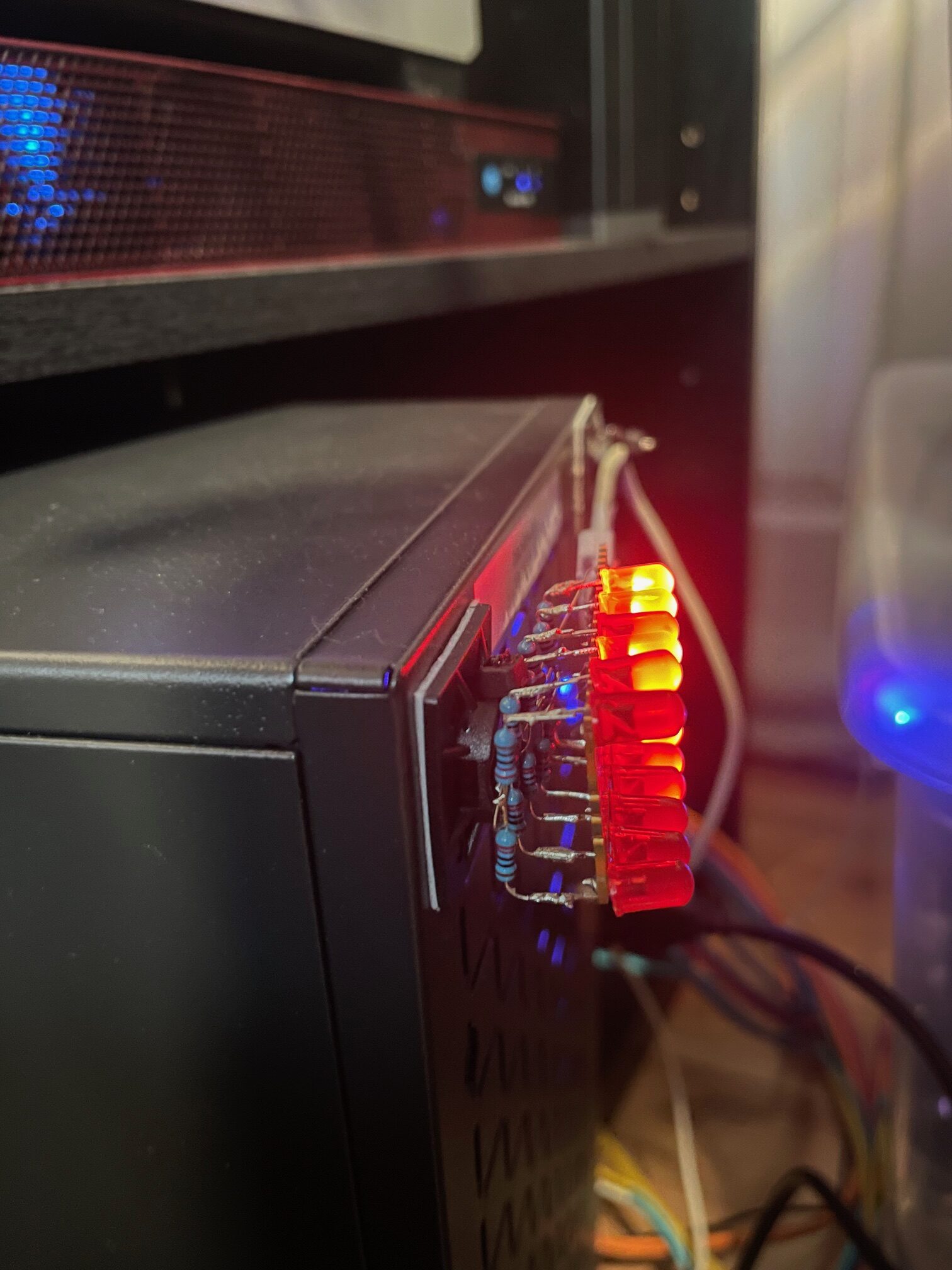
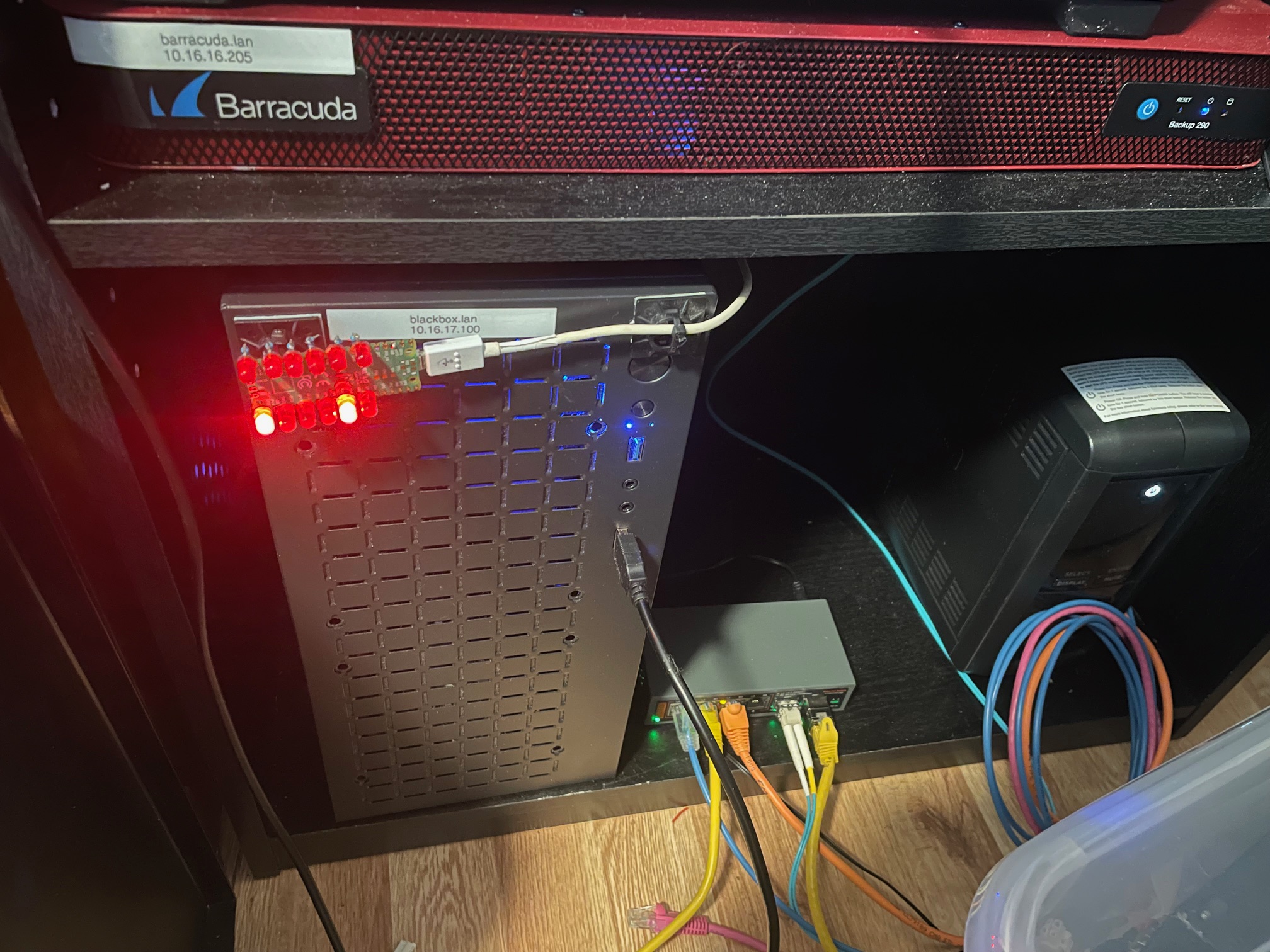
Zip-tied to a cable management stick-on, on the front of my server

So this project is incredibly simple. You only need three things:
1. Raspberry Pi Pico (RP2040) — Of course, you could use pretty much any micro controller you want
2. Some LEDs. Mine were from a super cheap set which had a hundred or so? No specs on them, but they’re red.
3. One resistor, for each LED you’re going to install. On this I used 470 ohm resistors, I’m pretty sure.

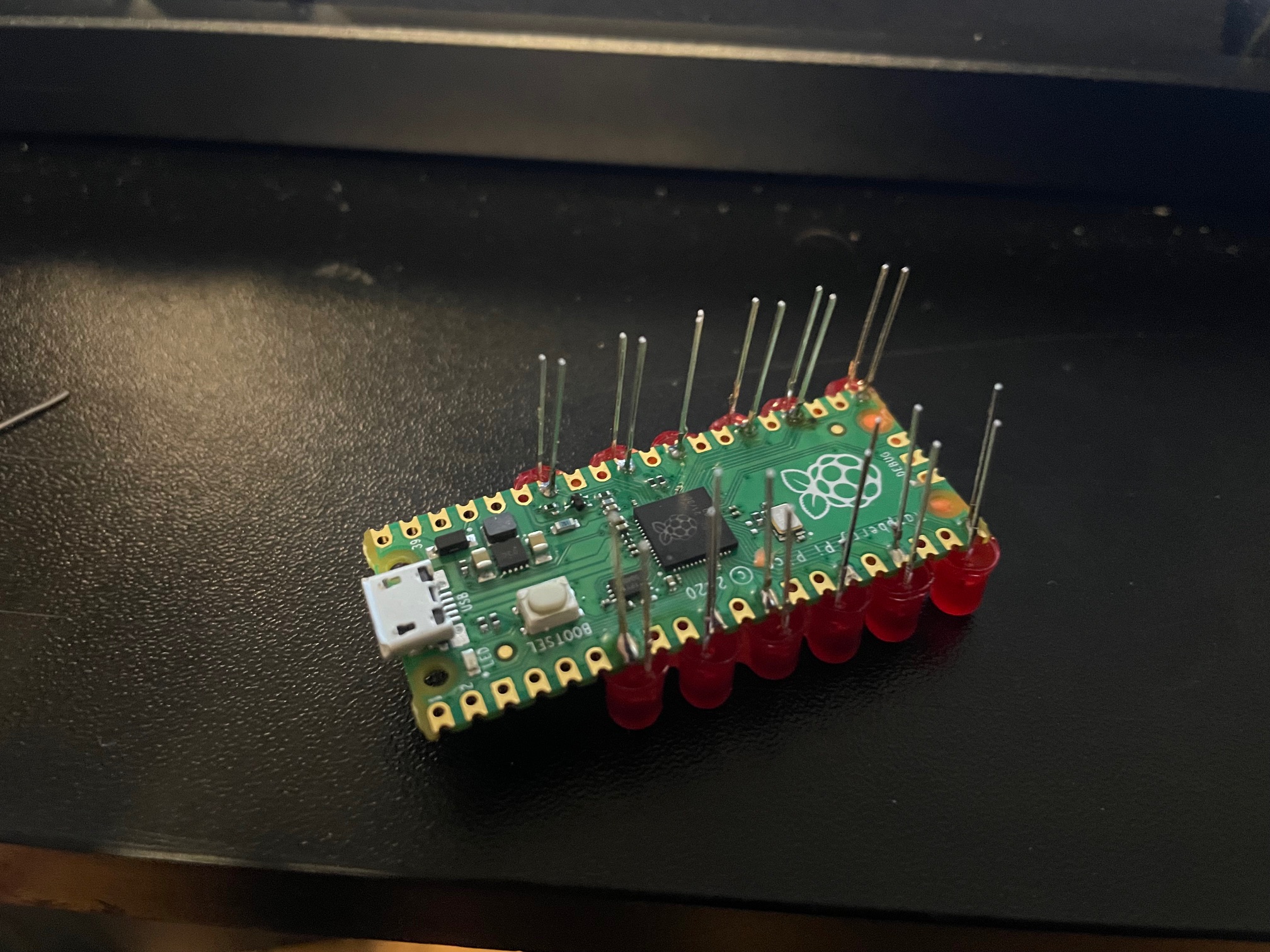
Pi Pico bottom side
The best part is, you don’t need any kind of custom PCB. I did this just by soldering directly on the Pi Pico board itself. Now, you’ll need to be careful to get decent looking LED spacing… but it is more than possible if you are patient.

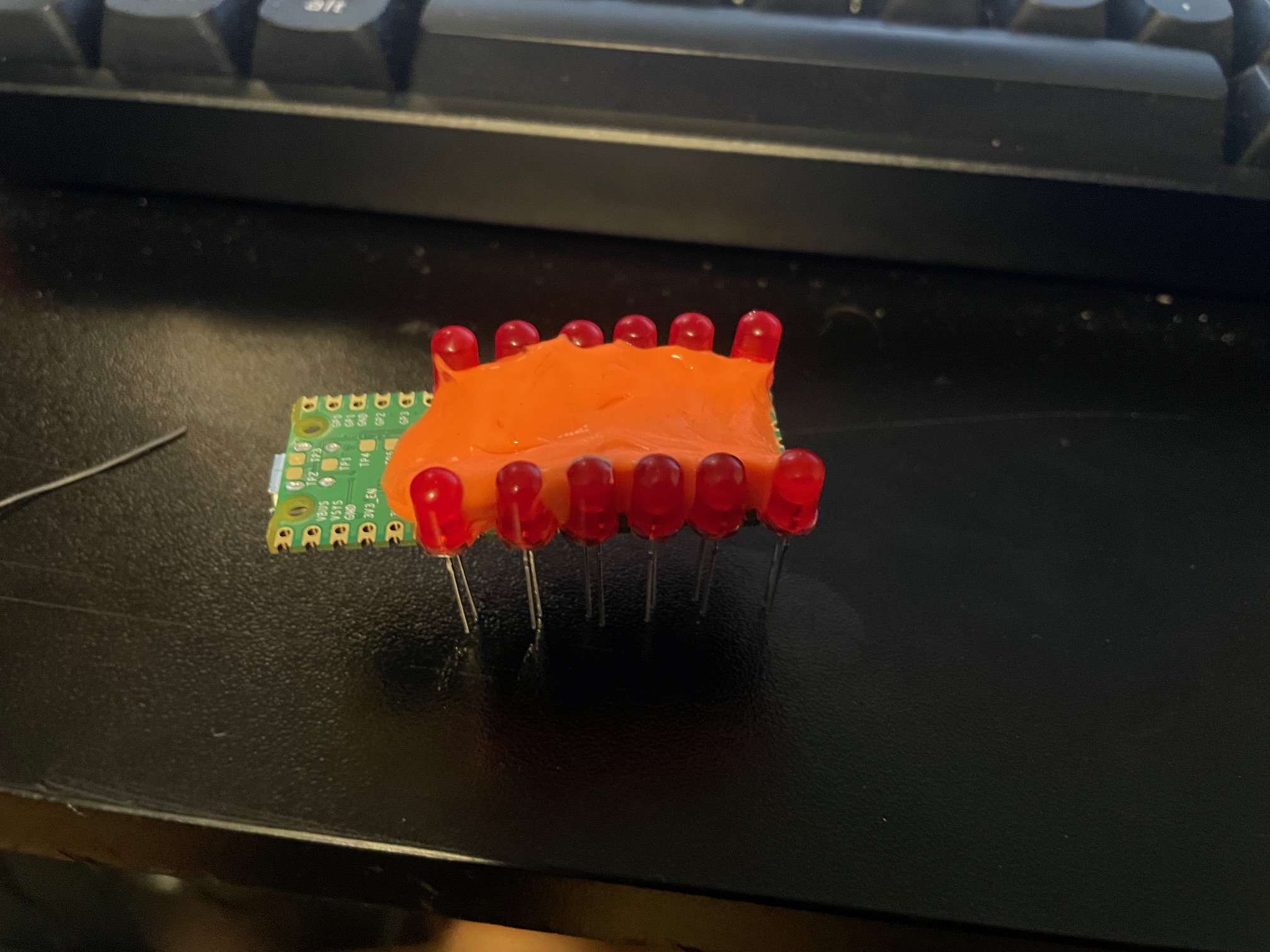
Silly-putty holding the LEDs
Silly-putty to the rescue!

You’ll definitely need some way to hold the LEDs in place or you’ll be fighting them the entire time. Blue tac would probably be ideal here. I didn’t have that, but I did have an old egg of silly-putty which worked out better than expected.

Back side of picoThis is what the whole thing looks like fully assembled. Basically, the resistor just gets soldered to the leg of each LED which is NOT on the GPIO. The way I’ve done it here was to tie the ground side of each LED through a resistor, and then they all fold into a backbone, each folded onto the next, down the line, and finally tie over to a ground pad on the pico.

Here is a video of it in action: https://ben.lostgeek.net/files/demo.mov

Basically, you’ll need two pieces of code. One which gets flashed to the RP2040 and handles the actual work of pulling the GPIO lines high/low when we get data from the computer.

How do we get the data to the pico? To keep things as simple as possible, we’re just using the Pico’s USB to uart. This makes the USB device show up in linux as a normal serial port, and makes it dead simple to interface with in software.

This is where the second piece of code we need comes into play. It is a daemon of sorts which runs on the machine of which we’d like to see CPU activity. Basically just a small amount of code to read from /proc, see our individual CPU core usage, do some math… and if it is above a certain threshold then we register that core as active and we tell the pico over serial.

My new server build has a 6 core, 12 thread Ryzen 5500 processor and so naturally I thought… Hey, wouldn’t it be cool if I had a little activity LED for each core? Well then, having one for each thread would be even cooler!

For a really nice, crisp, “activity LED” kind of genuine feel I’ve found that you want things updating pretty fast. My experience has been that a refresh period of about 30ms achieves that effect quite well.

If we try and poll the system too often then our daemon which sends data to the pico will start to use noticeable CPU time… Not very much by any means, but personally I’m happy to have the daemon only chewing up no more than ~ 1 % CPU utilization. With the 30ms update rate, it is only consuming 0.7 % of one thread. In other words, we’re only wasting a quite negligible 0.044 % of the total machine’s compute power to run our little light panel.

And who knows, I’m not a coder… someone could probably make this way more efficient. Let me know, if you have some much better code for this to run on 😉

You can get the code here: https://ben.lostgeek.net/files/blinken

Usual disclaimer Ai was used in the writing of the code for this.

Unreal Tournament 2004 now FREE! Linux support included!

UT2004

UT2004 is now free, easily installable on Linux Mac and Windows thanks to OldUnreal! This is even officially endorsed by Epic, so totally legit.

I just ran through the Linux install in less than 2 minutes. The download was very fast, no issues encountered.

You can use the install script here: https://raw.githubusercontent.com/OldUnreal/FullGameInstallers/master/Linux/install-ut2004.sh

Just mark it executable, and run with ./install-ut2004.sh -d /path/to/install (wherever you want)

UT99 (Game of the Year Edition aka GOTY), the original UnrealTournament is also available and has been for a little while.

https://github.com/OldUnreal/FullGameInstallers/tree/master/Linux

This is very exciting, and incredibly cool to see. I bought the Editor’s Choice box set back in the day and this was one of the first big box games I owned with native Linux support.

Linux Can Tell You All About Your SFP Modules

SFP+ Module

To start things off, I’d just finished switching everything over to the new Ryzen 5500–based server I built. Originally this box was using an Intel X540-T2 NIC, which has dual 10Gb RJ45 (10GBase-T) ports. If you’ve ever run 10 gig over twisted pair, you already know those things run hot. Really hot.

I had another NIC kicking around that uses SFP+, and figured if I could find some cheap fiber transceivers it might be a better way to link this machine up to my switch — especially from a heat and power perspective.

I ended up grabbing a pair of Avago-branded SFP+ transceivers and a fiber patch cable for $12.95 shipped on fleabay. Hard to argue with that. They’ve been working great so far, and they run MUCH cooler than the 10GBase-T setup. Like… not even close.

Out of curiosity, I plugged my cheap-o 4x 2.5Gb / 2x 10Gb switch into a Kill-A-Watt to see what was happening. One of the fiber SFP+ modules adds a little over a watt. The 10GBase-T SFP+ module I have? More like 3–4 watts, and that’s just sitting there at idle. Multiply that across ports and uptime and it adds up fast. No wonder 10GBase-T gear runs warm.

Anyway, here’s something neat I didn’t know before today: Linux can tell you all about your installed SFP modules. And not just basic info — actual live diagnostics.

In my case:

sudo ethtool -m enp3s0f0 — See the output of this @ the end of this post.

That command dumps the module’s EEPROM and diagnostic data. You get vendor info, part number, serial number, connector type, supported link modes, wavelength, and cable distance ratings. But you also get live telemetry.

Things like:
Module temperature
Supply voltage
Laser bias current
TX optical power
RX optical power
Alarm and warning thresholds

Which means you can answer questions like:

Is my transceiver overheating?
Is the RX light level getting too low (dirty fiber, bad patch cable, failing optic)?
Is the laser bias current unusually high?
Is anything drifting toward its warning thresholds?

I know very little about fiber compared to twisted pair, but this was pretty eye-opening. From that single command I learned my modules use LC connectors, I’m running 10GBase-SR with an 850 nm wavelength laser, and the link is rated for up to 300 meters on OM3, 80 meters on OM2, and 30 meters on OM1. In other words, short-range multimode optics — not single-mode.

And I can see that mine are currently sitting around 35°C, well under the 80°C warning threshold, with healthy TX/RX power levels and no alarms triggered.

That’s honestly pretty awesome.

I always assumed optics were black boxes. Turns out you can actually get a lot of data from them!
Continue reading “Linux Can Tell You All About Your SFP Modules”

Preventing accidental shutdowns when SSH’d into your server…

Because? People are stupid, we’re stupid sometimes…

If you’re like me, you probably SSH into a server occasionally and forget that it isn’t the local machine’s console when tabbing back to it after some time. This can really shoot you in the foot! Here are some ways to mitigate against accidental shutdowns which you can use on any server which is always-on. See the ed note below! I have a new recommendation since this was written.

NOTE: The systemd mask method would interrupt safe shutdown from say, your UPS telling the machine the battery is about to die. This is bad, so don’t create that situation. Unsafe shutdowns can lead to data loss!

EDITOR NOTE:  I wasn’t aware of it when I wrote this post, but there is a package in most distros called molly-guard and it exists for the explicit purpose of stopping addidental shutdowns and reboots over SSH connections. 


Method #1
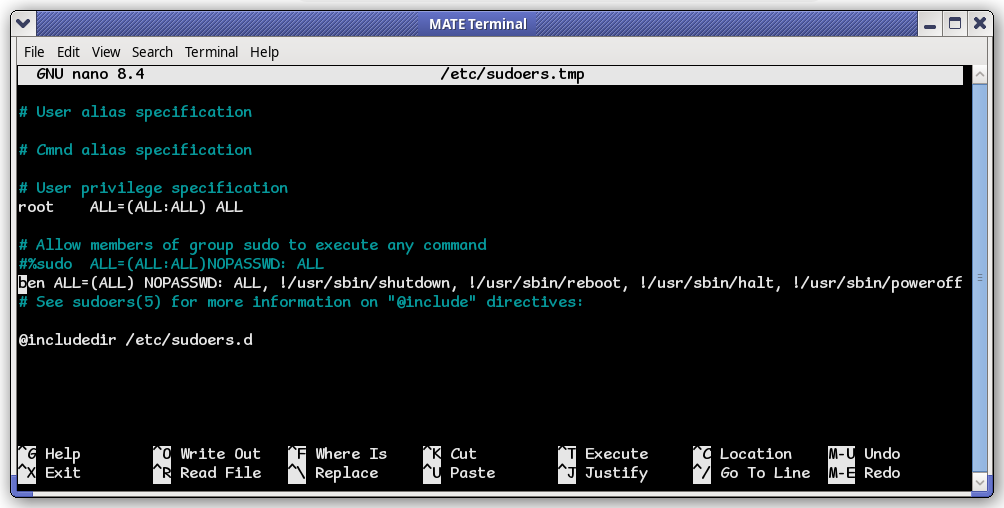
 — Via the sudoers file. Never log into a server as root to monkey around. If you need root, it is best to su in, and exit out as soon as your task is done. This in and of itself is why sudo and doas are better options.

Here is how I can ensure that while logged in as “ben”, I won’t accidently fall victim to my sudo poweroff or sudo reboot stupidity.

visudo

This is on debian. Use whereis (command-nameto find the actual paths on your specific system. That won’t protect me if I’m logged in as root, but it will if I am logged in as ben. That is good enough for me, 99% of the time.

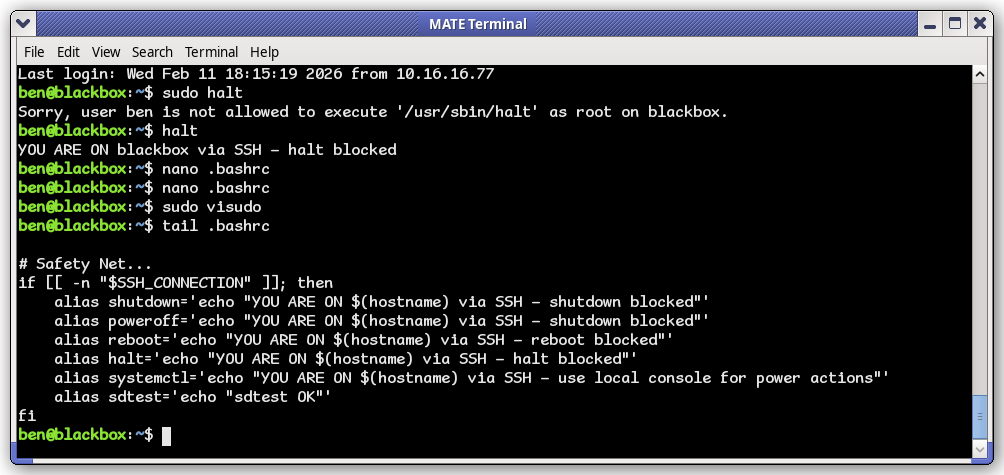
Method #2 — .bashrc of the user you normally use. This is not really effective, because if you prepend sudo to the command, it is going to run anyway!! This will however atleast remind you that you tried to do something dumb, and turn off the wrong machine. And yes, $SSH_CONNECTION is an environment variable you can use.

.bashrc

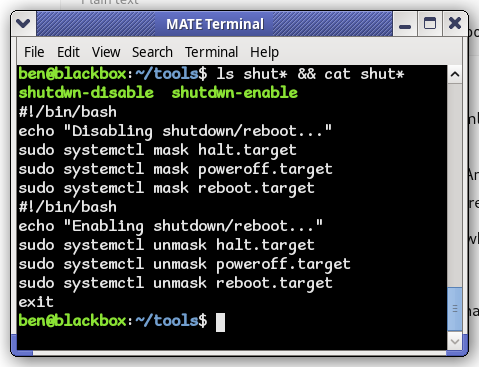
Method #3 — This is the only method that will truly stop the machine from shutting it down. If you’re using systemd, you can mask the commands and the system will not run them untill you re-enable them.

systemd

Probably not the best idea, because if say the power goes out now your machine won’t let the UPS trigger a safe shutdown. For now, I’ll move forward with the first two methods used together.

Moral of the story? Don’t do normal casual userspace work on the server! Just spin up a VM. Old habbits die hard, but this is definitely one I need to kill.


Writing a Better DD Wrapper GUI

Back in September last year, I was working on some kind of a wrapper for dd… Just for my own personal needs, nothing too fancy.

I got a little more ambitious, and was happy enough with the results to share it with anyone interested. Use at your own risk, of course.

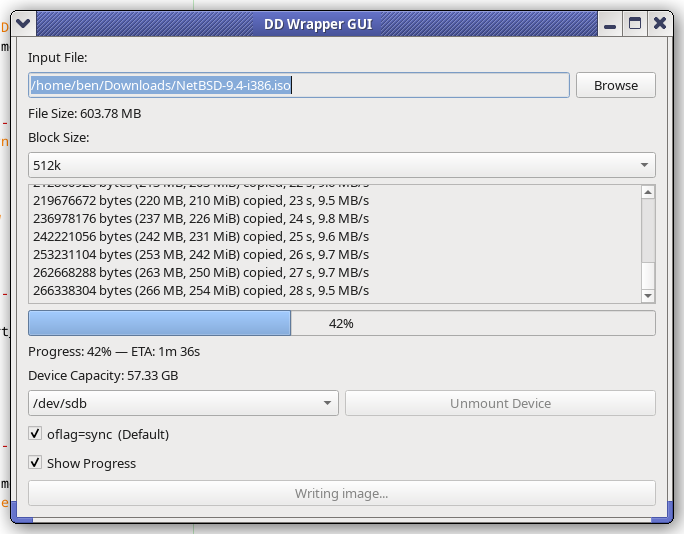
What is it? It is a GUI front-end to dd. It is dependant on the GNU version of dd. Written in Python, uses QT toolkit.

GitHub: https://github.com/HarderLemonade/ddwrap/

Screenshot of DDWrap

The 2008 Acer Aspire One…

Acer Aspire OneI’ve been wanting to grab one of these for a while and finally did. Ended up scoring a super clean, un-abused one just like I had back when these were all the rage. Mine came with Win XP, and IIRC had a SATA hard drive and 1 GB RAM. This one was actually a Linux machine from the get-go, neat! Only two things to note, it only has 512 MB RAM… and (according to DMESG anyway) has a PATA SSD… 8 whopping gigabytes. The 8 gig part I don’t mind, but I just expected it’d be SATA and I could easily throw something in… Oh well. Truth be told, 8 GB is enough. Right now I have Debian 12 /w Xorg + i3 and plenty of things installed and I think I’m still under 2GB used on disk. How does it run? Surprisingly well, considering it has 512MB RAM and a 1.6 GHz single core, 32 bit CPU. (HT, but not a real dual core)
$29.99 shipped is all I paid. Worth it for the nostalgia, plus I just wanted a linux machine I can run in the palm of my hand. It may struggle on the modern web, but it is excellent to just pick up and SSH into servers with. Does OK with Falkon on lighter sites too.

You can even still get batteries for these! $18 shipped got me a brand new one, and it is shockingly good for the money. Seems to give a couple hours of runtime.

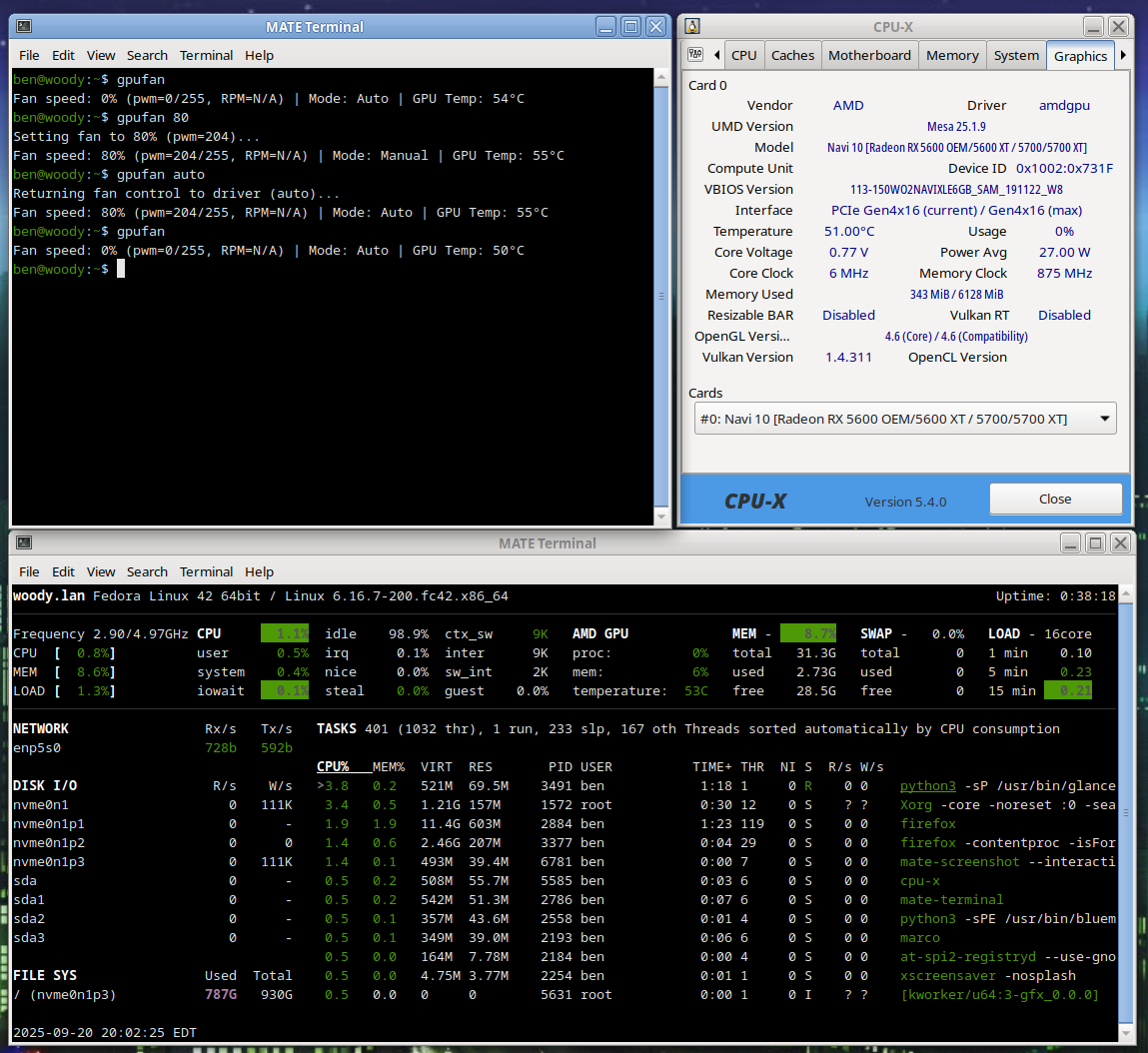
gputemp, a simple AMD Radeon manual fan control solution

# gpufan -- sets manual fan speed on AMD Radeon GPU. For 5.x / 6.x Linux Kernel users running AMDGPU driver...
# Author: Ben @ LostGeek . NET
# Created 09/20/2025

# 	READ ME! How to use:
# save as /usr/local/bin/gpufan then chmod +x
# running "gpufan" will give temperature & fan rpm. gpufan followed by a number (1-100)
# will manually set speed. "gpufan auto" will restore auto / driver control.

Your feedback is welcome!

https://ben.lostgeek.net/code/gpufan/

Writing a wrapper for DD

I’ve been working on a handy lil’ tool, basically a glorified wrapper script for dd. But I think I worked in some solid concepts:

You just run it, no args needed. (Though you can pass args if you want.)

Automatic target selection: Devices with the prefix /dev/sd* that are not mounted will be considered. I’ve put in a volume limit of 64 GB for safety. If the device is greater than 96 GB, then (imo) it’s probably something else – HDD/SSD – so in that case a manual override is required.

Automatic block size: Chosen based on drive capacity. Tiny drives use a smaller block size, while larger (likely more modern USB 3) drives can use big chunks, like bs=4M. This usually improves performance.

Once I get it all ironed out, I’ll share the code. So far, I find it pretty handy.

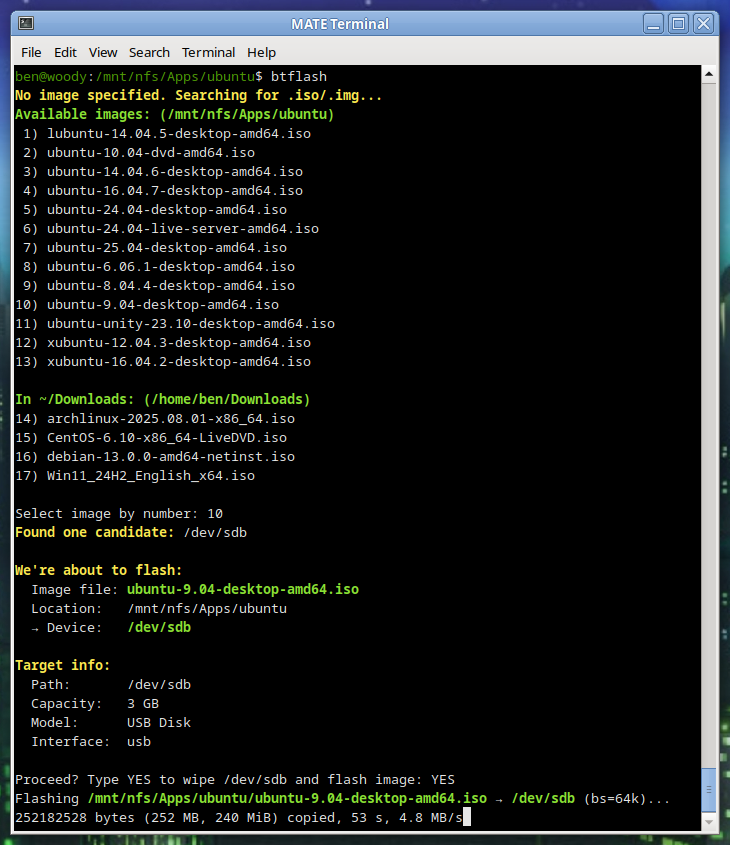
btflash in action…

Debian Trixie: Goodbye Init Freedom

With Trixie, comes changes…

systemd logo

As someone who has been running Debian servers for about a decade, one thing I’ve always appreciated is that if you didn’t like a core component, you could swap it out. That used to include the init system. Whether you preferred sysvinit, OpenRC, or runit, Debian gave you the tools to do it.

With Debian 13 Trixie, that is basically over.

What Changed

To be clear, Debian as defaulted to systemd since Jessie; we’re not talking about that. We’re talking about the OPTION to use another system instead. On Bookworm and earlier, moving away from systemd was simple:

apt install sysvinit-core
reboot

You might clean up a few services or install orphan-sysvinit-scripts, but it worked.

In Trixie, too many core packages now assume systemd is there. Udev is the most obvious example. During upgrades, it will pull in systemd even if you’re trying to stay init-free. Other essential packages have dropped their init scripts or unit files for anything else. If you boot without systemd, critical services will fail. The choice exists in theory, but it’s fragile and unsupported in practice.

Why It Is Happening Now??

This isn’t random. Version 13 tightens dependency chains across the core system. Packages such as udev, dbus, logind, and many desktop or network management components are systemd-aware by default. In previous releases, these dependencies were optional or provided fallbacks. In Trixie, the fallback paths are gone or broken. Swapping init now can silently break critical parts of the system.

For Some, Devuan May Finally Make a Lot of Sense

I never really understood why Devuan existed. On Jessie, Buster, Bullseye, and Bookworm, one could do a base install, install their init of choice, reboot, and purge systemd. Devuan always seemed like a convenience for users who wanted to skip that step.

Now, changing init is a literal nightmare. The system doesn’t allow it. You’re forced to boot from another system and attempt the change via chroot. Even then, it’s messy. For those who want a system without systemd, Devuan now has a legitimate place, even for technically inclined users.

Why might one avoid systemd:

  1. Simplicity and predictability: Traditional init systems are easy to debug, less opaque, and don’t pull in a large web of dependencies.

  2. Resource footprint: Sysvinit or OpenRC can run with minimal memory and CPU usage, ideal for very small servers or embedded systems.

  3. Control: Fewer hidden processes and services mean you can strip down and tune exactly what runs at boot.

Reasons to stick with systemd:

  1. Ubiquity: Most packages, especially in Trixie, assume systemd is present. Running without it often leads to breakage or fragile setups.

  2. Service management features: systemd provides dependency-based service startup, logging, timers, and cgroup integration out of the box.

  3. Easier integration with modern software: Many newer server tools and desktop components expect systemd and may not work properly without it.

Systemd Makes Sense for Most Users

For the majority of us, systemd offers clear advantages and a cohesive, performant set of system daemons that do their job reliably. It’s unfortunate, however, that the long tradition of Debian giving users choice in init has essentially come to an end.

For those disappointed by this, Alpine is worth a look. Alpine is a super minimal distribution based on BusyBox. It uses the musl C library and remains impressively small while still offering a well-curated and thorough selection of packages. And of course, Devuan. Devuan is a Debian fork whose claim to fame is being systemd-free. Any packages that would normally depend on systemd have been adjusted or patched for a smooth experience, including things like elogind replacements and tweaks to GNOME dependencies.

Final Thoughts

Debian used to be a super-flexible system that could be stripped down and tuned to run in very small memory footprints. It mostly still is, but with Trixie, it’s just a bit less flexible, and that’s truly too bad. They broke a decades-long tradition.

For those who are really bothered by this, thankfully there is Alpine and Devuan.

Whether you preferred sysvinit, OpenRC, or runit, Debian gave you the tools to do it.

With Debian 13 Trixie, that is basically over.

© 2025 LostGeek.NET - All Rights Reserved. Powered by ClassicPress, NGINX, Debian GNU/Linux.