Old Enterprise Drives… Good option? Lets do some power testing

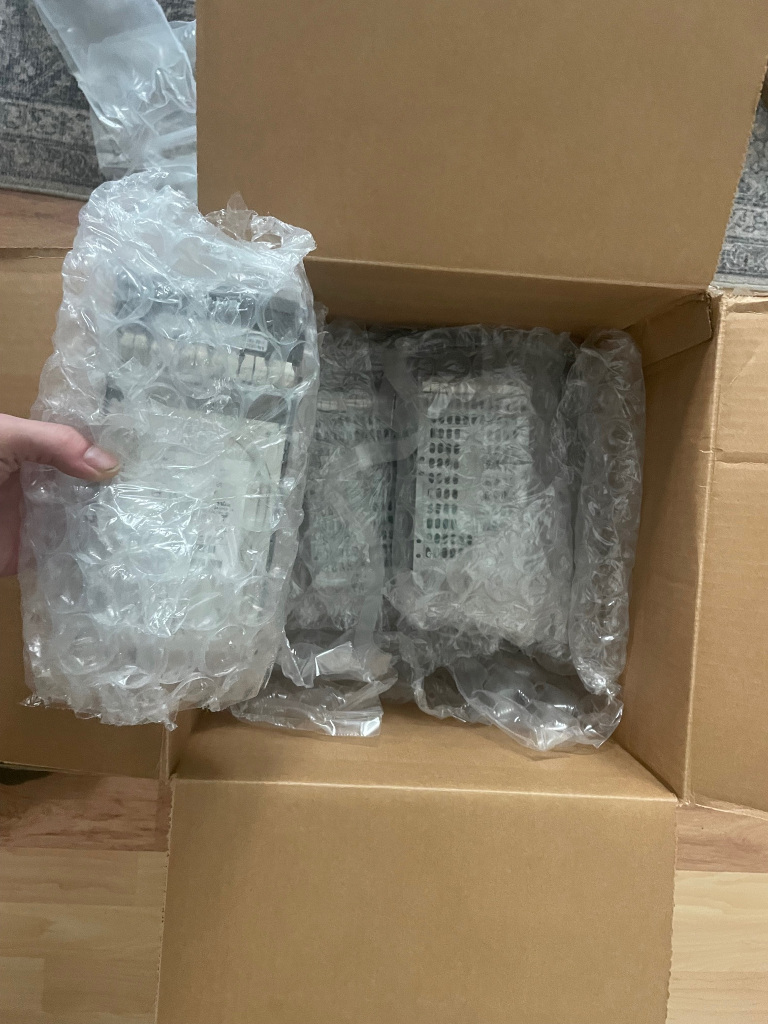
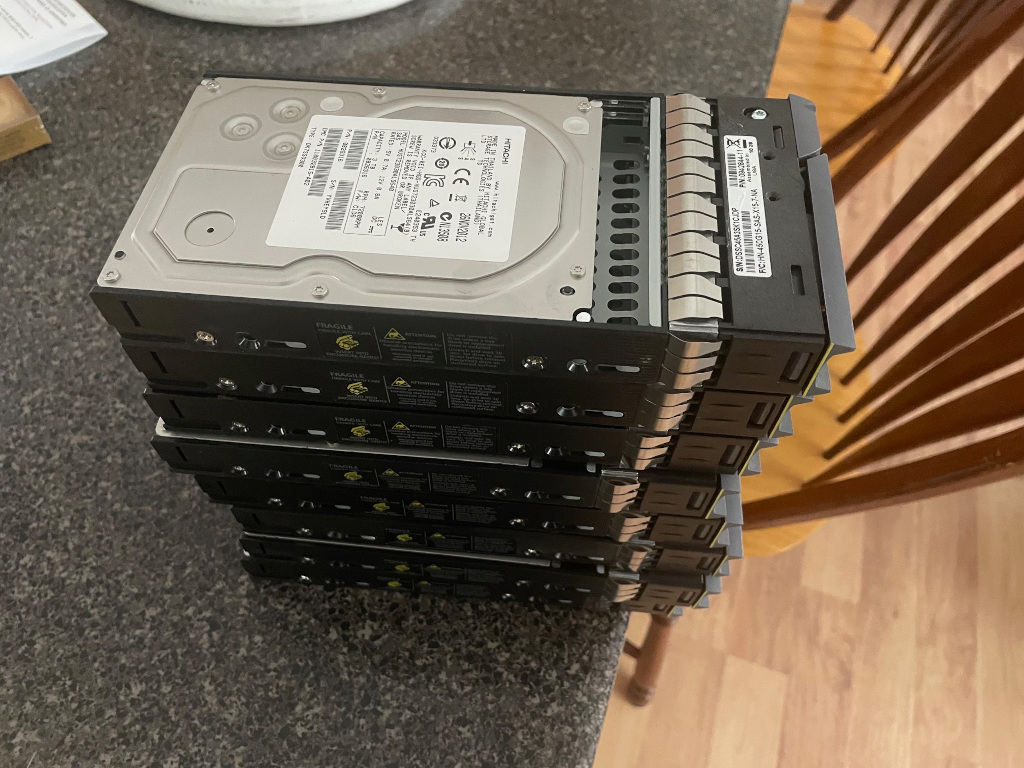
Recently I did a little trade deal and ended up with eight HGST 3 TB SAS drives. They’re old, very old. 2012 old — yikes! But I think they’ve been sitting a few years, so maybe they don’t have crazy hours on them.

New HDDs!Stack of Drives

These aren’t bad drives, especially in today’s market with the insane price hikes. Each disk is 3 TB, 3.5″ and 7,200 RPM. Benchmarked individually I was getting a consistent read speed of 150 MB/sec. Not bad!

The elephant in the room though, how much power do these suckers pull? I set up an old machine to benchtest that. Here is the data I got, power figures are total system power @ the wall socket, with a Kill-A-Watt meter.

The drives were cheap… next to nothing. Basically with the trade I did, each one cost me less than $10. The HBA was $18 shipped and the SAS breakout cable was $13 shipped. All readily available on eBay.

Power Figures

Baseline without HBA: 30W
Baseline /w HBA installed : 37 W
1 SAS disk: 44 W (+7 W)
2 SAS disks: 55 W (+11 W)
3 SAS disks: 65 W (+10 W)
4 SAS disks: 75 W (+10 W)
4 SAS + 1 SATA 3.5″ disk: 81 W (+6 W for SATA)


Observations:
Incremental power per SAS disk: ~ +10 W idle
SATA disk only adds ~+6 W idle

Test Bed System Specs:
Intel Core i5 4570 Haswell Quad Core
2x 4 GB DDR3 RAM — 8 GB Total
8 GB SATA DOM / SSD for the OS
LSI Logic SAS2308 Fusion-MPT SAS-2
Xubuntu 16.04 — doesn’t matter much here, but incl for completeness
750W No-Name Power Supply


NOTE:
All readings are steady-state idle; initial spin-up or seek currents are not included. Power scaling is roughly linear with the number of disks… So the data is likely fairly accurate.

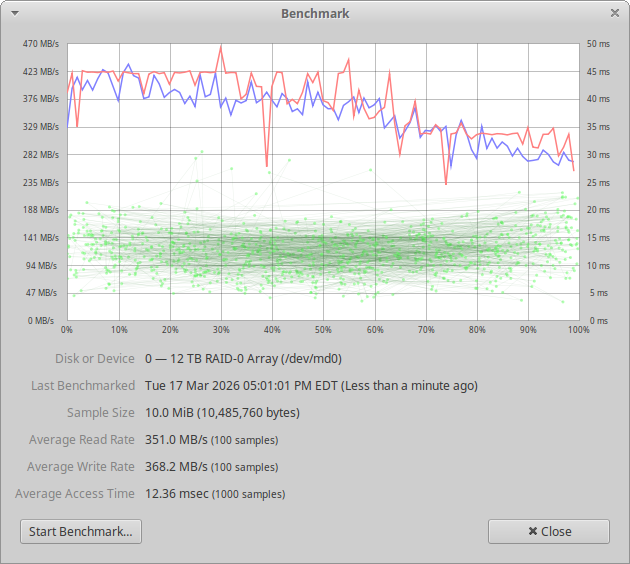
Lets look at some early performance figures…

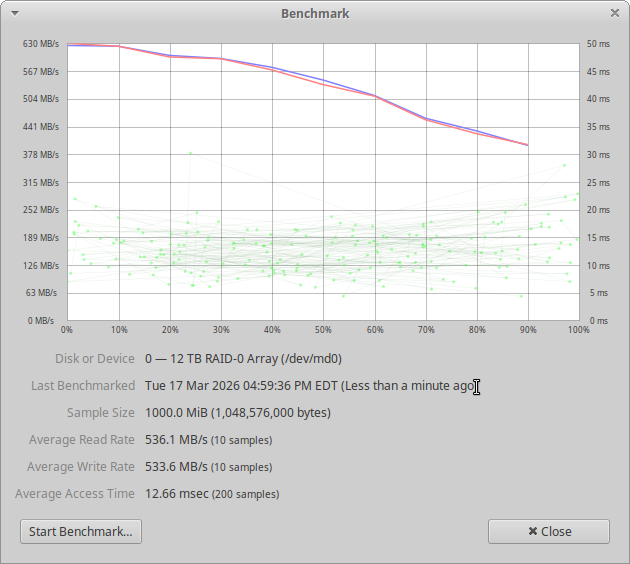
Now… that doesn’t look super impressive. But, if we tweak for larger test size…

That’s more like it! That is with four disks in a RAID 0 stripe. This isn’t how you’d normally be using them, but I’m more so curious what this old hardware can do and RAID0 will show the best case example of that.

Decent performance… if they used less power, I’d say it would be very attractive for a good way to add:

8 drives: $124 for 24 TB RAW (1 HBA, 8 drives, 2 cables)
4 drives: $70 for 12 TB RAW (1 HBA, 8 drives, 1 cable)

FreeBSD 15: Creating an NFS share with a USB disk

Here is how I recently went through the process of setting up a Raspberry Pi 4 running FreeBSD 15 to share a 1 TB USB hard drive to my local network via NFS.

Before we get to this point you’ll need to download the Pi aarch64 sdcard image from freebsd.org. Decompress the image (xz –decompress) and write it to a micro sd card with dd or your favorite imaging tool.

Boot the pi up, change root’s password, make a normal user, add them to wheel.

ntpdate -u pool.ntp.org will set your clock, and then you can install pkg or update the system with freebsd-update fetch install.

Now, onto the main point of this… we’re going to wipe a USB HDD, format it with UFS2 and share it on our lan via nfs.

Beastie with Pi in hand

Step 1 Identify your USB disk

camcontrol devlist

Find your USB disk, e.g., /dev/da0. Be sure it is correct.


Step 2 Wipe and partition the USB disk

gpart destroy -F /dev/da0
gpart create -s gpt /dev/da0
gpart add -t freebsd-ufs /dev/da0

This creates /dev/da0p1.


Step 3 Format the partition as UFS

newfs -U /dev/da0p1

Optional label:

newfs -U -L datadisk /dev/da0p1


Step 4 Create a mount point and mount the disk

mkdir -p /export/data
mount /dev/da0p1 /export/data
df -h /export/data


Step 5 Make it mount automatically at boot

Edit /etc/fstab and add:

/dev/da0p1 /export/data ufs rw 2 2

Mounting without reboot:

mkdir -p /export/data
chown ben:ben /export/data     # Your name here!
mount /export/data


Step 6 Set up NFS exports

Edit /etc/exports and add:

/export/data -network 192.168.1.0 -mask 255.255.255.0 -maproot=root -alldirs


Step 7 Start NFS services

Enable at boot, run these commands:

sysrc rpcbind_enable=YES
sysrc nfs_server_enable=YES
sysrc mountd_enable=YES

That will make changes to /etc/rc.conf for you! Now we run:

service rpcbind start
service mountd start
service nfsd start


Step 8 Verify the export

showmount -e

You should see:

/export/data 192.168.1.0


Step 9 Mount the NFS share your client PC

sudo mkdir -p /mnt/bsdpi
sudo chown ben:ben /mnt/bsdpi
sudo mount -t nfs bsdpi.lan:/export/data /mnt/bsdpi

Optionally you can put this in your fstab, probably want to do it in a way where it won’t keep your machine from booting if it isn’t online though!

SanDisk Industrial 8GB Micro SD card, good option for Pis?

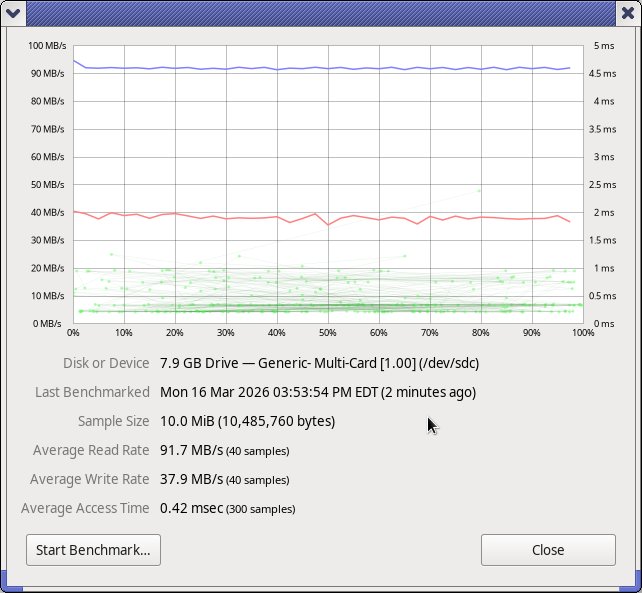
SanDisk 8GB Benchmark

I recently purchased a 3 pack of these off eBay for $30 shipped. They came today… I’m actually pretty happy with the performance I’m seeing here.

These should make good OS / Boot disks for Raspberry Pis and other SBCs. I needed a couple and well, I’m cheap. Industrial should be a good thing here, but I guess we’ll see down the road. I’d definitely put my money on one of these versus a no-name card.

Things like system and application logs and other frequent write operations can lead to the early death of an SD card. The “industrial” branding on these microSD cards usually refers more to environmental durability than to being optimized for heavy write workloads. (As I understand it, anyways) That means they’re rated to withstand wider temperature ranges, humidity, and vibration; conditions you might see in industrial machines, automotive systems, or outdoor electronics.

$5 CPU Activity LED Indicator for your Server made with RP 2040 (Pi Pico)

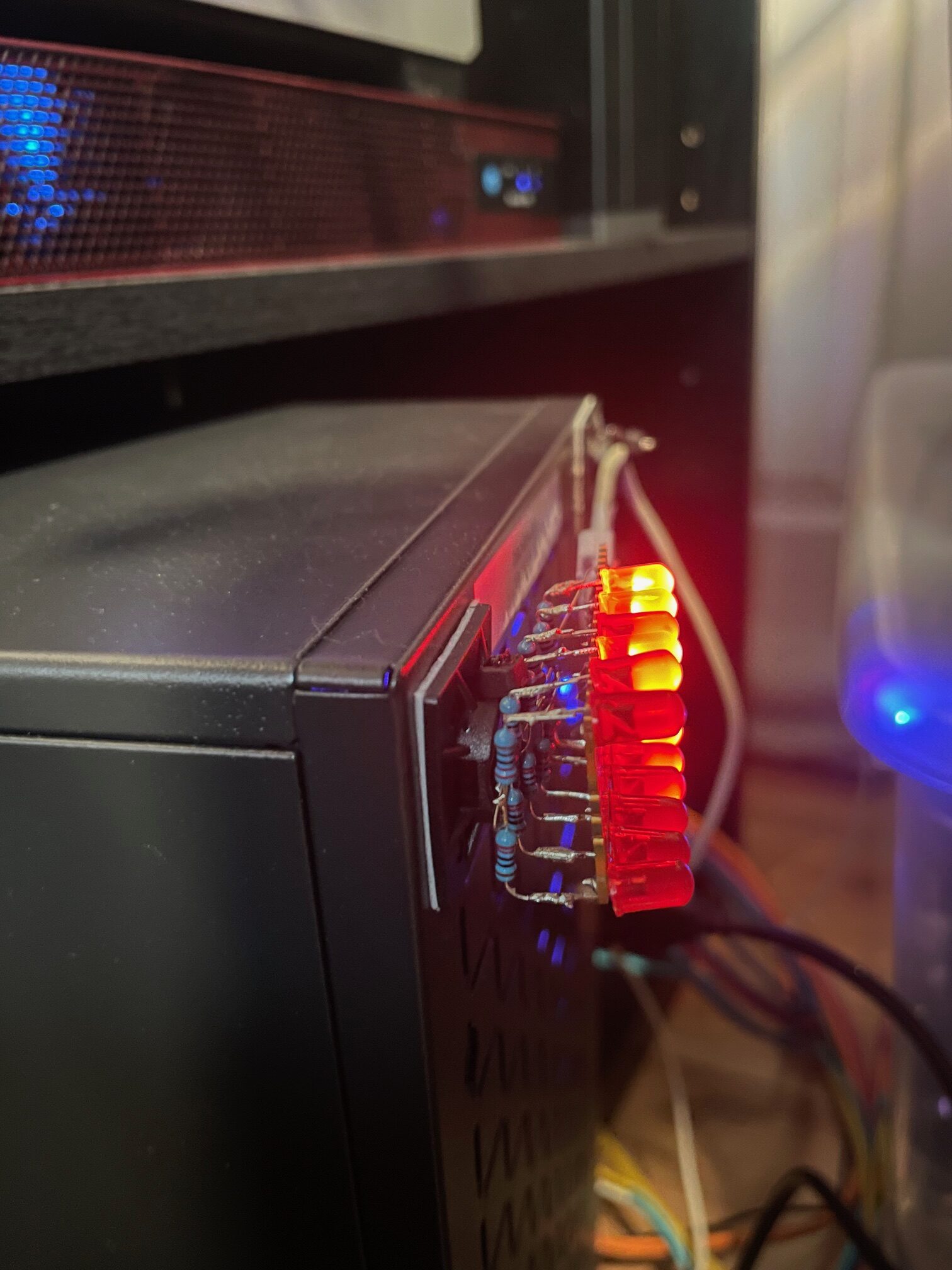
Because who doesn’t love a little das-blinkenlights??

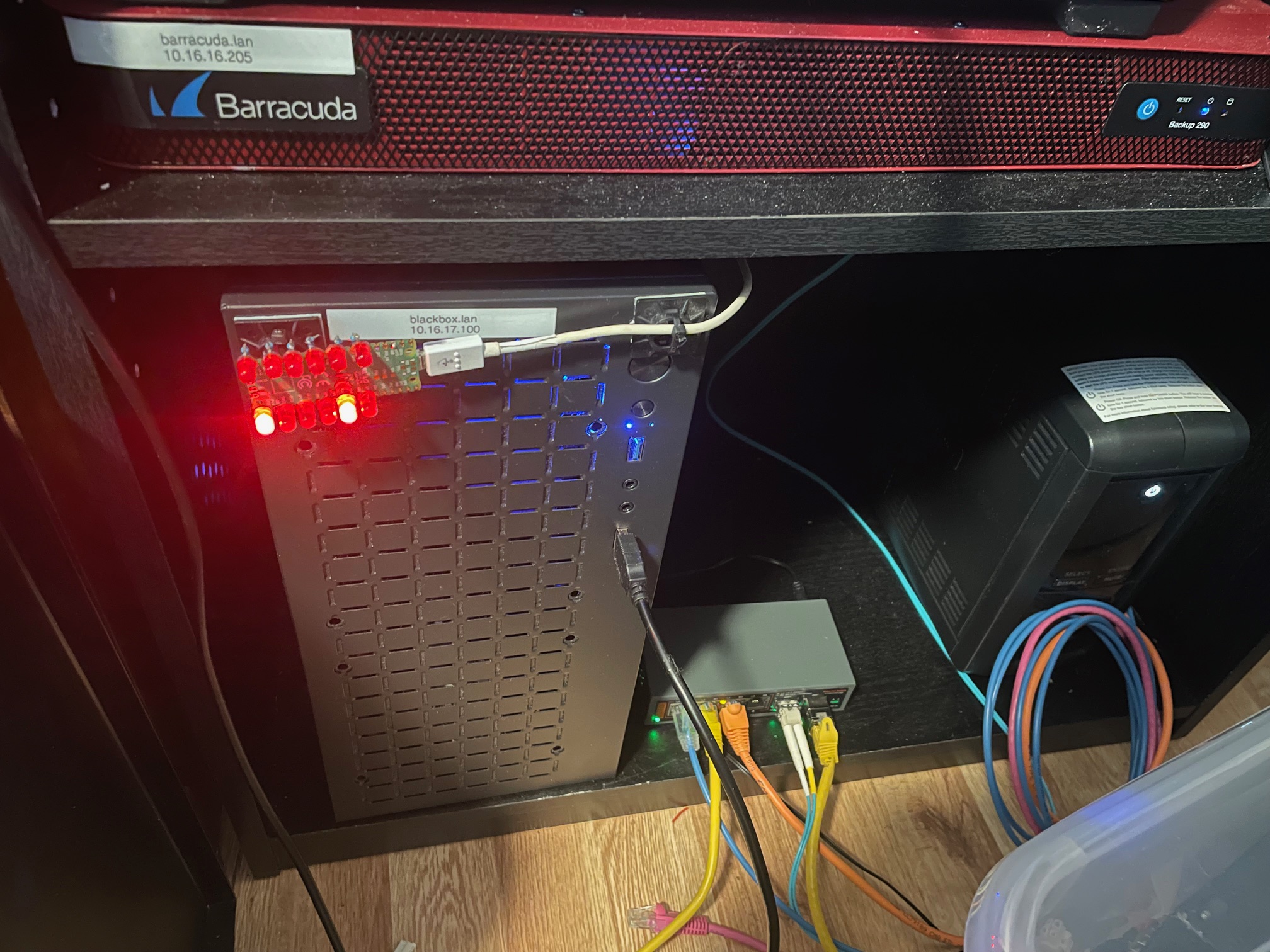
Pi Pico CPU Meter
Zip-tied to a cable management stick-on, on the front of my server

So this project is incredibly simple. You only need three things:
1. Raspberry Pi Pico (RP2040) — Of course, you could use pretty much any micro controller you want
2. Some LEDs. Mine were from a super cheap set which had a hundred or so? No specs on them, but they’re red.
3. One resistor, for each LED you’re going to install. On this I used 470 ohm resistors, I’m pretty sure.

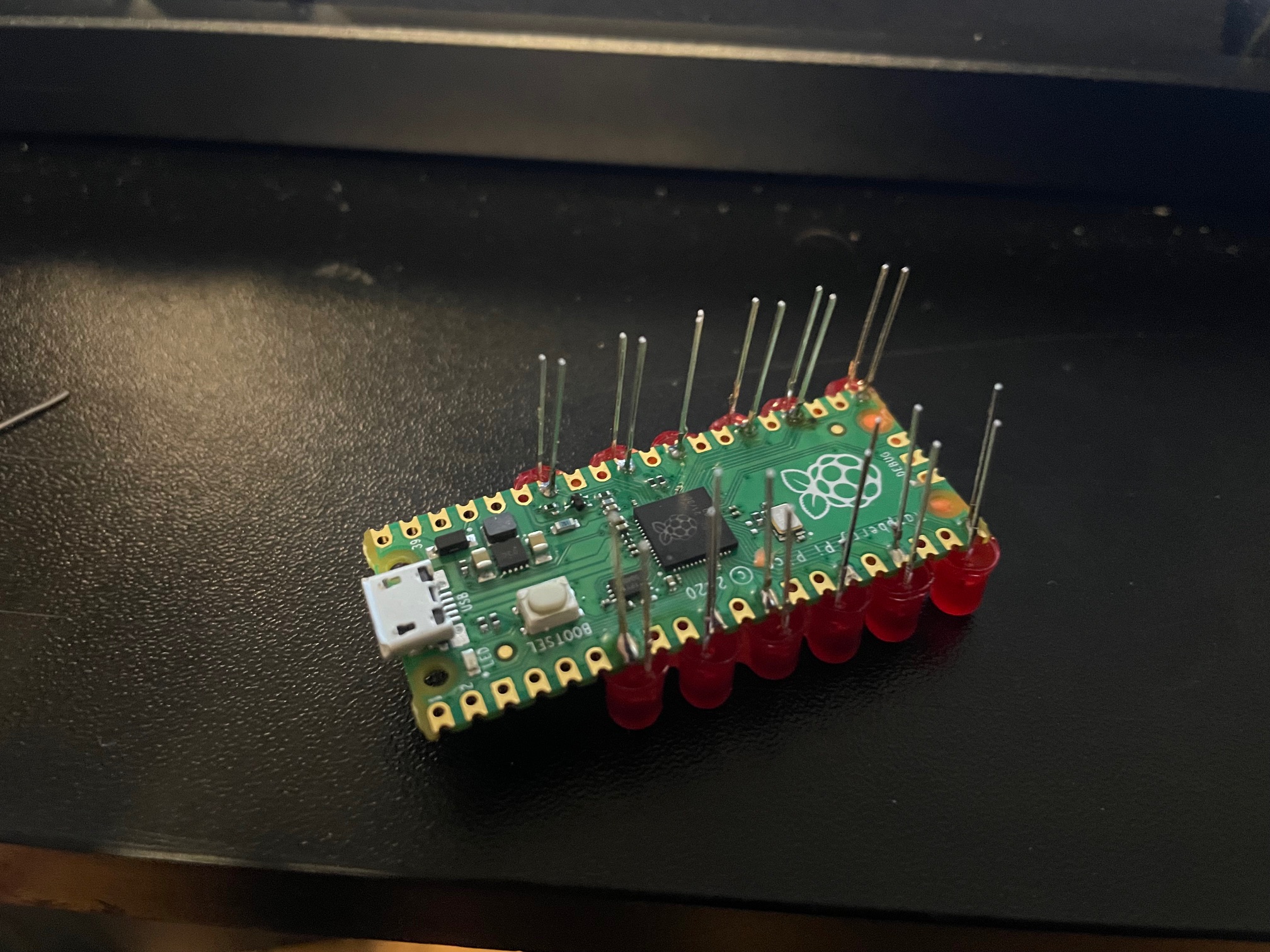
Pi Pico bottom side
The best part is, you don’t need any kind of custom PCB. I did this just by soldering directly on the Pi Pico board itself. Now, you’ll need to be careful to get decent looking LED spacing… but it is more than possible if you are patient.

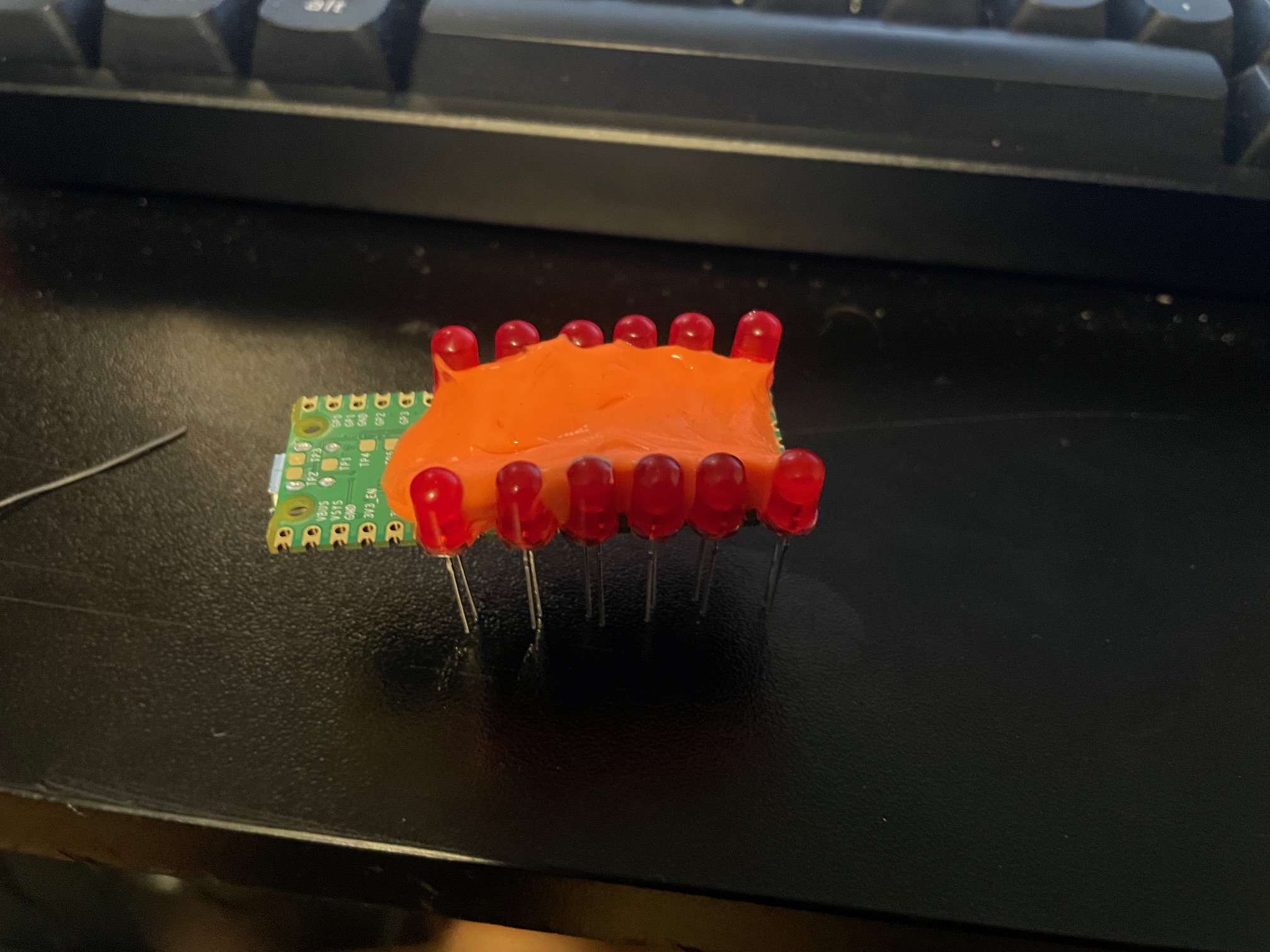
Silly-putty holding the LEDs
Silly-putty to the rescue!

You’ll definitely need some way to hold the LEDs in place or you’ll be fighting them the entire time. Blue tac would probably be ideal here. I didn’t have that, but I did have an old egg of silly-putty which worked out better than expected.

Back side of picoThis is what the whole thing looks like fully assembled. Basically, the resistor just gets soldered to the leg of each LED which is NOT on the GPIO. The way I’ve done it here was to tie the ground side of each LED through a resistor, and then they all fold into a backbone, each folded onto the next, down the line, and finally tie over to a ground pad on the pico.

Here is a video of it in action: https://ben.lostgeek.net/files/demo.mov

Basically, you’ll need two pieces of code. One which gets flashed to the RP2040 and handles the actual work of pulling the GPIO lines high/low when we get data from the computer.

How do we get the data to the pico? To keep things as simple as possible, we’re just using the Pico’s USB to uart. This makes the USB device show up in linux as a normal serial port, and makes it dead simple to interface with in software.

This is where the second piece of code we need comes into play. It is a daemon of sorts which runs on the machine of which we’d like to see CPU activity. Basically just a small amount of code to read from /proc, see our individual CPU core usage, do some math… and if it is above a certain threshold then we register that core as active and we tell the pico over serial.

My new server build has a 6 core, 12 thread Ryzen 5500 processor and so naturally I thought… Hey, wouldn’t it be cool if I had a little activity LED for each core? Well then, having one for each thread would be even cooler!

For a really nice, crisp, “activity LED” kind of genuine feel I’ve found that you want things updating pretty fast. My experience has been that a refresh period of about 30ms achieves that effect quite well.

If we try and poll the system too often then our daemon which sends data to the pico will start to use noticeable CPU time… Not very much by any means, but personally I’m happy to have the daemon only chewing up no more than ~ 1 % CPU utilization. With the 30ms update rate, it is only consuming 0.7 % of one thread. In other words, we’re only wasting a quite negligible 0.044 % of the total machine’s compute power to run our little light panel.

And who knows, I’m not a coder… someone could probably make this way more efficient. Let me know, if you have some much better code for this to run on 😉

You can get the code here: https://ben.lostgeek.net/files/blinken

Usual disclaimer Ai was used in the writing of the code for this.

Unreal Tournament 2004 now FREE! Linux support included!

UT2004

UT2004 is now free, easily installable on Linux Mac and Windows thanks to OldUnreal! This is even officially endorsed by Epic, so totally legit.

I just ran through the Linux install in less than 2 minutes. The download was very fast, no issues encountered.

You can use the install script here: https://raw.githubusercontent.com/OldUnreal/FullGameInstallers/master/Linux/install-ut2004.sh

Just mark it executable, and run with ./install-ut2004.sh -d /path/to/install (wherever you want)

UT99 (Game of the Year Edition aka GOTY), the original UnrealTournament is also available and has been for a little while.

https://github.com/OldUnreal/FullGameInstallers/tree/master/Linux

This is very exciting, and incredibly cool to see. I bought the Editor’s Choice box set back in the day and this was one of the first big box games I owned with native Linux support.

Linux Can Tell You All About Your SFP Modules

SFP+ Module

To start things off, I’d just finished switching everything over to the new Ryzen 5500–based server I built. Originally this box was using an Intel X540-T2 NIC, which has dual 10Gb RJ45 (10GBase-T) ports. If you’ve ever run 10 gig over twisted pair, you already know those things run hot. Really hot.

I had another NIC kicking around that uses SFP+, and figured if I could find some cheap fiber transceivers it might be a better way to link this machine up to my switch — especially from a heat and power perspective.

I ended up grabbing a pair of Avago-branded SFP+ transceivers and a fiber patch cable for $12.95 shipped on fleabay. Hard to argue with that. They’ve been working great so far, and they run MUCH cooler than the 10GBase-T setup. Like… not even close.

Out of curiosity, I plugged my cheap-o 4x 2.5Gb / 2x 10Gb switch into a Kill-A-Watt to see what was happening. One of the fiber SFP+ modules adds a little over a watt. The 10GBase-T SFP+ module I have? More like 3–4 watts, and that’s just sitting there at idle. Multiply that across ports and uptime and it adds up fast. No wonder 10GBase-T gear runs warm.

Anyway, here’s something neat I didn’t know before today: Linux can tell you all about your installed SFP modules. And not just basic info — actual live diagnostics.

In my case:

sudo ethtool -m enp3s0f0 — See the output of this @ the end of this post.

That command dumps the module’s EEPROM and diagnostic data. You get vendor info, part number, serial number, connector type, supported link modes, wavelength, and cable distance ratings. But you also get live telemetry.

Things like:
Module temperature
Supply voltage
Laser bias current
TX optical power
RX optical power
Alarm and warning thresholds

Which means you can answer questions like:

Is my transceiver overheating?
Is the RX light level getting too low (dirty fiber, bad patch cable, failing optic)?
Is the laser bias current unusually high?
Is anything drifting toward its warning thresholds?

I know very little about fiber compared to twisted pair, but this was pretty eye-opening. From that single command I learned my modules use LC connectors, I’m running 10GBase-SR with an 850 nm wavelength laser, and the link is rated for up to 300 meters on OM3, 80 meters on OM2, and 30 meters on OM1. In other words, short-range multimode optics — not single-mode.

And I can see that mine are currently sitting around 35°C, well under the 80°C warning threshold, with healthy TX/RX power levels and no alarms triggered.

That’s honestly pretty awesome.

I always assumed optics were black boxes. Turns out you can actually get a lot of data from them!
Continue reading “Linux Can Tell You All About Your SFP Modules”

Preventing accidental shutdowns when SSH’d into your server…

Because? People are stupid, we’re stupid sometimes…

If you’re like me, you probably SSH into a server occasionally and forget that it isn’t the local machine’s console when tabbing back to it after some time. This can really shoot you in the foot! Here are some ways to mitigate against accidental shutdowns which you can use on any server which is always-on. TLDR: Method #1 is probably the BEST.

NOTE: The systemd mask method would interrupt safe shutdown from say, your UPS telling the machine the battery is about to die. This is bad, so don’t create that situation. Unsafe shutdowns can lead to data loss!

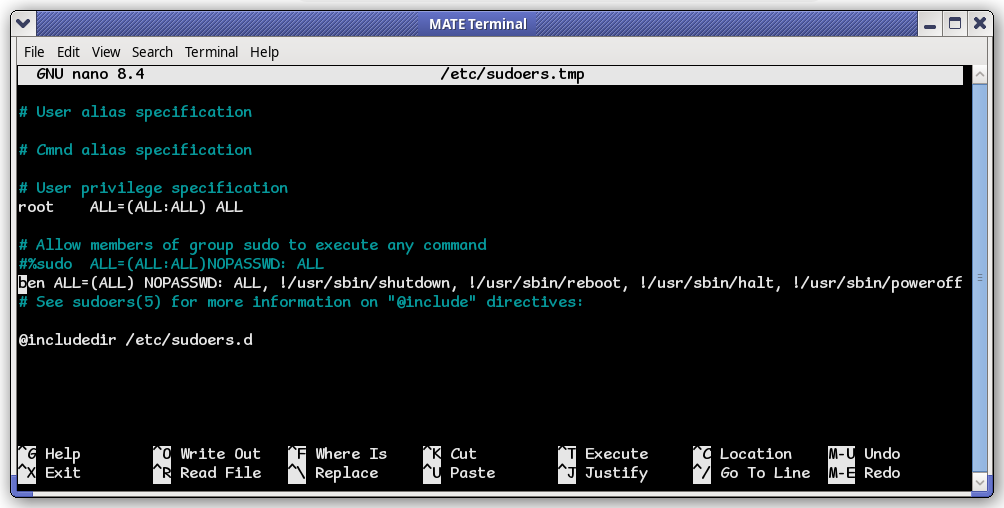
Method #1 — Via the sudoers file. Never log into a server as root to monkey around. If you need root, it is best to su in, and exit out as soon as your task is done. This in and of itself is why sudo and doas are better options.

Here is how I can ensure that while logged in as “ben”, I won’t accidently fall victim to my sudo poweroff or sudo reboot stupidity.

visudo

This is on debian. Use whereis (command-nameto find the actual paths on your specific system. That won’t protect me if I’m logged in as root, but it will if I am logged in as ben. That is good enough for me, 99% of the time.

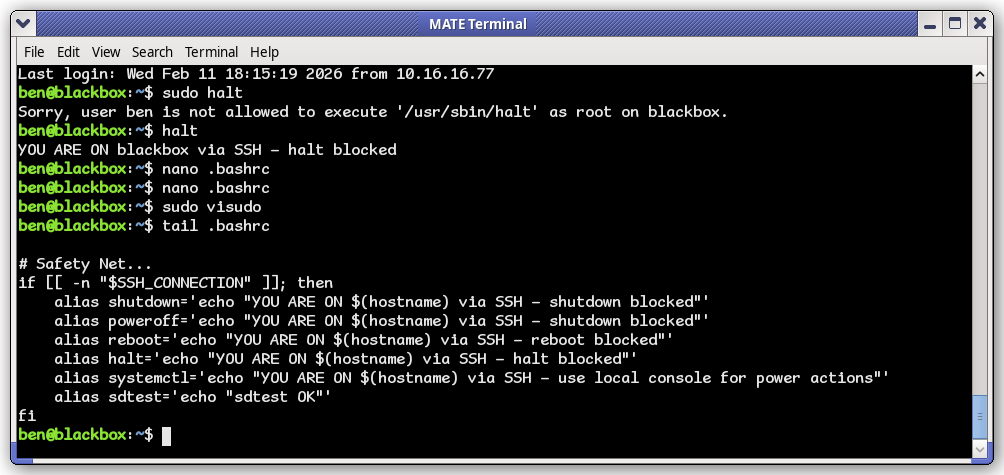
Method #2 — .bashrc of the user you normally use. This is not really effective, because if you prepend sudo to the command, it is going to run anyway!! This will however atleast remind you that you tried to do something dumb, and turn off the wrong machine. And yes, $SSH_CONNECTION is an environment variable you can use.

.bashrc

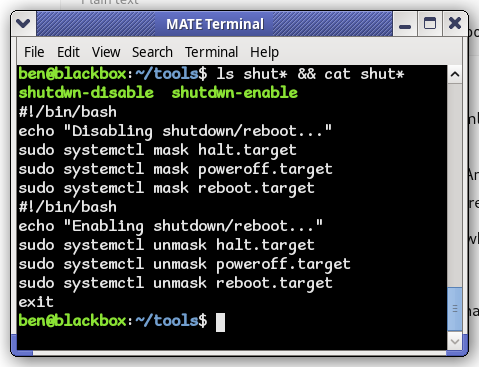
Method #3 — This is the only method that will truly stop the machine from shutting it down. If you’re using systemd, you can mask the commands and the system will not run them untill you re-enable them.

systemd

Probably not the best idea, because if say the power goes out now your machine won’t let the UPS trigger a safe shutdown. For now, I’ll move forward with the first two methods used together.

Moral of the story? Don’t do normal casual userspace work on the server! Just spin up a VM. Old habbits die hard, but this is definitely one I need to kill.


Writing a Better DD Wrapper GUI

Back in September last year, I was working on some kind of a wrapper for dd… Just for my own personal needs, nothing too fancy.

I got a little more ambitious, and was happy enough with the results to share it with anyone interested. Use at your own risk, of course.

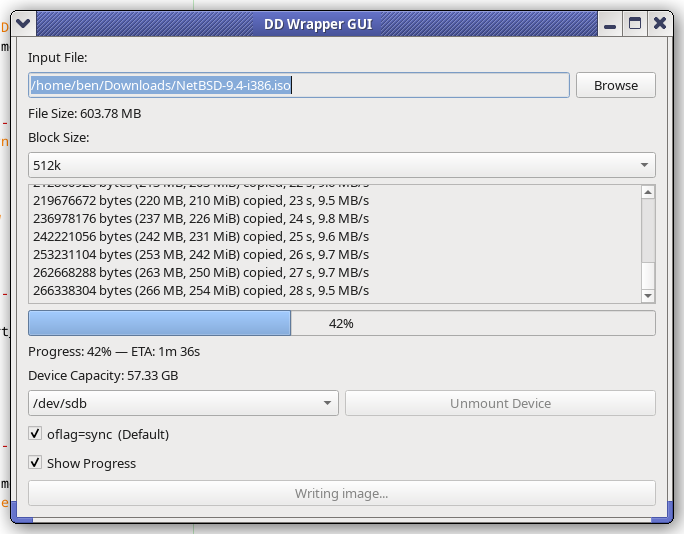
What is it? It is a GUI front-end to dd. It is dependant on the GNU version of dd. Written in Python, uses QT toolkit.

GitHub: https://github.com/HarderLemonade/ddwrap/

Screenshot of DDWrap

The 2008 Acer Aspire One…

Acer Aspire OneI’ve been wanting to grab one of these for a while and finally did. Ended up scoring a super clean, un-abused one just like I had back when these were all the rage. Mine came with Win XP, and IIRC had a SATA hard drive and 1 GB RAM. This one was actually a Linux machine from the get-go, neat! Only two things to note, it only has 512 MB RAM… and (according to DMESG anyway) has a PATA SSD… 8 whopping gigabytes. The 8 gig part I don’t mind, but I just expected it’d be SATA and I could easily throw something in… Oh well. Truth be told, 8 GB is enough. Right now I have Debian 12 /w Xorg + i3 and plenty of things installed and I think I’m still under 2GB used on disk. How does it run? Surprisingly well, considering it has 512MB RAM and a 1.6 GHz single core, 32 bit CPU. (HT, but not a real dual core)

$29.99 shipped is all I paid. Worth it for the nostalgia, plus I just wanted a linux machine I can run in the palm of my hand. It may struggle on the modern web, but it is excellent to just pick up and SSH into servers with. Does OK with Falkon on lighter sites too.

You can even still get batteries for these! $18 shipped got me a brand new one, and it is shockingly good for the money. Seems to give a couple hours of runtime.

Supercharging your home network on the cheap

Its no secret that if you want to do multi-gig networking on the cheap, sites like eBay are the place to visit. Castoff enterprise gear can be had for pennies on the dollar, if you don’t mind getting equipment used. Used it may be, but this stuff was absolutely top of the line a decade ago, and it will still impress you with the performance and stability for casual use cases.

My first rule for doing multi-gig on the cheap: Do not overpay!

The kinds of network cards I’ll be mentioning in this article are often literally being thrown away into ewaste. Not because they’re not good or anything like that, they cost a small fortune 8 – 10 years ago… but in the enterprise, nothing gets kept that long.

Here are two examples of extremely affordable 10 GB networking, on the cheap. Both cards use an Intel chipset… what does that mean? World class stability and reliability, mature robust drivers, and excellent support under both BSD based operating systems aswell as Linux. These two cards use different chipsets, but all you need to know for now is that both are reasonably solid and battle tested options. What’s the difference? The media they use.

Intel X540 T2Intel 10GB NIC with SFP+The first card is the X540-T2, and this is the dual RJ45 version. This readily takes twisted pair ethernet. Now, on the surface you’re probably thinking “OK, that would be the one I want!” and you may be right. Let’s get into it.

So yes, that first card will take normal Cat 5 / 6 / whatever twisted pair ethernet cabling… the stuff you’re already using at home to do gigabit. There is a catch though. We’ll get back to that. The second card, instead of having RJ45 jacks actually takes SFP+ modules. These come in many different options, and are typically used for fiber optic networking. SFP and its variants can support everything from 1 GB all the way to 400 or even 800GB on modern network gear.

If you’re like me, you’re thinking well why would I want that? I don’t want that! (That was what I thought, early on in this endeavor)

Cards set up for SFP+ transceivers generally consume less energy and as a result don’t get quite as hot as 10 gig gear which takes standard twisted pair ethernet. Notice that the X540 has a fan while the second card does not? Well, that second card actually runs substantially cooler! Even when using a transceiver which furnishes an RJ45 10GB ethernet connection!

There is a catch though. Fiber optic moduiles can be found very cheap. You can also often find direct-attatch cables (DACs) which are essentially two SFP modules joined by a wire… these are also a good affordable and energy efficient option. There is one reason why you may not want to go with SFP style interfaces, atleast not on too much of the gear you pick up… and that would be if you’re planning on running it with twisted pair anyway. Sure, you can buy transceivers on Ebay and Amazon, but that is an additional $25 – $30 per port you’ll need to invest, and boy do those suckers run HOT.

The information above covers use cases for home servers and NAS builds. It probably won’t be too helpful on your desktop or gaming PC though… And the reason is PCIE lane availability. Consumer platforms only have a limited number of PCIE lanes… basically just enough to give you 16 lanes for your graphics card slot, and then another 4 for the primary NVME/M.2 slot. Everything else is used by the chipset, and chances are that if you do have a second M.2 slot or additional PCIE 1x, 4x, 8/16x slots that the chipset is what drives them. Also, don’t be fooled. There is a chance you can configure a consumer board with two physical 16x slots to run both at 8x bandwidth… but if you have your graphics card getting 16 lanes, you will not have more than 4 lanes left over… And more than likely, you’ll be working with just a single lane!

The achelies heel of those old enterprise castoff 10 gig cards is their age. They’re probably going to be gen 2 PCIE, which is why they need 8 lanes for the two 10gig interfaces. Will it work at 4x? Sure. But not at 1x… Even if the card does work (it might!) the bandwidth just isn’t there.

Your modern system will have fast PCIE, likely gen 3, 4 or perhaps even 5… But if the peripheral you’re dropping in (the NIC) only supports gen 2, then that is what we need to account for to determine bandwidth needs.

For my desktop, I had a secret weapon…

We don’t want an 8x card if we’re only going to be giving it a single lane… Know what would be great? Using something with a more modern interface. Gen 3 x 1 lane can darn near do 10gig. I’m trying to keep this on a shoe-string budget though, and since my server uses SATA SSDs for the bulk storage I only needed roughly 500MB/sec to take nearly full advantage of what those disks can do.

So what we want is a card with a gen 3, single lane interface. We want do avoid total no-name solutions… Stick to brands which you associate with the IT world. Intel, Mellanox (now nVidia), Chelsio, Aquantia are some good ones to start with. Don’t buy a Realtek 5 or 10 gig card, if you want my advice. You can get something much more reliable/performant for the same or less cost.

Aquantia 5 Gig NICFor just $20, I was able to score this Aquantia 5GB/sec network card. It is a gen 3 card, and is only a 1x card anyway. Perfect! It also isn’t a furnace like the 10gig RJ45 cards are… this is another big bonus since I like my workstation as quiet as possible.

Connecting it all together…

You’ll need a switch that supports these faster standards. As of lately, there are some no-name switches with a half dozen or s0 2.5 GB ports and then a pair of 10GB ports… there are tons of these on the market, and they are dirt cheap. What’s the catch? Well they’re no-name for one. And you’ll need to accept the fact that they’re going to all use SFP+ for their 10GB ports. Fear not.

Cheap switch /w 10GigFor around $40 I got this “managed” switch. Why did I put it in quotes? Well because this thing is kind of a joke… but what the heck, it works!

SFP+ transceiverThis is one of the two SFP+ transceivers I ordered. I got my second one off Amazon, and pair $10 less for that one. The ebay (goodtop) one seems to run noticably hotter! I’d recommend ordering modules by HiFiber instead. The HiFiber module I got even says right on it that it supports 1GB, 2.5GB, 5GB and 10GB… this is good to know because there is a lot of 10GB gear (especially older stuff) which only supports two speeds. 10GB and 1GB. Got a 2.5 or 5 GB siwtch? Too bad, if you’ve got something like the X540-T2.

For the rest of your PCs

How about 2.5 gig? The cheap switches mostly have 2.5 gig ports, so I got a couple cards. Again, avoid Realtek. Intel chipsets are better, but some can be buggy. Avoid the i225, try and stick with something like the i226 cards. Expect to pay $25 – $30 for a card. Perhaps just skip it and go for 5 gig? Maybe… Just make sure whatever you get can negotiate to speeds other than 1 and 5 gig. (Example: you have a 5 GB nic and 2.5 GB switch, but you’re stuck @ 1 GB because your nic can’t negotiate @ 2.5GB…)

Intel 2.5GB NIC

Performance: Desktop to Server (5gb -> 10gb)

iperf testExcellent. Beats the pants off 1Gig! Something is going on there where we’re seeing a little more in one direction than the other, but I’m not too worried about that. What I’m happy with is I am seeing a substantial uplift from what I was getting with a 2.5 GB nic in the same situation.

How about NFS performance? Benchmark of an NVME disk in my server, mounted on my workstation.

NFS benchmarkWhile it may not be 10 gigabit, this is nothing to snuff at. I’m very happy with the results, given the restriction of only being able to use a 1x PCIE card.

© 2025 LostGeek.NET - All Rights Reserved. Powered by ClassicPress, NGINX, Debian GNU/Linux.