Installing Debian onto Mirrored rootfs (Soft RAID 1)

SSD Mirror
Introduction

I’ve been in the process of upgrading my server… going all the way from the modest i5 7500T all the way up to a Ryzen 5 5500. Since I started acquiring the first couple items for the new build, I had the goal of booting this machine from a mirrored pair of SSDs… This way even if one had some kind of catastrophic failure, I can still boot from the second drive and replace the failed one when convenient. Now, I must state the obligatory “RAID IS NOT A BACKUP!”… If and when something gets screwed up, it will immediately screw up both copies instantaneously. So you’re really only protected from an actual disk failure. Frequent backups are still something one must do, to protect from all other scenarios.

So, why are we here?

Glad you asked! Some Linux distributions have evolved to be a bit more ‘helpful’ in scenarios like this… for example, while it isn’t as easy as it perhaps could be, Fedora had absolutely no problem doing what I wanted the first try. No fuss. It just worked.

Debian on the other hand… I’ll admit I re-installed 3 or 4 times. Once I realized the problem, it was obvious… But if you’re reading this, you’re probably wondering what the problem is!? Why won’t this junk work??

What worked for me

So, what we need to understand here are a couple of limitations. I’m not totally sure if they’re limits of EFI, grub, or debian’s specific configuration but none the less, this is what I’ve learned.

You can’t put the ESP/EFI partition on your linux mdraid. What you want to do instead is, slice up both your disks like normal… in my case, I did:

— 500 MB EFI
— 477 GB RAID PARTITION
— 2 GB RAID PARTITION

Do both disks exactly the same. The key here is, set up that first partition as a normal EFI partition… and do it on BOTH disks. Once both disks are sliced up, go into the Linux Software RAID option… Create an MD device. Pick your two devices for RAID 1… Firstly the large (in my case 477 GB) partitions… Then run through again, this time pairing up the smaller ones for SWAP. Finish the MD setup.

Back on the partitioner’s main screen, you’ll now see two additional devices above your physical disks. Double-click them… setting the first one up with ext4, xfs, whatever you’d like… and a mountpoint of / for rootfs. Next, do the swap.

In each disk, ensure that the ESP/EFI partition has the bootable flag checked and the EFI System partition type has been used (not RAID, fat32, etc).

Finish the install… it should go without a hitch. Now, we’re in pretty good shape here. Everything on this Debian system will be mirrored to both disks, meaning each write is simultaneously sent to each disk. One can die, and nothing will be lost, but we still need to resolve EFI. To get our second EFI partition populated, read on…

On the initial boot

Go ahead and run lsblk and see which disk you’ve booted from. It will likely be sda but could very-well also be sdb. Whichever disk we *did not* boot from, we want to mount that disk’s EFI partition.

Make a directory, /mnt/efi2 and mount that partition there… then copy everything from /boot/efi into the mirror disk’s EFI partition.

(as root)
mkdir -p /mnt/efi2
mount /dev/sdb1 /mnt/efi2
cp -a /boot/efi/* /mnt/efi2/

Now, we’ll also install grub to that disk…

grub-install /dev/sdb
update-grub

Reboot… And try booting into your other SSD. It should work!

FreeBSD 15.0 RELEASE has landed!

BeastieFreeBSD 15.0: Notable Improvements for Desktop and Laptop Users

FreeBSD 15.0 introduces a range of updates that strengthen the system’s usability on desktops, laptops, and general-purpose machines. Several areas that matter most to daily users—networking, graphics, and desktop environments—see meaningful development in this release.

A key update is expanded WiFi support. FreeBSD 15.0 adds drivers for Realtek’s rtw88 and rtw89 chipsets, used in many current laptops. Intel iwlwifi support has also been refined, and the installation media now includes a dedicated WiFi firmware package, making it easier for a wider range of wireless adapters to function immediately after installation.

Graphics hardware support also advances. By incorporating newer Linux DRM driver code, FreeBSD improves compatibility and performance on modern Intel and AMD GPUs. This benefits both X11 and Wayland sessions, with smoother acceleration and more consistent behavior across display setups.

Desktop environments gain from this foundation. KDE Plasma, GNOME, Xfce and others continue to be available through packages, and improved hardware support helps these environments run more reliably. Work on a more desktop-friendly installer is ongoing and aims to simplify initial setup in future releases.

The system as a whole also receives updates. Optimized libc routines bring performance improvements on amd64, and various device drivers—covering networking, audio, PCI, and storage—have been updated for better compatibility and stability.

Taken together, these changes make FreeBSD 15.0 a solid release for users running the system on everyday hardware, offering broader support and a smoother experience across a wide range of setups.

Grab it now!
https://download.freebsd.org/releases/amd64/amd64/ISO-IMAGES/15.0/

Devuan 6.0 “Excalibur” Released – Your Systemd-Free Debian 13 System

init freedom

Less than three months after the official release of Debian 13 “Trixie,” the Devuan project has officially launched Devuan 6.0 “Excalibur” on November 2nd, 2025.

Excalibur brings all the benefits of Debian 13’s updated packages, modern kernels, and long-term support while staying true to Devuan’s systemd-free philosophy. The release ensures that alternative init systems like sysvinit and runit integrate smoothly, and existing Devuan users can plan upgrades with confidence.

For the Devuan community, this release represents a stable, up-to-date option for both new installations and older hardware users who want the reliability of Debian without systemd. If you’ve been waiting to move to a fresh, modern, yet systemd-free environment, Excalibur is ready to download and install.

Announcment: https://dev1galaxy.org/viewtopic.php?id=7507

Learn more and download: https://www.devuan.org/os/releases

Firefox Scrolling Inverted??

First time this has happened to me, but running the FireFox Nightly (which came on NetBSD 11 BETA) I noticed my TrackPoint \ middle mouse scrolling was reversed. I think they might call this “natural scrolling”… anyway, to fix it simply go to about:config in the title bar and search for mousewheel.default.delta_multiplier_y — Change it from 100 to -100 and presto, normal scrolling behavior.

OpenBSD 7.8 Released Today, /w Pi 5 Hardware Support!

OpenBSD 7.8, is another careful step forward that strengthens daily usability across laptops, desktops, and ARM64 systems. While this release isn’t radically new, the OpenBSD team continues to refine and expand their legendary system in all the right places.

The most visible change is Raspberry Pi 5 support. OpenBSD now boots cleanly on the Pi 5 with working SDHC storage, Ethernet, and Wi-Fi power management through new RP1 and sdhc drivers. That takes the board from experimental to genuinely usable. Additional ARM64 updates improve clock, PWM, and RTC support on newer SoCs, broadening the list of hardware that “just works.”

Power management on laptops sees steady progress. AMD systems handle S0ix suspend and resume more reliably, and the amdgpu driver now sleeps and wakes properly under S3. Laptops with GPIO-based lid sensors can suspend and resume cleanly, and hibernation reliability improves with better pre-allocation during boot. Small changes, but together they make OpenBSD behave more predictably on modern notebooks.

Networking performance benefits from new multicore TCP and IPv6 input handling, allowing up to eight threads to process traffic in parallel. Several core system calls, such as close() and listen(), were unlocked from global network locks, reducing contention on multi-CPU systems.

Graphics support advances with a DRM update based on Linux 6.12.50, improving amdgpu reliability and adding Qualcomm display controller support. Xorg remains the standard display server, while Wayland continues to function through XWayland and wlroots compositors for those who prefer a modern stack. In ports, GNOME 46 and KDE Plasma 6 are available, keeping desktop environments current alongside updated Firefox and Chromium builds.

The built-in hypervisor gains AMD SEV-ES support for encrypted guests, and the installer adds further safeguards and clearer defaults. Security hardening continues quietly across the base system, with more software adopting pledge and unveil.

OpenBSD 7.8 doesn’t chase trends, but it delivers a more capable, consistent, and secure system across a wider range of hardware. Whether on a modern laptop or a Raspberry Pi 5, this release shows the project’s continued focus on quality and correctness—hallmarks that keep OpenBSD in a class of its own.

https://www.openbsd.org/78.html

Trying out FreeBSD 15.0 BETA 1 on ThinkPad T500

Screenshot
FreeBSD 15 running MATE Desktop

I for one am definitely looking forward to FreeBSD 15 RELEASE! 14.3 brought strong improvements, and things can only get better. Going to be putting it on my X1 Carbon Gen 3 soon, but for now I figured I’d try it on a spare machine. Nice to see it got going with hardly any effort on this 15+ year old machine! Just had to do a bit of manual X.Org config tweaking…

For a Core 2 Duo with 4 GB RAM in 2025, it runs surprisingly well. I’m posting from this machine right now 🙂

New home networking content is on the way!

eBay Orders
Ignore the iphone case, I ordered that for a friend!

As some of you will notice, yes there are two SFF boxes, and three NICs…

I need to decide if I’m building a 10 GB router, or more of a 2.5 / 1 G pfsense box for just having a better internet router and firewall. The lil Wyze box will be fantastic as a router I already know, those Gemini Lake chips are amazingly powerful for what they are. Also very low power draw and hardly make any heat whatsoever.  The SSDs? They just seemed like a good deal.

Here are the SFF machines. Obviously the first one is more “sff” than the second… That’s OK though, I needed something with real PCIE slots, and a real powersupply to run 10 GB network card(s).


More to come as these things arrive!


Resetting CMOS Password on ThinkPad T420

I recently picked up a used Thinkpad T420. While I could boot it up, use it, install another OS and all that there were some settings locked out.

There is apparently an option for a regular CMOS password, and a “supervisor” password. Hitting enter got me in with limited access, but I couldn’t do things like turning hardware virtualization on or off… among other things.

If you’re like me, maybe you’re thinking: Hey, just unplug the coincell for a few minutes!

Well that doesn’t work. Fortunately though, there is an easy enough hack. Remove the screw for the RAM door on the bottom of the machine, then use a credit card or blade to nudge the keyboard up from the palm rest. Carefully keep the keyboard connected, but place it sideways out of the way. We need to short a couple pins below where the CMOS coin cell battery connection is on the main board.

General Area
We need to be in this general area. Excuse the flashlight!

Now, lets zoom-in on the actual area where we need to short two points… Tweezers will work well for this purpose.

Pad areaNow, inside that area where we have the orange box… We need to short the upper left corner to the middle right (center row) pad. This should make things totally clear:

So, this is what to do… Keep either the AC supply, or battery attached to the machine and boot it up.
When you boot it up, hit the blue ThinkVantage button and QUICKLY use your tweezers to short those two points together for a second. If successful, you’ll see the following message.

success screenData access error” sounds bad, right? Well in this case, such an error indicates success. Yeah, and you don’t stop ‘Cause it’s 1-8-7 on a undercover tsop! Well, SPI, but that wouldn’t rhyme…

Once you get into the BIOS (press F1), be sure to disable all passwords or set them to blank and then save.


That’s it! Worked perfectly on my Thinkpad T420. I found this method via a YouTube video, his pictures were not so clear though. Hopefully this will help my fellow Thinkpad enthusiasts!

gputemp, a simple AMD Radeon manual fan control solution

# gpufan -- sets manual fan speed on AMD Radeon GPU. For 5.x / 6.x Linux Kernel users running AMDGPU driver...
# Author: Ben @ LostGeek . NET
# Created 09/20/2025

# 	READ ME! How to use:
# save as /usr/local/bin/gpufan then chmod +x
# running "gpufan" will give temperature & fan rpm. gpufan followed by a number (1-100)
# will manually set speed. "gpufan auto" will restore auto / driver control.

Your feedback is welcome!

https://ben.lostgeek.net/code/gpufan/

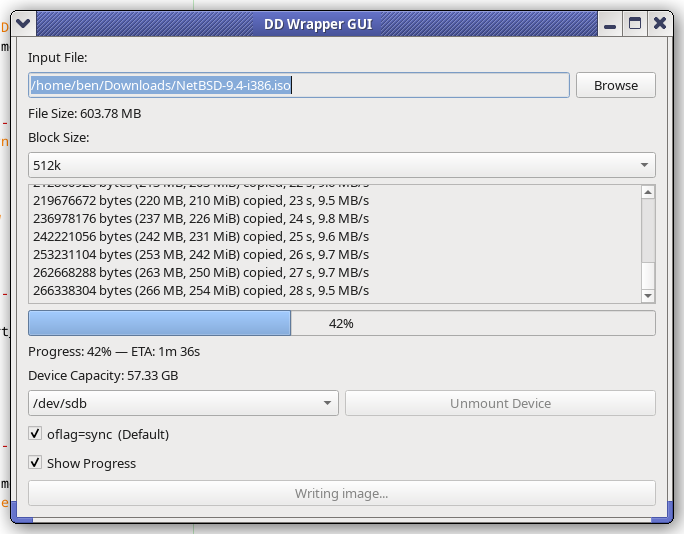
Writing a wrapper for DD

I’ve been working on a handy lil’ tool, basically a glorified wrapper script for dd. But I think I worked in some solid concepts:

You just run it, no args needed. (Though you can pass args if you want.)

Automatic target selection: Devices with the prefix /dev/sd* that are not mounted will be considered. I’ve put in a volume limit of 64 GB for safety. If the device is greater than 96 GB, then (imo) it’s probably something else – HDD/SSD – so in that case a manual override is required.

Automatic block size: Chosen based on drive capacity. Tiny drives use a smaller block size, while larger (likely more modern USB 3) drives can use big chunks, like bs=4M. This usually improves performance.

Once I get it all ironed out, I’ll share the code. So far, I find it pretty handy.

btflash in action…
© 2025 LostGeek.NET - All Rights Reserved. Powered by ClassicPress, NGINX, Debian GNU/Linux.