Turning down the noise on your server’s logs with Fail2Ban

Access Denied!

If you’re running services exposed to the public internet, you’ll obviously need a way to remotely administer the machine. By far, the most common method is SSH, typically via OpenSSH. It is used on the vast majority of BSD and Linux systems.

One of the best improvements you can make to your SSH security model is to simply disallow password authentication entirely. A password can be guessed, leaked, or brute-forced. While an SSH private key could also be leaked or stolen, it is still widely considered to be the more secure and preferred option.

That said, there are situations where you may want or need to allow login from arbitrary machines. In those cases, requiring a private key may not be practical, since you would need to carry it with you everywhere, which isn’t always possible or convenient.

Basic SSH Hardening

First things first: do not allow anyone to log in as root using a password.

Really, you should not allow root login over SSH at all. But if you must allow it, then ensure it is key-only authentication.

If your server is exposed to the public internet, and especially if it listens on the default port 22, you can absolutely expect it to be hammered by bots and automated attacks. These will attempt logins constantly, probing for weak credentials.

They will also crawl your web services, checking endpoints and attempting to fingerprint your system. From that fingerprint, they can infer what vulnerabilities might apply. This is not hypothetical — expect hundreds or thousands of attempts per day.

Enter Fail2Ban

This is where Fail2Ban comes in.

Fail2Ban monitors logs for suspicious activity and reacts automatically. You define patterns (for example, repeated failed SSH logins), and when those patterns are matched, Fail2Ban takes action.

The most common setup is simple:

If an IP fails to authenticate 3 times, ban it at the firewall level.

Fail2Ban does this by inserting firewall rules (via iptables, nftables, or UFW depending on your system). Once triggered, traffic from the offending IP is dropped immediately.

This drastically reduces the effectiveness of brute-force attacks. Instead of allowing unlimited guesses, attackers get cut off almost instantly and must switch IPs to continue.

More Advanced Uses

You can go further if you want.

For example:

  • Ban entire subnets instead of single IPs
  • Aggressively block repeat offenders
  • Target other services (nginx, mail, etc.)

You can even block large geographic regions if you map IP ranges, though that requires more care and maintenance.

Whitelisting (Very Important)

The opposite is also possible — and recommended.

If you have a static IP at home, work, or another server, you should whitelist it. This ensures you never accidentally lock yourself out.

Even if you are using key-based authentication, having a whitelist adds an extra layer of safety and peace of mind.

Debian Setup (Minimal and Clean)

Install Fail2Ban:

sudo apt update
sudo apt install -y fail2ban

Create a local configuration file (do not edit defaults):

sudo nano /etc/fail2ban/jail.local

Paste the following:

[DEFAULT]

# NEVER ban these IPs (add your own here)
ignoreip = 100.100.100.100 200.200.200.200

# Ban settings
bantime = -1
findtime = 10m
maxretry = 3

# Backend auto works fine on Debian
backend = auto

# Use nftables (modern Debian) or iptables fallback
banaction = ufw
#nftables-multiport

[sshd]

enabled = true
port = ssh
logpath = %(sshd_log)s


If you are NOT using UFW, use this instead (this will always work on Debian)

Enable and start the service:

sudo systemctl enable fail2ban
sudo systemctl restart fail2ban

If using UFW, make sure it is enabled and allows SSH:

sudo ufw allow ssh
sudo ufw enable

Verify everything is working:

sudo fail2ban-client status
sudo fail2ban-client status sshd

What this configuration does:

  • 3 failed SSH attempts results in a ban
  • Ban is permanent (bantime = -1)
  • Your IPs are never banned
  • Firewall rules are handled via UFW (or iptables if you chose that route)

Final Thoughts

Fail2Ban is not a silver bullet, but it is an extremely effective first line of defense. It turns constant background noise from the internet into something manageable and largely harmless.

Combined with disabling password authentication, using SSH keys, and disabling root login, you end up with a setup that is simple, clean, and very difficult to attack in practice.
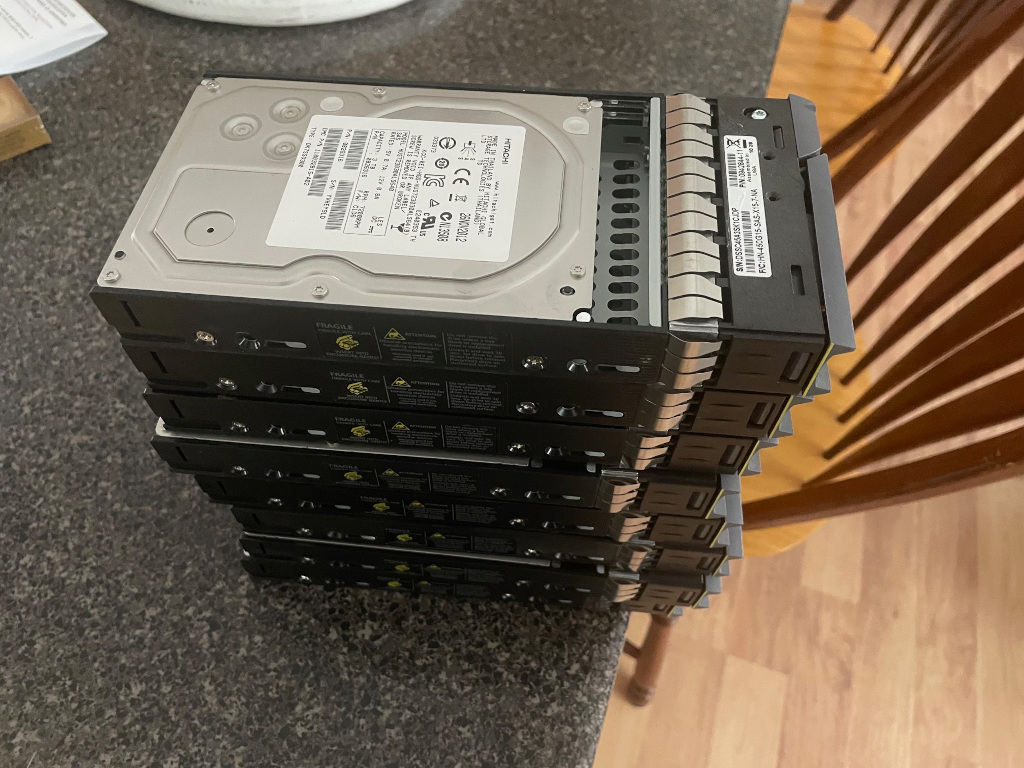
Old Enterprise Drives… Good option? Lets do some power testing

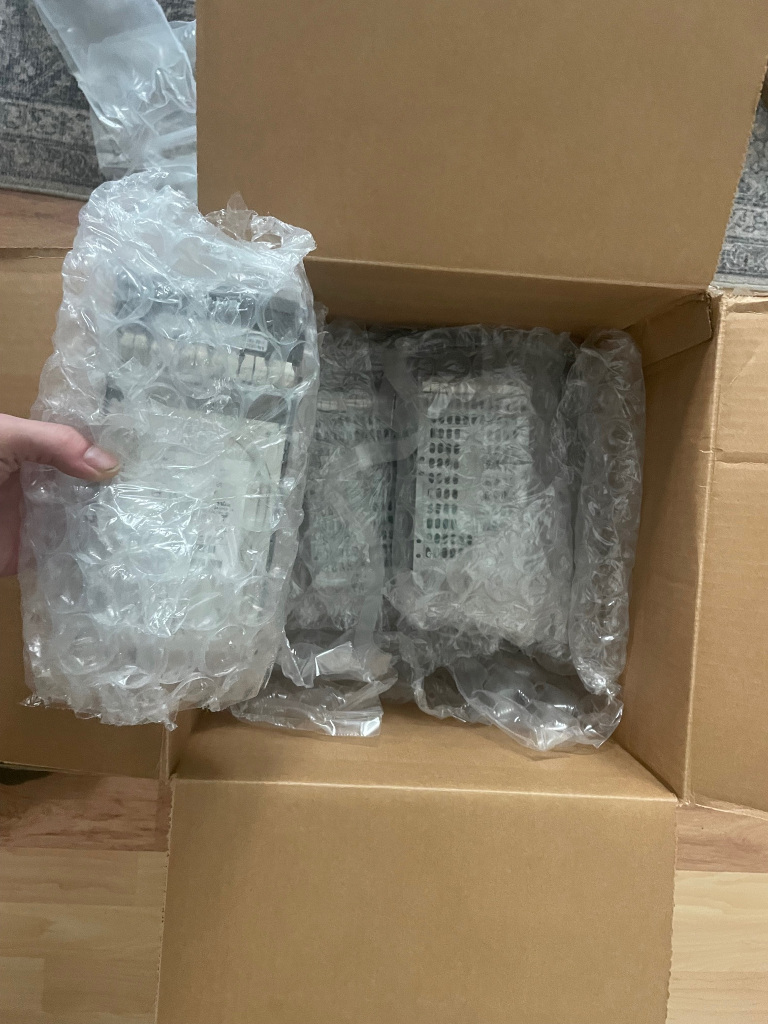
Recently I did a little trade deal and ended up with eight HGST 3 TB SAS drives. They’re old, very old. 2012 old — yikes! But I think they’ve been sitting a few years, so maybe they don’t have crazy hours on them.

New HDDs!Stack of Drives

These aren’t bad drives, especially in today’s market with the insane price hikes. Each disk is 3 TB, 3.5″ and 7,200 RPM. Benchmarked individually I was getting a consistent read speed of 150 MB/sec. Not bad!

The elephant in the room though, how much power do these suckers pull? I set up an old machine to benchtest that. Here is the data I got, power figures are total system power @ the wall socket, with a Kill-A-Watt meter.

The drives were cheap… next to nothing. Basically with the trade I did, each one cost me less than $10. The HBA was $18 shipped and the SAS breakout cable was $13 shipped. All readily available on eBay.

Power Figures

Baseline without HBA: 30W
Baseline /w HBA installed : 37 W
1 SAS disk: 44 W (+7 W)
2 SAS disks: 55 W (+11 W)
3 SAS disks: 65 W (+10 W)
4 SAS disks: 75 W (+10 W)
4 SAS + 1 SATA 3.5″ disk: 81 W (+6 W for SATA)


Observations:
Incremental power per SAS disk: ~ +10 W idle
SATA disk only adds ~+6 W idle

Test Bed System Specs:
Intel Core i5 4570 Haswell Quad Core
2x 4 GB DDR3 RAM — 8 GB Total
8 GB SATA DOM / SSD for the OS
LSI Logic SAS2308 Fusion-MPT SAS-2
Xubuntu 16.04 — doesn’t matter much here, but incl for completeness
750W No-Name Power Supply


NOTE:
All readings are steady-state idle; initial spin-up or seek currents are not included. Power scaling is roughly linear with the number of disks… So the data is likely fairly accurate.

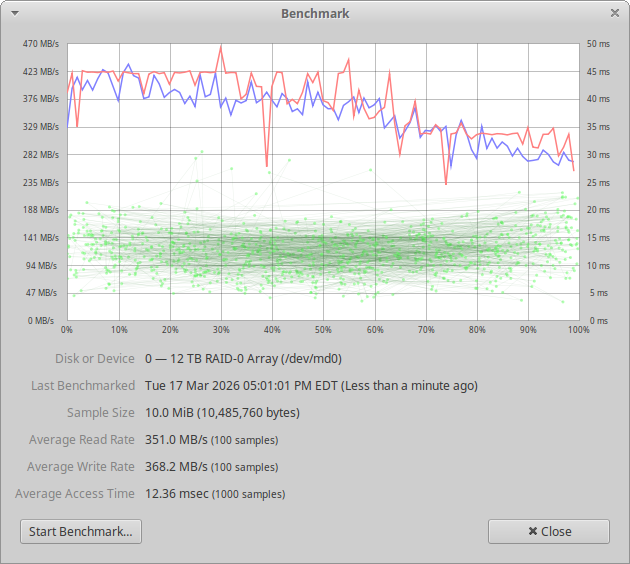
Lets look at some early performance figures…

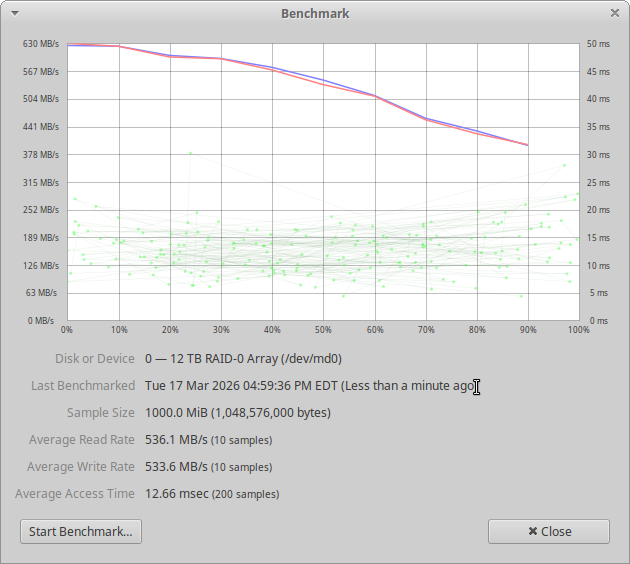
Now… that doesn’t look super impressive. But, if we tweak for larger test size…

That’s more like it! That is with four disks in a RAID 0 stripe. This isn’t how you’d normally be using them, but I’m more so curious what this old hardware can do and RAID0 will show the best case example of that.

Decent performance… if they used less power, I’d say it would be very attractive for a good way to add:

8 drives: $124 for 24 TB RAW (1 HBA, 8 drives, 2 cables)
4 drives: $70 for 12 TB RAW (1 HBA, 8 drives, 1 cable)

FreeBSD 15: Creating an NFS share with a USB disk

Here is how I recently went through the process of setting up a Raspberry Pi 4 running FreeBSD 15 to share a 1 TB USB hard drive to my local network via NFS.

Before we get to this point you’ll need to download the Pi aarch64 sdcard image from freebsd.org. Decompress the image (xz –decompress) and write it to a micro sd card with dd or your favorite imaging tool.

Boot the pi up, change root’s password, make a normal user, add them to wheel.

ntpdate -u pool.ntp.org will set your clock, and then you can install pkg or update the system with freebsd-update fetch install.

Now, onto the main point of this… we’re going to wipe a USB HDD, format it with UFS2 and share it on our lan via nfs.

Beastie with Pi in hand

Step 1 Identify your USB disk

camcontrol devlist

Find your USB disk, e.g., /dev/da0. Be sure it is correct.


Step 2 Wipe and partition the USB disk

gpart destroy -F /dev/da0
gpart create -s gpt /dev/da0
gpart add -t freebsd-ufs /dev/da0

This creates /dev/da0p1.


Step 3 Format the partition as UFS

newfs -U /dev/da0p1

Optional label:

newfs -U -L datadisk /dev/da0p1


Step 4 Create a mount point and mount the disk

mkdir -p /export/data
mount /dev/da0p1 /export/data
df -h /export/data


Step 5 Make it mount automatically at boot

Edit /etc/fstab and add:

/dev/da0p1 /export/data ufs rw 2 2

Mounting without reboot:

mkdir -p /export/data
chown ben:ben /export/data     # Your name here!
mount /export/data


Step 6 Set up NFS exports

Edit /etc/exports and add:

/export/data -network 192.168.1.0 -mask 255.255.255.0 -maproot=root -alldirs


Step 7 Start NFS services

Enable at boot, run these commands:

sysrc rpcbind_enable=YES
sysrc nfs_server_enable=YES
sysrc mountd_enable=YES

That will make changes to /etc/rc.conf for you! Now we run:

service rpcbind start
service mountd start
service nfsd start


Step 8 Verify the export

showmount -e

You should see:

/export/data 192.168.1.0


Step 9 Mount the NFS share your client PC

sudo mkdir -p /mnt/bsdpi
sudo chown ben:ben /mnt/bsdpi
sudo mount -t nfs bsdpi.lan:/export/data /mnt/bsdpi

Optionally you can put this in your fstab, probably want to do it in a way where it won’t keep your machine from booting if it isn’t online though!

SanDisk Industrial 8GB Micro SD card, good option for Pis?

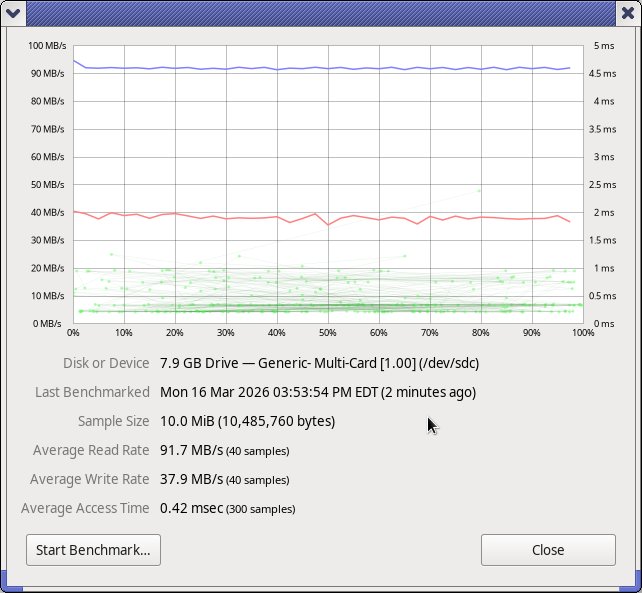
SanDisk 8GB Benchmark

I recently purchased a 3 pack of these off eBay for $30 shipped. They came today… I’m actually pretty happy with the performance I’m seeing here.

These should make good OS / Boot disks for Raspberry Pis and other SBCs. I needed a couple and well, I’m cheap. Industrial should be a good thing here, but I guess we’ll see down the road. I’d definitely put my money on one of these versus a no-name card.

Things like system and application logs and other frequent write operations can lead to the early death of an SD card. The “industrial” branding on these microSD cards usually refers more to environmental durability than to being optimized for heavy write workloads. (As I understand it, anyways) That means they’re rated to withstand wider temperature ranges, humidity, and vibration; conditions you might see in industrial machines, automotive systems, or outdoor electronics.

$5 CPU Activity LED Indicator for your Server made with RP 2040 (Pi Pico)

Because who doesn’t love a little das-blinkenlights??

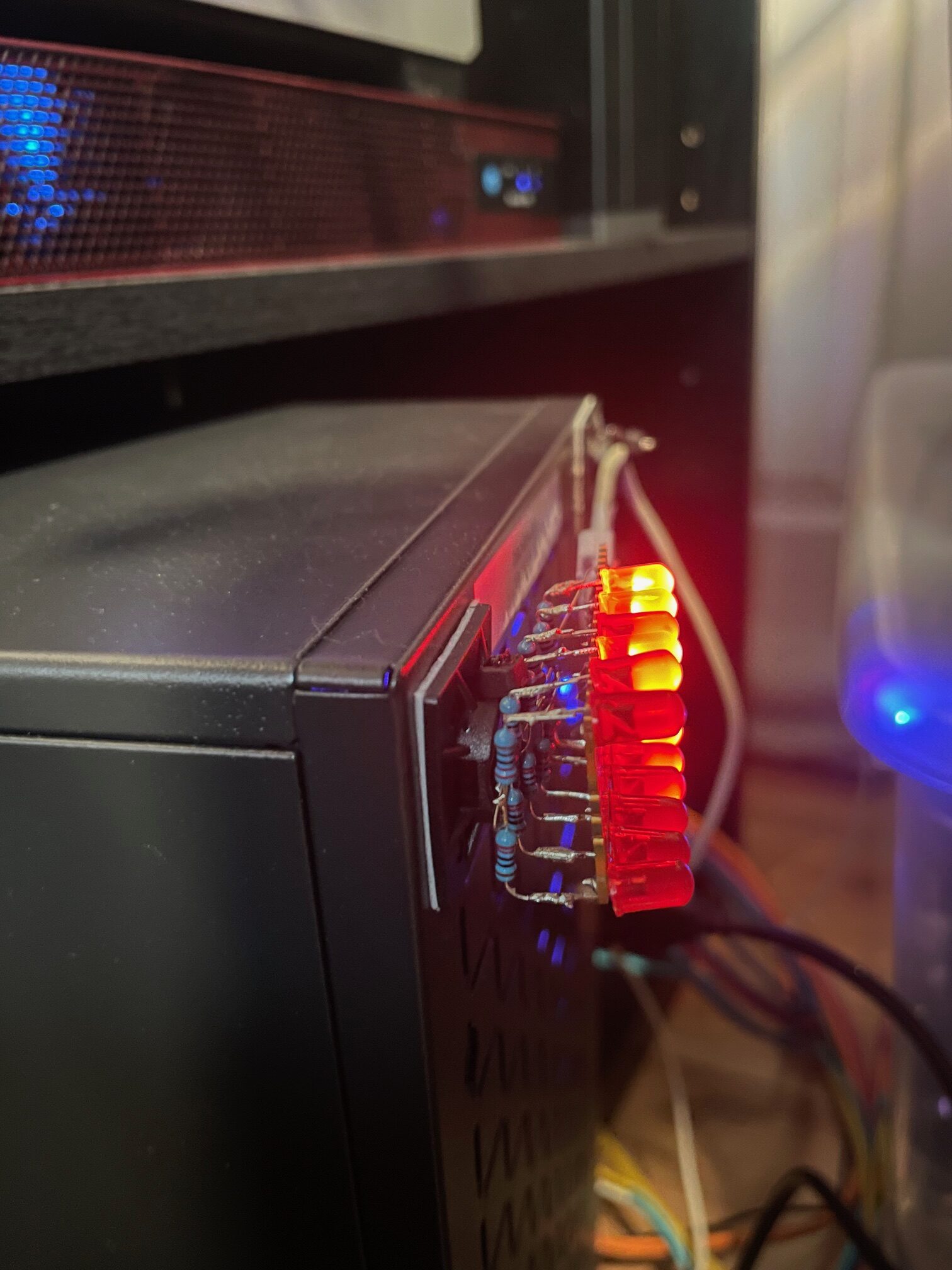
Pi Pico CPU Meter
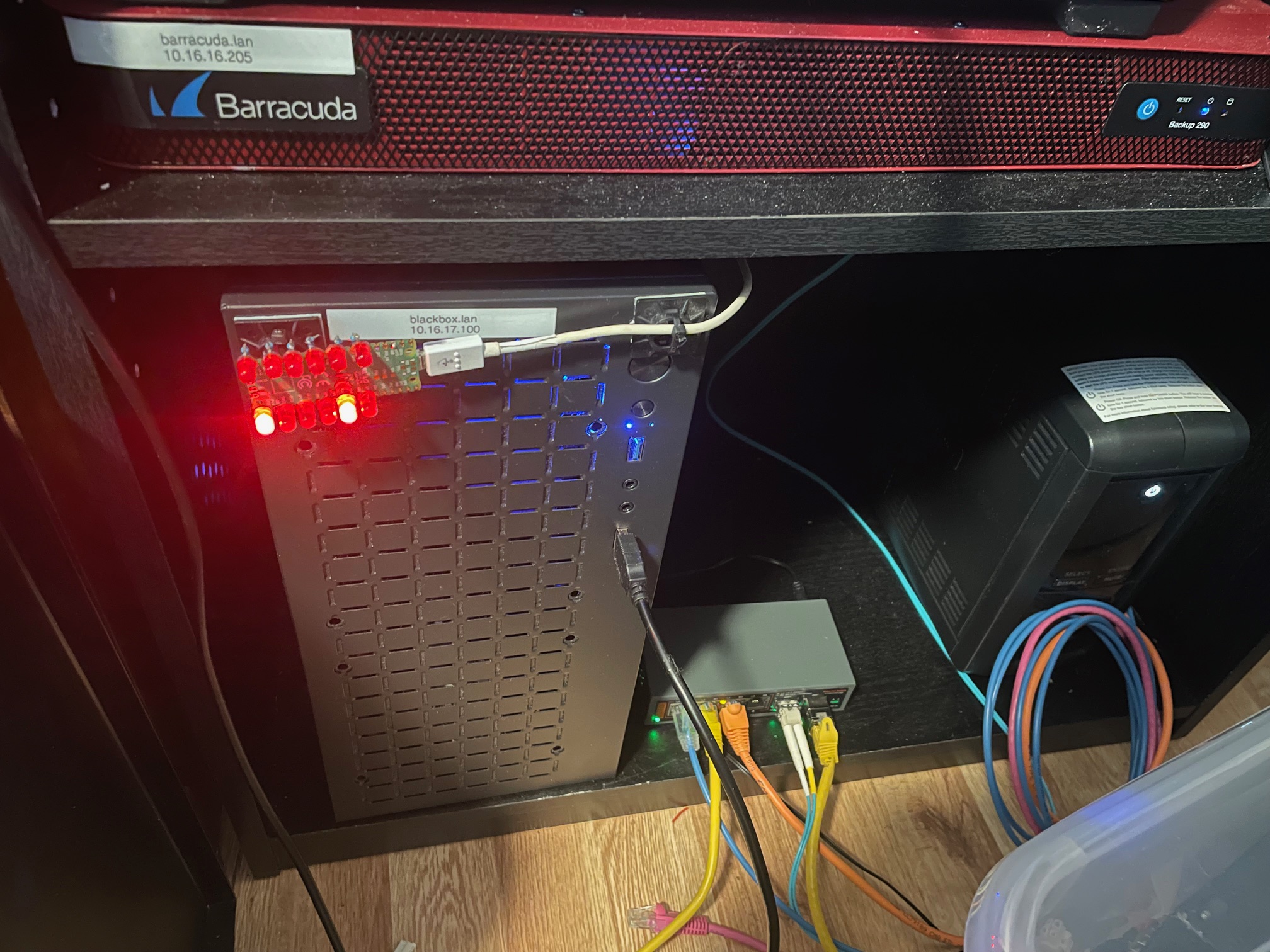
Zip-tied to a cable management stick-on, on the front of my server

So this project is incredibly simple. You only need three things:
1. Raspberry Pi Pico (RP2040) — Of course, you could use pretty much any micro controller you want
2. Some LEDs. Mine were from a super cheap set which had a hundred or so? No specs on them, but they’re red.
3. One resistor, for each LED you’re going to install. On this I used 470 ohm resistors, I’m pretty sure.

Pi Pico bottom side
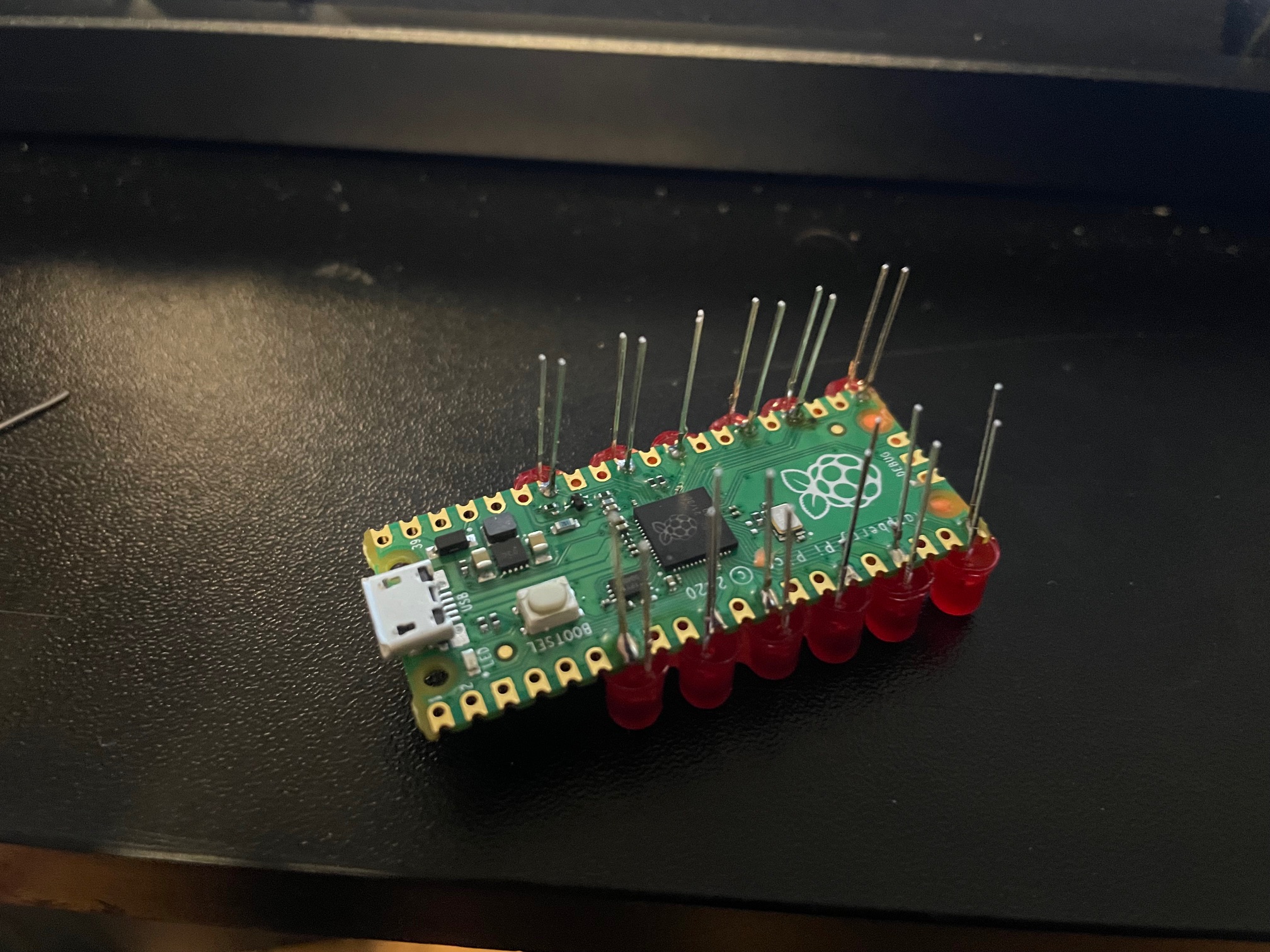
The best part is, you don’t need any kind of custom PCB. I did this just by soldering directly on the Pi Pico board itself. Now, you’ll need to be careful to get decent looking LED spacing… but it is more than possible if you are patient.

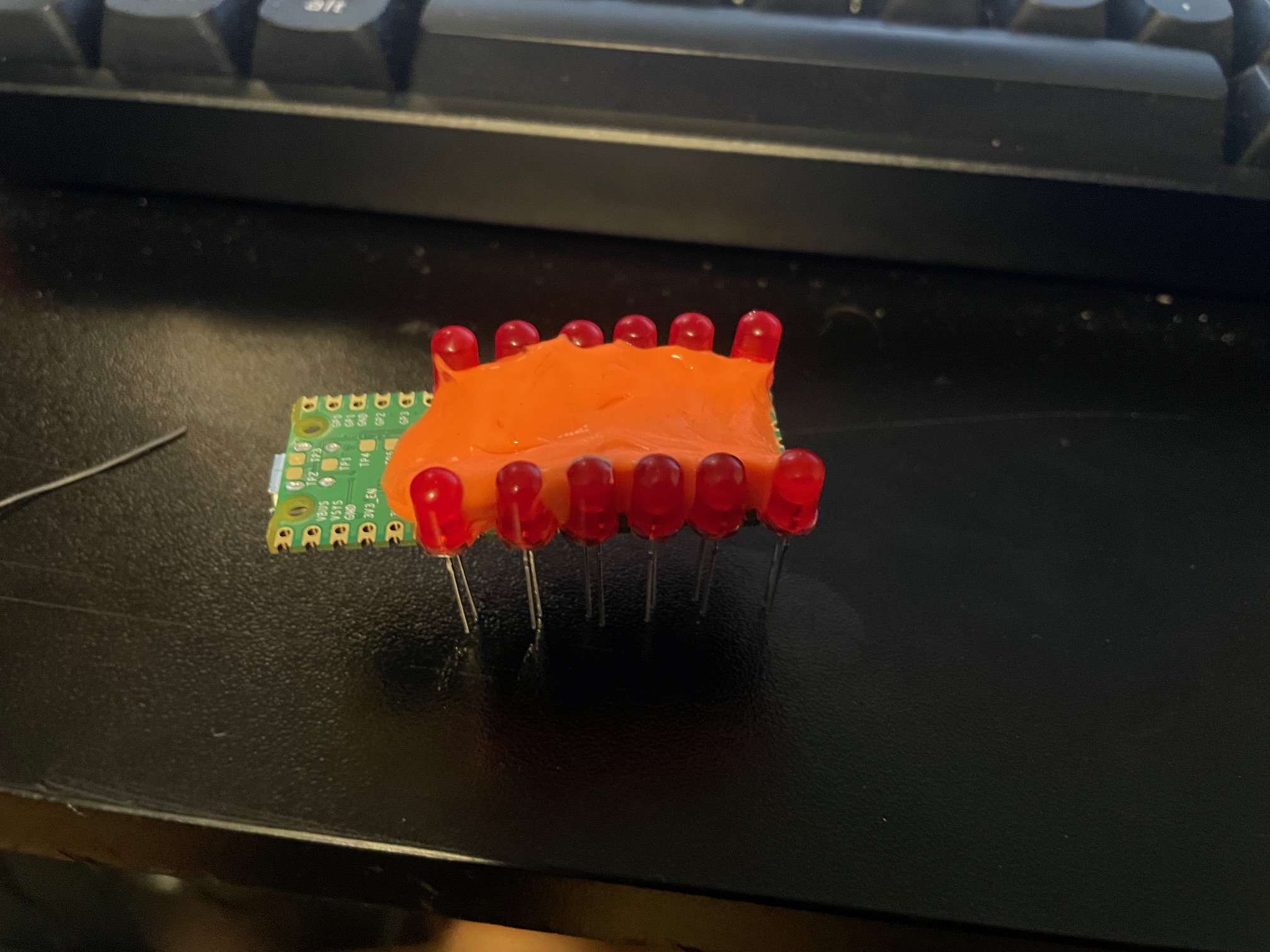
Silly-putty holding the LEDs
Silly-putty to the rescue!

You’ll definitely need some way to hold the LEDs in place or you’ll be fighting them the entire time. Blue tac would probably be ideal here. I didn’t have that, but I did have an old egg of silly-putty which worked out better than expected.

Back side of picoThis is what the whole thing looks like fully assembled. Basically, the resistor just gets soldered to the leg of each LED which is NOT on the GPIO. The way I’ve done it here was to tie the ground side of each LED through a resistor, and then they all fold into a backbone, each folded onto the next, down the line, and finally tie over to a ground pad on the pico.

Here is a video of it in action: https://ben.lostgeek.net/files/demo.mov

Basically, you’ll need two pieces of code. One which gets flashed to the RP2040 and handles the actual work of pulling the GPIO lines high/low when we get data from the computer.

How do we get the data to the pico? To keep things as simple as possible, we’re just using the Pico’s USB to uart. This makes the USB device show up in linux as a normal serial port, and makes it dead simple to interface with in software.

This is where the second piece of code we need comes into play. It is a daemon of sorts which runs on the machine of which we’d like to see CPU activity. Basically just a small amount of code to read from /proc, see our individual CPU core usage, do some math… and if it is above a certain threshold then we register that core as active and we tell the pico over serial.

My new server build has a 6 core, 12 thread Ryzen 5500 processor and so naturally I thought… Hey, wouldn’t it be cool if I had a little activity LED for each core? Well then, having one for each thread would be even cooler!

For a really nice, crisp, “activity LED” kind of genuine feel I’ve found that you want things updating pretty fast. My experience has been that a refresh period of about 30ms achieves that effect quite well.

If we try and poll the system too often then our daemon which sends data to the pico will start to use noticeable CPU time… Not very much by any means, but personally I’m happy to have the daemon only chewing up no more than ~ 1 % CPU utilization. With the 30ms update rate, it is only consuming 0.7 % of one thread. In other words, we’re only wasting a quite negligible 0.044 % of the total machine’s compute power to run our little light panel.

And who knows, I’m not a coder… someone could probably make this way more efficient. Let me know, if you have some much better code for this to run on 😉

You can get the code here: https://ben.lostgeek.net/files/blinken

Usual disclaimer Ai was used in the writing of the code for this.

© 2025 LostGeek.NET - All Rights Reserved. Powered by ClassicPress, NGINX, Debian GNU/Linux.