OpenWRT on a Thrift Store Router (Netgear WNDR3700 v4)

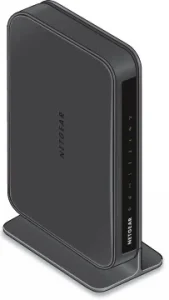
WNDR3700 v4
NETGEAR WNDR3700 v4 WiFi Router

Earlier today I stopped by a local Goodwill to see what they had in the way of electronics. Among the digital photo frames and old keyboards, I spotted two routers. I’m always on the lookout for hardware that can run Linux. One of the routers was a Netgear WNDR3700 v4. It was in its original box with the power adapter and a couple of patch cords.

Normally I’d pull out my phone and check OpenWrt support before buying, but this one looked old enough that I figured there was at least a 50/50 chance it would be an easy convert. I’m glad I grabbed it; Not only is this model supported, but flashing OpenWrt is about as painless as it gets.


Flashing with OpenWrt — No UART, no TFTP, no drama.

  1. Factory reset the router.
  2. Connect to it at http://192.168.1.1/ in your web browser. Log in with:
    Username: admin
    Password: password
  3. Go to Advanced.
  4. Download the latest OpenWrt “factory” image for WNDR3700 v4 from the OpenWrt site. *Note, maybe do this first!*
  5. Upload it via the Netgear’s firmware page, under “Advanced” in the web ui.
  6. Wait a few minutes for the flash to complete.
  7. Reconnect your computer (get a fresh DHCP lease), then visit 192.168.1.1 again.
  8. Log in with:
    Username: root
    Password: (blank)*Note, maybe do this first!*
  9. Set your own password… and you’re done!

This 2012-era router is now running a fully up-to-date Linux distribution.


In My Case…
I reconfigured mine to serve as a simple gigabit switch:

  • Disabled both Wi-Fi radios.
  • Configured the “WAN” port into another LAN / switch port.
  • Disabled the DHCP server.
  • Set the LAN bridge (br-lan) to DHCP client so it picks up an IP from my main network.
  • Gave the new router’s MAC a dhcp reservation on my main router, and added the new hostname to my hosts file.
    That way I can still log in for maintenance while it’s acting as an extra switch.

WNDR3700 v4 Hardware

CPU / SoC: Atheros AR9344 @ 560 MHz
RAM / Flash: 128 MB RAM / ~128 MB flash
Wireless: Dual-band 2.4 GHz + 5 GHz, 802.11n (N600)
Ethernet: 1× Gigabit WAN, 4× Gigabit LAN
USB: 1× USB 2.0 “ReadySHARE” port


What Can You Do With It?
Plenty. This hardware can easily run the latest OpenWrt without feeling sluggish. The USB port opens up even more possibilities:

  • Failover WWAN modem or phone tethering
  • Network printer sharing
  • USB hard drive for network storage
  • DIY internet radio streamer with a USB sound card

With OpenWrt, you’re only limited by your time and imagination.


Why Bother?
Netgear’s last firmware for this model came out in 2018. That’s seven years without security updates. OpenWrt gives you:

  • Modern kernel & drivers
  • Current security patches
  • A huge ecosystem of packages

All on hardware that cost me four bucks at a thrift store.


OpenWrt Support History for the WNDR3700

  • Original WNDR3700 (v1) launched in mid–late 2009 with Atheros hardware.
  • OpenWrt support for the series appeared within months of launch, making it a long-time favorite in the community.
  • The v4 hardware revision hit the market around June 2012.
  • Because v4 kept an Atheros chipset (AR9344) with generous RAM and flash, it was officially supported soon after release.
  • The best part: Netgear’s stock firmware for v4 accepts an OpenWrt “factory” image through the web interface. No serial cable required, no bootloader tricks, just upload and reboot.

This combination of long-term support, open-friendly hardware, and GUI-based flashing makes the WNDR3700 v4 one of the easiest budget OpenWrt targets you can find.

NETGEAR WNDR3700 on OpenWRT Wiki / TOH
OpenWRT Version 24.10 Factory Image for WNDR3700 V4 – Direct Link
Building an Optimized Linux Kernel on Fedora 42

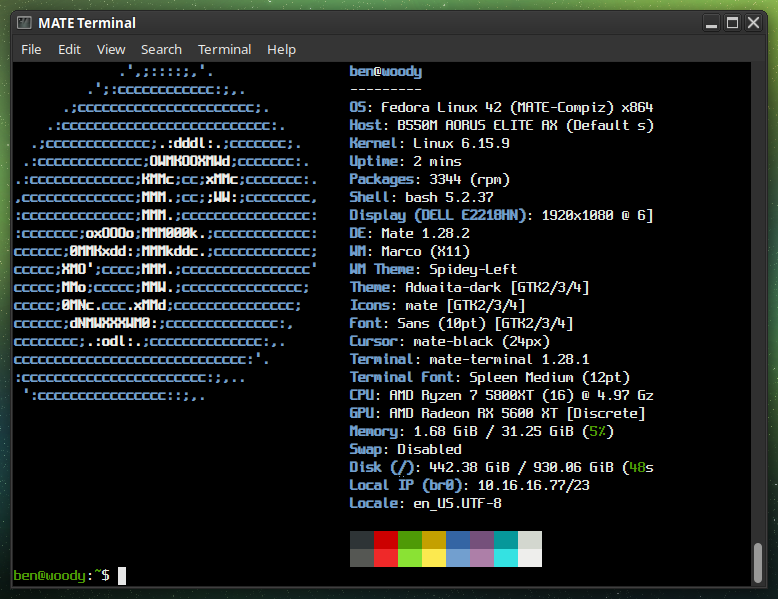
fastfetch screenshot
Fastfetch shows my custom 6.15.9 Kernel

Preparation: You’ll need to install some tools and dependencies required by the build process. On Fedora you’ll want to run the following:

sudo dnf install gcc make ncurses-devel bc openssl-devel elfutils-libelf-devel rpmdevtools fedpkg rpm-build
sudo dnf builddep kernel

Getting the Kernel source tarball
Head over to https://kernel.org and download your branch of choice. I’d recommend the latest Stable tarball.

wget https://cdn.kernel.org/pub/linux/kernel/v6.x/linux-6.15.9.tar.xz

tar -xf linux-6.15.9.tar.xz

cd linux-6.15.9

Copy your current defconfig

We’ll copy the running kernel’s configuration into our source tree…

cp /boot/config-$(uname -r) .config
make oldconfig

You should see some output, ending with “configuration written to .config”.

The easiest way to set our flags is to simply export them in our current shell before proceeding to run make. I did the following for my AMD Ryzen 5800XT:

export KCFLAGS=’-march=znver3 -O3′
export KCPPFLAGS=’-march=znver3 -O3′

You can do march=native if you’re not sure exactly what to use for your specific CPU. Only do znver3 if you’ve got a Zen 3 chip!

Then build.*

make -j$(nproc)

* If you’d like, make additional makefile edits before running make. Or, make menuconfig if you’d like to browse through available options. But, be careful… It gets pretty technical! Simply by following the instructions above you’ll end up with a Kernel which is newer than what you’ve got, better optimized, and smaller. Basically, better in all ways. All without having to make any questionable changes on your own… But of course, feel free to explore the available options! Keep in mind, always keep a known-good stable kernel in your grub configuration in case you make a mistake!

Your kernel will take some time to compile. Anywhere from several minutes to a couple of hours, depending on how powerful your processor is and how many modules must be built. Higher optimization levels typically will take more time as well; the standard level is O2, we’re doing O3. Performance is generally better but the initial build will take a bit longer.

When the compilation is finished:

sudo make modules_install
sudo make install

This will install the kernel modules to /lib/modules/6.15.9/ (in this case). These are drivers and kernel features compiled as =m; they’re loadable instead of built directly into the kernel. Make install will install the compiled image to /boot. In this case /boot/vmlinuz-6.15.9.

We can verify our new image is Grub’s default by running:

sudo grubby –default-kernel

We should see /boot/vmlinuz-6.15.9”.

Reboot into your new optimized kernel!

B550M AORUS ELITE AX — Replacing the lousy WiFi!

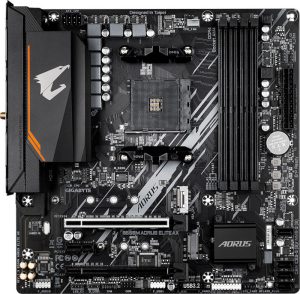
Finally decided to retire the Haswell system I’ve been using, and ordered up some AM4 goodies during the recent Prime Day sale. I grabbed an AMD Ryzen 7 5800X (8-core, 16-thread), 32 GB of DDR4-3600, and the Gigabyte AORUS Elite AX (Rev 1.3) motherboard. The CPU was the main draw — it was only $130! The board was on sale for $90 (currently $149.99 on Amazon).

Aorus Elite AX Rev 1.3

Thus far I am happy with this motherboard. It doesn’t give me the same vibe of Gigabyte superior value which I got back in the day from the likes of the classics — GA-EP45-UD3P comes to mind! — but, for under $100 it seems quite adequate.

The included WiFi leaves much to be desired though… Maybe it works fine on Windows?? On Linux, I was only seeing 2 bars and maybe 300 – 400 Mbps.

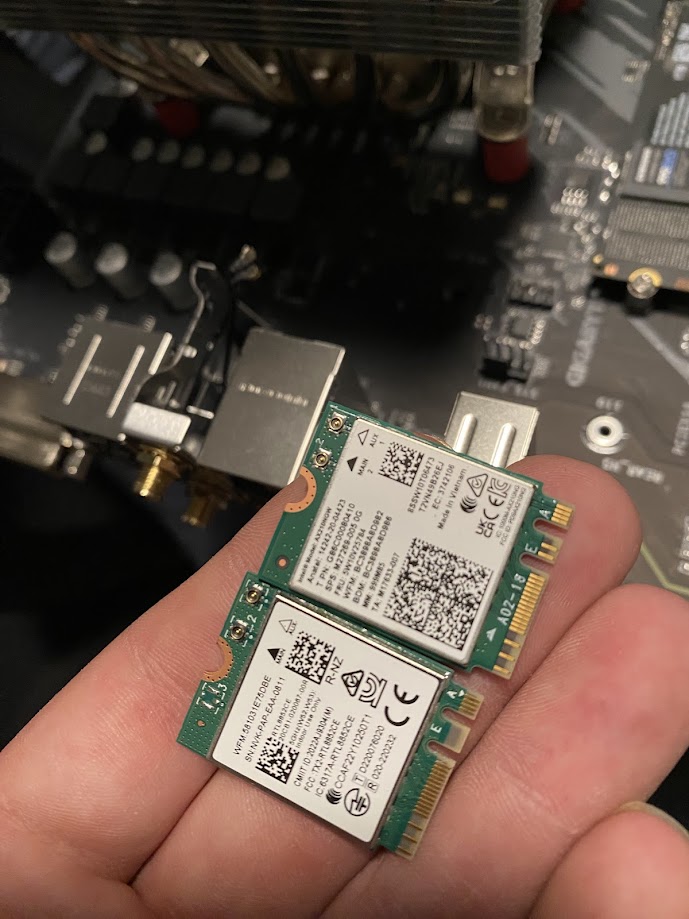
The solution? Grab yourself an AX210.
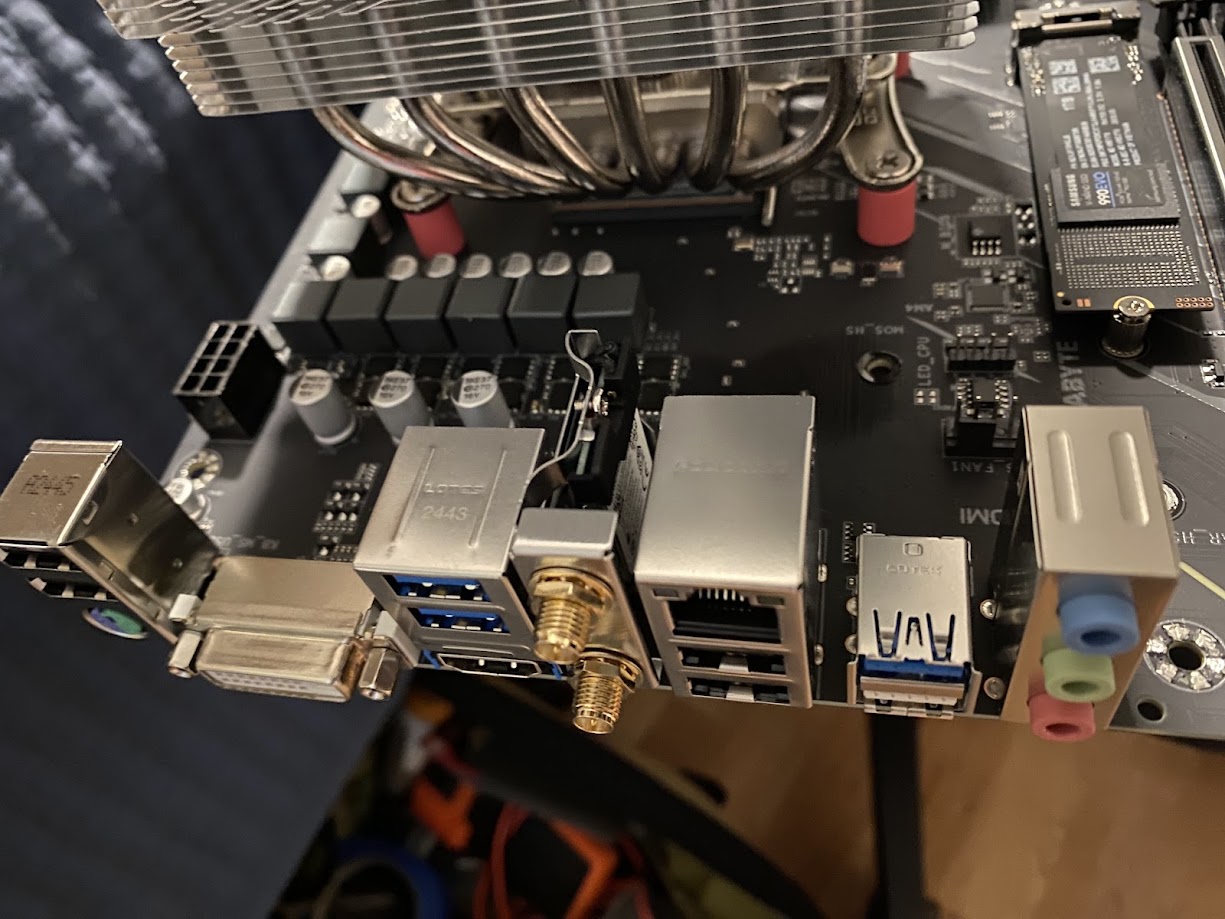
Intel wireless cards have excellent support on Linux and BSD alike. For just $20–$30 online, you can replace the built-in Realtek card. It takes about half a dozen screws to open the board and swap the M.2 module. I highly recommend tweezers for disconnecting and reattaching the tiny U.FL antenna connectors.

Where’s the Wi-Fi module located?

Motherboard WiFi
Board with VRM heatsink and shroud removed
WiFi Cards
Realtek NIC beside the new Intel AX 210

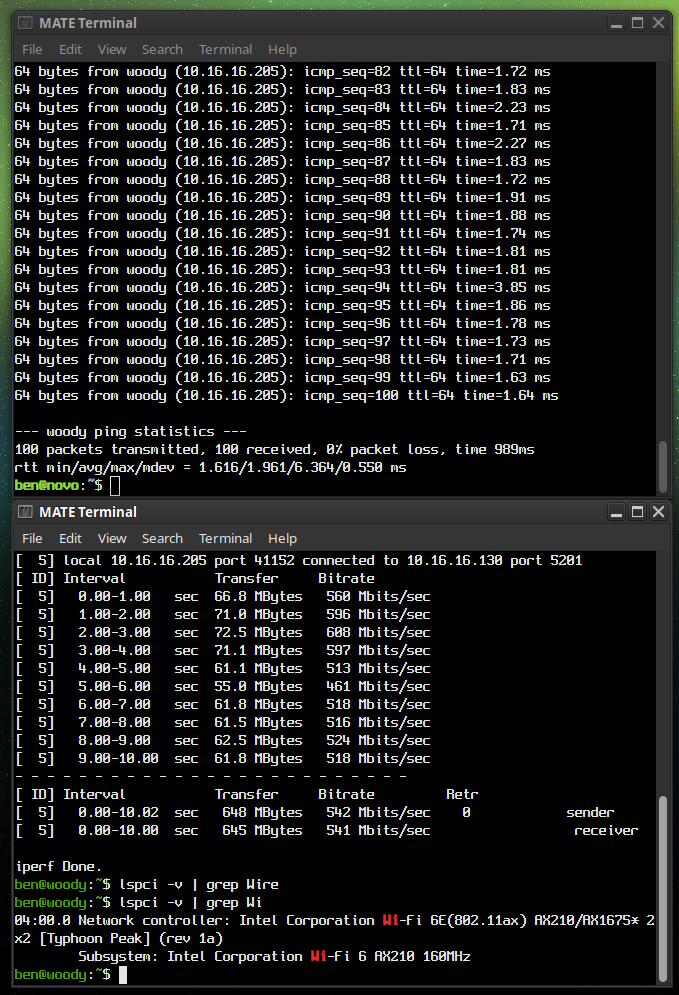
My pings are now way, better. Night and day. And the speed is a solid 100 Mbps better, or more. See for yourself!

AX 210 Results
AX210 Results: iPerf3 Test and 100 pings to my server

XScreenSaver MATE Script for Fedora

Fedora

Added a script which does all the same things as the Debian MATE XSS script did…

Installs the Full XScreenSaver collection (GL + Extras)
Removes MATE Screensaver
Symlinks XSS commands to replace MATE SS commands
Optional SETUID for Sonar
Ensures MATE SS doesn’t try to reinstall
Locking works via “System” –> “Lock Screen”
Fix for locking via keyboard shortcut

https://ben.lostgeek.net/code/xsmate/

OpenWRT on the Dynalink DL-WRX36 WiFi 6 Router

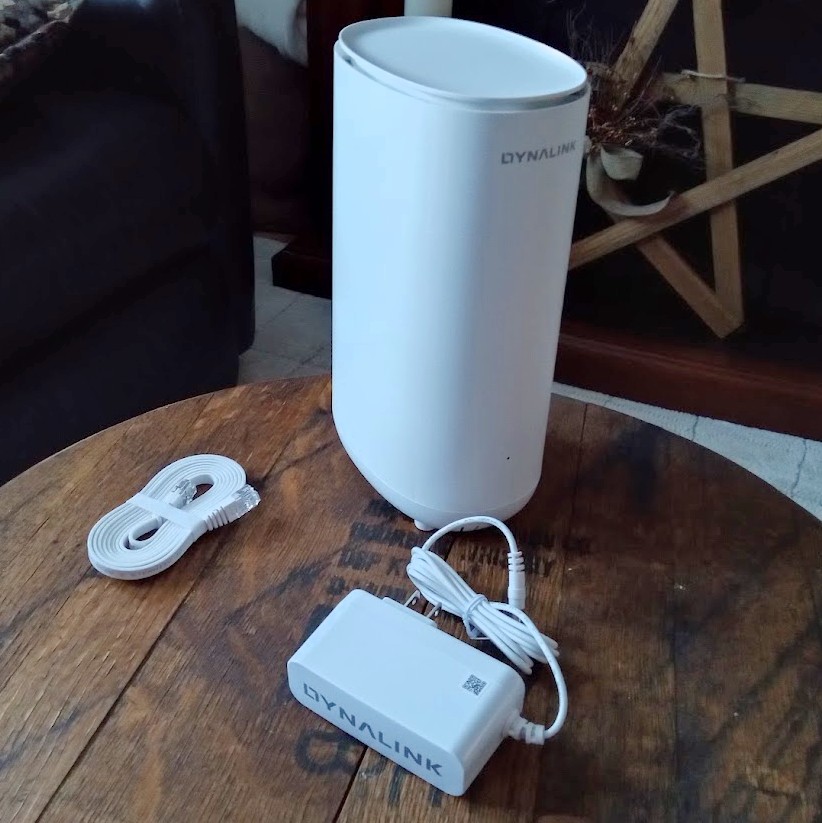
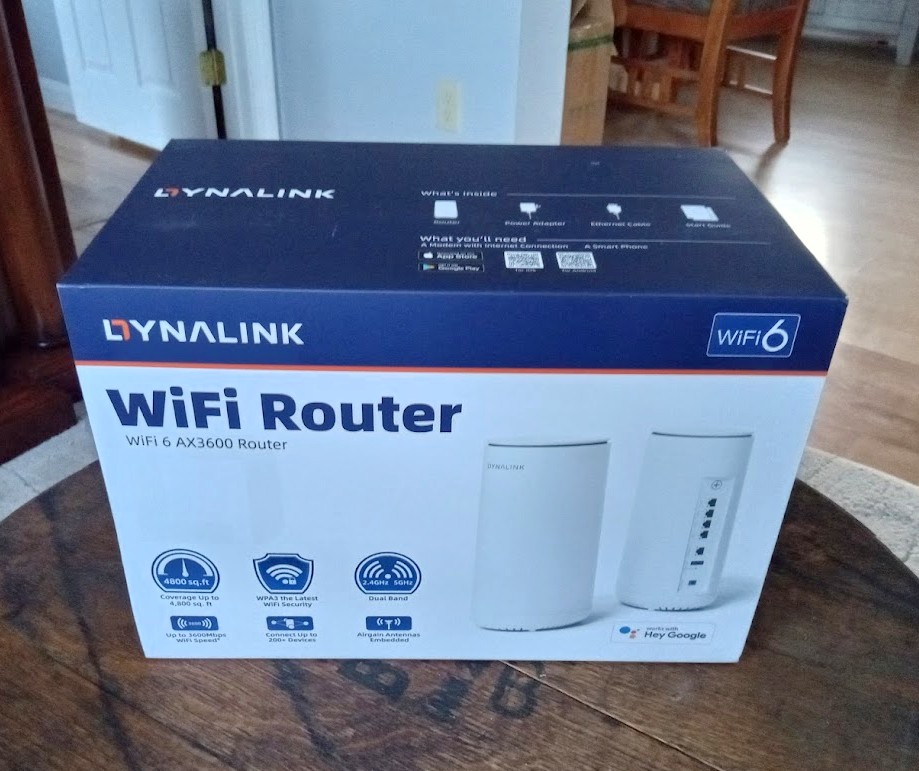
Dynalink RouterRouter Box

The Dynalink DL-WRX36 Wireless Router

I purchased my unit from Amazon about 18 months ago. I never even tried the stock firmware — I bought this router specifically because of its solid OpenWRT support and excellent bang-for-the-buck features.

For around $80 (if I recall correctly) you get:

  • Qualcomm 2.2 GHz Quad-Core CPU (ARM64 / ARMv8)
  • 1 GB RAM, 256 MB Flash (for firmware/storage)
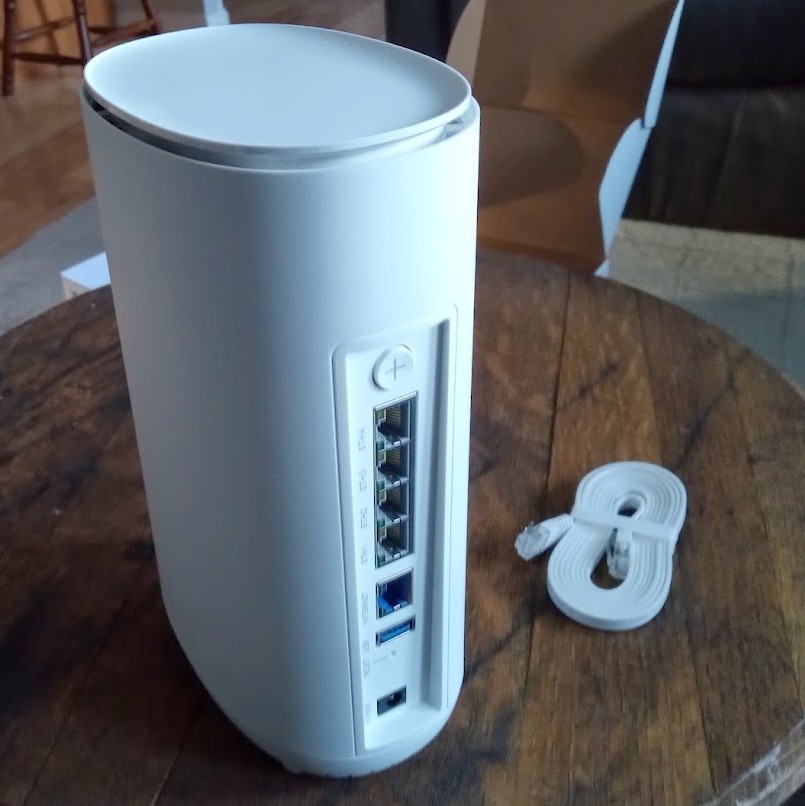
  • 2.5 Gbps WAN port, 4× 1 Gbps LAN switch ports
  • WiFi 2.4 / 5 GHz dual-band (4× internal antennas)
  • USB 3.0 port (for a USB HDD/SSD, FTP/Samba share, or cellular modem, etc.)

Rear ports

It’s a shame — I always intended to do a proper, in-depth review of this unit, along with a full guide on flashing OpenWRT. That said, the flashing process was painless and straightforward. If you’ve ever loaded DD-WRT onto an old Linksys back in the day, this is quite similar, though with a few extra steps.

I do recall some slightly ‘gray’ areas in the instructions on the OpenWRT Table of Hardware (TOH) page for the DL-WRX36, and I had made some notes. If I can dig them up, I’ll definitely update this post to include them. As I remember, nothing critical — just a couple of steps that were worded a little ambiguously. I highly recommend reading through the guide fully before starting, so you’re not left halfway through wondering what to do next.

Is it still available?
Amazon doesn’t have it in stock at the moment. Would I recommend it if it was? Absolutely. I’m very happy with mine.

Things to Note:

  • Unofficial builds exist that take advantage of hardware features on this router’s SoC. (The standard OpenWRT images don’t enable these by default — and for now, I’m sticking with the official builds. But performance is still excellent for my needs.)

For those curious, the IPQ807x SoC inside this router supports advanced hardware features like Qualcomm’s NSS (Network Subsystem) hardware acceleration, which dramatically improves routing throughput and reduces CPU load for tasks like NAT, firewalling, and VPN handling. While official OpenWRT builds don’t currently enable these proprietary modules, a few skilled community developers have published unofficial builds that do.

Personally, I run the latest stable firmware from the official OpenWRT release repository, and it’s been absolutely flawless for me. I get my full broadband speeds with headroom to spare — whether wired or over 5 GHz WiFi — and I’ve never felt limited by not having those additional offload features. This setup also ensures I have seamless access to the official OpenWRT package repository via Luci and UCI, with a stable, predictable system that updates cleanly.

That said, for the adventurous or performance-hungry tinkerers out there, those community builds with hardware offloading might be worth exploring. More details and links are listed below if you’d like to check them out.

Additionally — OpenWRT natively supports VLANs and VLAN tagging, letting you create isolated network segments, guest networks, or prioritize traffic on your LAN however you like. Combined with its firewall and routing flexibility, this makes OpenWRT an extremely versatile platform for both home and small business networks.

Performance

Since upgrading my desktop to an Intel AX210 WiFi card, I consistently get 1–3 ms pings to wired LAN machines — pretty respectable. Speeds are solid too, with ~500 Mbps transmit/receive over 5 GHz WiFi.

My configuration is simple:

  • One network for 2.4 GHz and another for 5 GHz, each with its own SSID.
  • I’ve heard of issues running both bands under a single SSID, so I avoided that.
  • IoT devices, mobile phones, TV boxes, etc. are on 2.4 GHz for better range and to keep them off the 5 GHz radio.
  • Desktops and laptops connect to 5 GHz for speed.

It works beautifully. No worries about being stuck on ancient 3.x kernels — OpenWRT keeps this thing current and reliable.

Why is OpenWRT the Cat’s Meow?

Luci, the web-based interface, is clean, solid, and well-organized. Every function accessible through the web GUI can also be executed via SSH on the command line.

If you’re a geek, you already get why this is awesome. But for everyone else: it makes quick changes a breeze — no digging through endless menus. You can configure it like a Cisco router via serial, telnet, SSH, or otherwise.

Other Perks

Packages. Tons of networking, telephony, and FOSS/Linux software packages are at your fingertips — one search away.

At the end of the day, every router is a computer of some sort. Unless it runs something exotic like VxWorks, chances are it’s powered by a Linux kernel. OpenWRT puts you in control. It’s your hardware — and you should run it your way. Suddenly that consumer-grade router feels like enterprise-grade gear.

Useful Links

Happy hacking!

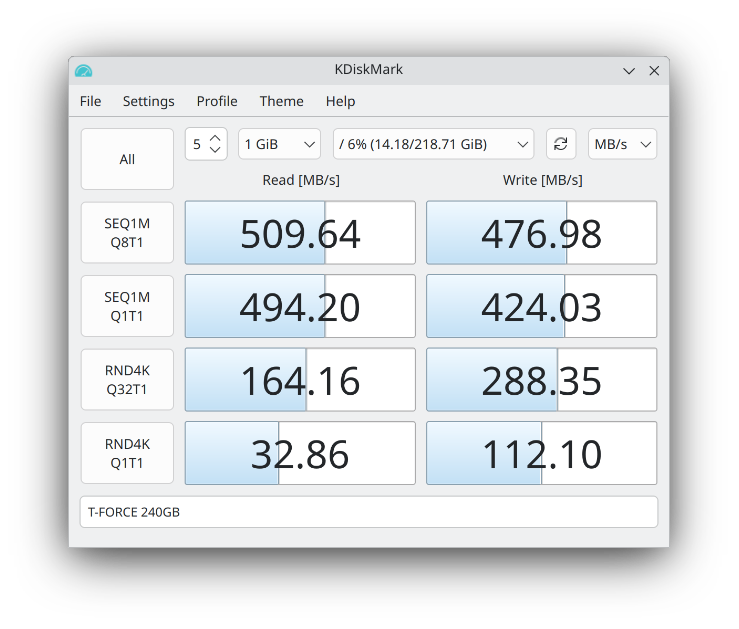
CrystalDiskMark for Linux?? KDiskMark is here to satisfy!

Here is a bit of KDE software which I was not aware of. It was not included in Debian 11 (Bullseye) — you had to build it from source or use third-party packages… However it was officially packaged starting with Debian 12 (Bookworm) and newer.

Here it is, running it on Kubuntu 25.04:

KDiskMark 3.1.3 on Kubuntu 25.04

Excellent little tool for those who don’t want to benchmark disks in the terminal via dd / fio. Nothing wrong with healthy feature parity & easy of use!

Running XScreenSaver on a laptop? Let’s run cool…

For most people these days, screensavers have died off.

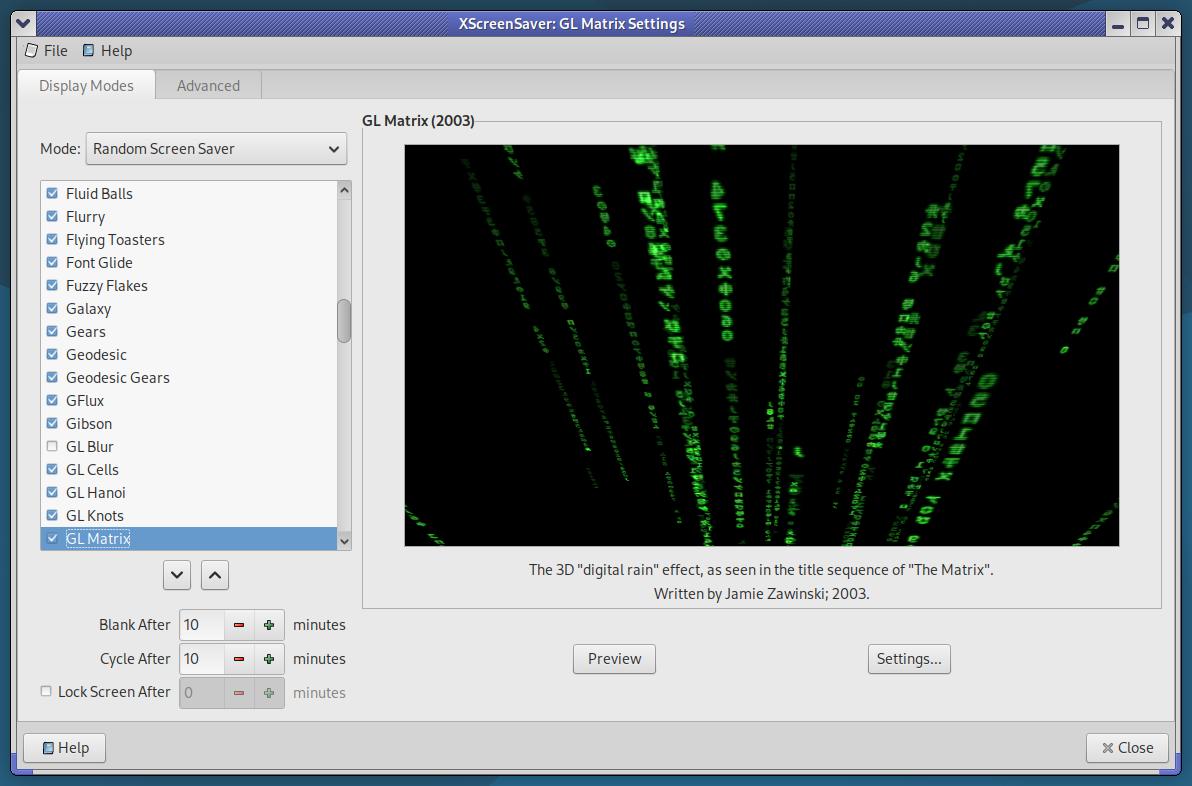
XScreenSaver Settings on Debian 12

I still like having them. And while most people have moved on from X.Org on Linux, well… here we are.

The 5300U in my ThinkPad has more than enough GPU power to display some beautiful screensavers. But by default, the system will ramp up into a higher performance state — because normally, that’s exactly what you’d want. Like if you were playing a game, or trying to load some bloated modern website.

But my idle laptop? I don’t want it getting all hot while it’s sitting on my lap or on the bed, just because it’s running a screensaver. So this is my little attempt to fix that — and it’s looking pretty promising.

The idea:

When XScreenSaver runs one of its screen hacks (screensavers), we’ll put the CPU into its lowest available frequency. That way, even when running hardware-accelerated 3D, the system will stay nice and cool.

Fortunately, the author of XScreenSaver — Jamie Zawinski — is a pretty smart dude, and the software already includes a clean little mechanism we can hook into to make this work.

Here’s how I’ve got it set up:

Create a script in your home folder, or wherever you want. xscreensaver_freq_watch.sh

#!/bin/bash

# Save current CPU and GPU max frequencies
CPU_MAX_BEFORE=$(cat /sys/devices/system/cpu/cpu0/cpufreq/scaling_max_freq)
GPU_MAX_BEFORE=$(cat /sys/class/drm/card0/gt_max_freq_mhz)

# Watch xscreensaver events
xscreensaver-command -watch | while read -r line
do
case “$line” in
LOCK*)
# Optional: do something on screen lock
;;
UNBLANK*)
echo “Screensaver stopped — restoring frequencies…”
echo $CPU_MAX_BEFORE | sudo tee /sys/devices/system/cpu/cpu*/cpufreq/scaling_max_freq > /dev/null
echo $GPU_MAX_BEFORE | sudo tee /sys/class/drm/card0/gt_max_freq_mhz > /dev/null
;;
BLANK*)
echo “Screensaver started — limiting frequencies…”
echo 500000 | sudo tee /sys/devices/system/cpu/cpu*/cpufreq/scaling_max_freq > /dev/null
echo 300 | sudo tee /sys/class/drm/card0/gt_max_freq_mhz > /dev/null
;;
esac
done

Of course, make it exactable with chmod +x. Also, use nopasswd in your /etc/sudoers line for your user.

Now because I’m using MATE / LightDM, I’m going to use a .desktop file. You could do something else, .xinitrc or a systemd service, but this is how I did it.

mkdir -p ~/.config/autostart
nano ~/.config/autostart/screensaver-watch.desktop

And inside that, we have the following

[Desktop Entry]
Type=Application
Exec=/home/ben/screensaver_freq_watch.sh
Hidden=false
NoDisplay=false
X-GNOME-Autostart-enabled=true
Name=Screensaver Frequency Watcher
Comment=Limits CPU and GPU frequencies while the screensaver is running

So far, it’s looking good! You may need to change this a bit depending on your configuration.

I disable zram every time I install Fedora

ZRam
If you do a quick search online, you’ll find plenty of discussions where people ask about turning off zram—for one reason or another. They’re often met with a barrage of comments saying they’re making things worse. “Zram is free performance, didn’t you know? It costs nothing and doubles your RAM!”

Yeah, well—hear me out.

My desktop has 16 GB of RAM. I don’t even get close to running out of memory unless it’s been up for 30 days straight with 100 different apps or browser tabs open. My newer ThinkPad has 8 GB.

Now, 8 GB isn’t considered a large amount of memory anymore. In fact, people will tell you it’s rapidly becoming the bare minimum. But I’ll tell you this: for most people’s needs, especially on a laptop, it’s plenty. I don’t tend to have much open on my notebook—just a couple of browser windows, a few terminals, email, maybe a file manager. Any more than that and I start feeling lazy, because odds are I’m not really using all that stuff. I tend to be more focused when I close down things I’m not actively using.

Anyway, back on topic—why don’t I use zram?

My machines are all 8 years old, or older. They work just fine, but they are not new.

My desktop has a 4th-gen Intel chip, and my laptop runs a 5th-gen low-voltage i5. Zram does give you “more memory,” but it comes at a cost. It works by compressing unused memory pages, which means your CPU has to do that work. Every time a page is written to zram or read back out, it must be compressed or decompressed.

Whether or not that impact is that noticeable, I can’t say for sure—I haven’t run benchmarks. But I do know this: my machines are fast enough, and I like to keep them light, fast, and nimble. And since I already have enough RAM, it makes no sense for me to use zram. If I do need to swap, all of my systems have fast SSDs to handle swapping well enough. I typically allocate 1–4 GB of swap space, and I do that on the fastest SSD in the system.

If you’ve got multiple drives—say, NVMe, SATA SSD, and a spinning hard drive—only put your swap on the NVMe. Another tip: if you’re not planning to hibernate, there’s no reason to make your swap as large as your RAM. Swap is useful as a safety net so your system doesn’t lock up when you run out of memory, but in my experience, I’ve rarely used more than 1 GB. If you’re consistently using multiple gigabytes of swap, you probably just need more RAM.

Another argument I often see is: “Zram doesn’t consume extra memory.” Well… how does that make any sense? Of course it does. Sure, it’s compressed—maybe you use 500 MB of RAM for what would’ve been 1 GB of swap—but I’d rather use that 500 MB as actual RAM and just let the system swap to SSD.

If you want to disable zram on Fedora, just create an empty config file called zram-generator.conf and place it in /etc/systemd/.

You can even do this from the live installer, while it’s still copying data. Just pop open a terminal and run:

sudo touch /mnt/sysroot/etc/systemd/zram-generator.conf


That’s it!

My thoughts on Arch Linux

Arch Logo

Preface:  I’m a long-time GNU/Linux user, extensively familiar with systems like Debian and Fedora. I don’t mind getting my hands dirty, and I’ve used plenty of distributions that are generally believed to be less user-friendly than your average Ubuntu flavor — namely Alpine Linux, FreeBSD, and OpenBSD.

So, what is Arch Linux, and who is it for?

If I had to answer that myself and offer my own take, it would be this: Arch is a rolling-release distribution with the latest packages and a remarkably broad selection of software. You’ll have at your fingertips the very latest in Linux and free software — you’ll be on the bleeding edge.

Arch is also a build-it-yourself kind of distro, in the sense that you’ll need to choose and configure your own desktop environment, sound server, display server, and so on. It’s more popular than ever among Linux power users, and it’s easy to see why.

How does it compare to Debian Sid? Fedora Rawhide?

First, let’s clear up a common point of confusion: when people say “Sid,” they often mean Debian Testing. Testing is the middle ground between Unstable and Stable in the Debian ecosystem. Typically, it won’t have broken packages — though it can — but it may be missing them entirely at times.

Unstable, on the other hand, does hold buggy, broken, in-development software. Testing is for software that’s somewhat stable and functioning, but not yet officially “release-ready.”

Debian does a new “Stable” release (a major version, e.g., Bookworm) roughly every two years. When new packages are built, they first enter “Unstable,” and once they work well enough, they move to “Testing.” Leading up to a new release, a freeze occurs. During the freeze, new code and features are no longer accepted into Testing — only bug fixes are allowed. This model prioritizes stability, and it’s similar to how the Linux kernel is developed: features freeze at a certain point, so that the remaining effort is focused on polishing what’s already there.

For completeness: Fedora takes a similar approach, but it’s simpler in terms of branches. They have the latest official release (e.g., Fedora 41), and then there’s Rawhide, which is Fedora’s rolling-release/unstable branch.

Wait… I thought this was supposed to be about Arch Linux?!

I’m getting back to that.

So where does Arch fall into all this? Well, Debian Stable — Arch is not. And by that, I mean they’re completely different animals.

Sometimes, you want something that’s tried and true, something that just works. There’s nothing wrong with Debian’s release model — in fact, Debian is one of the most widely used Linux distributions on desktops, and it’s arguably even more dominant on servers.

Right now, for example (April 2025), Debian 12 Bookworm is almost two years old. That means that, for the most part, the software it includes is also about two years old. Some packages may be even older. This doesn’t mean the software is bad, but it’s technically “old.” Features don’t normally change during a stable release’s lifecycle — only security updates and critical bug fixes are provided.

In contrast, Arch gets you as close to the upstream as possible. Things should work, but they haven’t been battle-tested the same way. Debian Stable, on the other hand, continues to be supported even after it’s no longer the current release — with bug fixes and security updates maintained under its “Old Stable” status. These days, a single Debian release can easily be used for up to eight years or more.

When does Arch Linux make the most sense?

If you’ve got a brand-new, cutting-edge piece of hardware, Arch might be the most sensible choice. You’ll likely want the latest Linux kernel for full support — and yes, you can build a new kernel on any distro, but we’re not talking about that level of work here.

Because Arch combines a bleeding-edge model with a huge package repository, you can choose to run either the latest stable kernel or an LTS (Long-Term Support) kernel, depending on your preference. For context: when we say “stable” in terms of the Linux kernel, we don’t mean “stable” like Debian Stable — we just mean it’s a non-development, non-RC release.

If you have a high-DPI display, a high-end GPU, or you just want to test the latest in GNOME or KDE, Arch is a fantastic choice. As I mentioned earlier, you’ll be able to install much more recent builds of almost everything than what you’d find in something like Debian Stable.

Why not just use Debian Testing or Sid, then?

You can, and if you’re already comfortable with Debian, trying out Testing isn’t a bad idea. In fact, Testing can often be run day-to-day without major issues. But Sid (Unstable) is another story entirely — and if you try to mix packages from Stable, Testing, and Unstable, you’re very likely to run into messy dependency hell and package management headaches.

While Testing can function as a sort of rolling release, that’s not really its purpose. It exists primarily for development and staging of Debian’s next Stable version. Arch, on the other hand, is a rolling release — plain and simple. If a package is in the repository, it’s supposed to work. And if something breaks, you can usually roll it back, and a fix will likely come soon.

In conclusion…

Well — I haven’t come to one yet, and I can’t say there will be a definitive conclusion, per se.

As I write this, I’m on my second or third day of giving Arch a good, honest trial on my laptop. So far, I’m liking it quite a bit. I’ll no doubt have a follow-up at some point, but I think I’ve stated the majority of my opinions up above.

Stay tuned.

Massive Speed-Upgrade for your Linux infrastructure with AptCacherNG

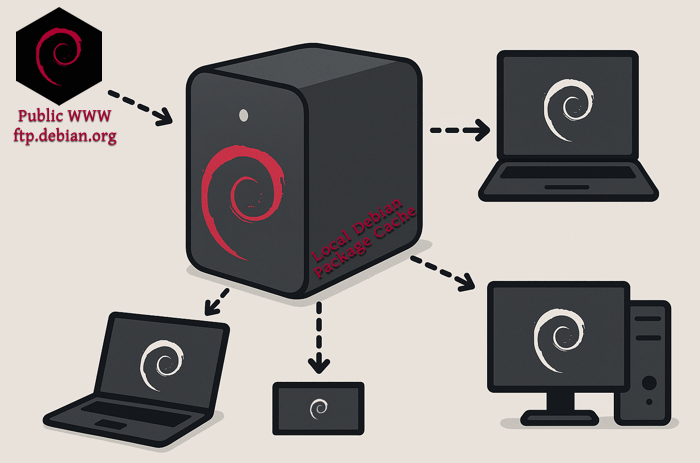
Cache Diagram
AptCacherNG makes it easy to create a local cache of Debian package mirrors.

If you’ve got multiple machines running the same distribution, APTCacherNG allow for effortless caching of software packages.

I run various distributions, but Debian is probably near the top of that list. Between virtual and physical boxes, I probably have a dozen running Debian. Seriously.

Now, between different versions and architectures you obviously can’t reuse the same packages always; but you don’t need to worry about that. This is something you set up, and then can basically forget about.

Chances are, most instances of your OS are going to be the same version (the current stable release), and the same architecture – usually AMD64.

Not only can you save a ton of bandwidth, but you benefit even more so from the speed up. My internet is about 300 Mbps give or take, but my lan is much faster. The machine I use for caching has nvme storage set aside for the task, and thus is only limited by the speed of the network interface. Even with 1GB, I think you’ll notice a tangible improvement.

It isn’t just for Debian.

Nope, it actually can work with basically anything. I’ve gotten it to work on Alpine with no real effort. I think I may have had to change a line in the config, but it is quite easy.

Under the hood, this is really just web caching. Your clients route their requests through one central machine. Since all requests go through one server, that machine can say “Oh, I just downloaded that for so-and-so an hour ago… here you go!” and forgo an internet download in favor of re-sending the cached copy.

Good for you, you’ll see speed increase no doubt. If you have limited bandwidth, It would be worth doing for even just one or two clients. If you have more than half a dozen or so, I’d say it is a no brainier. It also lowers the strain on the mirrors, which is a good thing too — Especially if you’re in charge of taking care of a whole rack of servers, or perhaps a lab / classroom full of machines.

It’s Easy!

On the clients you have a couple options. For a fresh net-install of Debian, when you go to select the country for your mirror, you want to scroll all the way to the bottom (or top?) and you’ll find “Enter Manually”. Here, you simply furnish your aptcacherng host. In my case, “novo.lan:3142”. Then, just like with debian’s mirror, the rest of the url is the same.

For existing installs, open up /etc/apt/sources.list and replace ftp.debian.org or deb.debian.org with yourmachine.lan:3142 — don’t forget to specify that port. By default, it runs on 3142.

Learn more: https://wiki.debian.org/AptCacherNg

© 2025 LostGeek.NET - All Rights Reserved. Powered by ClassicPress, NGINX, Debian GNU/Linux.