Writing a wrapper for DD

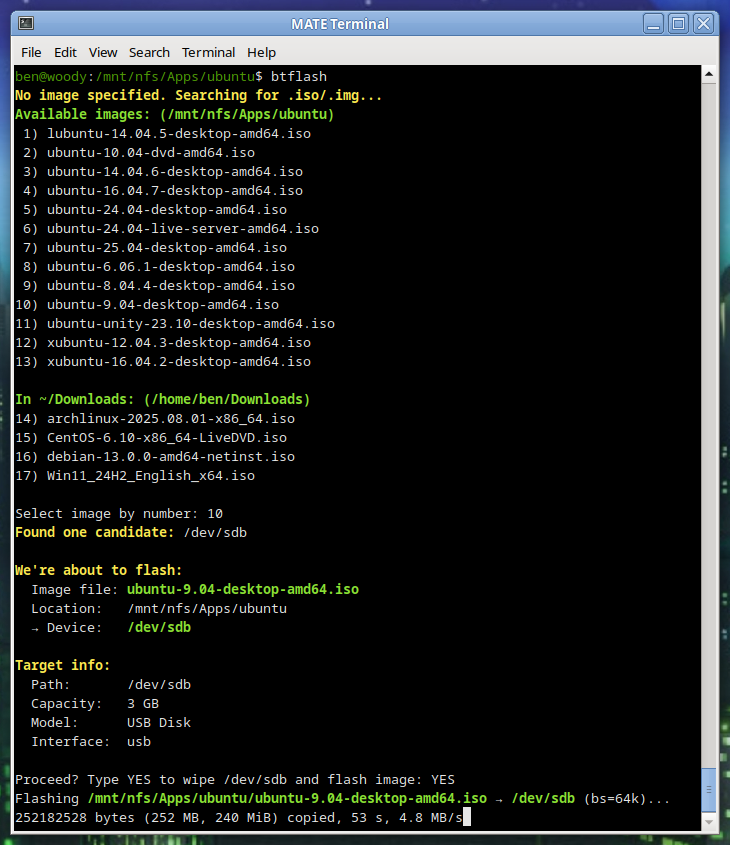
I’ve been working on a handy lil’ tool, basically a glorified wrapper script for dd. But I think I worked in some solid concepts:

You just run it, no args needed. (Though you can pass args if you want.)

Automatic target selection: Devices with the prefix /dev/sd* that are not mounted will be considered. I’ve put in a volume limit of 64 GB for safety. If the device is greater than 96 GB, then (imo) it’s probably something else – HDD/SSD – so in that case a manual override is required.

Automatic block size: Chosen based on drive capacity. Tiny drives use a smaller block size, while larger (likely more modern USB 3) drives can use big chunks, like bs=4M. This usually improves performance.

Once I get it all ironed out, I’ll share the code. So far, I find it pretty handy.

btflash in action…

Debian Trixie: Goodbye Init Freedom

With Trixie, comes changes…

systemd logo

As someone who has been running Debian servers for about a decade, one thing I’ve always appreciated is that if you didn’t like a core component, you could swap it out. That used to include the init system. Whether you preferred sysvinit, OpenRC, or runit, Debian gave you the tools to do it.

With Debian 13 Trixie, that is basically over.

What Changed

To be clear, Debian as defaulted to systemd since Jessie; we’re not talking about that. We’re talking about the OPTION to use another system instead. On Bookworm and earlier, moving away from systemd was simple:

apt install sysvinit-core
reboot

You might clean up a few services or install orphan-sysvinit-scripts, but it worked.

In Trixie, too many core packages now assume systemd is there. Udev is the most obvious example. During upgrades, it will pull in systemd even if you’re trying to stay init-free. Other essential packages have dropped their init scripts or unit files for anything else. If you boot without systemd, critical services will fail. The choice exists in theory, but it’s fragile and unsupported in practice.

Why It Is Happening Now??

This isn’t random. Version 13 tightens dependency chains across the core system. Packages such as udev, dbus, logind, and many desktop or network management components are systemd-aware by default. In previous releases, these dependencies were optional or provided fallbacks. In Trixie, the fallback paths are gone or broken. Swapping init now can silently break critical parts of the system.

For Some, Devuan May Finally Make a Lot of Sense

I never really understood why Devuan existed. On Jessie, Buster, Bullseye, and Bookworm, one could do a base install, install their init of choice, reboot, and purge systemd. Devuan always seemed like a convenience for users who wanted to skip that step.

Now, changing init is a literal nightmare. The system doesn’t allow it. You’re forced to boot from another system and attempt the change via chroot. Even then, it’s messy. For those who want a system without systemd, Devuan now has a legitimate place, even for technically inclined users.

Why might one avoid systemd:

  1. Simplicity and predictability: Traditional init systems are easy to debug, less opaque, and don’t pull in a large web of dependencies.

  2. Resource footprint: Sysvinit or OpenRC can run with minimal memory and CPU usage, ideal for very small servers or embedded systems.

  3. Control: Fewer hidden processes and services mean you can strip down and tune exactly what runs at boot.

Reasons to stick with systemd:

  1. Ubiquity: Most packages, especially in Trixie, assume systemd is present. Running without it often leads to breakage or fragile setups.

  2. Service management features: systemd provides dependency-based service startup, logging, timers, and cgroup integration out of the box.

  3. Easier integration with modern software: Many newer server tools and desktop components expect systemd and may not work properly without it.

Systemd Makes Sense for Most Users

For the majority of us, systemd offers clear advantages and a cohesive, performant set of system daemons that do their job reliably. It’s unfortunate, however, that the long tradition of Debian giving users choice in init has essentially come to an end.

For those disappointed by this, Alpine is worth a look. Alpine is a super minimal distribution based on BusyBox. It uses the musl C library and remains impressively small while still offering a well-curated and thorough selection of packages. And of course, Devuan. Devuan is a Debian fork whose claim to fame is being systemd-free. Any packages that would normally depend on systemd have been adjusted or patched for a smooth experience, including things like elogind replacements and tweaks to GNOME dependencies.

Final Thoughts

Debian used to be a super-flexible system that could be stripped down and tuned to run in very small memory footprints. It mostly still is, but with Trixie, it’s just a bit less flexible, and that’s truly too bad. They broke a decades-long tradition.

For those who are really bothered by this, thankfully there is Alpine and Devuan.

Whether you preferred sysvinit, OpenRC, or runit, Debian gave you the tools to do it.

With Debian 13 Trixie, that is basically over.

Debian 13 “Trixie” Officially Released

TuxTrixie Released Today!

Debian 13 “Trixie” is here as of today, August 9, 2025. It’s been a little over two years since Debian 12 “Bookworm” came out on June 10, 2023, and this is one of the most significant stable upgrades in recent memory.

Trixie’s release process followed the usual Debian rhythm. Toolchain freeze hit March 15, soft freeze April 15, hard freeze May 15, full freeze July 27, and now we’re finally at the stable release.


Kernel and Core Changes

Trixie ships with the Linux 6.12 LTS kernel. That brings better hardware support, improved performance, and security hardening. There’s official riscv64 support now, but mipsel is gone. Installer images for i386 and armel have also been dropped. Security hardening has improved on amd64 and arm64, with protection against ROP and COP/JOP attacks. HTTP Boot is now supported out of the box.


KDE Plasma 6 Arrives

When Bookworm launched in 2023 it stuck with Plasma 5.27 LTS because Plasma 6 came out in February 2024 — months after Debian’s freeze. Trixie is the first Debian stable to ship Plasma 6, and for desktop users this could be the single biggest reason to upgrade.

Plasma 6 moves to Qt 6, which improves performance and lowers memory usage. Wayland is now the default with better touch, pen, and gesture support. Fractional scaling works per display, multi-monitor setups are smoother, and there’s early HDR groundwork. Breeze has been refreshed, animations are smoother, and many KDE apps like Dolphin have had major improvements.


GNOME 48

GNOME 48 in Trixie brings a cleaner look, better performance, and refinements across the board. Nautilus has improved search and preview handling. The Settings app has been reorganized for easier navigation. Workspace gestures are more fluid, and core apps integrate better with dark and light modes.


Wayland by Default

Wayland is now the default session for both KDE and GNOME on most hardware. It offers fractional scaling per display, smoother rendering, and improved input handling. PipeWire integration boosts screen recording and streaming performance. NVIDIA proprietary driver support has improved to the point where more users can make Wayland their daily driver. X11 remains available if needed.


Toolchain Updates

GCC is now at 14.2, Python is 3.13, and there are countless package updates. Debian continues its push toward reproducible builds, adds HTTP/3 support in curl, and improves Qt WebEngine with spell-check.


Getting Debian 13

At the time of writing, the main Debian.org “Releases” page hasn’t yet been updated to list Trixie front and center, but the release notes and installers are live. You can grab them directly:


Building an Optimized Linux Kernel on Fedora 42

fastfetch screenshot
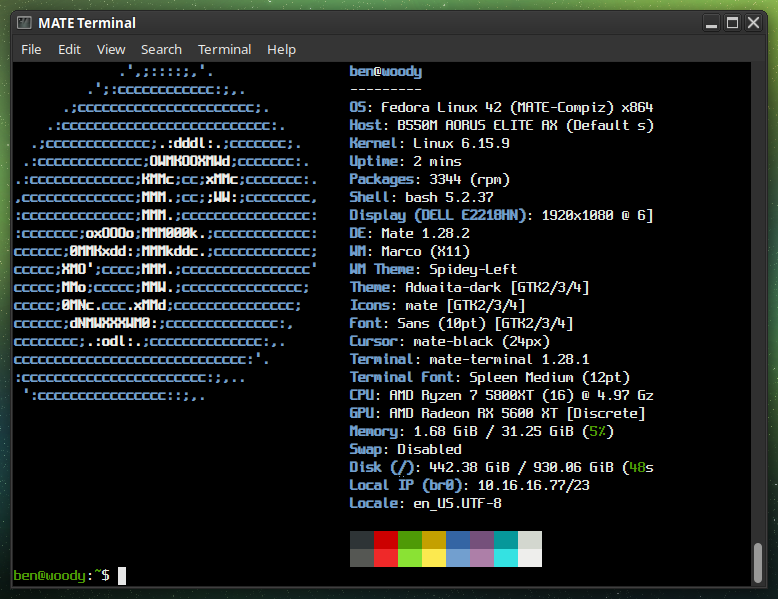
Fastfetch shows my custom 6.15.9 Kernel

Preparation: You’ll need to install some tools and dependencies required by the build process. On Fedora you’ll want to run the following:

sudo dnf install gcc make ncurses-devel bc openssl-devel elfutils-libelf-devel rpmdevtools fedpkg rpm-build
sudo dnf builddep kernel

Getting the Kernel source tarball
Head over to https://kernel.org and download your branch of choice. I’d recommend the latest Stable tarball.

wget https://cdn.kernel.org/pub/linux/kernel/v6.x/linux-6.15.9.tar.xz

tar -xf linux-6.15.9.tar.xz

cd linux-6.15.9

Copy your current defconfig

We’ll copy the running kernel’s configuration into our source tree…

cp /boot/config-$(uname -r) .config
make oldconfig

You should see some output, ending with “configuration written to .config”.

The easiest way to set our flags is to simply export them in our current shell before proceeding to run make. I did the following for my AMD Ryzen 5800XT:

export KCFLAGS=’-march=znver3 -O3′
export KCPPFLAGS=’-march=znver3 -O3′

You can do march=native if you’re not sure exactly what to use for your specific CPU. Only do znver3 if you’ve got a Zen 3 chip!

Then build.*

make -j$(nproc)

* If you’d like, make additional makefile edits before running make. Or, make menuconfig if you’d like to browse through available options. But, be careful… It gets pretty technical! Simply by following the instructions above you’ll end up with a Kernel which is newer than what you’ve got, better optimized, and smaller. Basically, better in all ways. All without having to make any questionable changes on your own… But of course, feel free to explore the available options! Keep in mind, always keep a known-good stable kernel in your grub configuration in case you make a mistake!

Your kernel will take some time to compile. Anywhere from several minutes to a couple of hours, depending on how powerful your processor is and how many modules must be built. Higher optimization levels typically will take more time as well; the standard level is O2, we’re doing O3. Performance is generally better but the initial build will take a bit longer.

When the compilation is finished:

sudo make modules_install
sudo make install

This will install the kernel modules to /lib/modules/6.15.9/ (in this case). These are drivers and kernel features compiled as =m; they’re loadable instead of built directly into the kernel. Make install will install the compiled image to /boot. In this case /boot/vmlinuz-6.15.9.

We can verify our new image is Grub’s default by running:

sudo grubby –default-kernel

We should see /boot/vmlinuz-6.15.9”.

Reboot into your new optimized kernel!

XScreenSaver MATE Script for Fedora

Fedora

Added a script which does all the same things as the Debian MATE XSS script did…

Installs the Full XScreenSaver collection (GL + Extras)
Removes MATE Screensaver
Symlinks XSS commands to replace MATE SS commands
Optional SETUID for Sonar
Ensures MATE SS doesn’t try to reinstall
Locking works via “System” –> “Lock Screen”
Fix for locking via keyboard shortcut

https://ben.lostgeek.net/code/xsmate/

Utilizing Apt-Cacher-NG’s cache on the server hosting it

apt-get

I’ve been using apt-cacher-ng for a few months now. For those who don’t know, this is a service you can run locally which will proxy apt requests from your network clients. This way, each time a package or update is requested there will be a copy retained in the cache. Upon each subsequent request for the same file(s), the local copy can be served instead. This saves bandwidth, and offers a speed advantage since you’ll likely be getting full GB ethernet line speed on your LAN. Read more about ACNG here.

While several local machines and VMs have no issues using my local ACNG proxy, the server actually hosting ACNG itself seemed to be giving errors when doing an apt update.

You’ll likely see the warnings “503 Server reports unexpected range” as well as “Some index files failed to download. They have been ignored, or old ones used instead.

Basically, because the machine is trying to proxy through itself, some kind of problem occurs. Now, the simple solution is to just point to the normal Debian mirrors directly. That however wouldn’t offer the benefit of our local cache! The more boxes / VMs pulling for it, the more value you’re getting out of the whole setup… So here’s how we resolve this issue.

Write a text file to /etc/apt/apt.conf.d/00acng and place the following lines inside:

Acquire::http::Proxy::localhost “DIRECT”;
Acquire::http::Proxy::127.0.0.1 “DIRECT”;
Acquire::http::Proxy::novo.lan “DIRECT”;

Of course, change “novo.lan” to the hostname of your ACNG host. My sources.list looks like this, hence the hostname used in my example.

deb http://novo.lan:3142/deb.debian.org/debian/ bookworm main non-free-firmware
deb-src http://novo.lan:3142/deb.debian.org/debian/ bookworm main non-free-firmware

deb http://novo.lan:3142/security.debian.org/debian-security bookworm-security main non-free-firmware
deb-src http://novo.lan:3142/security.debian.org/debian-security bookworm-security main non-free-firmware

deb http://novo.lan:3142/deb.debian.org/debian/ bookworm-updates main non-free-firmware
deb-src http://novo.lan:3142/deb.debian.org/debian/ bookworm-updates main non-free-firmware

You may want to add a 4th line, with your actual LAN IP if you’re naming the apt mirror by IP instead.


CrystalDiskMark for Linux?? KDiskMark is here to satisfy!

Here is a bit of KDE software which I was not aware of. It was not included in Debian 11 (Bullseye) — you had to build it from source or use third-party packages… However it was officially packaged starting with Debian 12 (Bookworm) and newer.

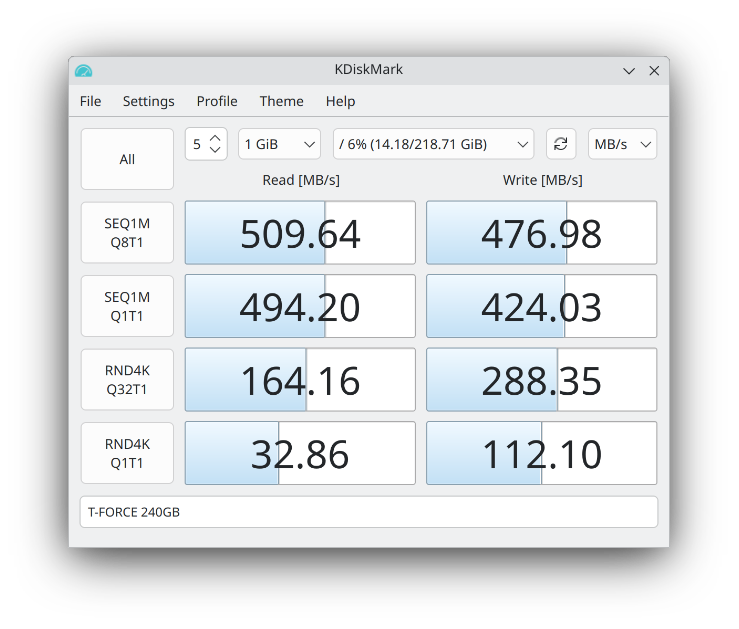
Here it is, running it on Kubuntu 25.04:

KDiskMark 3.1.3 on Kubuntu 25.04

Excellent little tool for those who don’t want to benchmark disks in the terminal via dd / fio. Nothing wrong with healthy feature parity & easy of use!

Making htop Remember Your Custom Layout

htop screenshot
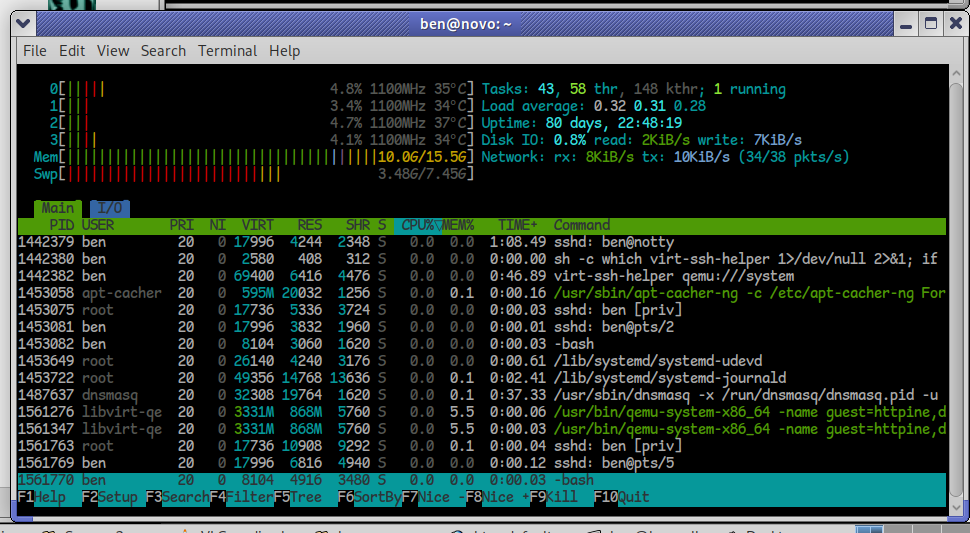
htop running with customized layout

I’d like to take a moment to explain a handy feature of htop, a system monitoring and process management tool — basically a text-based “Task Manager,” but far more powerful and flexible. I run it on my desktops, laptops, servers, and occasionally on virtual machines, whether in a graphical session or a terminal-only environment. Below, you’ll see it running on my server, where I’ve configured it to display the frequency of each CPU core, temperatures, total disk I/O, and total network I/O. As you can tell, activity is minimal — not much happening at this early hour, around 7 AM, when both local and internet traffic tend to be quiet.

htop is a brilliant little utility that punches way above its weight. It’s lightweight, packed with functionality, and refreshingly easy to use. Better yet, there are hardly any dependencies required, and it’s so cleanly written that even a novice should have little trouble building it from source, should they desire to do so. Remarkably portable, htop will compile on just about any Linux system, any of the BSD variants, macOS, Solaris and illumos derivatives, Haiku, and Cygwin (Windows). I think you get the point.

One handy but often overlooked feature is that htop can remember your custom display settings. Whether you prefer to see CPU frequencies, temperatures, disk I/O, or network traffic meters — you can tailor your view exactly how you like it.

Once you’ve customized your layout (press F2 in htop to access the Setup menu), simply press capital S (Shift + s) to save your settings. The next time you launch htop, it’ll load up your preferred view automatically.


Running XScreenSaver on a laptop? Let’s run cool…

For most people these days, screensavers have died off.

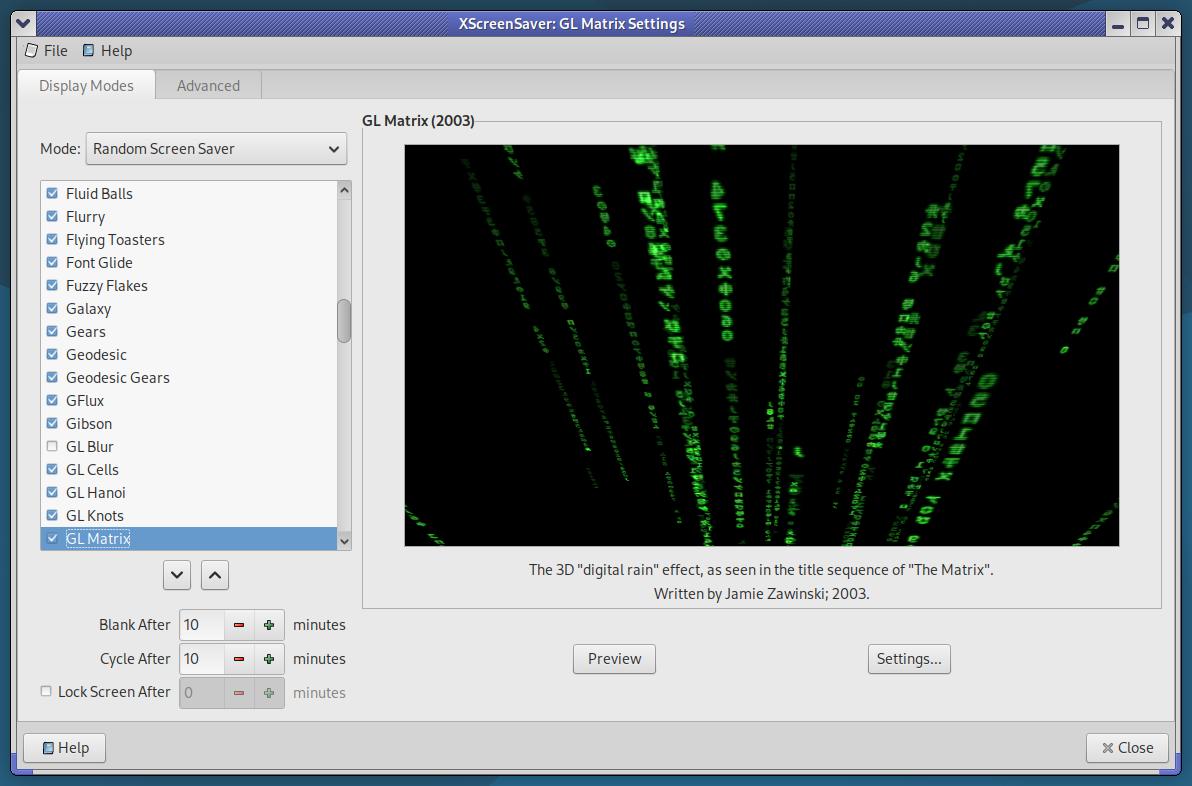
XScreenSaver Settings on Debian 12

I still like having them. And while most people have moved on from X.Org on Linux, well… here we are.

The 5300U in my ThinkPad has more than enough GPU power to display some beautiful screensavers. But by default, the system will ramp up into a higher performance state — because normally, that’s exactly what you’d want. Like if you were playing a game, or trying to load some bloated modern website.

But my idle laptop? I don’t want it getting all hot while it’s sitting on my lap or on the bed, just because it’s running a screensaver. So this is my little attempt to fix that — and it’s looking pretty promising.

The idea:

When XScreenSaver runs one of its screen hacks (screensavers), we’ll put the CPU into its lowest available frequency. That way, even when running hardware-accelerated 3D, the system will stay nice and cool.

Fortunately, the author of XScreenSaver — Jamie Zawinski — is a pretty smart dude, and the software already includes a clean little mechanism we can hook into to make this work.

Here’s how I’ve got it set up:

Create a script in your home folder, or wherever you want. xscreensaver_freq_watch.sh

#!/bin/bash

# Save current CPU and GPU max frequencies
CPU_MAX_BEFORE=$(cat /sys/devices/system/cpu/cpu0/cpufreq/scaling_max_freq)
GPU_MAX_BEFORE=$(cat /sys/class/drm/card0/gt_max_freq_mhz)

# Watch xscreensaver events
xscreensaver-command -watch | while read -r line
do
case “$line” in
LOCK*)
# Optional: do something on screen lock
;;
UNBLANK*)
echo “Screensaver stopped — restoring frequencies…”
echo $CPU_MAX_BEFORE | sudo tee /sys/devices/system/cpu/cpu*/cpufreq/scaling_max_freq > /dev/null
echo $GPU_MAX_BEFORE | sudo tee /sys/class/drm/card0/gt_max_freq_mhz > /dev/null
;;
BLANK*)
echo “Screensaver started — limiting frequencies…”
echo 500000 | sudo tee /sys/devices/system/cpu/cpu*/cpufreq/scaling_max_freq > /dev/null
echo 300 | sudo tee /sys/class/drm/card0/gt_max_freq_mhz > /dev/null
;;
esac
done

Of course, make it exactable with chmod +x. Also, use nopasswd in your /etc/sudoers line for your user.

Now because I’m using MATE / LightDM, I’m going to use a .desktop file. You could do something else, .xinitrc or a systemd service, but this is how I did it.

mkdir -p ~/.config/autostart
nano ~/.config/autostart/screensaver-watch.desktop

And inside that, we have the following

[Desktop Entry]
Type=Application
Exec=/home/ben/screensaver_freq_watch.sh
Hidden=false
NoDisplay=false
X-GNOME-Autostart-enabled=true
Name=Screensaver Frequency Watcher
Comment=Limits CPU and GPU frequencies while the screensaver is running

So far, it’s looking good! You may need to change this a bit depending on your configuration.

Installing Virt-Manager on Debian Without Backend Dependencies

VirtManager
I run several virtual machines on a home server, and this setup works out quite well for a couple of reasons. First, the VMs can run tasks at any time without slowing down the machine I’m actively working on. Second, Virt-Manager is a pretty slick solution—it gives you access to local LXC containers, QEMU virtual machines, or even lets you connect to VMs on another server over SSH.

If you’re just looking for the front-end functionality of Virt-Manager, you might find this interesting: you don’t need to install all the QEMU and libvirt daemon packages!

On Debian Bookworm, when I try to install Virt-Manager, it tells me it’s going to install 107 new packages, using about 220MB of disk space. Now, that’s not a ton of space, but it is quite a few packages. So let’s try a leaner approach:

sudo apt install virt-manager –no-install-recommends

That only pulls in 22 packages, using around 25MB of disk space.

For those who don’t know, the --no-install-recommends option in apt tells it to skip non-essential (recommended) packages when installing software. It still grabs everything needed to run the software, but skips the extras that apt thinks most people might want. Usually, that’s fine—Debian actually splits packages pretty aggressively (and sometimes annoyingly so).

For example, you’ve probably noticed that nearly every package with development tools also has a separate -dev version. Or maybe you’ve seen how xscreensaver is split into four separate packages, even though it’s distributed as a single application by its author.

Oh, and unless you’re exclusively using serial consoles through libvirt, you’ll probably want SPICE support working too! That means installing a couple more packages—just over 2MB extra:

sudo apt install libspice-client-gtk-3.0-5 gir1.2-spiceclientgtk-3.0

Let those install with their normal dependencies and recommended packages—otherwise the SPICE graphical interface won’t function correctly.

Anyway, remember that --no-install-recommends trick—it’ll definitely come in handy someday!

© 2025 LostGeek.NET - All Rights Reserved. Powered by ClassicPress, NGINX, Debian GNU/Linux.