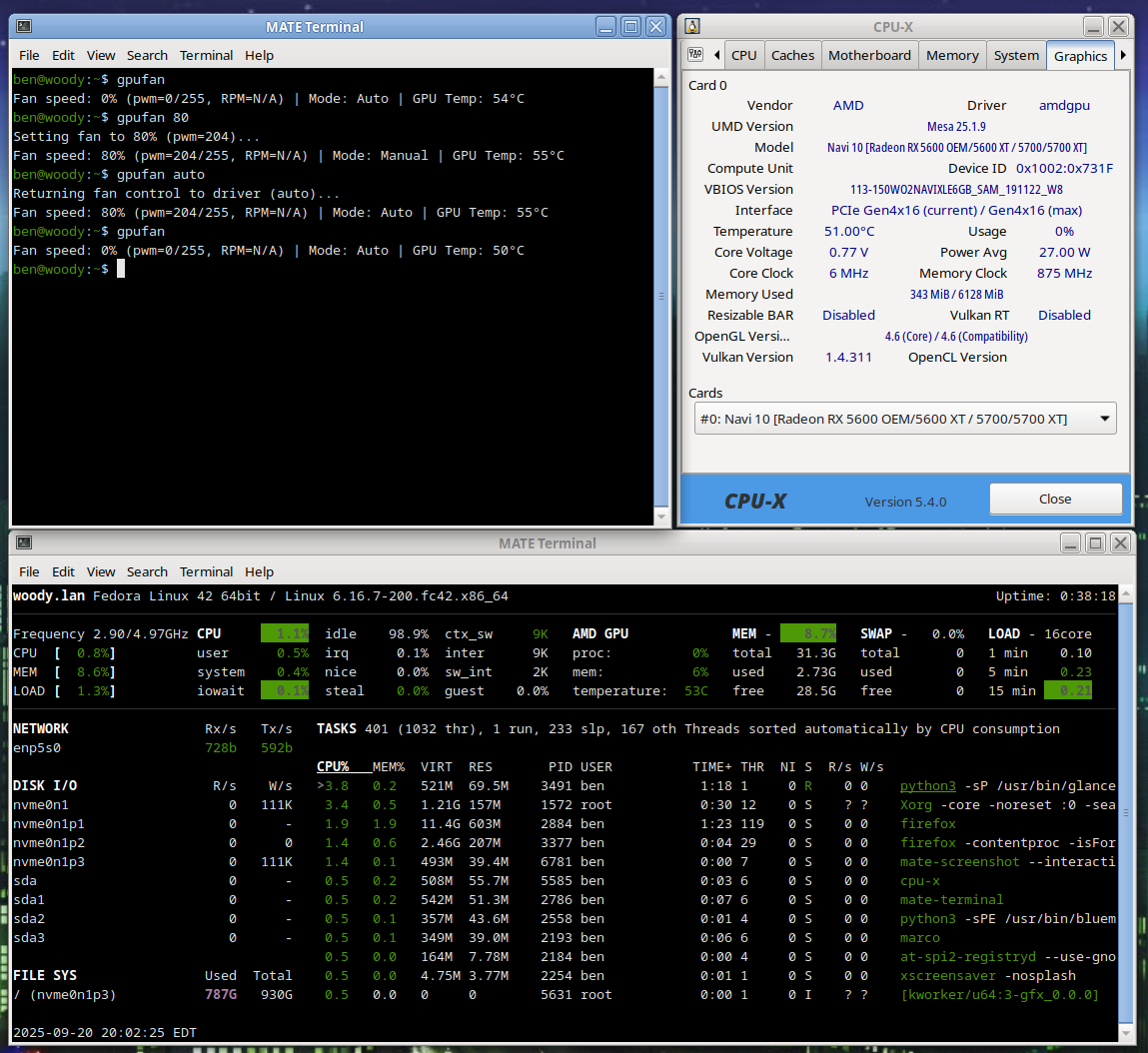
# gpufan -- sets manual fan speed on AMD Radeon GPU. For 5.x / 6.x Linux Kernel users running AMDGPU driver... # Author: Ben @ LostGeek . NET # Created 09/20/2025 # READ ME! How to use: # save as /usr/local/bin/gpufan then chmod +x # running "gpufan" will give temperature & fan rpm. gpufan followed by a number (1-100) # will manually set speed. "gpufan auto" will restore auto / driver control.
Category: scripts
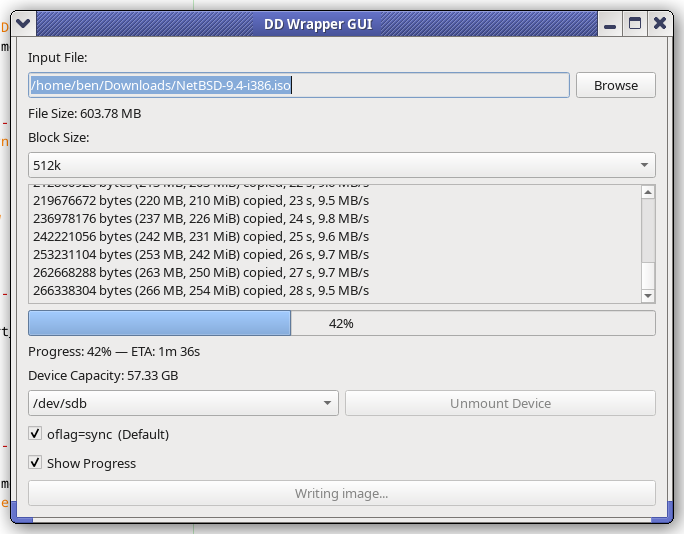
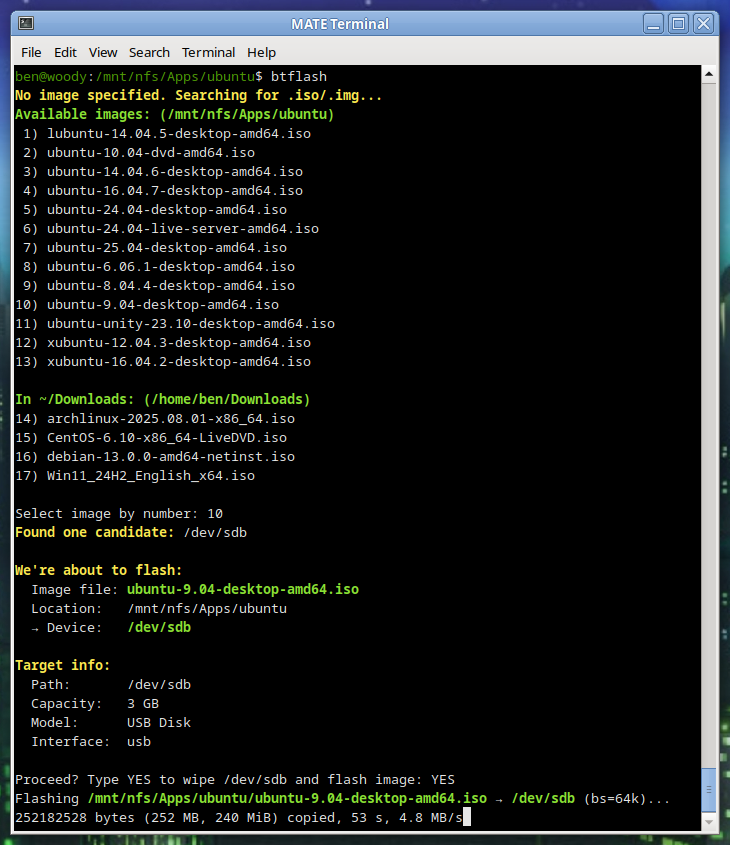
Writing a wrapper for DD
I’ve been working on a handy lil’ tool, basically a glorified wrapper script for dd. But I think I worked in some solid concepts:
You just run it, no args needed. (Though you can pass args if you want.)
Automatic target selection: Devices with the prefix /dev/sd* that are not mounted will be considered. I’ve put in a volume limit of 64 GB for safety. If the device is greater than 96 GB, then (imo) it’s probably something else – HDD/SSD – so in that case a manual override is required.
Automatic block size: Chosen based on drive capacity. Tiny drives use a smaller block size, while larger (likely more modern USB 3) drives can use big chunks, like bs=4M. This usually improves performance.
Once I get it all ironed out, I’ll share the code. So far, I find it pretty handy.

XScreenSaver MATE Script for Fedora

Added a script which does all the same things as the Debian MATE XSS script did…
Installs the Full XScreenSaver collection (GL + Extras)
Removes MATE Screensaver
Symlinks XSS commands to replace MATE SS commands
Optional SETUID for Sonar
Ensures MATE SS doesn’t try to reinstall
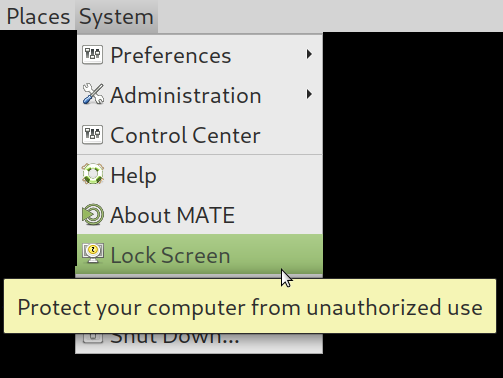
Locking works via “System” –> “Lock Screen”
Fix for locking via keyboard shortcut
XScreenSaver on MATE Desktop: Fixing Screen-Lock Key Bind
This is a follow-up to XScreenSaver Install Script for Debian MATE Desktop

To get working XScreenSaver lock via mate’s default keybind (MOD+L) simply do the following…
We’ll create a small wrapper script at /usr/local/bin/mate-screensaver-command:
sudo nano /usr/local/bin/mate-screensaver-command
Add the following:
#!/bin/bash
if [[ “$1” == “–lock” ]]; then
xscreensaver-command -lock
else
xscreensaver-command “$@”
fi
Then:
sudo chmod +x /usr/local/bin/mate-screensaver-command
Running XScreenSaver on a laptop? Let’s run cool…
For most people these days, screensavers have died off.

I still like having them. And while most people have moved on from X.Org on Linux, well… here we are.
The 5300U in my ThinkPad has more than enough GPU power to display some beautiful screensavers. But by default, the system will ramp up into a higher performance state — because normally, that’s exactly what you’d want. Like if you were playing a game, or trying to load some bloated modern website.
But my idle laptop? I don’t want it getting all hot while it’s sitting on my lap or on the bed, just because it’s running a screensaver. So this is my little attempt to fix that — and it’s looking pretty promising.
The idea:
When XScreenSaver runs one of its screen hacks (screensavers), we’ll put the CPU into its lowest available frequency. That way, even when running hardware-accelerated 3D, the system will stay nice and cool.
Fortunately, the author of XScreenSaver — Jamie Zawinski — is a pretty smart dude, and the software already includes a clean little mechanism we can hook into to make this work.
Here’s how I’ve got it set up:
Create a script in your home folder, or wherever you want. xscreensaver_freq_watch.sh
#!/bin/bash
# Save current CPU and GPU max frequencies
CPU_MAX_BEFORE=$(cat /sys/devices/system/cpu/cpu0/cpufreq/scaling_max_freq)
GPU_MAX_BEFORE=$(cat /sys/class/drm/card0/gt_max_freq_mhz)# Watch xscreensaver events
xscreensaver-command -watch | while read -r line
do
case “$line” in
LOCK*)
# Optional: do something on screen lock
;;
UNBLANK*)
echo “Screensaver stopped — restoring frequencies…”
echo $CPU_MAX_BEFORE | sudo tee /sys/devices/system/cpu/cpu*/cpufreq/scaling_max_freq > /dev/null
echo $GPU_MAX_BEFORE | sudo tee /sys/class/drm/card0/gt_max_freq_mhz > /dev/null
;;
BLANK*)
echo “Screensaver started — limiting frequencies…”
echo 500000 | sudo tee /sys/devices/system/cpu/cpu*/cpufreq/scaling_max_freq > /dev/null
echo 300 | sudo tee /sys/class/drm/card0/gt_max_freq_mhz > /dev/null
;;
esac
done
Of course, make it exactable with chmod +x. Also, use nopasswd in your /etc/sudoers line for your user.
Now because I’m using MATE / LightDM, I’m going to use a .desktop file. You could do something else, .xinitrc or a systemd service, but this is how I did it.
mkdir -p ~/.config/autostart
nano ~/.config/autostart/screensaver-watch.desktop
And inside that, we have the following
[Desktop Entry]
Type=Application
Exec=/home/ben/screensaver_freq_watch.sh
Hidden=false
NoDisplay=false
X-GNOME-Autostart-enabled=true
Name=Screensaver Frequency Watcher
Comment=Limits CPU and GPU frequencies while the screensaver is running
So far, it’s looking good! You may need to change this a bit depending on your configuration.
ben.lostgeek.net/code
To keep things clean and organized
I’ve put most of the code I’ve shared here all up in one place. Everything has a .txt extension, so it can just be viewed in the browser, copied and pasted. There are some readme files, but they are minimal… and this is just a start; but a start is better than nothing.
A minimalist video player, controlled over ssh

I quite often find that when I’m setting up something that I’m going to use myself, the extra layers are just annoying. Kodi/XBMC is great, but if you don’t care to set it up right it can feel clunky… to me anyway. That said, I do want some comforts in my solution.
No manually typing out long file names!
No cryptic, long commands
I give you btv, a wrapper I wrote for MPV. It is meant to be used over SSH.
Log in via SSH, change directory to the file(s) you want to play and type btv, it will list out the available video formats in that dir. Hit the corresponding number, press enter and it will start playing. It does so with nohup, so you can exit the ssh session or whatever — it’ll keep playing. If you run it again, while something is playing, it will pause for you. If you run it while something is open and paused, it resumes.
You can also manually set args with:
–stop
–pause
–resume
–play (filename)
–status
You’ll have to configure the correct audio/video outputs for your own setup. This is mine, on a pi5. If you have no audio, pulse/pipewire is probably the reason. Just stop the service(s).
Source available along with some of my other projects:
DnsMasq Network-Wide Blocking Part II. Dealing with Hostnames
As stated last time; When you’re no longer serving DNS from the same machine as your DHCP server, local hostnames may become an issue.
If you’re like me, all the things you actually would be needing to access by name in that matter already have static addresses and /etc/hosts file entries. I had an idea that I thought should be shared though.
This is a little script I wrote. What it does, is takes the dhcp.leases file on an OpenWRT router and produces a correctly formatted hosts file. In the previous article, I offered my custom config, and you’ll see the option to have dnsmasq parse your /etc/hosts file — this is for that.
Weather you have 4 devices on your network, 40 or however many you’ve got, this is an easy way to get the local hostnames working on your new custom DNS setup.
Here is the code for Leases2Hosts, you can run it right on OpenWRT.
#!/bin/sh
# OpenWrt Leases2Hosts 0.01 -- BTA 03.13.2025 -- LostGeek.NET
# Transforms OpenWrt dhcp leases file into format suitable for external DNS server
LEASES_FILE="/tmp/dhcp.leases"
OUTPUT_FILE="/tmp/dhcp.hosts"
# Set domain suffix (leave blank to disable)
DOMAIN_SUFFIX=".lan"
# Ensure the leases file exists
[ -f "$LEASES_FILE" ] || { echo "Leases file not found!"; exit 1; }
# New hosts file header
echo "# Generated by Lease2Hosts" > "$OUTPUT_FILE"
# Process the leases file using BusyBox-compatible awk
awk -v suffix="$DOMAIN_SUFFIX" '
{
ip = $3;
hostname = $4;
# Ignore entries where hostname is "*"
if (hostname == "*") next;
# Ensure hostname is not a MAC address (contains colons)
if (index(hostname, ":") > 0) next;
# Ensure hostname is only letters, numbers, dots, and dashes
if (match(hostname, /^[a-zA-Z0-9.-]+$/)) {
if (suffix != "") {
print ip, hostname, hostname suffix;
} else {
print ip, hostname;
}
}
}' "$LEASES_FILE" >> "$OUTPUT_FILE"
echo "Hosts file:"
echo "-----"
cat $OUTPUT_FILE
echo "-----"
echo "Hosts file written: $OUTPUT_FILE"
You can run this once and be done, if you don’t always add and change devices. It can also be auto started via a cron job.
I think there is even a way to have an event-based trigger so perhaps it could run as soon as a new lease is given to a unique device. I’ll leave that up to the reader though!
For those who don’t know, what this does is reads the DHCP leases file; this has the IPs and hostnames of all DHCP clients on your network. It also has mac addresses though, and may contain nameless entries, both of which you obviously don’t want in your hosts file. I’d imagine this could be very useful if you’ve got a network full of machines, VMs, or IoT devices… heck, even a family with laptops, smartphones and tablets.
It produces output as follows: 10.0.0.1 workstation1 workstation1.local 10.0.0.2 laptop1 laptop1.local etc…
From the dhcp.leases file, which looks something like this: *1621306452 c8:3d:6b:55:f1:e5 10.0.0.22 Roku * 1772607384 2c:ab:67:3d:90:5d 10.0.0.29 piframe 01:2c:cf:67:3d:90:5d etc…*
Quite ugly — notice the double MAC?? Well, that happens, especially on modern cell phones which hide their mac as a privacy feature, and on cheap-o devices which don’t have the mac set in stone.
Originally MACs weren’t supposed to just be changed on a whim but rather burned into the device’s eprom. My script aims to sort out all of this non-sense. I have had excellent results using the script, however please review it before using the generated list. If you understand shell script basics and awk, you can gauge your own confidence in it being fairly safe, but I shall make no such guarantee.
Using cron and scp, you can automate putting this new hosts file on your DNS server. However, I’d recommend that you use it simply to save you time in formatting a hosts file from a large lease pool — and it seems to do so quite well.
Upgrade-All Script for OpenWRT
In my experience, neither opkg’s command line interface, nor Luci’s web interface will allow you perform all available upgrades, all in one go.
They make you do each one, one at a time. Maybe for safety reasons?
If you accept the risks involved and want to save some time like I did, make yourself a script:
#!/bin/sh
opkg update
upgradables=$(opkg list-upgradable | awk '{print $1}') || exit 0
[ -z "$upgradables" ] && echo "No packages to upgrade." && exit 0
echo "Upgrade: $upgradables"; read -p "Enter y/n: " r
[ "$r" = "y" ] && opkg upgrade $upgradables
This is genuinely quite useful, and it also is a very good bash scripting example that I wanted to share.
Save it, chmod +x, rock and roll.
Probably should keep a copy on your workstation too, because unless you put it somewhere on the router that’ll survive reboots it may get lost during one.
Network wide ad-blocking with dnsmasq
PiHole is a thing, so is AdGuard Home— these are both excellent, and work well. They’re easy. you don’t have to be a network administrator to get up and running.
I’ve been a satisfied PiHole user for about a year, but I wanted something a little cleaner. Here is what I don’t like about PiHole:
- It isn’t a “normal” package. Perhaps “conventional” would be a better word; You need to use their install script. This makes updating a pain, and personally I think it is a messy way of doing things.
- The web interface wants to install its own server, on port 80. You can change this, and I did. Things were working fine, then I updated and the web portion no longer worked because they’ve switched to Lua… so more configuration needed, or use the web server it comes with.
- It is essentially just a re-release of dnsmasq, with a web front end slapped on.
So, let’s talk about doing the exact same thing, with the normal dnsmasq package that your distro comes with
IMO, the special sauce of PiHole is Stephen Black’s hosts list. This is what PH uses out of the box, to block ads, trackers and other malicious sites. Available on github here: https://github.com/StevenBlack/hosts
This file is laid out like a normal hosts file (0.0.0.0 somename.com) and we need to change that to something dnsmasq will understand. Dnsmasq needs it written like this, address=/somename.com/0.0.0.0
We can do that with a simple script. In my case, I wrote one which will grab the list for me, format it for dnsmasq and then put it in the dnsmasq.d config directory. Note, this does mean you’ll need to run with sudo, or do this in a way that you’re putting it in with the correct permission to do so.
#!/bin/bash
BLOCKLIST_URL="https://raw.githubusercontent.com/StevenBlack/hosts/master/hosts"
BLOCKLIST_FILE="/tmp/stephenblack_hosts"
OUTPUT_FILE="/etc/dnsmasq.d/100_stephenblack.conf"
# Download, process, and create dnsmasq config
wget -q -O "$BLOCKLIST_FILE" "$BLOCKLIST_URL" && \
awk '!/^#/ && NF > 1 {print "address=/" $2 "/0.0.0.0"}' "$BLOCKLIST_FILE" > "$OUTPUT_FILE" && \
systemctl restart dnsmasq && \
echo "Blocklist update and dnsmasq configuration complete!" || \
{ echo "Error occurred."; exit 1; }
Now, to get this to work, you’ll have to edit /etc/dnsmasq.conf and comment or add conf-dir=/etc/dnsmasq.d This is a massive file, so use search in your editor. Because the file is so large, make yourself a different file in dnsmasq.d called 99_custom.conf and we can put DNS related stuff in there. Here is mine, it has most of what one might want to play with dns-wise.
# Custom Configuration file for dnsmasq.
# ---------------------------------------
# These are the most relevant, DNS related options.
# All DHCP related options are in /etc/dnsmasq.conf
# To set upstream servers here; in case resolv.conf changes
no-resolv
server=1.1.1.1
server=9.9.9.9
# If you don't want dnsmasq to poll /etc/resolv.conf for changes
#no-poll
# Never forward plain names (without a dot or domain part)
domain-needed
# Never forward addresses in the non-routed address spaces.
bogus-priv
# Uncomment these to enable DNSSEC validation and caching:
# (Requires dnsmasq to be built with DNSSEC option.)
#conf-file=%%PREFIX%%/share/dnsmasq/trust-anchors.conf
#dnssec
# Replies not DNSSEC signed may be legitimate. Because the domain
# is unsigned, or may be forgeries. Dnsmasq can check unsigned replies.
#dnssec-check-unsigned
# Change this line if you want dns to get its upstream servers from
# somewhere other that /etc/resolv.conf
#resolv-file=
# Use upstream DNS server in order, or any available.
#strict-order
# Add other name servers here, (if non-public domains).
#server=/localnet/192.168.0.1
# Add local-only domains here, queries in these domains are answered
# from /etc/hosts or DHCP only.
local=/lan/
# Add domains which you want to force to an IP address here.
# This is also how ad-blocking works. (point @ 0.0.0.0)
#address=/double-click.net/127.0.0.1
# Run dnsmasq as...
#user=
#group=
# Use specific network interface, bind to LAN (only) if doing NAT.
# You don't want to make your DNS avail to the public internet.
#bind-interfaces
# Set the cache size here. Default is 100, max is 10000
cache-size=10000
# If you want to disable negative caching (non-working names)
#no-negcache
# May serve potentially stale date, you can set a custom time-to-live
local-ttl=900
# For debugging purposes, log all queries (will use many MB in a day)
#log-queries
# Good idea if you're passing out this DNS server directly to clients
addn-hosts=/etc/hosts
# Option to disable ipv6, shouldn't need to enable
#no-ipv6
I’ve got no-resolv set here, because if you tell your router to hand out this machine for DNS then it’ll get only itself as a source and well, you won’t have working DNS. So either keep no-resolv and set your upstream servers in this custom file, or make sure you’re not using anything which is going to overwrite your resolv.conf entries.
For those interested, here’s how you could deal with that:
Adding dns-nameservers 1.1.1.1 9.9.9.9 to /etc/network/interfaces (if you’re using ifupdown)
Putting supersede domain-name-servers 1.1.1.1, 9.9.9.9; into your /etc/dhcp/dhclient.conf file, should you be using dhclient for a dynamically assigned address. Good idea to do this, if you use any NICs with DHCP unless you told dnsmasq to ignore resolv.conf.
And well, I think that’s about it. The last step is going into your router, setting the machine /w dnsmasq as the DNS server… and of course, adding any names you want/need to resolve on your LAN to the DNS server’s /etc/hosts file.
Enjoy!