CrystalDiskMark for Linux?? KDiskMark is here to satisfy!

Here is a bit of KDE software which I was not aware of. It was not included in Debian 11 (Bullseye) — you had to build it from source or use third-party packages… However it was officially packaged starting with Debian 12 (Bookworm) and newer.

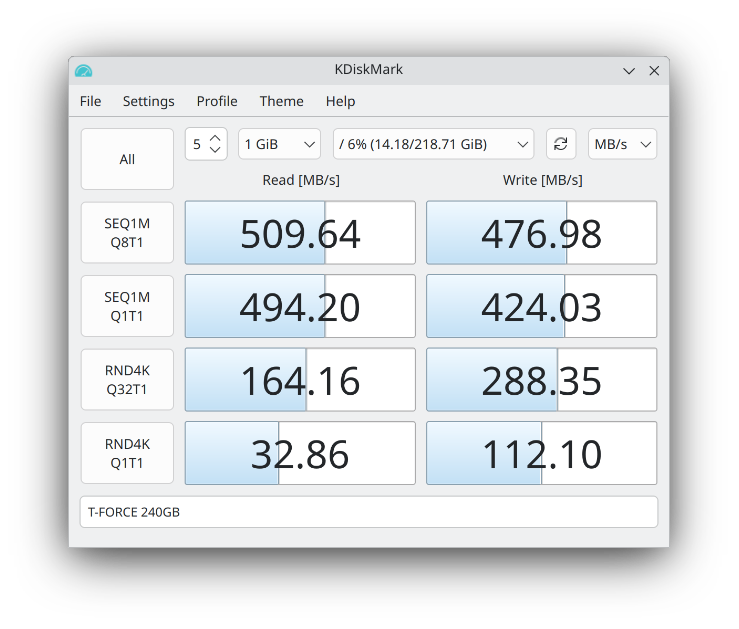
Here it is, running it on Kubuntu 25.04:

KDiskMark 3.1.3 on Kubuntu 25.04

Excellent little tool for those who don’t want to benchmark disks in the terminal via dd / fio. Nothing wrong with healthy feature parity & easy of use!

Making htop Remember Your Custom Layout

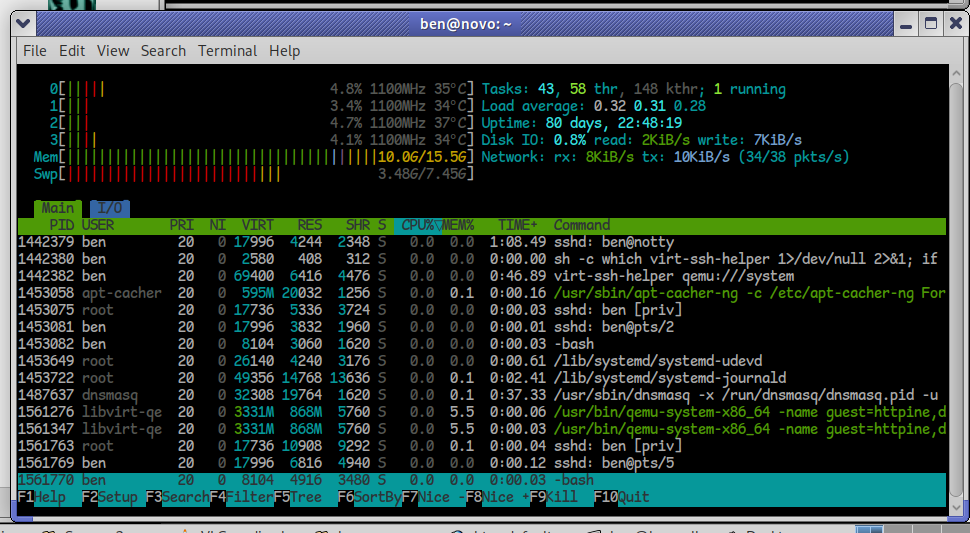
htop screenshot
htop running with customized layout

I’d like to take a moment to explain a handy feature of htop, a system monitoring and process management tool — basically a text-based “Task Manager,” but far more powerful and flexible. I run it on my desktops, laptops, servers, and occasionally on virtual machines, whether in a graphical session or a terminal-only environment. Below, you’ll see it running on my server, where I’ve configured it to display the frequency of each CPU core, temperatures, total disk I/O, and total network I/O. As you can tell, activity is minimal — not much happening at this early hour, around 7 AM, when both local and internet traffic tend to be quiet.

htop is a brilliant little utility that punches way above its weight. It’s lightweight, packed with functionality, and refreshingly easy to use. Better yet, there are hardly any dependencies required, and it’s so cleanly written that even a novice should have little trouble building it from source, should they desire to do so. Remarkably portable, htop will compile on just about any Linux system, any of the BSD variants, macOS, Solaris and illumos derivatives, Haiku, and Cygwin (Windows). I think you get the point.

One handy but often overlooked feature is that htop can remember your custom display settings. Whether you prefer to see CPU frequencies, temperatures, disk I/O, or network traffic meters — you can tailor your view exactly how you like it.

Once you’ve customized your layout (press F2 in htop to access the Setup menu), simply press capital S (Shift + s) to save your settings. The next time you launch htop, it’ll load up your preferred view automatically.


Running XScreenSaver on a laptop? Let’s run cool…

For most people these days, screensavers have died off.

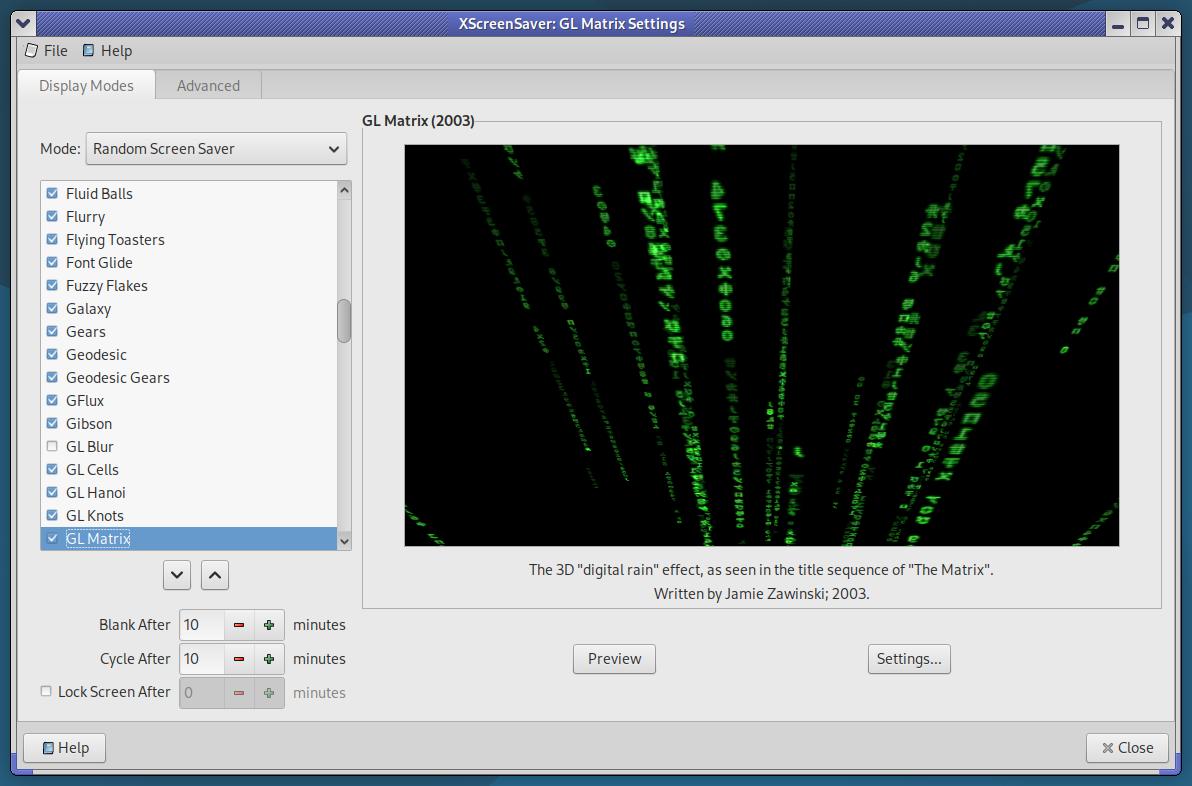
XScreenSaver Settings on Debian 12

I still like having them. And while most people have moved on from X.Org on Linux, well… here we are.

The 5300U in my ThinkPad has more than enough GPU power to display some beautiful screensavers. But by default, the system will ramp up into a higher performance state — because normally, that’s exactly what you’d want. Like if you were playing a game, or trying to load some bloated modern website.

But my idle laptop? I don’t want it getting all hot while it’s sitting on my lap or on the bed, just because it’s running a screensaver. So this is my little attempt to fix that — and it’s looking pretty promising.

The idea:

When XScreenSaver runs one of its screen hacks (screensavers), we’ll put the CPU into its lowest available frequency. That way, even when running hardware-accelerated 3D, the system will stay nice and cool.

Fortunately, the author of XScreenSaver — Jamie Zawinski — is a pretty smart dude, and the software already includes a clean little mechanism we can hook into to make this work.

Here’s how I’ve got it set up:

Create a script in your home folder, or wherever you want. xscreensaver_freq_watch.sh

#!/bin/bash

# Save current CPU and GPU max frequencies
CPU_MAX_BEFORE=$(cat /sys/devices/system/cpu/cpu0/cpufreq/scaling_max_freq)
GPU_MAX_BEFORE=$(cat /sys/class/drm/card0/gt_max_freq_mhz)

# Watch xscreensaver events
xscreensaver-command -watch | while read -r line
do
case “$line” in
LOCK*)
# Optional: do something on screen lock
;;
UNBLANK*)
echo “Screensaver stopped — restoring frequencies…”
echo $CPU_MAX_BEFORE | sudo tee /sys/devices/system/cpu/cpu*/cpufreq/scaling_max_freq > /dev/null
echo $GPU_MAX_BEFORE | sudo tee /sys/class/drm/card0/gt_max_freq_mhz > /dev/null
;;
BLANK*)
echo “Screensaver started — limiting frequencies…”
echo 500000 | sudo tee /sys/devices/system/cpu/cpu*/cpufreq/scaling_max_freq > /dev/null
echo 300 | sudo tee /sys/class/drm/card0/gt_max_freq_mhz > /dev/null
;;
esac
done

Of course, make it exactable with chmod +x. Also, use nopasswd in your /etc/sudoers line for your user.

Now because I’m using MATE / LightDM, I’m going to use a .desktop file. You could do something else, .xinitrc or a systemd service, but this is how I did it.

mkdir -p ~/.config/autostart
nano ~/.config/autostart/screensaver-watch.desktop

And inside that, we have the following

[Desktop Entry]
Type=Application
Exec=/home/ben/screensaver_freq_watch.sh
Hidden=false
NoDisplay=false
X-GNOME-Autostart-enabled=true
Name=Screensaver Frequency Watcher
Comment=Limits CPU and GPU frequencies while the screensaver is running

So far, it’s looking good! You may need to change this a bit depending on your configuration.

Installing Virt-Manager on Debian Without Backend Dependencies

VirtManager
I run several virtual machines on a home server, and this setup works out quite well for a couple of reasons. First, the VMs can run tasks at any time without slowing down the machine I’m actively working on. Second, Virt-Manager is a pretty slick solution—it gives you access to local LXC containers, QEMU virtual machines, or even lets you connect to VMs on another server over SSH.

If you’re just looking for the front-end functionality of Virt-Manager, you might find this interesting: you don’t need to install all the QEMU and libvirt daemon packages!

On Debian Bookworm, when I try to install Virt-Manager, it tells me it’s going to install 107 new packages, using about 220MB of disk space. Now, that’s not a ton of space, but it is quite a few packages. So let’s try a leaner approach:

sudo apt install virt-manager –no-install-recommends

That only pulls in 22 packages, using around 25MB of disk space.

For those who don’t know, the --no-install-recommends option in apt tells it to skip non-essential (recommended) packages when installing software. It still grabs everything needed to run the software, but skips the extras that apt thinks most people might want. Usually, that’s fine—Debian actually splits packages pretty aggressively (and sometimes annoyingly so).

For example, you’ve probably noticed that nearly every package with development tools also has a separate -dev version. Or maybe you’ve seen how xscreensaver is split into four separate packages, even though it’s distributed as a single application by its author.

Oh, and unless you’re exclusively using serial consoles through libvirt, you’ll probably want SPICE support working too! That means installing a couple more packages—just over 2MB extra:

sudo apt install libspice-client-gtk-3.0-5 gir1.2-spiceclientgtk-3.0

Let those install with their normal dependencies and recommended packages—otherwise the SPICE graphical interface won’t function correctly.

Anyway, remember that --no-install-recommends trick—it’ll definitely come in handy someday!

OpenBSD 7.7 Released Today!

OpenBSD 7.7
OpenBSD 7.7 — The 58th release from the OpenBSD project.

Happy to see that OpenBSD 7.7 is officially released! What’s new? More than I’ll even try to list here. Well… that’s a lie! I’ve got to mention some of it.

Personally, I was definitely pleased to see amongst the changes there are lots of kernel improvements. Many SMP enhancments, New AMDGPU hardware supported, as-well as Intel Arrow Lake. Perhaps post exciting is they’ve updated DRM to Linux 6.12.21. Also
acpipci now active on hypervisors, resolving longstanding  SeaBIOS/qemu issues

Highlights for the 7.7 Release include:

  • Enabled AP power state initialization fix for M1 MacBook on latest firmware.
  • Implemented support for ARM64 SVE (Scalable Vector Extension).
  • Added AMD SEV guest boot support on QEMU with EFI and SEV firmware management via psp(4).
  • Unlocked TCP output, timers, and accept(2) — significantly improving SMP scalability and parallelism for TCP workloads.
  • Updated Direct Rendering Manager (drm(4)) to Linux 6.12.21, with new hardware support for AMD Ryzen AI 300, Navi 48 GPUs, and Intel Arrow Lake.
  • Improved out-of-memory (OOM) handling and made page daemon operations more efficient.
  • Implemented per-CPU ringbuffers for dt(4) and extended btrace(8) with additional units and multiline script support.
  • Introduced kern.audio.kbdcontrol sysctl(2) to optionally treat multimedia keyboard volume keys as regular keys.
  • Allowed sysctl(8) to apply settings from a file in one command with -f, simplifying rc(8) startup.
  • Enabled shared netlocks for TCP send/recv system calls — improving multi-threaded network performance.

https://www.openbsd.org/77.html

I disable zram every time I install Fedora

ZRam
If you do a quick search online, you’ll find plenty of discussions where people ask about turning off zram—for one reason or another. They’re often met with a barrage of comments saying they’re making things worse. “Zram is free performance, didn’t you know? It costs nothing and doubles your RAM!”

Yeah, well—hear me out.

My desktop has 16 GB of RAM. I don’t even get close to running out of memory unless it’s been up for 30 days straight with 100 different apps or browser tabs open. My newer ThinkPad has 8 GB.

Now, 8 GB isn’t considered a large amount of memory anymore. In fact, people will tell you it’s rapidly becoming the bare minimum. But I’ll tell you this: for most people’s needs, especially on a laptop, it’s plenty. I don’t tend to have much open on my notebook—just a couple of browser windows, a few terminals, email, maybe a file manager. Any more than that and I start feeling lazy, because odds are I’m not really using all that stuff. I tend to be more focused when I close down things I’m not actively using.

Anyway, back on topic—why don’t I use zram?

My machines are all 8 years old, or older. They work just fine, but they are not new.

My desktop has a 4th-gen Intel chip, and my laptop runs a 5th-gen low-voltage i5. Zram does give you “more memory,” but it comes at a cost. It works by compressing unused memory pages, which means your CPU has to do that work. Every time a page is written to zram or read back out, it must be compressed or decompressed.

Whether or not that impact is that noticeable, I can’t say for sure—I haven’t run benchmarks. But I do know this: my machines are fast enough, and I like to keep them light, fast, and nimble. And since I already have enough RAM, it makes no sense for me to use zram. If I do need to swap, all of my systems have fast SSDs to handle swapping well enough. I typically allocate 1–4 GB of swap space, and I do that on the fastest SSD in the system.

If you’ve got multiple drives—say, NVMe, SATA SSD, and a spinning hard drive—only put your swap on the NVMe. Another tip: if you’re not planning to hibernate, there’s no reason to make your swap as large as your RAM. Swap is useful as a safety net so your system doesn’t lock up when you run out of memory, but in my experience, I’ve rarely used more than 1 GB. If you’re consistently using multiple gigabytes of swap, you probably just need more RAM.

Another argument I often see is: “Zram doesn’t consume extra memory.” Well… how does that make any sense? Of course it does. Sure, it’s compressed—maybe you use 500 MB of RAM for what would’ve been 1 GB of swap—but I’d rather use that 500 MB as actual RAM and just let the system swap to SSD.

If you want to disable zram on Fedora, just create an empty config file called zram-generator.conf and place it in /etc/systemd/.

You can even do this from the live installer, while it’s still copying data. Just pop open a terminal and run:

sudo touch /mnt/sysroot/etc/systemd/zram-generator.conf


That’s it!

ben.lostgeek.net/code

MatrixTo keep things clean and organized

I’ve put most of the code I’ve shared here all up in one place. Everything has a .txt extension, so it can just be viewed in the browser, copied and pasted. There are some readme files, but they are minimal… and this is just a start; but a start is better than nothing.

Simple Paint program for Linux?

Ever miss the easy, simpler times?

Microsoft Paint
Microsoft Paint

TLDR; That screenshot isn’t of jspaint.app — but with the exception of trading the blue titlebar for your web browser’s UI; it is basically the same thing. I stumbled upon jspaint.app while looking for a basic, simple Linux\Unix paint program.

jspaint.app
All those familiar toolbar items, exactly as you remember them.

Genuinely useful, I would say. For when you need to just draw a circle, a dot, an arrow to draw attention to part of a screenshot. When you need to do a simple resize, rotate, crop. And of course, it can save and open files from your local machine. The uploading and downloading is mimicked through the win32 inspired dialog, it even plays a Win 9x error warning chime to remind you to save upon quitting! And I’ll be damned, I wrote this whole thing up not knowing that there is much much more, if you Exit the “program” instead of just closing the tab. Some very cool stuff. Definitely will scratch the nostalgia itch, but genuinely useful too.

Anyways, that was the main point of this; sharing something I thought was pretty cool and unique. Despite being a copy of something, I’d imagine it is a complete re-implementation, and probably took some serious programming chops to pull off so cleanly. As far as I can see, it has full feature parity with the mspaint in Windows 95 – XP. (in my opinion, the best version.)

But, my search continued. I want something installed on the system, I’m not into web apps — but I made an exception to share that. It’s pretty darn neat. Both Krita and GIMP are fantastic image editing applications, but they’re packed to the gills with features. Most of the time, yes that is a great thing. But sometimes, it simple isn’t needed. Both applications take at least 5 – 10 seconds to start up, and if you haven’t worked in them in a while it can feel a bit cumbersome finding your way through whatever edits you’re trying to make as you re learn the interface and layout. I’m a casual user. If I the software daily, I’d have no complaints.

In my 5 minute search to see what was out there I found a few things of interest…

Pinta looked like a great option. However, you need to install Microsoft’s .NET SDK in order to compile it yourself. It isn’t already in the debian repositories of course either. They did have a tarball of it, I’ll probably go back and try that… but I ended up moving in. Yes, they had flatpacks and snaps, I’m all set since I have no other software in the format thus far and ehh, I just prefer more minimalist solutions.

I ended up installing Dibuja; had to of course do some terminal funkery but wasn’t too bad. Basically there was a dependency issue with libgdk-pixbuf, I installed the current replacement but apt wasn’t happy with that… However it was an easy fix, equivs came to the rescue.

First off, we install the updated library libgdk-pixbuf-2.0-0. Go ahead and try just installing the .deb for Dibuja because my issues may have been because I’m running on trixie… I doubt it though, but not sure. If you have dpkg complain that you’re missing libgdk-pixbuf, continue on to install equivs.

For those in the same pickle as I was:

mkdir ~/equivs-dibuja
cd ~/equivs-dibuja
equivs-control control

Open control in an editor and add the following:

Package: libgdk-pixbuf2.0-0
Version: 2.22.0
Provides: libgdk-pixbuf2.0-0
Description: Fake package to satisfy dibuja

Then run equivs-build control. Install by running sudo dpkg -i libgdk-pixbuf2.0-0_2.22.0_all.deb

Now… we try installing Dibuja again…

Dibuja
At last, Dibuja runs.

As you can see, quite simple. No layers, unicorn shaped brush tips, flatsnaps, just a good BASIC image editor.

My thoughts on Arch Linux

Arch Logo

Preface:  I’m a long-time GNU/Linux user, extensively familiar with systems like Debian and Fedora. I don’t mind getting my hands dirty, and I’ve used plenty of distributions that are generally believed to be less user-friendly than your average Ubuntu flavor — namely Alpine Linux, FreeBSD, and OpenBSD.

So, what is Arch Linux, and who is it for?

If I had to answer that myself and offer my own take, it would be this: Arch is a rolling-release distribution with the latest packages and a remarkably broad selection of software. You’ll have at your fingertips the very latest in Linux and free software — you’ll be on the bleeding edge.

Arch is also a build-it-yourself kind of distro, in the sense that you’ll need to choose and configure your own desktop environment, sound server, display server, and so on. It’s more popular than ever among Linux power users, and it’s easy to see why.

How does it compare to Debian Sid? Fedora Rawhide?

First, let’s clear up a common point of confusion: when people say “Sid,” they often mean Debian Testing. Testing is the middle ground between Unstable and Stable in the Debian ecosystem. Typically, it won’t have broken packages — though it can — but it may be missing them entirely at times.

Unstable, on the other hand, does hold buggy, broken, in-development software. Testing is for software that’s somewhat stable and functioning, but not yet officially “release-ready.”

Debian does a new “Stable” release (a major version, e.g., Bookworm) roughly every two years. When new packages are built, they first enter “Unstable,” and once they work well enough, they move to “Testing.” Leading up to a new release, a freeze occurs. During the freeze, new code and features are no longer accepted into Testing — only bug fixes are allowed. This model prioritizes stability, and it’s similar to how the Linux kernel is developed: features freeze at a certain point, so that the remaining effort is focused on polishing what’s already there.

For completeness: Fedora takes a similar approach, but it’s simpler in terms of branches. They have the latest official release (e.g., Fedora 41), and then there’s Rawhide, which is Fedora’s rolling-release/unstable branch.

Wait… I thought this was supposed to be about Arch Linux?!

I’m getting back to that.

So where does Arch fall into all this? Well, Debian Stable — Arch is not. And by that, I mean they’re completely different animals.

Sometimes, you want something that’s tried and true, something that just works. There’s nothing wrong with Debian’s release model — in fact, Debian is one of the most widely used Linux distributions on desktops, and it’s arguably even more dominant on servers.

Right now, for example (April 2025), Debian 12 Bookworm is almost two years old. That means that, for the most part, the software it includes is also about two years old. Some packages may be even older. This doesn’t mean the software is bad, but it’s technically “old.” Features don’t normally change during a stable release’s lifecycle — only security updates and critical bug fixes are provided.

In contrast, Arch gets you as close to the upstream as possible. Things should work, but they haven’t been battle-tested the same way. Debian Stable, on the other hand, continues to be supported even after it’s no longer the current release — with bug fixes and security updates maintained under its “Old Stable” status. These days, a single Debian release can easily be used for up to eight years or more.

When does Arch Linux make the most sense?

If you’ve got a brand-new, cutting-edge piece of hardware, Arch might be the most sensible choice. You’ll likely want the latest Linux kernel for full support — and yes, you can build a new kernel on any distro, but we’re not talking about that level of work here.

Because Arch combines a bleeding-edge model with a huge package repository, you can choose to run either the latest stable kernel or an LTS (Long-Term Support) kernel, depending on your preference. For context: when we say “stable” in terms of the Linux kernel, we don’t mean “stable” like Debian Stable — we just mean it’s a non-development, non-RC release.

If you have a high-DPI display, a high-end GPU, or you just want to test the latest in GNOME or KDE, Arch is a fantastic choice. As I mentioned earlier, you’ll be able to install much more recent builds of almost everything than what you’d find in something like Debian Stable.

Why not just use Debian Testing or Sid, then?

You can, and if you’re already comfortable with Debian, trying out Testing isn’t a bad idea. In fact, Testing can often be run day-to-day without major issues. But Sid (Unstable) is another story entirely — and if you try to mix packages from Stable, Testing, and Unstable, you’re very likely to run into messy dependency hell and package management headaches.

While Testing can function as a sort of rolling release, that’s not really its purpose. It exists primarily for development and staging of Debian’s next Stable version. Arch, on the other hand, is a rolling release — plain and simple. If a package is in the repository, it’s supposed to work. And if something breaks, you can usually roll it back, and a fix will likely come soon.

In conclusion…

Well — I haven’t come to one yet, and I can’t say there will be a definitive conclusion, per se.

As I write this, I’m on my second or third day of giving Arch a good, honest trial on my laptop. So far, I’m liking it quite a bit. I’ll no doubt have a follow-up at some point, but I think I’ve stated the majority of my opinions up above.

Stay tuned.

VMware Workstation Continues to Impress

Yesterday I was quite surprised just how painlessly I was able to get a snappy, usable XP VM up and running in VMware Workstation.

To be clear, running XP in a VM is nothing special nor is it hard to do. But having decent graphics acceleration and device drivers is another story! I’m a true believer in the FOSS philosophy, but so long as there aren’t ads or nag screens I don’t mind using proprietary software so long as it works well.

Just for fun, I thought I’d see how VMware Workstation handles Windows 98 SE. I was surprised indeed.

Display properties, with high resolutions and color depths available

Unreal Tournament Demo v348 seemed a good test, at only 49MB. VMware set this machine up with the venerable AMD PCNET card, so 98SE found it during setup and I didn’t have to do anything — it just worked. I did need to install an old version of the guest tools; I found that on archive.org and have uploaded it to my own server aswell. Will link below.

UTDemo
UT99 drawing > 200 FPS with the software renderer

The game didn’t find a 3D accelerator, or offer DirectX / OpenGL but you could probably get that working. Nearly 250 FPS with software rendering isn’t too bad though!

I’m not interested in the VMware solution for games though, but rather old desktop applications that don’t run stably under wine. For those curious, Unreal Tournament runs PERFECTLY under wine! So that’s definitely how I’d recommend playing it. I just wanted to see how well VMware Workstation worked for something a little more demanding than MS Office. And yeah, its solid!

VMware Tools ISO for 9x / NT/ 2k / XP:
https://archive.org/details/winPreVista

EDIT 04/13/25: I didn’t realize this initially, but the tools did not install an audio driver. VMWare emulates Ensoniq AudioPCI hardware for the 9x guest; amazingly creative still hosts the driver on their site.

Creative/Ensoniq Audio Driver:
https://support.creative.com/downloads/download.aspx?nDownloadId=259

© 2025 LostGeek.NET - All Rights Reserved. Powered by ClassicPress, NGINX, Debian GNU/Linux.