OpenWRT on a Thrift Store Router (Netgear WNDR3700 v4)

WNDR3700 v4
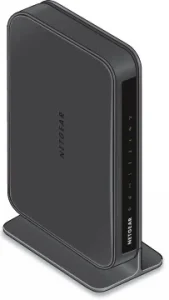
NETGEAR WNDR3700 v4 WiFi Router

Earlier today I stopped by a local Goodwill to see what they had in the way of electronics. Among the digital photo frames and old keyboards, I spotted two routers. I’m always on the lookout for hardware that can run Linux. One of the routers was a Netgear WNDR3700 v4. It was in its original box with the power adapter and a couple of patch cords.

Normally I’d pull out my phone and check OpenWrt support before buying, but this one looked old enough that I figured there was at least a 50/50 chance it would be an easy convert. I’m glad I grabbed it; Not only is this model supported, but flashing OpenWrt is about as painless as it gets.


Flashing with OpenWrt — No UART, no TFTP, no drama.

  1. Factory reset the router.
  2. Connect to it at http://192.168.1.1/ in your web browser. Log in with:
    Username: admin
    Password: password
  3. Go to Advanced.
  4. Download the latest OpenWrt “factory” image for WNDR3700 v4 from the OpenWrt site. *Note, maybe do this first!*
  5. Upload it via the Netgear’s firmware page, under “Advanced” in the web ui.
  6. Wait a few minutes for the flash to complete.
  7. Reconnect your computer (get a fresh DHCP lease), then visit 192.168.1.1 again.
  8. Log in with:
    Username: root
    Password: (blank)*Note, maybe do this first!*
  9. Set your own password… and you’re done!

This 2012-era router is now running a fully up-to-date Linux distribution.


In My Case…
I reconfigured mine to serve as a simple gigabit switch:

  • Disabled both Wi-Fi radios.
  • Configured the “WAN” port into another LAN / switch port.
  • Disabled the DHCP server.
  • Set the LAN bridge (br-lan) to DHCP client so it picks up an IP from my main network.
  • Gave the new router’s MAC a dhcp reservation on my main router, and added the new hostname to my hosts file.
    That way I can still log in for maintenance while it’s acting as an extra switch.

WNDR3700 v4 Hardware

CPU / SoC: Atheros AR9344 @ 560 MHz
RAM / Flash: 128 MB RAM / ~128 MB flash
Wireless: Dual-band 2.4 GHz + 5 GHz, 802.11n (N600)
Ethernet: 1× Gigabit WAN, 4× Gigabit LAN
USB: 1× USB 2.0 “ReadySHARE” port


What Can You Do With It?
Plenty. This hardware can easily run the latest OpenWrt without feeling sluggish. The USB port opens up even more possibilities:

  • Failover WWAN modem or phone tethering
  • Network printer sharing
  • USB hard drive for network storage
  • DIY internet radio streamer with a USB sound card

With OpenWrt, you’re only limited by your time and imagination.


Why Bother?
Netgear’s last firmware for this model came out in 2018. That’s seven years without security updates. OpenWrt gives you:

  • Modern kernel & drivers
  • Current security patches
  • A huge ecosystem of packages

All on hardware that cost me four bucks at a thrift store.


OpenWrt Support History for the WNDR3700

  • Original WNDR3700 (v1) launched in mid–late 2009 with Atheros hardware.
  • OpenWrt support for the series appeared within months of launch, making it a long-time favorite in the community.
  • The v4 hardware revision hit the market around June 2012.
  • Because v4 kept an Atheros chipset (AR9344) with generous RAM and flash, it was officially supported soon after release.
  • The best part: Netgear’s stock firmware for v4 accepts an OpenWrt “factory” image through the web interface. No serial cable required, no bootloader tricks, just upload and reboot.

This combination of long-term support, open-friendly hardware, and GUI-based flashing makes the WNDR3700 v4 one of the easiest budget OpenWrt targets you can find.

NETGEAR WNDR3700 on OpenWRT Wiki / TOH
OpenWRT Version 24.10 Factory Image for WNDR3700 V4 – Direct Link
OpenWRT on the Dynalink DL-WRX36 WiFi 6 Router

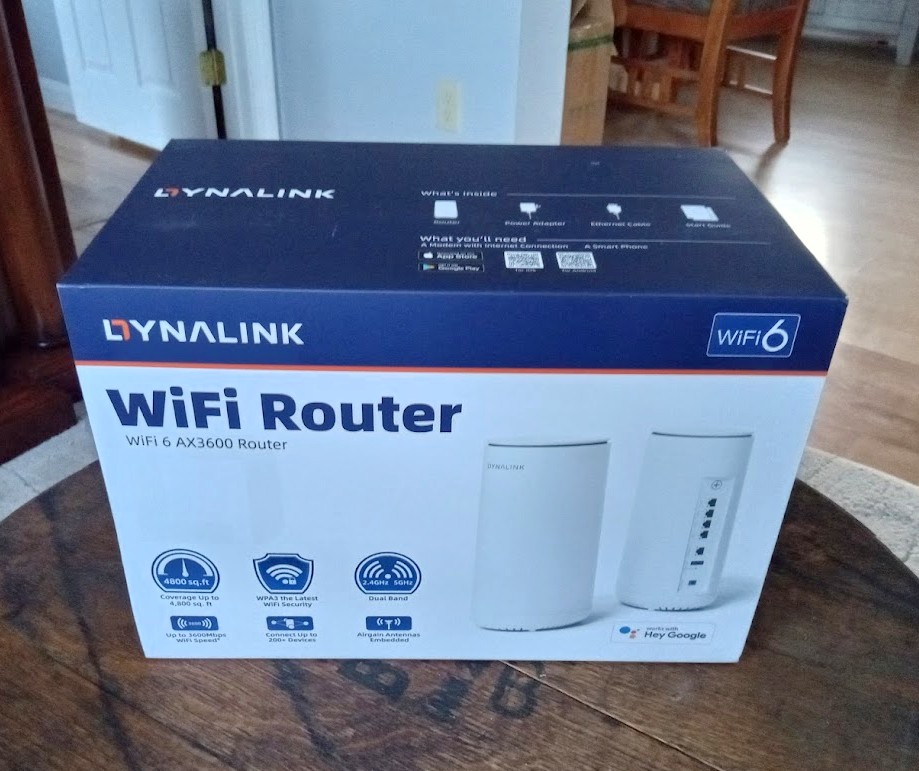
Dynalink RouterRouter Box

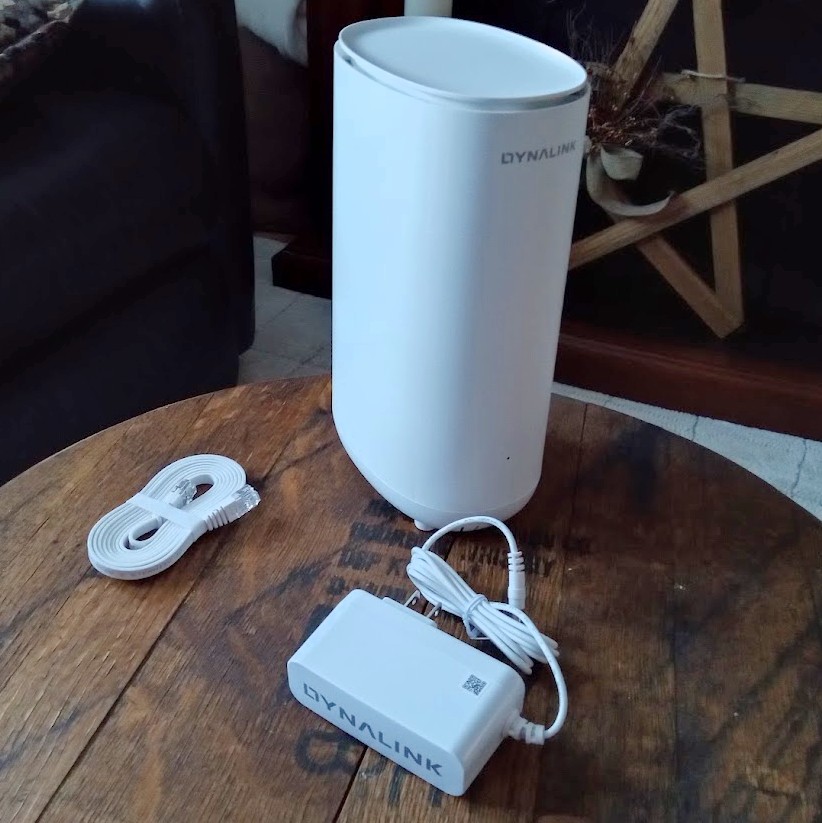
The Dynalink DL-WRX36 Wireless Router

I purchased my unit from Amazon about 18 months ago. I never even tried the stock firmware — I bought this router specifically because of its solid OpenWRT support and excellent bang-for-the-buck features.

For around $80 (if I recall correctly) you get:

  • Qualcomm 2.2 GHz Quad-Core CPU (ARM64 / ARMv8)
  • 1 GB RAM, 256 MB Flash (for firmware/storage)
  • 2.5 Gbps WAN port, 4× 1 Gbps LAN switch ports
  • WiFi 2.4 / 5 GHz dual-band (4× internal antennas)
  • USB 3.0 port (for a USB HDD/SSD, FTP/Samba share, or cellular modem, etc.)

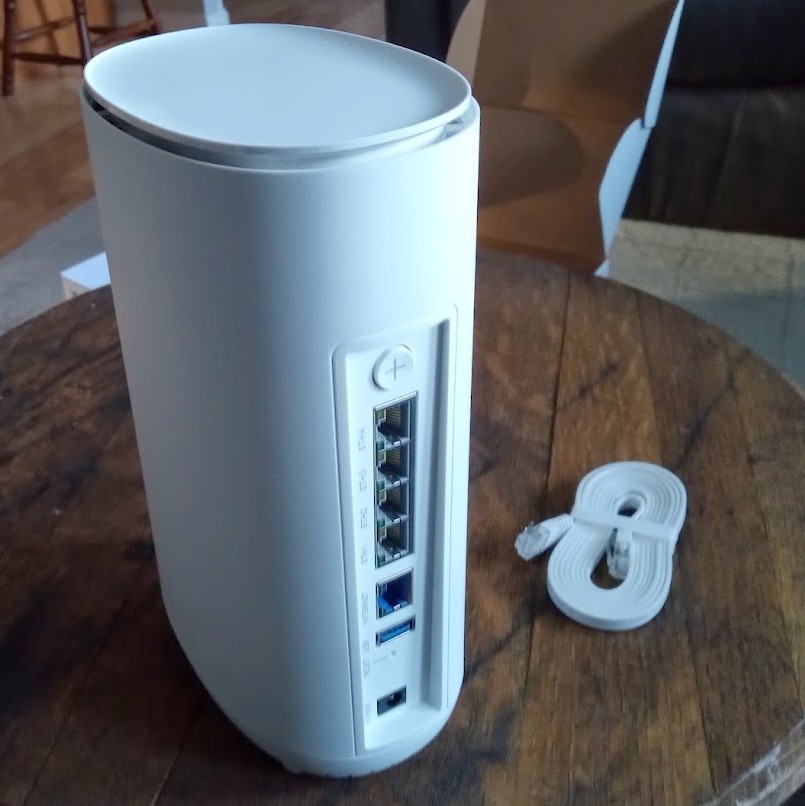
Rear ports

It’s a shame — I always intended to do a proper, in-depth review of this unit, along with a full guide on flashing OpenWRT. That said, the flashing process was painless and straightforward. If you’ve ever loaded DD-WRT onto an old Linksys back in the day, this is quite similar, though with a few extra steps.

I do recall some slightly ‘gray’ areas in the instructions on the OpenWRT Table of Hardware (TOH) page for the DL-WRX36, and I had made some notes. If I can dig them up, I’ll definitely update this post to include them. As I remember, nothing critical — just a couple of steps that were worded a little ambiguously. I highly recommend reading through the guide fully before starting, so you’re not left halfway through wondering what to do next.

Is it still available?
Amazon doesn’t have it in stock at the moment. Would I recommend it if it was? Absolutely. I’m very happy with mine.

Things to Note:

  • Unofficial builds exist that take advantage of hardware features on this router’s SoC. (The standard OpenWRT images don’t enable these by default — and for now, I’m sticking with the official builds. But performance is still excellent for my needs.)

For those curious, the IPQ807x SoC inside this router supports advanced hardware features like Qualcomm’s NSS (Network Subsystem) hardware acceleration, which dramatically improves routing throughput and reduces CPU load for tasks like NAT, firewalling, and VPN handling. While official OpenWRT builds don’t currently enable these proprietary modules, a few skilled community developers have published unofficial builds that do.

Personally, I run the latest stable firmware from the official OpenWRT release repository, and it’s been absolutely flawless for me. I get my full broadband speeds with headroom to spare — whether wired or over 5 GHz WiFi — and I’ve never felt limited by not having those additional offload features. This setup also ensures I have seamless access to the official OpenWRT package repository via Luci and UCI, with a stable, predictable system that updates cleanly.

That said, for the adventurous or performance-hungry tinkerers out there, those community builds with hardware offloading might be worth exploring. More details and links are listed below if you’d like to check them out.

Additionally — OpenWRT natively supports VLANs and VLAN tagging, letting you create isolated network segments, guest networks, or prioritize traffic on your LAN however you like. Combined with its firewall and routing flexibility, this makes OpenWRT an extremely versatile platform for both home and small business networks.

Performance

Since upgrading my desktop to an Intel AX210 WiFi card, I consistently get 1–3 ms pings to wired LAN machines — pretty respectable. Speeds are solid too, with ~500 Mbps transmit/receive over 5 GHz WiFi.

My configuration is simple:

  • One network for 2.4 GHz and another for 5 GHz, each with its own SSID.
  • I’ve heard of issues running both bands under a single SSID, so I avoided that.
  • IoT devices, mobile phones, TV boxes, etc. are on 2.4 GHz for better range and to keep them off the 5 GHz radio.
  • Desktops and laptops connect to 5 GHz for speed.

It works beautifully. No worries about being stuck on ancient 3.x kernels — OpenWRT keeps this thing current and reliable.

Why is OpenWRT the Cat’s Meow?

Luci, the web-based interface, is clean, solid, and well-organized. Every function accessible through the web GUI can also be executed via SSH on the command line.

If you’re a geek, you already get why this is awesome. But for everyone else: it makes quick changes a breeze — no digging through endless menus. You can configure it like a Cisco router via serial, telnet, SSH, or otherwise.

Other Perks

Packages. Tons of networking, telephony, and FOSS/Linux software packages are at your fingertips — one search away.

At the end of the day, every router is a computer of some sort. Unless it runs something exotic like VxWorks, chances are it’s powered by a Linux kernel. OpenWRT puts you in control. It’s your hardware — and you should run it your way. Suddenly that consumer-grade router feels like enterprise-grade gear.

Useful Links

Happy hacking!

DnsMasq Network-Wide Blocking Part II. Dealing with Hostnames

NetworkAs stated last time; When you’re no longer serving DNS from the same machine as your DHCP server, local hostnames may become an issue.

If you’re like me, all the things you actually would be needing to access by name in that matter already have static addresses and /etc/hosts file entries. I had an idea that I thought should be shared though.

This is a little script I wrote. What it does, is takes the dhcp.leases file on an OpenWRT router and produces a correctly formatted hosts file. In the previous article, I offered my custom config, and you’ll see the option to have dnsmasq parse your /etc/hosts file — this is for that.

Weather you have 4 devices on your network, 40 or however many you’ve got, this is an easy way to get the local hostnames working on your new custom DNS setup.

Here is the code for Leases2Hosts, you can run it right on OpenWRT.

#!/bin/sh
# OpenWrt Leases2Hosts 0.01 -- BTA 03.13.2025 -- LostGeek.NET
# Transforms OpenWrt dhcp leases file into format suitable for external DNS server

LEASES_FILE="/tmp/dhcp.leases"
OUTPUT_FILE="/tmp/dhcp.hosts"

# Set domain suffix (leave blank to disable)
DOMAIN_SUFFIX=".lan"

# Ensure the leases file exists
[ -f "$LEASES_FILE" ] || { echo "Leases file not found!"; exit 1; }

# New hosts file header
echo "# Generated by Lease2Hosts" > "$OUTPUT_FILE"

# Process the leases file using BusyBox-compatible awk
awk -v suffix="$DOMAIN_SUFFIX" '
{
    ip = $3;
    hostname = $4;

    # Ignore entries where hostname is "*"
    if (hostname == "*") next;

    # Ensure hostname is not a MAC address (contains colons)
    if (index(hostname, ":") > 0) next;

    # Ensure hostname is only letters, numbers, dots, and dashes
    if (match(hostname, /^[a-zA-Z0-9.-]+$/)) {
        if (suffix != "") {
            print ip, hostname, hostname suffix;
        } else {
            print ip, hostname;
        }
    }
}' "$LEASES_FILE" >> "$OUTPUT_FILE"

echo "Hosts file:"
echo "-----"
cat $OUTPUT_FILE
echo "-----"
echo "Hosts file written: $OUTPUT_FILE"

You can run this once and be done, if you don’t always add and change devices. It can also be auto started via a cron job.

I think there is even a way to have an event-based trigger so perhaps it could run as soon as a new lease is given to a unique device. I’ll leave that up to the reader though!

For those who don’t know, what this does is reads the DHCP leases file; this has the IPs and hostnames of all DHCP clients on your network. It also has mac addresses though, and may contain nameless entries, both of which you obviously don’t want in your hosts file. I’d imagine this could be very useful if you’ve got a network full of machines, VMs, or IoT devices… heck, even a family with laptops, smartphones and tablets.

It produces output as follows: 10.0.0.1 workstation1 workstation1.local 10.0.0.2 laptop1 laptop1.local etc…

From the dhcp.leases file, which looks something like this: *1621306452 c8:3d:6b:55:f1:e5 10.0.0.22 Roku * 1772607384 2c:ab:67:3d:90:5d 10.0.0.29 piframe 01:2c:cf:67:3d:90:5d etc…*

Quite ugly — notice the double MAC?? Well, that happens, especially on modern cell phones which hide their mac as a privacy feature, and on cheap-o devices which don’t have the mac set in stone.

Originally MACs weren’t supposed to just be changed on a whim but rather burned into the device’s eprom. My script aims to sort out all of this non-sense. I have had excellent results using the script, however please review it before using the generated list. If you understand shell script basics and awk, you can gauge your own confidence in it being fairly safe, but I shall make no such guarantee.

Using cron and scp, you can automate putting this new hosts file on your DNS server. However, I’d recommend that you use it simply to save you time in formatting a hosts file from a large lease pool — and it seems to do so quite well.

Upgrade-All Script for OpenWRT

OpenWRTIn my experience, neither opkg’s command line interface, nor Luci’s web interface will allow you perform all available upgrades, all in one go.

They make you do each one, one at a time. Maybe for safety reasons?

If you accept the risks involved and want to save some time like I did, make yourself a script:

#!/bin/sh

opkg update
upgradables=$(opkg list-upgradable | awk '{print $1}') || exit 0
[ -z "$upgradables" ] && echo "No packages to upgrade." && exit 0
echo "Upgrade: $upgradables"; read -p "Enter y/n: " r
[ "$r" = "y" ] && opkg upgrade $upgradables

This is genuinely quite useful, and it also is a very good bash scripting example that I wanted to share.

Save it, chmod +x, rock and roll.

Probably should keep a copy on your workstation too, because unless you put it somewhere on the router that’ll survive reboots it may get lost during one.

© 2025 LostGeek.NET - All Rights Reserved. Powered by ClassicPress, NGINX, Debian GNU/Linux.