New home networking content is on the way!

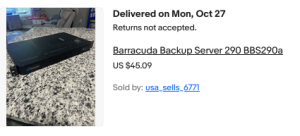
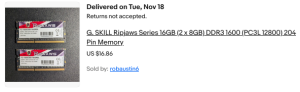
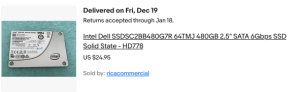
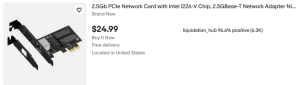
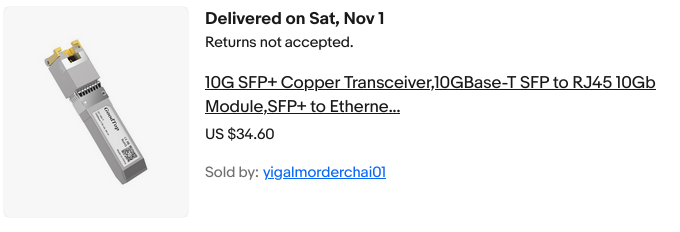
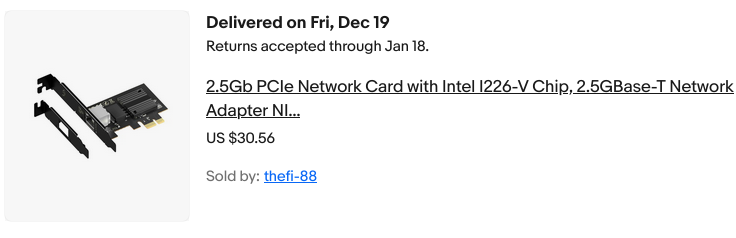
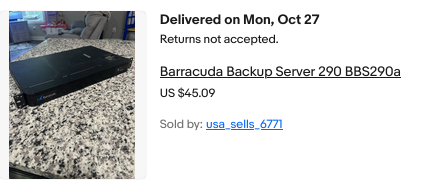
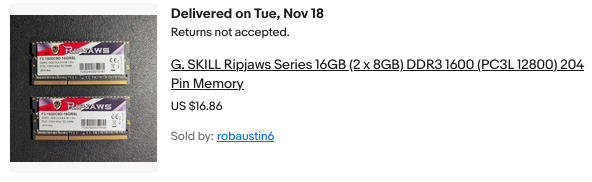
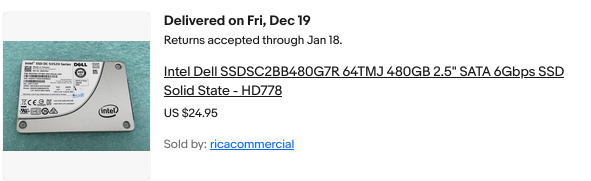
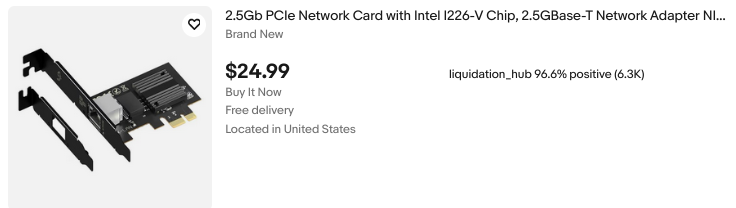
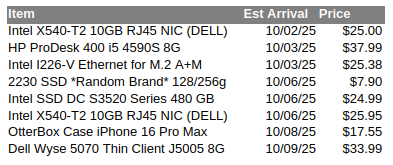
eBay Orders
Ignore the iphone case, I ordered that for a friend!

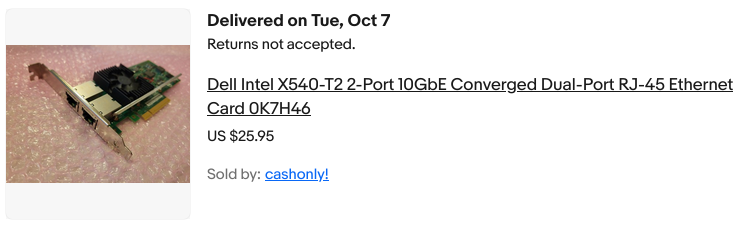
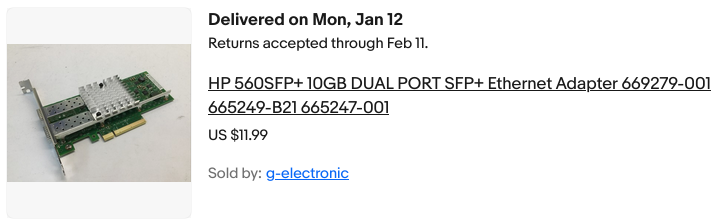
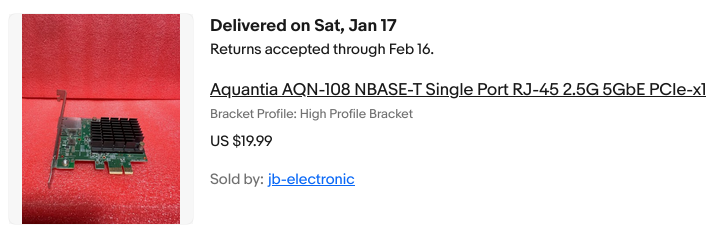
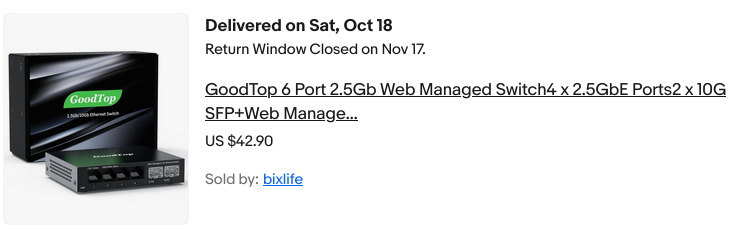
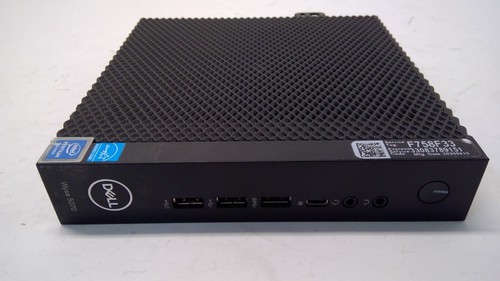
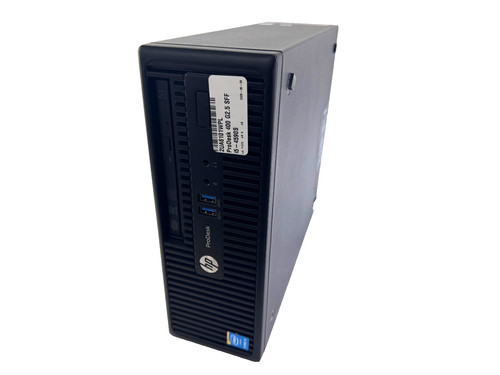
As some of you will notice, yes there are two SFF boxes, and three NICs…

I need to decide if I’m building a 10 GB router, or more of a 2.5 / 1 G pfsense box for just having a better internet router and firewall. The lil Wyze box will be fantastic as a router I already know, those Gemini Lake chips are amazingly powerful for what they are. Also very low power draw and hardly make any heat whatsoever.  The SSDs? They just seemed like a good deal.

Here are the SFF machines. Obviously the first one is more “sff” than the second… That’s OK though, I needed something with real PCIE slots, and a real powersupply to run 10 GB network card(s).


More to come as these things arrive!


OpenWRT on a Thrift Store Router (Netgear WNDR3700 v4)

WNDR3700 v4
NETGEAR WNDR3700 v4 WiFi Router

Earlier today I stopped by a local Goodwill to see what they had in the way of electronics. Among the digital photo frames and old keyboards, I spotted two routers. I’m always on the lookout for hardware that can run Linux. One of the routers was a Netgear WNDR3700 v4. It was in its original box with the power adapter and a couple of patch cords.

Normally I’d pull out my phone and check OpenWrt support before buying, but this one looked old enough that I figured there was at least a 50/50 chance it would be an easy convert. I’m glad I grabbed it; Not only is this model supported, but flashing OpenWrt is about as painless as it gets.


Flashing with OpenWrt — No UART, no TFTP, no drama.

  1. Factory reset the router.
  2. Connect to it at http://192.168.1.1/ in your web browser. Log in with:
    Username: admin
    Password: password
  3. Go to Advanced.
  4. Download the latest OpenWrt “factory” image for WNDR3700 v4 from the OpenWrt site. *Note, maybe do this first!*
  5. Upload it via the Netgear’s firmware page, under “Advanced” in the web ui.
  6. Wait a few minutes for the flash to complete.
  7. Reconnect your computer (get a fresh DHCP lease), then visit 192.168.1.1 again.
  8. Log in with:
    Username: root
    Password: (blank)*Note, maybe do this first!*
  9. Set your own password… and you’re done!

This 2012-era router is now running a fully up-to-date Linux distribution.


In My Case…
I reconfigured mine to serve as a simple gigabit switch:

  • Disabled both Wi-Fi radios.
  • Configured the “WAN” port into another LAN / switch port.
  • Disabled the DHCP server.
  • Set the LAN bridge (br-lan) to DHCP client so it picks up an IP from my main network.
  • Gave the new router’s MAC a dhcp reservation on my main router, and added the new hostname to my hosts file.
    That way I can still log in for maintenance while it’s acting as an extra switch.

WNDR3700 v4 Hardware

CPU / SoC: Atheros AR9344 @ 560 MHz
RAM / Flash: 128 MB RAM / ~128 MB flash
Wireless: Dual-band 2.4 GHz + 5 GHz, 802.11n (N600)
Ethernet: 1× Gigabit WAN, 4× Gigabit LAN
USB: 1× USB 2.0 “ReadySHARE” port


What Can You Do With It?
Plenty. This hardware can easily run the latest OpenWrt without feeling sluggish. The USB port opens up even more possibilities:

  • Failover WWAN modem or phone tethering
  • Network printer sharing
  • USB hard drive for network storage
  • DIY internet radio streamer with a USB sound card

With OpenWrt, you’re only limited by your time and imagination.


Why Bother?
Netgear’s last firmware for this model came out in 2018. That’s seven years without security updates. OpenWrt gives you:

  • Modern kernel & drivers
  • Current security patches
  • A huge ecosystem of packages

All on hardware that cost me four bucks at a thrift store.


OpenWrt Support History for the WNDR3700

  • Original WNDR3700 (v1) launched in mid–late 2009 with Atheros hardware.
  • OpenWrt support for the series appeared within months of launch, making it a long-time favorite in the community.
  • The v4 hardware revision hit the market around June 2012.
  • Because v4 kept an Atheros chipset (AR9344) with generous RAM and flash, it was officially supported soon after release.
  • The best part: Netgear’s stock firmware for v4 accepts an OpenWrt “factory” image through the web interface. No serial cable required, no bootloader tricks, just upload and reboot.

This combination of long-term support, open-friendly hardware, and GUI-based flashing makes the WNDR3700 v4 one of the easiest budget OpenWrt targets you can find.

NETGEAR WNDR3700 on OpenWRT Wiki / TOH
OpenWRT Version 24.10 Factory Image for WNDR3700 V4 – Direct Link

Upgrading the home network…

At a crossroads here…

Perhaps you saw the last post about upgrading the WiFi card on my desktop’s new motherboard? Well, about a week or two later, I finally ran and fished Cat6 from the server/router to my desk. So now I’ve got solid 1000 MB Ethernet… for now. I think 10 GB would be great, and eBay has plenty of cheap high-end cards from the likes of Intel, Chelsio, and Mellanox (NVIDIA). They’re cheap too — $12 to $20 per card kind of cheap. With a pair of cards, I can do 10 gigabit between my desktop and my server.

The thing is, I’ve only got 100/1000 MB switches. That’s okay though. I’m thinking I might take motivation from an old Level1Techs video, The Forbidden Router. ( Link )

If I put a dual 10 GB NIC in the server, I’ll have the Intel GB Ethernet for a WAN interface and then two 10G ports for LAN (the machine itself bridged to that “LAN” interface). That can then feed into my normal switch and WiFi AP.

Two things though:

The Lenovo Tiny PC I’m using has no PCI-E slot. It also only has one SATA port. I want to add an internal 8TB WD hard disk and a couple of 1–2 TB SSDs for network storage. And with 10 gig, why not?! This keeps the extra mess out of my new desktop build. So I’m thinking “NAS/router combo.” I already run virtual machines to keep things separated, and this would just add more benefits by having one well-configured box.

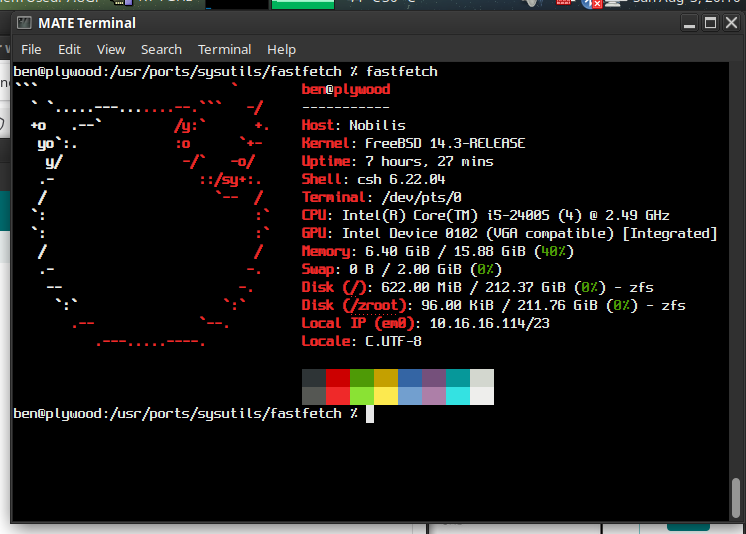
It’d have to be a different box though. I’ve been playing with some used hardware I picked up, which I think will work out nicely for the job of an all-in-one server/router solution (see below). I’m trying out FreeBSD’s bhyve for the first time, and ZFS as well! So far, so good. Will I end up using FreeBSD though? Probably not, but I’m on the fence.

Trying it out has made me realize how comfortable and productive I actually am on Linux… I think it may be wiser to stick with that for the serious stuff I depend on.

The hostname? Well, it needed a quick and dirty case… and I have no ITX cases 🙂

B550M AORUS ELITE AX — Replacing the lousy WiFi!

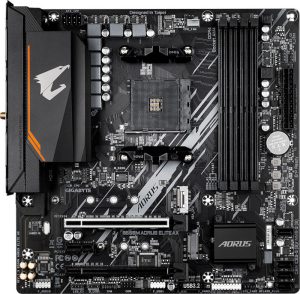
Finally decided to retire the Haswell system I’ve been using, and ordered up some AM4 goodies during the recent Prime Day sale. I grabbed an AMD Ryzen 7 5800X (8-core, 16-thread), 32 GB of DDR4-3600, and the Gigabyte AORUS Elite AX (Rev 1.3) motherboard. The CPU was the main draw — it was only $130! The board was on sale for $90 (currently $149.99 on Amazon).

Aorus Elite AX Rev 1.3

Thus far I am happy with this motherboard. It doesn’t give me the same vibe of Gigabyte superior value which I got back in the day from the likes of the classics — GA-EP45-UD3P comes to mind! — but, for under $100 it seems quite adequate.

The included WiFi leaves much to be desired though… Maybe it works fine on Windows?? On Linux, I was only seeing 2 bars and maybe 300 – 400 Mbps.

The solution? Grab yourself an AX210.
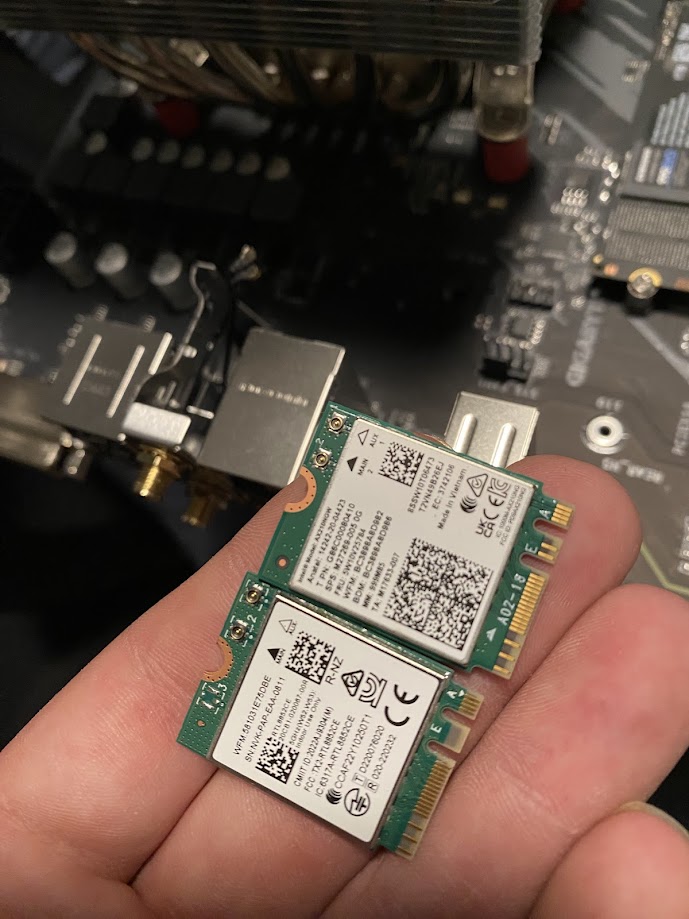
Intel wireless cards have excellent support on Linux and BSD alike. For just $20–$30 online, you can replace the built-in Realtek card. It takes about half a dozen screws to open the board and swap the M.2 module. I highly recommend tweezers for disconnecting and reattaching the tiny U.FL antenna connectors.

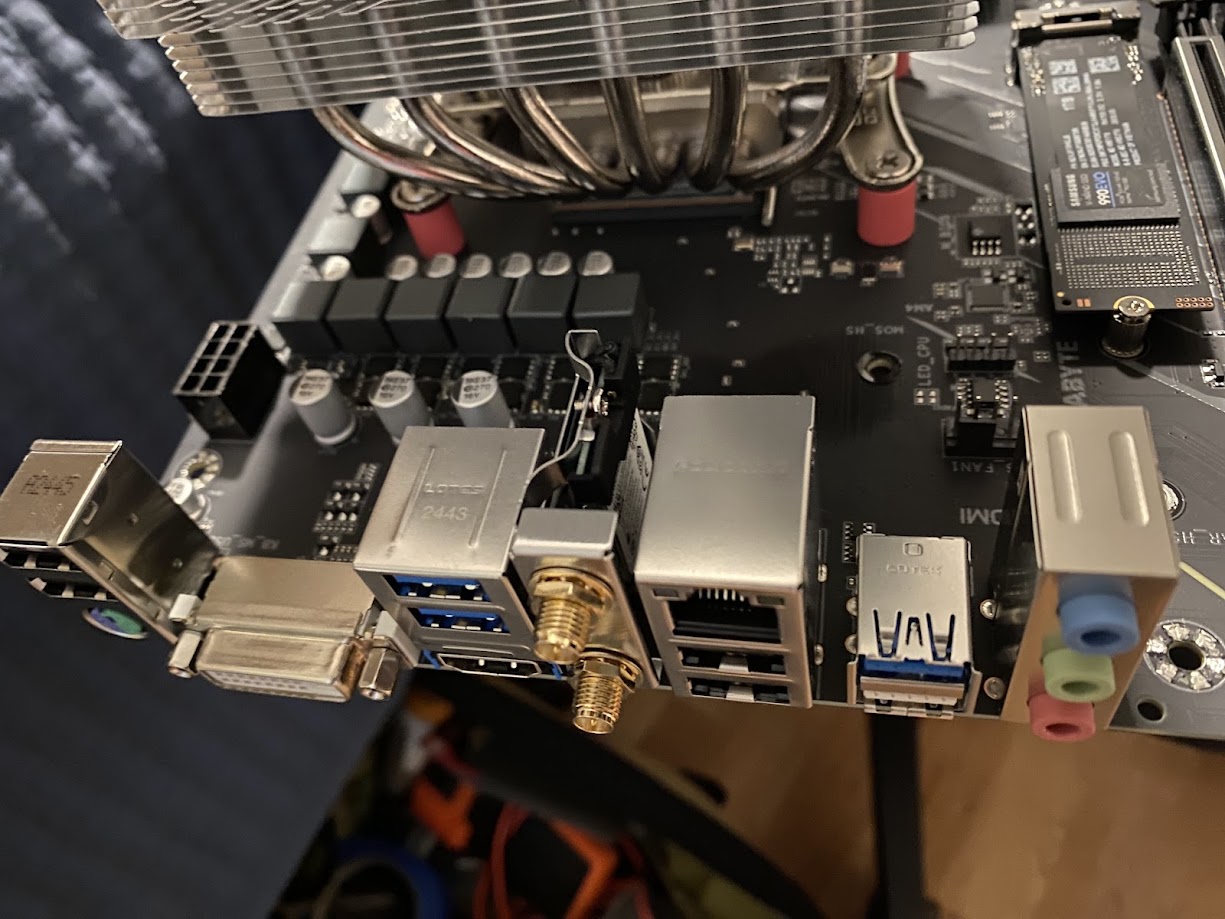
Where’s the Wi-Fi module located?

Motherboard WiFi
Board with VRM heatsink and shroud removed
WiFi Cards
Realtek NIC beside the new Intel AX 210

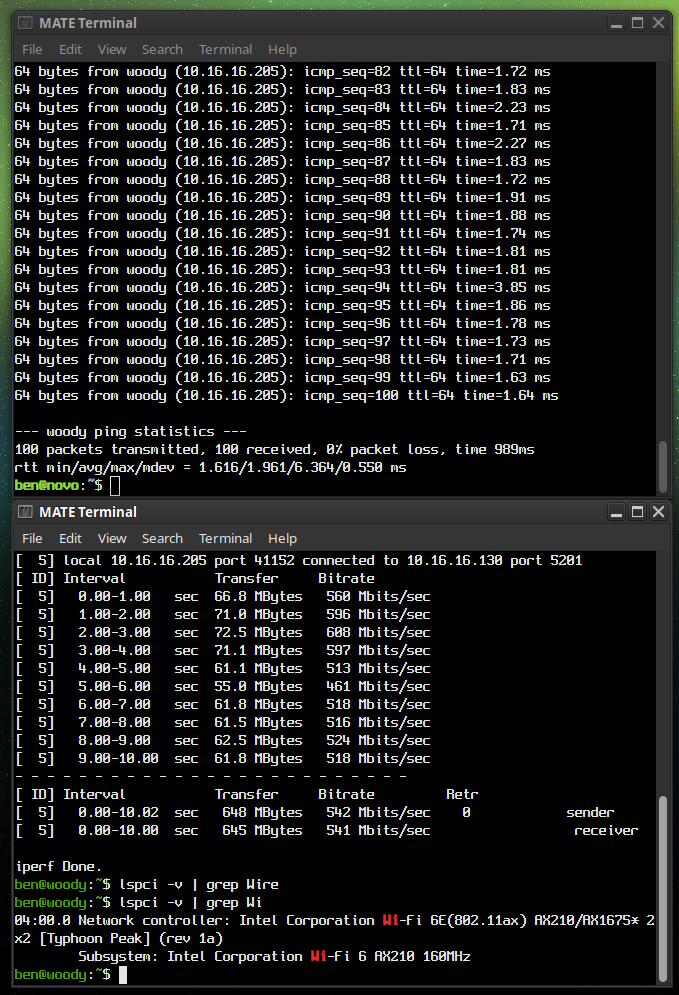
My pings are now way, better. Night and day. And the speed is a solid 100 Mbps better, or more. See for yourself!

AX 210 Results
AX210 Results: iPerf3 Test and 100 pings to my server

Utilizing Apt-Cacher-NG’s cache on the server hosting it

apt-get

I’ve been using apt-cacher-ng for a few months now. For those who don’t know, this is a service you can run locally which will proxy apt requests from your network clients. This way, each time a package or update is requested there will be a copy retained in the cache. Upon each subsequent request for the same file(s), the local copy can be served instead. This saves bandwidth, and offers a speed advantage since you’ll likely be getting full GB ethernet line speed on your LAN. Read more about ACNG here.

While several local machines and VMs have no issues using my local ACNG proxy, the server actually hosting ACNG itself seemed to be giving errors when doing an apt update.

You’ll likely see the warnings “503 Server reports unexpected range” as well as “Some index files failed to download. They have been ignored, or old ones used instead.

Basically, because the machine is trying to proxy through itself, some kind of problem occurs. Now, the simple solution is to just point to the normal Debian mirrors directly. That however wouldn’t offer the benefit of our local cache! The more boxes / VMs pulling for it, the more value you’re getting out of the whole setup… So here’s how we resolve this issue.

Write a text file to /etc/apt/apt.conf.d/00acng and place the following lines inside:

Acquire::http::Proxy::localhost “DIRECT”;
Acquire::http::Proxy::127.0.0.1 “DIRECT”;
Acquire::http::Proxy::novo.lan “DIRECT”;

Of course, change “novo.lan” to the hostname of your ACNG host. My sources.list looks like this, hence the hostname used in my example.

deb http://novo.lan:3142/deb.debian.org/debian/ bookworm main non-free-firmware
deb-src http://novo.lan:3142/deb.debian.org/debian/ bookworm main non-free-firmware

deb http://novo.lan:3142/security.debian.org/debian-security bookworm-security main non-free-firmware
deb-src http://novo.lan:3142/security.debian.org/debian-security bookworm-security main non-free-firmware

deb http://novo.lan:3142/deb.debian.org/debian/ bookworm-updates main non-free-firmware
deb-src http://novo.lan:3142/deb.debian.org/debian/ bookworm-updates main non-free-firmware

You may want to add a 4th line, with your actual LAN IP if you’re naming the apt mirror by IP instead.


OpenWRT on the Dynalink DL-WRX36 WiFi 6 Router

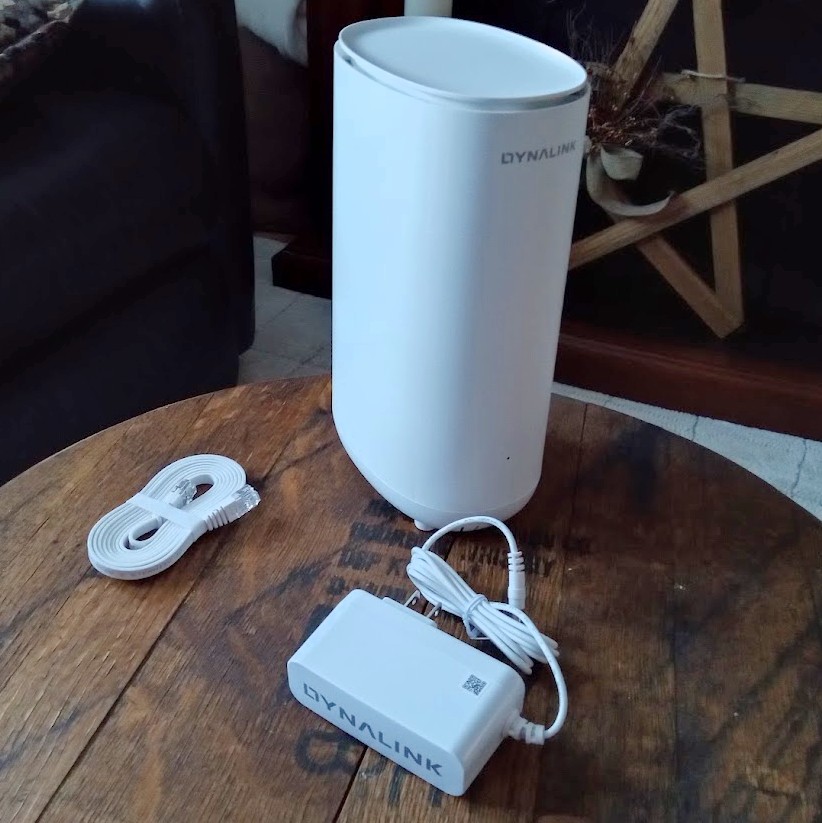
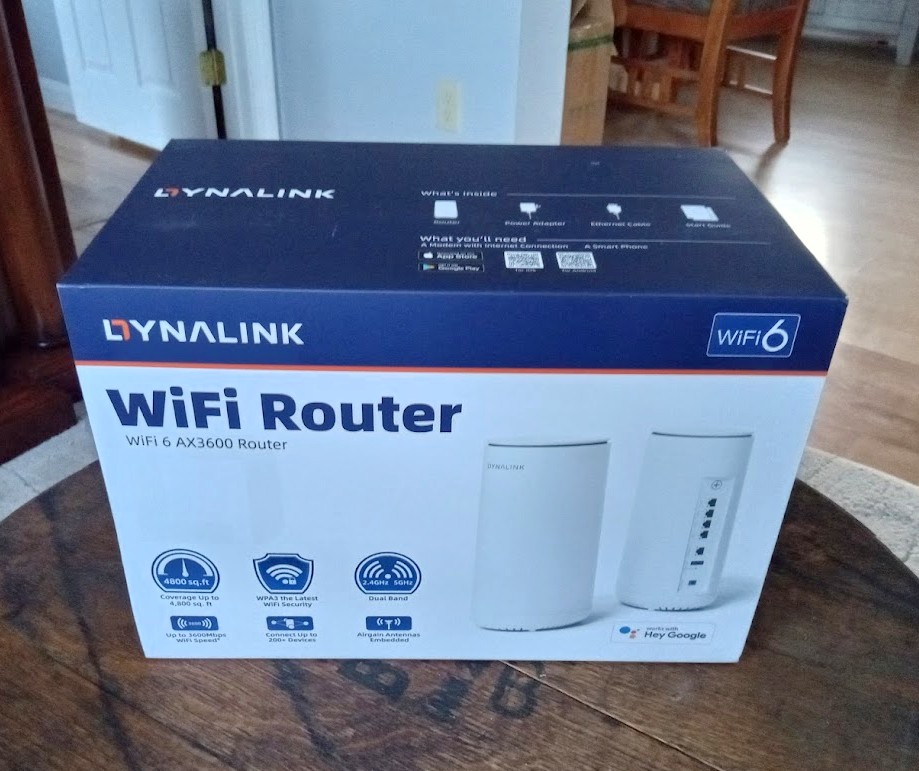
Dynalink RouterRouter Box

The Dynalink DL-WRX36 Wireless Router

I purchased my unit from Amazon about 18 months ago. I never even tried the stock firmware — I bought this router specifically because of its solid OpenWRT support and excellent bang-for-the-buck features.

For around $80 (if I recall correctly) you get:

  • Qualcomm 2.2 GHz Quad-Core CPU (ARM64 / ARMv8)
  • 1 GB RAM, 256 MB Flash (for firmware/storage)
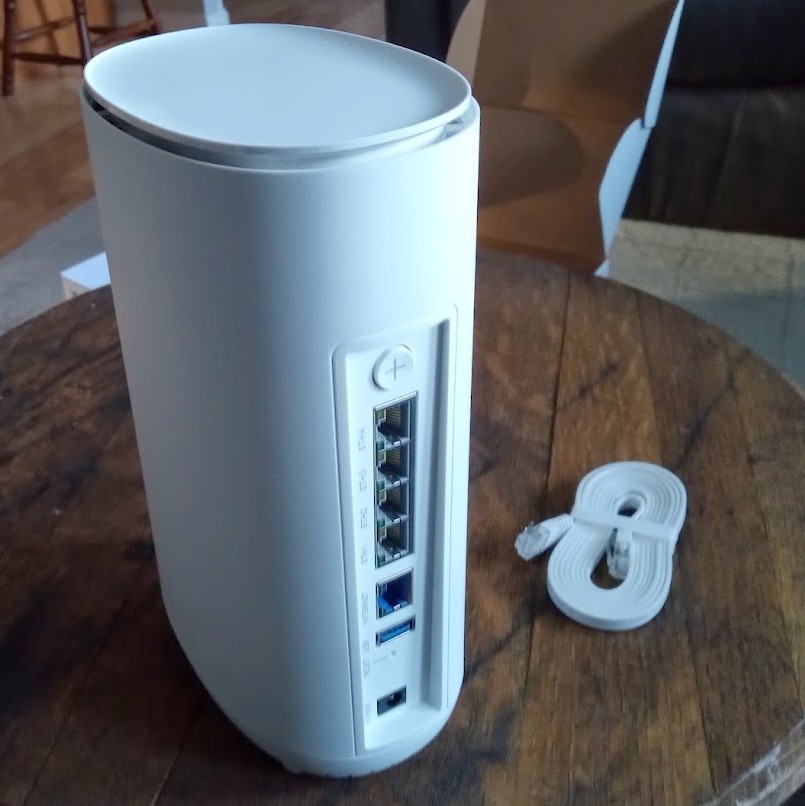
  • 2.5 Gbps WAN port, 4× 1 Gbps LAN switch ports
  • WiFi 2.4 / 5 GHz dual-band (4× internal antennas)
  • USB 3.0 port (for a USB HDD/SSD, FTP/Samba share, or cellular modem, etc.)

Rear ports

It’s a shame — I always intended to do a proper, in-depth review of this unit, along with a full guide on flashing OpenWRT. That said, the flashing process was painless and straightforward. If you’ve ever loaded DD-WRT onto an old Linksys back in the day, this is quite similar, though with a few extra steps.

I do recall some slightly ‘gray’ areas in the instructions on the OpenWRT Table of Hardware (TOH) page for the DL-WRX36, and I had made some notes. If I can dig them up, I’ll definitely update this post to include them. As I remember, nothing critical — just a couple of steps that were worded a little ambiguously. I highly recommend reading through the guide fully before starting, so you’re not left halfway through wondering what to do next.

Is it still available?
Amazon doesn’t have it in stock at the moment. Would I recommend it if it was? Absolutely. I’m very happy with mine.

Things to Note:

  • Unofficial builds exist that take advantage of hardware features on this router’s SoC. (The standard OpenWRT images don’t enable these by default — and for now, I’m sticking with the official builds. But performance is still excellent for my needs.)

For those curious, the IPQ807x SoC inside this router supports advanced hardware features like Qualcomm’s NSS (Network Subsystem) hardware acceleration, which dramatically improves routing throughput and reduces CPU load for tasks like NAT, firewalling, and VPN handling. While official OpenWRT builds don’t currently enable these proprietary modules, a few skilled community developers have published unofficial builds that do.

Personally, I run the latest stable firmware from the official OpenWRT release repository, and it’s been absolutely flawless for me. I get my full broadband speeds with headroom to spare — whether wired or over 5 GHz WiFi — and I’ve never felt limited by not having those additional offload features. This setup also ensures I have seamless access to the official OpenWRT package repository via Luci and UCI, with a stable, predictable system that updates cleanly.

That said, for the adventurous or performance-hungry tinkerers out there, those community builds with hardware offloading might be worth exploring. More details and links are listed below if you’d like to check them out.

Additionally — OpenWRT natively supports VLANs and VLAN tagging, letting you create isolated network segments, guest networks, or prioritize traffic on your LAN however you like. Combined with its firewall and routing flexibility, this makes OpenWRT an extremely versatile platform for both home and small business networks.

Performance

Since upgrading my desktop to an Intel AX210 WiFi card, I consistently get 1–3 ms pings to wired LAN machines — pretty respectable. Speeds are solid too, with ~500 Mbps transmit/receive over 5 GHz WiFi.

My configuration is simple:

  • One network for 2.4 GHz and another for 5 GHz, each with its own SSID.
  • I’ve heard of issues running both bands under a single SSID, so I avoided that.
  • IoT devices, mobile phones, TV boxes, etc. are on 2.4 GHz for better range and to keep them off the 5 GHz radio.
  • Desktops and laptops connect to 5 GHz for speed.

It works beautifully. No worries about being stuck on ancient 3.x kernels — OpenWRT keeps this thing current and reliable.

Why is OpenWRT the Cat’s Meow?

Luci, the web-based interface, is clean, solid, and well-organized. Every function accessible through the web GUI can also be executed via SSH on the command line.

If you’re a geek, you already get why this is awesome. But for everyone else: it makes quick changes a breeze — no digging through endless menus. You can configure it like a Cisco router via serial, telnet, SSH, or otherwise.

Other Perks

Packages. Tons of networking, telephony, and FOSS/Linux software packages are at your fingertips — one search away.

At the end of the day, every router is a computer of some sort. Unless it runs something exotic like VxWorks, chances are it’s powered by a Linux kernel. OpenWRT puts you in control. It’s your hardware — and you should run it your way. Suddenly that consumer-grade router feels like enterprise-grade gear.

Useful Links

Happy hacking!

Massive Speed-Upgrade for your Linux infrastructure with AptCacherNG

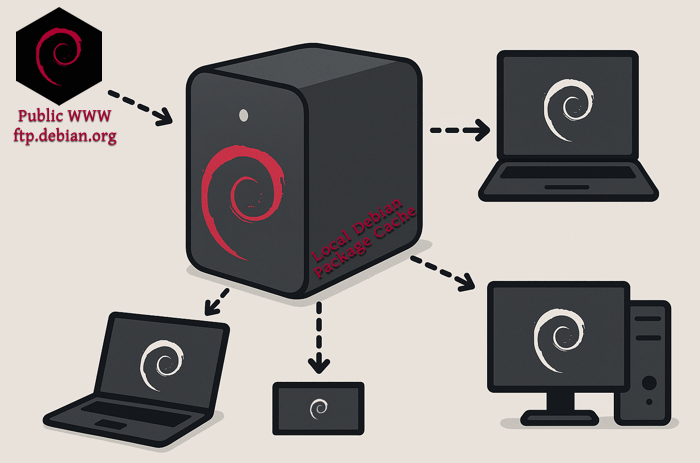
Cache Diagram
AptCacherNG makes it easy to create a local cache of Debian package mirrors.

If you’ve got multiple machines running the same distribution, APTCacherNG allow for effortless caching of software packages.

I run various distributions, but Debian is probably near the top of that list. Between virtual and physical boxes, I probably have a dozen running Debian. Seriously.

Now, between different versions and architectures you obviously can’t reuse the same packages always; but you don’t need to worry about that. This is something you set up, and then can basically forget about.

Chances are, most instances of your OS are going to be the same version (the current stable release), and the same architecture – usually AMD64.

Not only can you save a ton of bandwidth, but you benefit even more so from the speed up. My internet is about 300 Mbps give or take, but my lan is much faster. The machine I use for caching has nvme storage set aside for the task, and thus is only limited by the speed of the network interface. Even with 1GB, I think you’ll notice a tangible improvement.

It isn’t just for Debian.

Nope, it actually can work with basically anything. I’ve gotten it to work on Alpine with no real effort. I think I may have had to change a line in the config, but it is quite easy.

Under the hood, this is really just web caching. Your clients route their requests through one central machine. Since all requests go through one server, that machine can say “Oh, I just downloaded that for so-and-so an hour ago… here you go!” and forgo an internet download in favor of re-sending the cached copy.

Good for you, you’ll see speed increase no doubt. If you have limited bandwidth, It would be worth doing for even just one or two clients. If you have more than half a dozen or so, I’d say it is a no brainier. It also lowers the strain on the mirrors, which is a good thing too — Especially if you’re in charge of taking care of a whole rack of servers, or perhaps a lab / classroom full of machines.

It’s Easy!

On the clients you have a couple options. For a fresh net-install of Debian, when you go to select the country for your mirror, you want to scroll all the way to the bottom (or top?) and you’ll find “Enter Manually”. Here, you simply furnish your aptcacherng host. In my case, “novo.lan:3142”. Then, just like with debian’s mirror, the rest of the url is the same.

For existing installs, open up /etc/apt/sources.list and replace ftp.debian.org or deb.debian.org with yourmachine.lan:3142 — don’t forget to specify that port. By default, it runs on 3142.

Learn more: https://wiki.debian.org/AptCacherNg

DnsMasq Network-Wide Blocking Part II. Dealing with Hostnames

NetworkAs stated last time; When you’re no longer serving DNS from the same machine as your DHCP server, local hostnames may become an issue.

If you’re like me, all the things you actually would be needing to access by name in that matter already have static addresses and /etc/hosts file entries. I had an idea that I thought should be shared though.

This is a little script I wrote. What it does, is takes the dhcp.leases file on an OpenWRT router and produces a correctly formatted hosts file. In the previous article, I offered my custom config, and you’ll see the option to have dnsmasq parse your /etc/hosts file — this is for that.

Weather you have 4 devices on your network, 40 or however many you’ve got, this is an easy way to get the local hostnames working on your new custom DNS setup.

Here is the code for Leases2Hosts, you can run it right on OpenWRT.

#!/bin/sh
# OpenWrt Leases2Hosts 0.01 -- BTA 03.13.2025 -- LostGeek.NET
# Transforms OpenWrt dhcp leases file into format suitable for external DNS server

LEASES_FILE="/tmp/dhcp.leases"
OUTPUT_FILE="/tmp/dhcp.hosts"

# Set domain suffix (leave blank to disable)
DOMAIN_SUFFIX=".lan"

# Ensure the leases file exists
[ -f "$LEASES_FILE" ] || { echo "Leases file not found!"; exit 1; }

# New hosts file header
echo "# Generated by Lease2Hosts" > "$OUTPUT_FILE"

# Process the leases file using BusyBox-compatible awk
awk -v suffix="$DOMAIN_SUFFIX" '
{
    ip = $3;
    hostname = $4;

    # Ignore entries where hostname is "*"
    if (hostname == "*") next;

    # Ensure hostname is not a MAC address (contains colons)
    if (index(hostname, ":") > 0) next;

    # Ensure hostname is only letters, numbers, dots, and dashes
    if (match(hostname, /^[a-zA-Z0-9.-]+$/)) {
        if (suffix != "") {
            print ip, hostname, hostname suffix;
        } else {
            print ip, hostname;
        }
    }
}' "$LEASES_FILE" >> "$OUTPUT_FILE"

echo "Hosts file:"
echo "-----"
cat $OUTPUT_FILE
echo "-----"
echo "Hosts file written: $OUTPUT_FILE"

You can run this once and be done, if you don’t always add and change devices. It can also be auto started via a cron job.

I think there is even a way to have an event-based trigger so perhaps it could run as soon as a new lease is given to a unique device. I’ll leave that up to the reader though!

For those who don’t know, what this does is reads the DHCP leases file; this has the IPs and hostnames of all DHCP clients on your network. It also has mac addresses though, and may contain nameless entries, both of which you obviously don’t want in your hosts file. I’d imagine this could be very useful if you’ve got a network full of machines, VMs, or IoT devices… heck, even a family with laptops, smartphones and tablets.

It produces output as follows: 10.0.0.1 workstation1 workstation1.local 10.0.0.2 laptop1 laptop1.local etc…

From the dhcp.leases file, which looks something like this: *1621306452 c8:3d:6b:55:f1:e5 10.0.0.22 Roku * 1772607384 2c:ab:67:3d:90:5d 10.0.0.29 piframe 01:2c:cf:67:3d:90:5d etc…*

Quite ugly — notice the double MAC?? Well, that happens, especially on modern cell phones which hide their mac as a privacy feature, and on cheap-o devices which don’t have the mac set in stone.

Originally MACs weren’t supposed to just be changed on a whim but rather burned into the device’s eprom. My script aims to sort out all of this non-sense. I have had excellent results using the script, however please review it before using the generated list. If you understand shell script basics and awk, you can gauge your own confidence in it being fairly safe, but I shall make no such guarantee.

Using cron and scp, you can automate putting this new hosts file on your DNS server. However, I’d recommend that you use it simply to save you time in formatting a hosts file from a large lease pool — and it seems to do so quite well.

Upgrade-All Script for OpenWRT

OpenWRTIn my experience, neither opkg’s command line interface, nor Luci’s web interface will allow you perform all available upgrades, all in one go.

They make you do each one, one at a time. Maybe for safety reasons?

If you accept the risks involved and want to save some time like I did, make yourself a script:

#!/bin/sh

opkg update
upgradables=$(opkg list-upgradable | awk '{print $1}') || exit 0
[ -z "$upgradables" ] && echo "No packages to upgrade." && exit 0
echo "Upgrade: $upgradables"; read -p "Enter y/n: " r
[ "$r" = "y" ] && opkg upgrade $upgradables

This is genuinely quite useful, and it also is a very good bash scripting example that I wanted to share.

Save it, chmod +x, rock and roll.

Probably should keep a copy on your workstation too, because unless you put it somewhere on the router that’ll survive reboots it may get lost during one.

Network wide ad-blocking with dnsmasq

Mask and ShieldPiHole is a thing, so is AdGuard Home— these are both excellent, and work well. They’re easy. you don’t have to be a network administrator to get up and running.

I’ve been a satisfied PiHole user for about a year, but I wanted something a little cleaner. Here is what I don’t like about PiHole:

  1. It isn’t a “normal” package. Perhaps “conventional” would be a better word; You need to use their install script. This makes updating a pain, and personally I think it is a messy way of doing things.
  2. The web interface wants to install its own server, on port 80. You can change this, and I did. Things were working fine, then I updated and the web portion no longer worked because they’ve switched to Lua… so more configuration needed, or use the web server it comes with.
  3. It is essentially just a re-release of dnsmasq, with a web front end slapped on.

So, let’s talk about doing the exact same thing, with the normal dnsmasq package that your distro comes with

IMO, the special sauce of PiHole is Stephen Black’s hosts list. This is what PH uses out of the box, to block ads, trackers and other malicious sites. Available on github here: https://github.com/StevenBlack/hosts

This file is laid out like a normal hosts file (0.0.0.0 somename.com) and we need to change that to something dnsmasq will understand. Dnsmasq needs it written like this, address=/somename.com/0.0.0.0

We can do that with a simple script. In my case, I wrote one which will grab the list for me, format it for dnsmasq and then put it in the dnsmasq.d config directory. Note, this does mean you’ll need to run with sudo, or do this in a way that you’re putting it in with the correct permission to do so.

#!/bin/bash

BLOCKLIST_URL="https://raw.githubusercontent.com/StevenBlack/hosts/master/hosts"
BLOCKLIST_FILE="/tmp/stephenblack_hosts"
OUTPUT_FILE="/etc/dnsmasq.d/100_stephenblack.conf"

# Download, process, and create dnsmasq config
wget -q -O "$BLOCKLIST_FILE" "$BLOCKLIST_URL" && \
awk '!/^#/ && NF > 1 {print "address=/" $2 "/0.0.0.0"}' "$BLOCKLIST_FILE" > "$OUTPUT_FILE" && \
systemctl restart dnsmasq && \
echo "Blocklist update and dnsmasq configuration complete!" || \
{ echo "Error occurred."; exit 1; }

Now, to get this to work, you’ll have to edit /etc/dnsmasq.conf and comment or add conf-dir=/etc/dnsmasq.d This is a massive file, so use search in your editor. Because the file is so large, make yourself a different file in dnsmasq.d called 99_custom.conf and we can put DNS related stuff in there. Here is mine, it has most of what one might want to play with dns-wise.

# Custom Configuration file for dnsmasq.
# ---------------------------------------
# These are the most relevant, DNS related options.
# All DHCP related options are in /etc/dnsmasq.conf

# To set upstream servers here; in case resolv.conf changes
no-resolv
server=1.1.1.1
server=9.9.9.9

# If you don't want dnsmasq to poll /etc/resolv.conf for changes
#no-poll

# Never forward plain names (without a dot or domain part)
domain-needed
# Never forward addresses in the non-routed address spaces.
bogus-priv

# Uncomment these to enable DNSSEC validation and caching:
# (Requires dnsmasq to be built with DNSSEC option.)
#conf-file=%%PREFIX%%/share/dnsmasq/trust-anchors.conf
#dnssec

# Replies not DNSSEC signed may be legitimate. Because the domain
# is unsigned, or may be forgeries. Dnsmasq can check unsigned replies.
#dnssec-check-unsigned

# Change this line if you want dns to get its upstream servers from
# somewhere other that /etc/resolv.conf
#resolv-file=

# Use upstream DNS server in order, or any available.
#strict-order

# Add other name servers here, (if non-public domains).
#server=/localnet/192.168.0.1

# Add local-only domains here, queries in these domains are answered
# from /etc/hosts or DHCP only.
local=/lan/

# Add domains which you want to force to an IP address here.
# This is also how ad-blocking works. (point @ 0.0.0.0)
#address=/double-click.net/127.0.0.1

# Run dnsmasq as...
#user=
#group=

# Use specific network interface, bind to LAN (only) if doing NAT.
# You don't want to make your DNS avail to the public internet.
#bind-interfaces

# Set the cache size here. Default is 100, max is 10000
cache-size=10000

# If you want to disable negative caching (non-working names)
#no-negcache

# May serve potentially stale date, you can set a custom time-to-live
local-ttl=900

# For debugging purposes, log all queries (will use many MB in a day)
#log-queries

# Good idea if you're passing out this DNS server directly to clients
addn-hosts=/etc/hosts

# Option to disable ipv6, shouldn't need to enable
#no-ipv6

I’ve got no-resolv set here, because if you tell your router to hand out this machine for DNS then it’ll get only itself as a source and well, you won’t have working DNS. So either keep no-resolv and set your upstream servers in this custom file, or make sure you’re not using anything which is going to overwrite your resolv.conf entries.

For those interested, here’s how you could deal with that:

Adding dns-nameservers 1.1.1.1 9.9.9.9 to /etc/network/interfaces (if you’re using ifupdown)

Putting supersede domain-name-servers 1.1.1.1, 9.9.9.9; into your /etc/dhcp/dhclient.conf file, should you be using dhclient for a dynamically assigned address. Good idea to do this, if you use any NICs with DHCP unless you told dnsmasq to ignore resolv.conf.

And well, I think that’s about it. The last step is going into your router, setting the machine /w dnsmasq as the DNS server… and of course, adding any names you want/need to resolve on your LAN to the DNS server’s /etc/hosts file.

Enjoy!

© 2025 LostGeek.NET - All Rights Reserved. Powered by ClassicPress, NGINX, Debian GNU/Linux.