I disable zram every time I install Fedora

ZRam
If you do a quick search online, you’ll find plenty of discussions where people ask about turning off zram—for one reason or another. They’re often met with a barrage of comments saying they’re making things worse. “Zram is free performance, didn’t you know? It costs nothing and doubles your RAM!”

Yeah, well—hear me out.

My desktop has 16 GB of RAM. I don’t even get close to running out of memory unless it’s been up for 30 days straight with 100 different apps or browser tabs open. My newer ThinkPad has 8 GB.

Now, 8 GB isn’t considered a large amount of memory anymore. In fact, people will tell you it’s rapidly becoming the bare minimum. But I’ll tell you this: for most people’s needs, especially on a laptop, it’s plenty. I don’t tend to have much open on my notebook—just a couple of browser windows, a few terminals, email, maybe a file manager. Any more than that and I start feeling lazy, because odds are I’m not really using all that stuff. I tend to be more focused when I close down things I’m not actively using.

Anyway, back on topic—why don’t I use zram?

My machines are all 8 years old, or older. They work just fine, but they are not new.

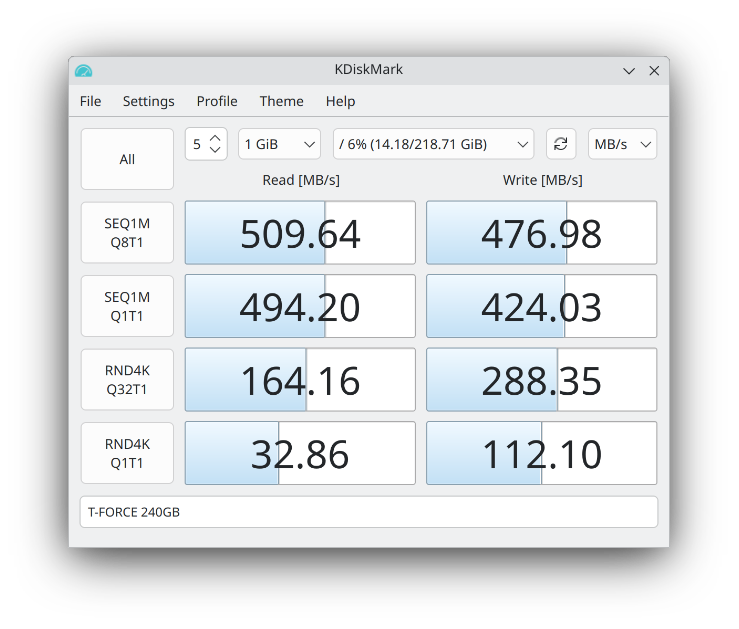
My desktop has a 4th-gen Intel chip, and my laptop runs a 5th-gen low-voltage i5. Zram does give you “more memory,” but it comes at a cost. It works by compressing unused memory pages, which means your CPU has to do that work. Every time a page is written to zram or read back out, it must be compressed or decompressed.

Whether or not that impact is that noticeable, I can’t say for sure—I haven’t run benchmarks. But I do know this: my machines are fast enough, and I like to keep them light, fast, and nimble. And since I already have enough RAM, it makes no sense for me to use zram. If I do need to swap, all of my systems have fast SSDs to handle swapping well enough. I typically allocate 1–4 GB of swap space, and I do that on the fastest SSD in the system.

If you’ve got multiple drives—say, NVMe, SATA SSD, and a spinning hard drive—only put your swap on the NVMe. Another tip: if you’re not planning to hibernate, there’s no reason to make your swap as large as your RAM. Swap is useful as a safety net so your system doesn’t lock up when you run out of memory, but in my experience, I’ve rarely used more than 1 GB. If you’re consistently using multiple gigabytes of swap, you probably just need more RAM.

Another argument I often see is: “Zram doesn’t consume extra memory.” Well… how does that make any sense? Of course it does. Sure, it’s compressed—maybe you use 500 MB of RAM for what would’ve been 1 GB of swap—but I’d rather use that 500 MB as actual RAM and just let the system swap to SSD.

If you want to disable zram on Fedora, just create an empty config file called zram-generator.conf and place it in /etc/systemd/.

You can even do this from the live installer, while it’s still copying data. Just pop open a terminal and run:

sudo touch /mnt/sysroot/etc/systemd/zram-generator.conf


That’s it!

My thoughts on Arch Linux

Arch Logo

Preface:  I’m a long-time GNU/Linux user, extensively familiar with systems like Debian and Fedora. I don’t mind getting my hands dirty, and I’ve used plenty of distributions that are generally believed to be less user-friendly than your average Ubuntu flavor — namely Alpine Linux, FreeBSD, and OpenBSD.

So, what is Arch Linux, and who is it for?

If I had to answer that myself and offer my own take, it would be this: Arch is a rolling-release distribution with the latest packages and a remarkably broad selection of software. You’ll have at your fingertips the very latest in Linux and free software — you’ll be on the bleeding edge.

Arch is also a build-it-yourself kind of distro, in the sense that you’ll need to choose and configure your own desktop environment, sound server, display server, and so on. It’s more popular than ever among Linux power users, and it’s easy to see why.

How does it compare to Debian Sid? Fedora Rawhide?

First, let’s clear up a common point of confusion: when people say “Sid,” they often mean Debian Testing. Testing is the middle ground between Unstable and Stable in the Debian ecosystem. Typically, it won’t have broken packages — though it can — but it may be missing them entirely at times.

Unstable, on the other hand, does hold buggy, broken, in-development software. Testing is for software that’s somewhat stable and functioning, but not yet officially “release-ready.”

Debian does a new “Stable” release (a major version, e.g., Bookworm) roughly every two years. When new packages are built, they first enter “Unstable,” and once they work well enough, they move to “Testing.” Leading up to a new release, a freeze occurs. During the freeze, new code and features are no longer accepted into Testing — only bug fixes are allowed. This model prioritizes stability, and it’s similar to how the Linux kernel is developed: features freeze at a certain point, so that the remaining effort is focused on polishing what’s already there.

For completeness: Fedora takes a similar approach, but it’s simpler in terms of branches. They have the latest official release (e.g., Fedora 41), and then there’s Rawhide, which is Fedora’s rolling-release/unstable branch.

Wait… I thought this was supposed to be about Arch Linux?!

I’m getting back to that.

So where does Arch fall into all this? Well, Debian Stable — Arch is not. And by that, I mean they’re completely different animals.

Sometimes, you want something that’s tried and true, something that just works. There’s nothing wrong with Debian’s release model — in fact, Debian is one of the most widely used Linux distributions on desktops, and it’s arguably even more dominant on servers.

Right now, for example (April 2025), Debian 12 Bookworm is almost two years old. That means that, for the most part, the software it includes is also about two years old. Some packages may be even older. This doesn’t mean the software is bad, but it’s technically “old.” Features don’t normally change during a stable release’s lifecycle — only security updates and critical bug fixes are provided.

In contrast, Arch gets you as close to the upstream as possible. Things should work, but they haven’t been battle-tested the same way. Debian Stable, on the other hand, continues to be supported even after it’s no longer the current release — with bug fixes and security updates maintained under its “Old Stable” status. These days, a single Debian release can easily be used for up to eight years or more.

When does Arch Linux make the most sense?

If you’ve got a brand-new, cutting-edge piece of hardware, Arch might be the most sensible choice. You’ll likely want the latest Linux kernel for full support — and yes, you can build a new kernel on any distro, but we’re not talking about that level of work here.

Because Arch combines a bleeding-edge model with a huge package repository, you can choose to run either the latest stable kernel or an LTS (Long-Term Support) kernel, depending on your preference. For context: when we say “stable” in terms of the Linux kernel, we don’t mean “stable” like Debian Stable — we just mean it’s a non-development, non-RC release.

If you have a high-DPI display, a high-end GPU, or you just want to test the latest in GNOME or KDE, Arch is a fantastic choice. As I mentioned earlier, you’ll be able to install much more recent builds of almost everything than what you’d find in something like Debian Stable.

Why not just use Debian Testing or Sid, then?

You can, and if you’re already comfortable with Debian, trying out Testing isn’t a bad idea. In fact, Testing can often be run day-to-day without major issues. But Sid (Unstable) is another story entirely — and if you try to mix packages from Stable, Testing, and Unstable, you’re very likely to run into messy dependency hell and package management headaches.

While Testing can function as a sort of rolling release, that’s not really its purpose. It exists primarily for development and staging of Debian’s next Stable version. Arch, on the other hand, is a rolling release — plain and simple. If a package is in the repository, it’s supposed to work. And if something breaks, you can usually roll it back, and a fix will likely come soon.

In conclusion…

Well — I haven’t come to one yet, and I can’t say there will be a definitive conclusion, per se.

As I write this, I’m on my second or third day of giving Arch a good, honest trial on my laptop. So far, I’m liking it quite a bit. I’ll no doubt have a follow-up at some point, but I think I’ve stated the majority of my opinions up above.

Stay tuned.

Massive Speed-Upgrade for your Linux infrastructure with AptCacherNG

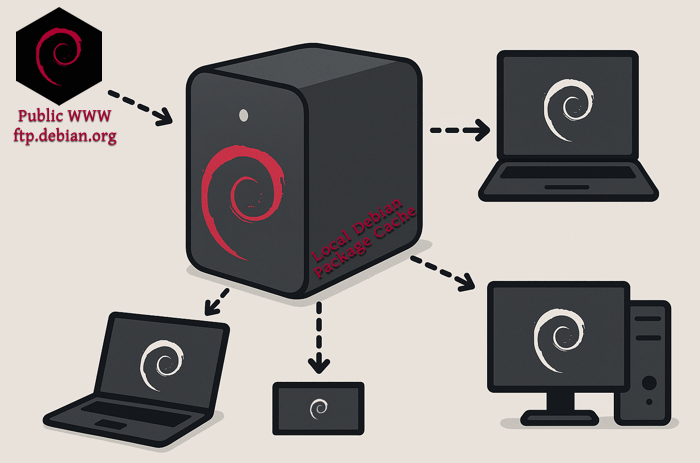
Cache Diagram
AptCacherNG makes it easy to create a local cache of Debian package mirrors.

If you’ve got multiple machines running the same distribution, APTCacherNG allow for effortless caching of software packages.

I run various distributions, but Debian is probably near the top of that list. Between virtual and physical boxes, I probably have a dozen running Debian. Seriously.

Now, between different versions and architectures you obviously can’t reuse the same packages always; but you don’t need to worry about that. This is something you set up, and then can basically forget about.

Chances are, most instances of your OS are going to be the same version (the current stable release), and the same architecture – usually AMD64.

Not only can you save a ton of bandwidth, but you benefit even more so from the speed up. My internet is about 300 Mbps give or take, but my lan is much faster. The machine I use for caching has nvme storage set aside for the task, and thus is only limited by the speed of the network interface. Even with 1GB, I think you’ll notice a tangible improvement.

It isn’t just for Debian.

Nope, it actually can work with basically anything. I’ve gotten it to work on Alpine with no real effort. I think I may have had to change a line in the config, but it is quite easy.

Under the hood, this is really just web caching. Your clients route their requests through one central machine. Since all requests go through one server, that machine can say “Oh, I just downloaded that for so-and-so an hour ago… here you go!” and forgo an internet download in favor of re-sending the cached copy.

Good for you, you’ll see speed increase no doubt. If you have limited bandwidth, It would be worth doing for even just one or two clients. If you have more than half a dozen or so, I’d say it is a no brainier. It also lowers the strain on the mirrors, which is a good thing too — Especially if you’re in charge of taking care of a whole rack of servers, or perhaps a lab / classroom full of machines.

It’s Easy!

On the clients you have a couple options. For a fresh net-install of Debian, when you go to select the country for your mirror, you want to scroll all the way to the bottom (or top?) and you’ll find “Enter Manually”. Here, you simply furnish your aptcacherng host. In my case, “novo.lan:3142”. Then, just like with debian’s mirror, the rest of the url is the same.

For existing installs, open up /etc/apt/sources.list and replace ftp.debian.org or deb.debian.org with yourmachine.lan:3142 — don’t forget to specify that port. By default, it runs on 3142.

Learn more: https://wiki.debian.org/AptCacherNg

The PiFrame — Pi Zero 2 LCD Weather Clock


The
          PiFrame

   Raspberry Pi Zero 2 WH — $18
I2C 20×4 LCD Display — $5
Shadowbox Frame — $7

Doing a geeky project for under $30?? Priceless…

Ah, the Raspberry Pi. That $35 single board computer everyone was scalping for 3x what they were worth during the chip shortages. Well, I used to own several of them… and unfortunately no longer do. I will say, for the MSRP price they aren’t a bad option. The whole ecosystem is quite attractive for many reasons, and the brand receives praise left and right for it. I will indeed say, they’re basically swiss army knives for a hacker. A whole miniature linux system, with a quad core 64 bit CPU and often 1 – 4 GB of RAM. IMO the 8 GB is a waste of money, of course, I tend to like lean configurations so perhaps I just feel that way because I’d never use 4 GB on a Pi let alone 8. AND, if I did need 8 GB or more, I’d use a DDR4 mini PC, not a Pi!

Anywho, in the spirit of what the Pi is all about, I wanted something cheap to hack on. I have a Pi 5, but it pulls full time duty as a server. And, what can I say? It works so well for this, and the small size and lower power requirements are part of that attraction for me. Now, PCIe gigabit ethernet, and PCIe NVME storage are a pretty strong motivation for my willingness to keep the Pi 5 4 GB I’ve got employed as a server. Without those, I’d use a thin client or old laptop in a heartbeat. Oh yeah, the spirit of the Pi, that’s where I started blabbing right?

So the Pi Zero, it’s like an original 2012 Pi, but with optional Wifi. You loose onboard ethernet (but it was USB anyway on the early models, and you do have a USB port to add a NIC…) but you get a very small package still boasting full 40 pin GPIO. They refreshed the Pi Zero in late 2021 with the Pi Zero 2. If you want WiFi and BT, you want the Zero 2 W. Want pre-soldered GPIO pins too? Get the WH.

** NOW a little PSA here, I bought a Pi Zero 2 WH on Amazon… so that came /w a soldered GPIO pin header. Quite handy, even has color coded spots at the base of each pin so you know what is GPIO, 5v, Ground, etc… Except, mine was put on upside down. Took me forever to figure this out, and I would have been pretty pissed if I needed to RMA it because some shoddy reseller is doing these headders themselves to save 30 cents and mislabeling the pins. I don’t care now that I know, but being largely for the education market this is a bit discouraging to see. If I were in the same situation as a young kid, the Pi may very well have gone in the bin.

You can get a pack of two 20 character / column x 4 row LCD screens, with pre-soldered i2c “backpack” for about ten bucks. And, you can get it in green, red, blue, whatever you want. I went with the OG, green LCD.

Let there
        be light!

So… what does it do? Well, it’s an excuse to have another Linux box in your fleet, I mean, what more do you want?? But since you asked, it does anything you tell it to. Right now, mine spends five seconds showing me the date, time, and my web server uptime. Then it shows me local weather for another five seconds. There’s more in the pipe though, and trying out new code is incredibly easy.

LCD
        Display LCD Display

What makes this clock… tick?? Python.

#!/usr/bin/env python

import drivers
from time import sleep, strftime
import argparse
import requests
import subprocess

def get_uptime():
    try:
        # Run the 'uptime -p' command and capture the output
        #result = subprocess.run(['uptime', '-p'], capture_output=True, text=True, check=True)
        result = subprocess.run(['cat', '/tmp/uptime'], capture_output=True, text=True, check=True)
        uptime_str = result.stdout.strip()  # E.g., "up 1 day, 1 hour, 45 minutes"
        
##        # Use awk to format it as "up 1d 1h 45m"
##        formatted_uptime = subprocess.run(
##           ['awk', '{print "WWW up ", $2 " weeks", $4 "d", $6 "h"}'], input=uptime_str, text=True, capture_output=True
##        ).stdout.strip()

## The above works, when you've had < 7 days up... then we need the following... (and yes, I could have made this MUCH more elegant)

        # Use awk to format and convert weeks into days, then calculate total days
        formatted_uptime = subprocess.run(
            ['awk', '{week_days=($2*7); total_days=week_days+$4; print "HTTPD.lan up", total_days "d", $6 "h"}'], 
            input=uptime_str, text=True, capture_output=True
        ).stdout.strip()
        return formatted_uptime

    except subprocess.CalledProcessError as e:
        print(f"Error getting uptime: {e}")
        return "Uptime not available"

# Load the driver
lcd = drivers.Lcd()

# Weather API settings
API_KEY = "000000000000000000000" ## The API keys are free, just sign up. Painless or I wouldn't have bothered.
ZIP_CODE = "00000" ## Your Zip code here!
COUNTRY_CODE = "US"
WEATHER_URL = f"http://api.openweathermap.org/data/2.5/weather?zip={ZIP_CODE},{COUNTRY_CODE}&appid={API_KEY}&units=imperial"

# Function to fetch weather data
def get_weather():
    try:
        response = requests.get(WEATHER_URL)
        data = response.json()
        if data and data["cod"] == 200:
            temp = round(data["main"]["temp"])
            humidity = data["main"]["humidity"]
            wind_speed = round(data["wind"]["speed"])
            wind_dir = data["wind"].get("deg", "N/A")
            return temp, humidity, wind_speed, wind_dir
    except Exception as e:
        print("Error fetching weather:", e)
    return None, None, None, None

# Parse command-line arguments
parser = argparse.ArgumentParser(description="LCD Display Script")
parser.add_argument("--wc", action="store_true", help="Only display weather and clock pages in rotation")
args = parser.parse_args()

try:
    while True:
        # Date/Time page
        lcd.lcd_clear()
        lcd.lcd_display_string(strftime("Today is %A,"), 1)
        lcd.lcd_display_string(strftime("     %B %d"), 2)

        # Display uptime on the 4th row
        uptime = get_uptime()  # Call the function and store the uptime
        lcd.lcd_display_string(f"{uptime}", 4)

        # Continuously update the time (third row)
        for _ in range(10):  # Display for ~10 seconds
            lcd.lcd_display_string(strftime("     %I:%M:%S %p"), 3)
            sleep(1)

        # Weather page
        if args.wc:  # Include weather in both modes (if --wc is passed)
            temp, humidity, wind_speed, wind_dir = get_weather()
            if temp is not None:
                lcd.lcd_clear()
                lcd.lcd_display_string("    Boscawen, NH    ", 1)
                lcd.lcd_display_string(f"    Temp: {temp}F   ", 2)
                lcd.lcd_display_string(f"   {humidity}% Humidity", 3)
                lcd.lcd_display_string(f"  Wind: {wind_speed}mph", 4)
                sleep(5)

except KeyboardInterrupt:
    print(" ~ Clearing ~ ")
    lcd.lcd_clear()

Now, I’m not really much of a programmer. Nope. But, ugly or not there it is. I suggest you do what I did, and start here: The Raspberry Pi Guy has a page with sample code and some other helpful stuff on Github. Using the 16×2 code on a 20×4 is as easy as changing 16 to 20 and 2 to 4. Well, gotta add lines 3 and 4 below 1 and 2. But not rocket surgery.

I recommend using the overlay FS and read only /boot partition if you do something like this to avoid accidental SD card filesystem corruption from unsafe shutdowns. I actually added a systemd service so that on target of reboot, halt or shutdown a shell script will kill the python process, then launch another which blanks the screen and replaces the text with “IT IS NOW SAFE TO TURN OFF YOUR COMPUTER” — if you know, you know. About 1 second after that hits the LCD, the Pi powers off and the Act LED goes dark. The LCD will stay lit, and retain the last thing printed on it as long as power is connected.

Now, the BEST thing to do for your filesystem / SD card is to power off via SSH before unplugging any Pi. However, to power my “clock” up, all I do is plug it in. If you put in your crontab a line starting with @reboot, you’ll be able to easily start scripts at boot. I did this as root, because I think you need to be root to use the GPIO. Probably a way around this, but this runs nothing other than the display stuff at the moment.

Cron on the Pi Zero 2 W. aka PiFrame:
@reboot /root/lcd/bens3.py –wc
@reboot curl -s https://ben.lostgeek.net/uptime.txt -o /tmp/uptime
0 * * * * curl -s https://ben.lostgeek.net/uptime.txt -o /tmp/uptime

What this does is at boot, we pull uptime from a text file on my webserver and we start up the python program with the –wc arg, “weather clock”. This applies to the code above, so I left it as is. Only one more part is needed.

Cron on the server:
0 * * * * uptime -p > /var/www/html/ben/uptime.txt

This puts an up to date uptime file in my web directory once an hour. And the keen observers among us probably noticed that the Zero also will refresh this information at the top of each hour too. Easy peasy.

Operating System Recommendations

OpenBSD: My thoughts on using it
Raspberry Pi 5: My list of 16 different Operating Systems

Note: These two aren’t my top picks, they’re featured up top here because they have their own pages. The rest of the links here will take you right to website of the project being described.

Fedora MATE-Compiz Desktop Spin

The Fedora Project started in 2003 as a continuation of the Red Hat Linux project.  Fedora is the upstream source for Red Hat Enterprise Linux as-well as Cent OS Stream. New versions of Fedora are released every 6 months, each release is supported for at least 13 months.
If you want a fresh experience, with new and fresh packages then Fedora is a great option.  At the moment of writing this I’m running version 40 with the 6.8.9 Linux Kernel.  Updates are quite frequent, and the dnf package management tool is great.  If you prefer a stable, more static system which updates less frequently then I’d recommend Debian instead.

Debian Bookworm

Debian has been around for a while, starting up way back in 1993. It is among the oldest Linux Distributions still in active development, second only to Slackware.  Debian is a community run project, unlike Fedora.  Debian’s repository offers more than 50,000 packages.  It is one of fewer and fewer distributions to still support the 32 bit Intel architecture, meaning it can be installed easily on any  x86 PC made in the last 25+ years. APT, the Advanced Packaging Tool makes searching for and installing software on Debian incredibly easy. Even for users whom are new to Linux.
Releases in the form of a new stable branch are released about every two years, and receive official support for three years. Incremental point releases are made available every few months. Even after EOL (end of life), a release receives an additional two years of security updates.
If you want a rock-solid stable Linux experience, and you’re okay not having the very latest packages then Debian may be perfect for you.  With 5 years in total of security updates per release, you don’t need to worry about major upgrades breaking anything.  Between the long term support period and the vast landscape of available packages, Debian makes an excellent server operating system.  If you want a stable system which “just works”, honestly it is a great choice to run on for workstations as well.

FreeBSD 14.0 RELEASE

Also released in 1993, FreeBSD is a descendant of the Berkeley Software Distribution (BSD).  BSD, originally named Berkeley Unix was based on the source code of the original Bell Labs Unix.  FreeBSD is a complete operating system, comprised of kernel, drivers, user-land, and documentation.  This differs from Linux in that Linux is only a kernel, with drivers. Combined with GNU utilities, you get GNU/Linux — people now just call it “Linux”.
FreeBSD is the most popular open source BSD operating system, and code from FreeBSD can be found in macOS, iOS, TrueNAS and in the operating systems which run on both the PlayStation 4 / 5 and Nintendo Switch.
While some use it on the desktop, myself included, FreeBSD really shines in the server space.  The advanced OpenZFS filesystem and robust TCP/IP stack make an incredibly strong platform for high demand environments.  Check out: Serving Netflix Video at 400Gb/s on FreeBSD

Devuan Daedalus

So, starting with Jessie, Debian switched to the systemd init and service manager.  A lot of people were not happy about it, and as a result Debian was forked.  Devuan is just Debian, but they make offer you a choice of using sysvinit, OpenRC or runit.  Default desktop environment is XFCE instead of GNOME, so that’s a plus in my book as well.  For most people, I’d recommend just using regular Debian.  Devuan is a nice option in certain cases though, and since it is an absolute nightmare trying to change a normal Debian install from systemd to literally anything else, I can totally see why people felt the need to have a fork.

My Operating Systems Journey

Like many among us, I was once a Windows user.  Hell, between you and me?  I may have even liked Windows.  For a while.  I liked Windows 2000 and XP quite a bit, they get out of the users’ way and let them get real work done.  They weren’t bloated, even XP pre SP2 is completely usable on anything better than the slowest Pentium II.  NT 4 was also great, and I used that quite a bit as a kid in school.  XP was king of the hill, for a long time.  Too long.  My first taste of it was in 2002, and coming from Windows 95 I absolutely loved it.  The family PC had an Athlon XP /w 256 MB DDR RAM; that was bought with XP and of course ran it quite well.  My personal laptop at the time was a ThinkPad 390E.  My 390E had been upgraded to 128MB RAM, and rocked a Pentium II @ 333 MHz.  That old ThinkPad actually ran XP extremely well.  Bear in mind, of course, this was a computer which was only a few years older than XP. The 390E came out in 1999.  Tech was evolving MUCH more rapidly during this time though, and moor’s law held truer than ever.

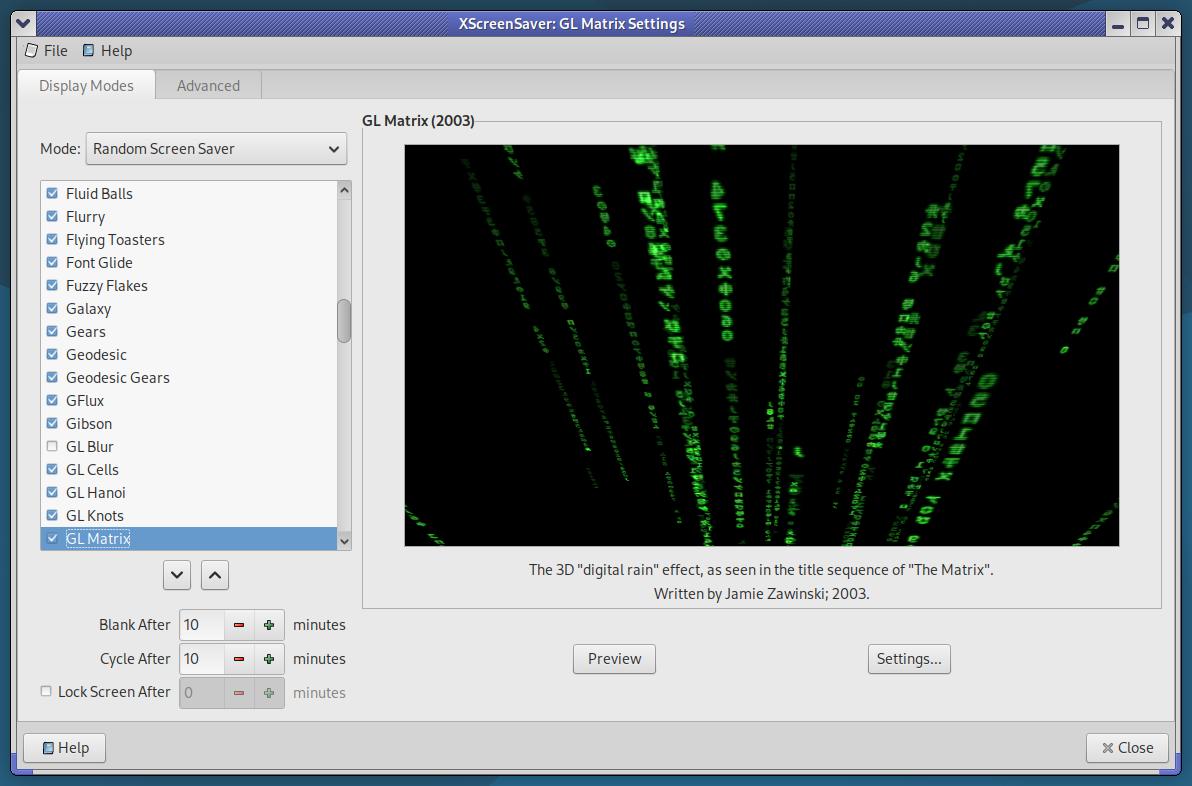
In 2003 I was given a set of Red Hat Linux 9 installation CDs.  Computers were my thing, naturally I had to check it out.  I wasn’t ready to give up my stable XP experience on my laptop as a complete Linux newbie, and instead played around with the OS on various older PCs I had.  I liked it, certain things sort of amazed me.  The sheer volume of software included across those three CDs was mind blowing to me at that time; I’d never seen anything like it.  My experience until that point was: Install windows. It comes with wordpad, calc, solitaire, etc.  So that’s one, whole CD.  Install MS Office; that’s another, whole, CD.  A game?  It’s own CD.  So in a three disc set having literally dozens of applications was kind of amazing.  Full office software suite, web browser, email client, irc client, complete software development environment, media players, games.  What about themes? How about multiple desktop environments. Both KDE and GNOME at this point time, looked & felt TOP notch, in my opinion.  One thing stuck out even more so to me though. Xscreensaver.  It was beautiful.  Hundreds of incredible screensavers, many of which had impressive 3D / OpenGL graphics.  I still remember the moment I realized that the Linux install I had done had SO MANY awesome screensavers.  Mind blown.  Remember, at this time I didn’t have broadband — just dial-up.  Becoming more interested in Linux, I wanted to run Fedora Core.  I still remember going over to my uncle’s house, and thinking it was the coolest thing in the world that he had not only broadband, but 802.11b wifi.  And it was in that way, I obtained Fedora Core 3, 4, 5 and 6, between 2003 and 2006 roughly.  Took several pages in my software binder.  Four CDs per page in the binder, but each release took 4 – 6 discs.

I ran XP into the early days of Windows 8.1.  During the Windows 7 days, XP was still quite well supported or even dominant for the most part.  Windows 7 was good, but I really only used it at work.  8.1 with classic shell was good for me, better than many would probably think.  After the start of what is now known to be the typical M$ experience, I was all set. For those who don’t know, I’m talking about bullshit like: Ads in Start menu, One day you boot up your PC and now all of the sudden it’s running Windows 10 (and did this without asking, or after you said “No”).  Forcing updates which could compromise stability, downloads which waste bandwidth, and a non-optional upgrade to a whole new OS version is completely unacceptable.  It shows that Microsoft has absolutely no respect for their users.  These harmful behaviors were carried out at the cost of many users sanity and productivity more importantly.

If the user can’t be trusted to install their own updates, so they can plan accordingly for bugs / downtime, I’m all set. I’ll use something else gladly.

Prior to all this, I had stopped using Linux in a “here and there” casual capacity when Gnome 3 came out.  It was awful, and ruined Linux for me.  I can still vividly remember tossing together some parts I had into a system to use in my workshop.  I figure, lets give Linux a try, it’ll be perfect for this kind of casual use — web browsing, playing MP3s.  Bog standard Pentium 4 3 GHz, 1 GB RAM… I booted up into Fedora Live (circa 2011).  Literal slideshow.  I was beyond disappointed.

Three years later I started using Lubuntu, and was satisfied enough with it to use it full time for the next six years or so.  This was when Lubuntu used the lightweight X11 desktop environment; LXDE.  Around 2019 they switched to LXQT, which I’m not quite so much a fan of.  I went to Ubuntu Mate and Xubuntu for a while, and then realized that regular Debian was better in every conceivable way.

Today I use Fedora and FreeBSD on the desktop, Debian and FreeBSD on servers.  I still don’t like modern Gnome, though it has gotten immensely better than it was back when it first came out.  I use MATE or LXDE 99% of the time I’m in a GUI.  They’re both lightweight and solid.  MATE has more creature comforts, and offers me a more productive layout.  Out of the box it has a fair bit more included than LXDE.  That said, LXDE is great for low end hardware or laptops with lower screen resolutions.  And, if you like bare bones and building it yourself, LXDE is a great option because it doesn’t come with any fluff you don’t need.  Because most distributions package LXDE with Openbox as the window manager, it is a great way to get Openbox up and running with a regular taskbar / familiar desktop layout.

You can read more about desktop environments and window managers over on the Packages page. See some of my favorite BSD/Linux/Mac wallpapers.

Recommended Free Software

These days I’m a Linux & FreeBSD user, most if not all of this software is available on both platforms.  It is all free and open source software, with either GPL, MIT or BSD licensing.

Desktop Environments

MATE Desktop:  a continuation of GNOME 2
The MATE Desktop Environment provides an intuitive and attractive desktop environment using traditional metaphors for Linux and other Unix-like operating systems. MATE is under active development to add support for new technologies while preserving a traditional desktop experience. Personally, I use MATE on pretty much every machine I actually use. It is my go to. Window-snapping / tiling has been added, and it is great to be able to use keyboard bindings to half or quarter tile your windows instantly. XFCE can do the same things, and is a fine choice too, I’ve just been using Gnome/MATE for a long time and find it a tad cleaner out of the box. If Gnome 3/40+ makes you dizzy and KDE 5/6 has too many options and feels bloated; Welcome to MATE!

Website: mate-desktop.org | Install Guide: Wiki page | FreeBSD Handbook: Installing MATE
LXDE: the light-weight X11 Desktop Environment
LXDE is a complete (but small) desktop environment with comparatively low resource requirements. It will feel speedy on your Core 2 Duo, yes even in 2024. Written in C, and uses the GTK 2 toolkit. Default window manager is Openbox, and LXDE is a great way to get into using openbox without writing your own configs for it. You get a desktop /w icons, familiar right-click menu, and panel with task-bar and system tray. Available on most Unix-like systems.
Website: lxde.org | FreeBSD Wiki: Installing and Configuring LXDE

Software

Krita – My free “Photoshop” go to. I must admit, I’ve only recently found this gem of a program and boy do I wish I’d found it sooner. I got pretty comfortable in PS back in the CS 3 – CS 4 days, and Gimp (in my opinion!) is simply not intuitive. Krita is incredible. I’ve only as of writing this used it a dozen or so times for small things and I’m already thoroughly impressed. It is a solid offering, and for me I find it vastly more usable than gimp. Better yet even it is available from FreeBSD ports / packags! Krita.org

PaleMoon – A browser completely built from its own, independently developed source which forked from FireFox of days past. I really love this browser, especially the interface. I use it whenever possible. uBlock origin works via the current “firefox legacy” plugin. Plus, FreeBSD, Linux and other pre-compiled builds are available right from their website!

Firefox – These days there are probably better options.  I don’t agree with a lot of things Google does, so I haven’t touched chrome in years.  Firefox has been pretty good to me over the past two decades. I even use it on my phone. Mozilla.org

guvcview – Web cam and video capture software. Build configurations for GTK, QT and console only. Works with V4L devices; cameras, capture cards, etc. Of what I’ve tried, this has worked well for capturing video and viewing video from various sources on screen. guvcview.sourceforge.net

SeaMonkey – This is the modern era Mozilla application suite.  Browser, E-mail, irc and WYSIWYG style HTML composer all in one. HTML editors are few and far between these days, so SeaMonkey is probably what you’re looking for. It also offers a lighter browser compared to FireFox. As a browser, I have found that most things will work, with a couple exceptions.

    This page will tell you everything you need to install Seamonkey on Debian / Ubuntu.

Here is v 2.53 someone compiled on FreeBSD 13. I’ve tested it myself, and it works fine on FreeBSD 14 aswell. **This is a couple years old now and may not be secure! Use at your own risk. **

InputLeap – Formerly named “Barrier”, this program allows you to share your a single mouse and keyboard across multiple desktops.  This can be very handy if you have multiple systems on the same desk, or maybe to plop your notebook down beside your workstation for more screen space to multi-task.  I’ve used it between FreeBSD on my laptop and Fedora on my desktop, and it works perfectly. GitHub

Solaar – Software to get otherwise unavailable functionality out of Logitech wireless peripherals working on Linux.  It lets me use my function keys as… function keys.  Instead of useless multimedia functions, I can use F1 – F12.  For me, a must have; although I wouldn’t need it if they didn’t design their keyboards with that flawed design decision. GitHub

virt-manager – Virtual Machine Manager, a GUI front end for Linux KVM, Xen, LXC, FreeBSD Bhyve and more. virt-manager.org

xscreensaver – The standard screen saver collection included on most Linux and Unix systems running the X11 Window System.  First released in 1992, it now has hundreds of absolutely great screensavers, many of which use OpenGL and impressive 3D graphics.  It is also the only way to securely lock your screen on X11, unlike forks which have made changes to compromise security and stability. jwz.org/xscreensaver

Must haves for any system:  (console / tty)

Bash – Borne Again Shell, a full featured system shell.
GNU Bash Homepage
Htop – A better version of top, with nice visuals and lots of useful features.
        htop.dev
Nano
– Very easy to use editor.  There’s nothing wrong with vi / vim, but I still use nano all the time.
nano-editor.org
Sudo – Lets the user run a command as superuser (root).
sudo.ws
OpenSSH – Secure shell tooling for remote access, developed by the OpenBSD project.
openssh.com

Operating Systems available for the Raspberry Pi 5

My round-up of 16 different operating system options available for the new Pi 5.     –    May 24th, 2024

Raspberry Pi OS (Debian Bookworm) The Official Pi OS

Debian is no doubt one of the best Linux distributions available today. In fact, not many would argue if one were to say that it is the best. Raspberry Pi OS is the official operating system of the Raspberry Pi, and as such you know that it will support all the hardware correctly out of the box with no extra work required from the user. Works on ALL Raspberry Pi models. Available in 32 and 64 bit arm flavors, and you can get an image with a desktop environment included or opt for the “Lite” version at just under 500MB. As of this writing, all versions available for the Pi 5 are built on Debian 12 (bookworm) and use the 6.6 Linux kernel.

Ubuntu 24.04 LTS For Pi4 & Pi5

Ubuntu likely needs little introduction. Two builds are available for the Pi; Desktop and Server. The server image weighs in at a mere 1 GB, and desktop at 2.6 GB. 24 is an LTS release for Ubuntu, meaning five years of free security and maintenance updates, extendable to 10 years with Ubuntu Pro.

Armbian for the Pi 5

Armbian has been around awhile, and Linux on ARM is their jam. They offer builds of the Ubuntu Jammy variety, or you can go with something Debian Bookworm based. You can choose a 370 MB CLI minimal image,  or pick a GUI image with your choice of any of the popular desktops. Gnome, KDE, Cinnamon, XFCE and i3 each have their own release available.  At the time of writing this, they are shipping Kernel 6.6.23 in all of them. They’ve also got a few “dedicated applications” options, Home Assistant, OpenHab and Kali Linux.

Kali Linux for all Pis

Kali is a penetration testing oriented linux distribution. When I first heard of Kali the project at that time was named BackTrack. Before that, way back in 2004 it was actually called Whoopix (White Hat Knoppix). If you’re interested in pen-testing, hacking, or cyber security, check them out. Kali has images available for all Raspberry Pi models, including the new Rpi 5.

LibreElec for all Pis

LibreElec lets your instantly turn your Pi into a powerful media center which you can connect to any TV and start enjoying. It uses the Kodi media center (formerly XBMC). The latest build will work on Rasp Pi 2 and newer, but they have images of an old version still available if you happen to want to try it on your old Pi 1, or Pi Zero.

Batocera for Pi 4 & Pi 5
Recalbox for all Pis

Both Batocera and Recalbox are similar to RetroPie, if you’ve heard of that. Basically, they give you a nice easy to use full screen interface for playing retro console games. You can emulate pretty much any retro home console or home computer from the 80s and 90s. I recently helped my brother build a full-size arcade machine, and after initially going for a custom x86 debian install with RetroPie which took all night to compile from source, we ended up using RecalBox and he couldn’t have been happier with it.

Void Linux Pi 5 Support Added

From their website, “(Void is) not a fork! Void Linux is an independent distribution, developed entirely by volunteers. Unlike trillions of other existing distros, Void is not a modification of an existing distribution. Void’s package manager and build system have been written from scratch.” They don’t mention the Raspberry Pi specifically directly on their downloads page, which is why I have linked to a news post mentioning new Pi 5 support. I’d image it works on older Pis also, but may be suited to more advanced users.

OpenFyde Pi 4 & Pi 5

OpenFyde is the open-source version of FydeOS, based on Chromium OS.

Mx Linux (Rpi Respin) For Pi 4 & 5

“MX Linux is a cooperative venture between the antiX and MX Linux communities. It is a family of operating systems that are designed to combine elegant and efficient desktops with high stability and solid performance.” – mxlinux.org (Download Page)

Diet Pi For Any Pi (and other SBCs)

“DietPi is an extremely lightweight Debian OS, highly optimised for minimal CPU and RAM resource usage, ensuring your SBC always runs at its maximum potential.”

Lineage OS Unofficial Pi 4 & Pi 5 Build

“LineageOS, an open-source Android distribution, is available for several devices,
with more being continuously added thanks to the biggest, yet ever growing, Android open-source community. Join us and breathe new life in your device, be it old or new.”
The linked build is unofficial, but looks promising. Use at your own discretion.

OpenWRT Unofficial Pi 5 Build

OpenWRT is custom Linux based router firmware, for wifi routers and other embedded devices. You can also run it on Raspberry Pi boards and other SBCs. Linked above is an Unofficial Pi 5 build, with new commits just last week. I’ve also run OpenWRT on the Pi 3 and Pi 4 with excellent results – they actually can be great routers.  Their wifi isn’t very good for using as an AP, but it’ll get you by in a pinch. Using another wired NIC over PCIE or USB3 though, you can get good value out of using it as a wired router. See OpenWRT.org

Arch Linux Arm Unofficial Pi 5 Guide

“It is possible to get Arch Linux ARM up and running on a Raspberry Pi 5 by removing U-Boot and replacing the mainline kernel with a directly booting kernel from the Raspberry Pi foundation. Automatic updates will even work since the replacement kernel is available as an official Arch Linux ARM package.”

FreeBSD 14  Unofficially said to work on Pi 5

User bmcdonaldjr on the FreeBSD forum reports that 14.0 runs well for him:

“The UEFI for freebsd on RPI5 MUST be used (current version is 0.3)
A USB ethernet adapter MUST be used (UEFI currently lacks driver for the onboard.
One of two methods can be used for the storage device.
An image (RPI) written to a USB stick along with a blank micro SDHC /w UEFI files.
An image (RPI) written to a micro SDHC with the UEFI files.”

And of course, FreeBSD already works on older models of the Pi which you can simply download. Namely, 14.0 works on the Pi 3, Pi 4, and many other ARM SBCs: aarch64 images

Windows 11 Arm Installation Instructions (Pi 2, 3, 4 & 5)

I don’t really condone this, but I wanted to make the list as complete as possible… so well, here it is.


For regular PCs, see the Operating Systems I use. You can read more about desktop environments and window managers over on the Packages page.

Technical Resources & Great Websites

Useful resources for geeks using BSD:

FreeBSD live boot images /w SSH enabled. Boot & use / remote installation.
Highly recommended: mfsBSD and mfslinux

FreeBSD WiFi Basic Setup / Configuration – Well put together here

Beginner BSD basics (10 page PDF)  – For people new to FreeBSD & UNIX

Installing & Configuring Grahics Drivers on FreeBSD  – Handbook Chapter 5

Installing Desktop Environments on FreeBSD – Handbook Chapter 8 BSD Daemon

NetBSD Performance and Power Management Tweaks  – Post on unitedbsd.com

Useful resources for geeks using GNU/Linux:

UC Berkley Open Computing Facility Mirror – I can get 300 Mib/sec down!
Definitely a great place to download both BSD and Linux from. They mirror many popular projects.    HTTP   HTTPS

The Debian Administrator’s Handbook  – Very well organized HTML book

Building a Debian Kernel Package – Easier than you may think Debian Wiki
Tux Penguin
Detailed rundown of Linux’s init systems (sysv, systemd) a bit outdated but quite comprehensive yolinux.com Init Tutorial

The T2 System Development Environment  – aims to support all CPU architectures, including maintaining or bringing back architectures which have been dropped in the mainline kernel.  Intel Itanium support as well as fixing drivers and other things which didn’t need to be broken or removed simply because they were “old”.
Visit t2sde.org. The developer documents much of his progress in a series of videos.


Useful resources for hardware hacking & modifications:

OpenWRT Project Table of Hardware  – List of devices supported by OpenWRT
Linksys WRT54G         The OpenWRT project is a completely free and open source linux system intended to replace the firmware on your router / wireless AP. It has tons of packages available and has a very active community and development scene.  I’ve used it for years, it is incredibly good firmware.  If you’ve never heard of it think DD-WRT but better, in my opinion.

Parkytowers.me.uk has a website dedicated to re-purposing “thin client” PCs into general purpose PCs, Linux boxes, servers, etc.  This guy has written up information on HUNDREDS of these things, and details hardware and software hacks to get more functionality out of them.  Check it out!  https://www.parkytowers.me.uk/thin/
(you click the DETAILS link and get to a page with all the OEMs down the left side)

© 2025 LostGeek.NET - All Rights Reserved. Powered by ClassicPress, NGINX, Debian GNU/Linux.