Installing Virt-Manager on Debian Without Backend Dependencies

VirtManager
I run several virtual machines on a home server, and this setup works out quite well for a couple of reasons. First, the VMs can run tasks at any time without slowing down the machine I’m actively working on. Second, Virt-Manager is a pretty slick solution—it gives you access to local LXC containers, QEMU virtual machines, or even lets you connect to VMs on another server over SSH.

If you’re just looking for the front-end functionality of Virt-Manager, you might find this interesting: you don’t need to install all the QEMU and libvirt daemon packages!

On Debian Bookworm, when I try to install Virt-Manager, it tells me it’s going to install 107 new packages, using about 220MB of disk space. Now, that’s not a ton of space, but it is quite a few packages. So let’s try a leaner approach:

sudo apt install virt-manager –no-install-recommends

That only pulls in 22 packages, using around 25MB of disk space.

For those who don’t know, the --no-install-recommends option in apt tells it to skip non-essential (recommended) packages when installing software. It still grabs everything needed to run the software, but skips the extras that apt thinks most people might want. Usually, that’s fine—Debian actually splits packages pretty aggressively (and sometimes annoyingly so).

For example, you’ve probably noticed that nearly every package with development tools also has a separate -dev version. Or maybe you’ve seen how xscreensaver is split into four separate packages, even though it’s distributed as a single application by its author.

Oh, and unless you’re exclusively using serial consoles through libvirt, you’ll probably want SPICE support working too! That means installing a couple more packages—just over 2MB extra:

sudo apt install libspice-client-gtk-3.0-5 gir1.2-spiceclientgtk-3.0

Let those install with their normal dependencies and recommended packages—otherwise the SPICE graphical interface won’t function correctly.

Anyway, remember that --no-install-recommends trick—it’ll definitely come in handy someday!
VMware Workstation Continues to Impress

Yesterday I was quite surprised just how painlessly I was able to get a snappy, usable XP VM up and running in VMware Workstation.

To be clear, running XP in a VM is nothing special nor is it hard to do. But having decent graphics acceleration and device drivers is another story! I’m a true believer in the FOSS philosophy, but so long as there aren’t ads or nag screens I don’t mind using proprietary software so long as it works well.

Just for fun, I thought I’d see how VMware Workstation handles Windows 98 SE. I was surprised indeed.

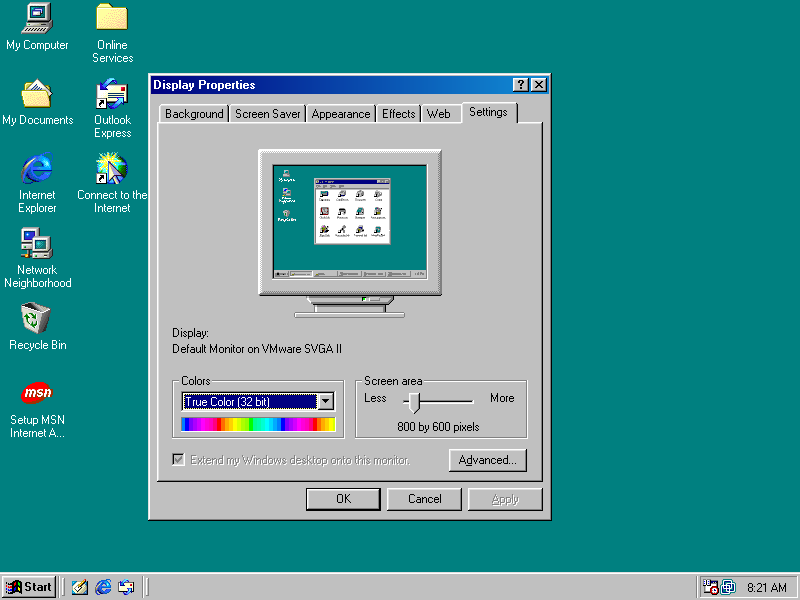
Display properties, with high resolutions and color depths available

Unreal Tournament Demo v348 seemed a good test, at only 49MB. VMware set this machine up with the venerable AMD PCNET card, so 98SE found it during setup and I didn’t have to do anything — it just worked. I did need to install an old version of the guest tools; I found that on archive.org and have uploaded it to my own server aswell. Will link below.

UTDemo
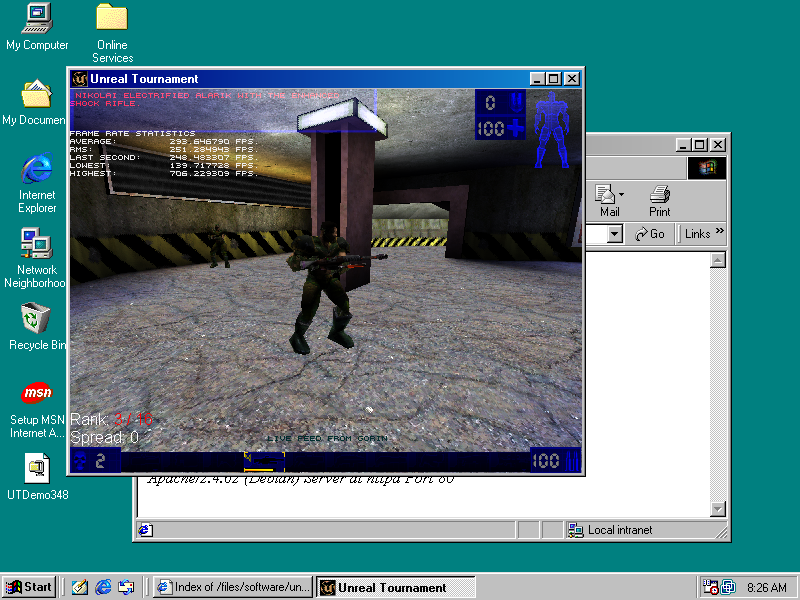
UT99 drawing > 200 FPS with the software renderer

The game didn’t find a 3D accelerator, or offer DirectX / OpenGL but you could probably get that working. Nearly 250 FPS with software rendering isn’t too bad though!

I’m not interested in the VMware solution for games though, but rather old desktop applications that don’t run stably under wine. For those curious, Unreal Tournament runs PERFECTLY under wine! So that’s definitely how I’d recommend playing it. I just wanted to see how well VMware Workstation worked for something a little more demanding than MS Office. And yeah, its solid!

VMware Tools ISO for 9x / NT/ 2k / XP:
https://archive.org/details/winPreVista

EDIT 04/13/25: I didn’t realize this initially, but the tools did not install an audio driver. VMWare emulates Ensoniq AudioPCI hardware for the 9x guest; amazingly creative still hosts the driver on their site.

Creative/Ensoniq Audio Driver:
https://support.creative.com/downloads/download.aspx?nDownloadId=259

A fail-safe for changing network config on headless servers

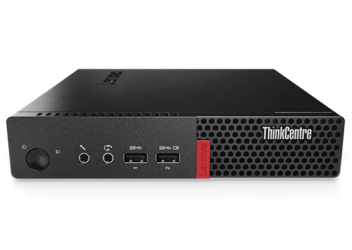
Lenovo Tiny PC

I’ve been setting up a Lenvo tiny system, which came with an M.2 wifi card. I’m going to probably replace it with another Intel GB / 2.5 GB adapter at some point, but right now I don’t really have a reason to. It is always a little scary when you make major changes to your network configuration on a headless system. This box isn’t physically far away, but it is indeed tucked away in another part of the house and I have no desire to bring a monitor over to it.

I realized, the wifi could serve a purpose in case I bork the bridge config somehow, or something unexpected breaks my configuration. Because I used wifi for the Debian netinstall, ifupdown already connects to wifi on boot, so there’s my failsafe. However, I don’t want or need that to stay up after the wired network is up. So I came up with this:

@reboot sleep 60 && ping -c 3 -I br0 10.0.0.1 >/dev/null 2>&1 && ifdown wlp2s0

Put this in root’s crontab, 60 seconds after cron starts it will try to ping something on the LAN, trying three times. If it can ping successfully, we bring down our backup interface. Beautiful.

This would make even more sense with a cheap USB network adapter just to have a failsafe if you’re experimenting and don’t want to lock yourself out of a system without a monitor (or even a physical serial port, for that matter).

Fail-safe, for what? – long version, for those so-inclined

Well, I wanted to be able to easily network some VMs on this thing, so I set up bridged networking. For those who don’t know, this is how Proxmox lets your VMs basically all share a NIC and each get a DHCP lease from your main network, no double-NAT nonsense, and no need to configure static routes either. I briefly did try ProxMox on this thing, and not to talk down of it but there is a reason I don’t use it… has way too much going on out of the box that I’ll never use. It is a great product, and it definitely has its place but I like the minimal-manual style of setting things up. If I wanted to take advantage of the cluster / high availability features or ZFS snapshots then it is a great way to save you a ton of hassle manually setting up some pretty complicated stuff… But I’m not doing anything that fancy. Proxmox IMO is overkill if you just need to run a few VMs, jails or containers. It is convenient as a “poor man’s KVM” though.

© 2025 LostGeek.NET - All Rights Reserved. Powered by ClassicPress, NGINX, Debian GNU/Linux.