Resetting CMOS Password on ThinkPad T420

I recently picked up a used Thinkpad T420. While I could boot it up, use it, install another OS and all that there were some settings locked out.

There is apparently an option for a regular CMOS password, and a “supervisor” password. Hitting enter got me in with limited access, but I couldn’t do things like turning hardware virtualization on or off… among other things.

If you’re like me, maybe you’re thinking: Hey, just unplug the coincell for a few minutes!

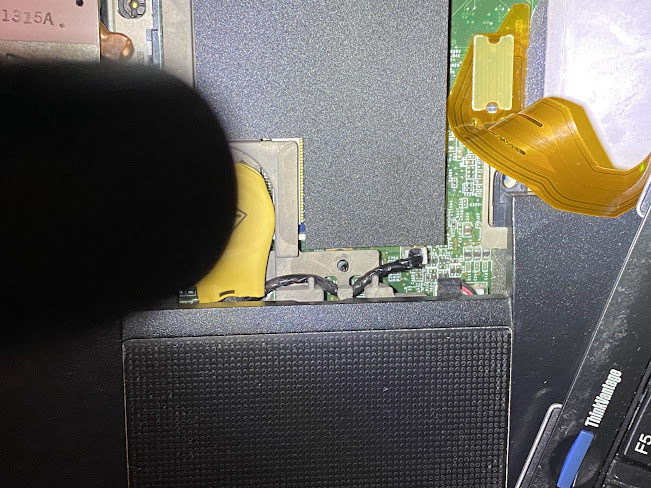
Well that doesn’t work. Fortunately though, there is an easy enough hack. Remove the screw for the RAM door on the bottom of the machine, then use a credit card or blade to nudge the keyboard up from the palm rest. Carefully keep the keyboard connected, but place it sideways out of the way. We need to short a couple pins below where the CMOS coin cell battery connection is on the main board.

General Area
We need to be in this general area. Excuse the flashlight!

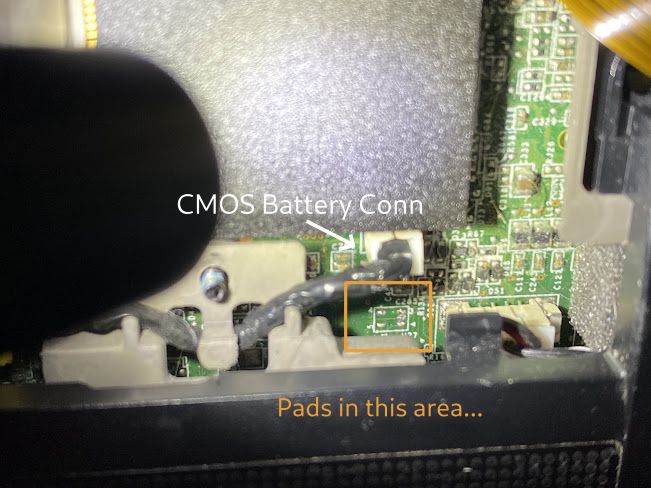
Now, lets zoom-in on the actual area where we need to short two points… Tweezers will work well for this purpose.

Pad areaNow, inside that area where we have the orange box… We need to short the upper left corner to the middle right (center row) pad. This should make things totally clear:

So, this is what to do… Keep either the AC supply, or battery attached to the machine and boot it up.
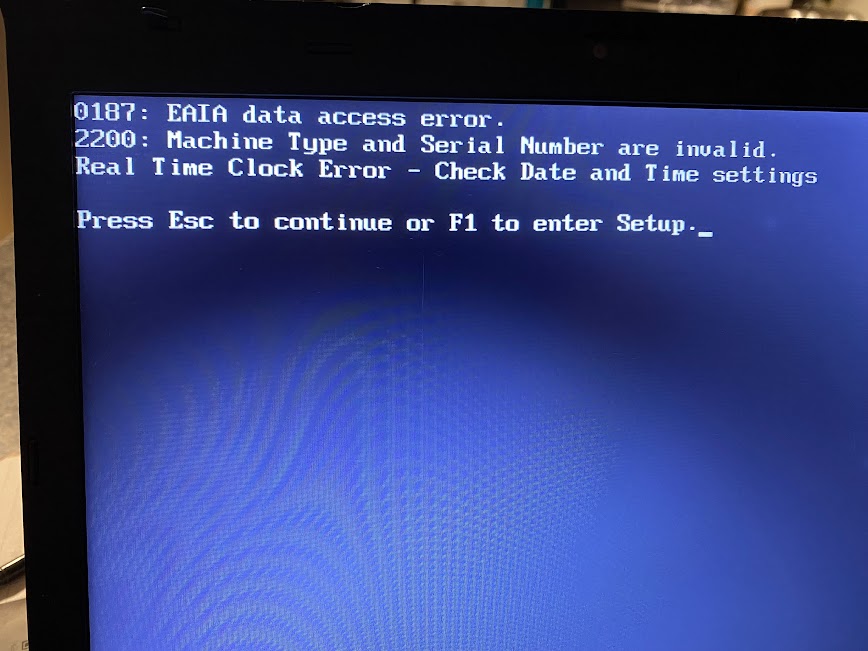
When you boot it up, hit the blue ThinkVantage button and QUICKLY use your tweezers to short those two points together for a second. If successful, you’ll see the following message.

success screenData access error” sounds bad, right? Well in this case, such an error indicates success. Yeah, and you don’t stop ‘Cause it’s 1-8-7 on a undercover tsop! Well, SPI, but that wouldn’t rhyme…

Once you get into the BIOS (press F1), be sure to disable all passwords or set them to blank and then save.


That’s it! Worked perfectly on my Thinkpad T420. I found this method via a YouTube video, his pictures were not so clear though. Hopefully this will help my fellow Thinkpad enthusiasts!

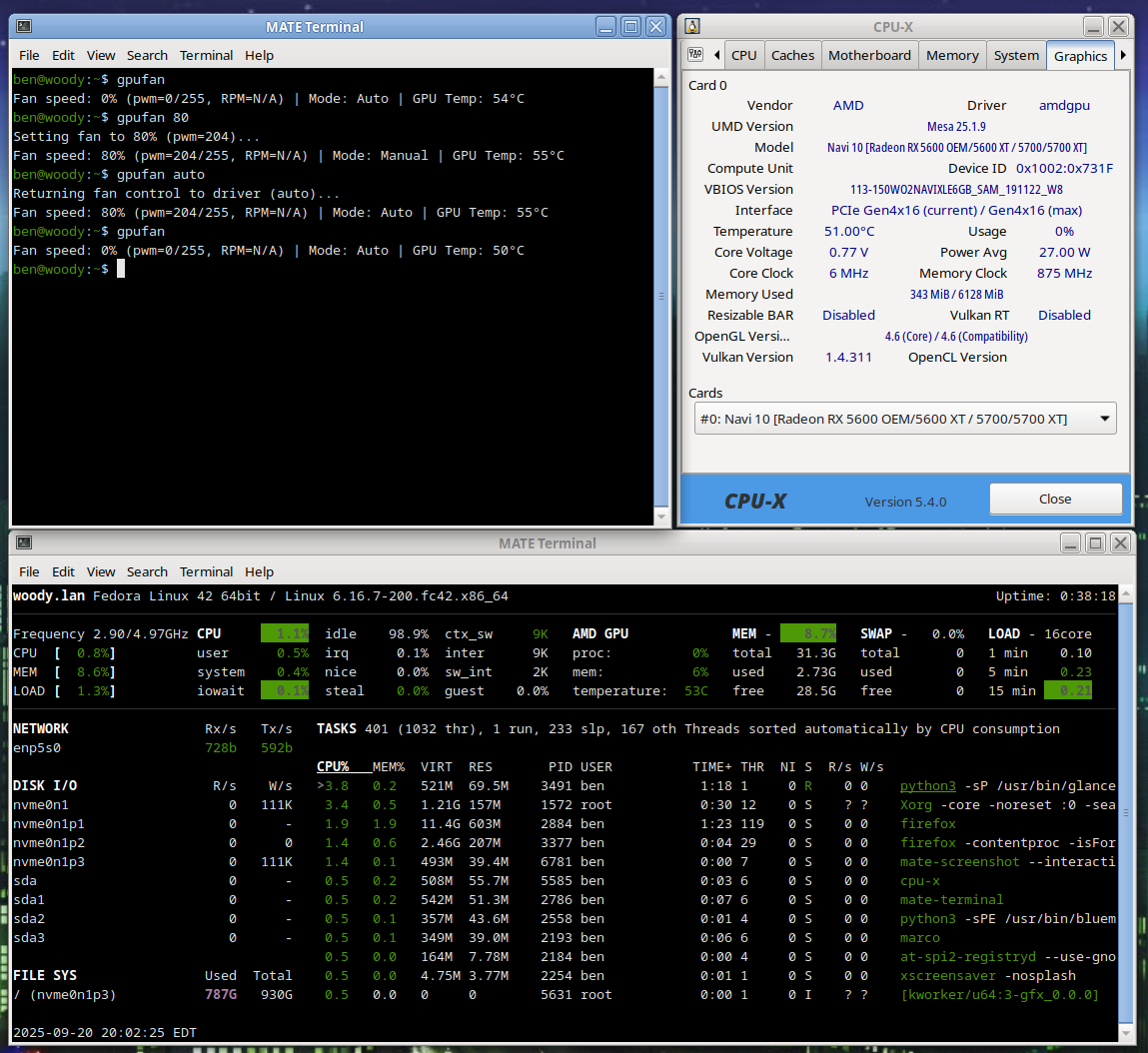
gputemp, a simple AMD Radeon manual fan control solution

# gpufan -- sets manual fan speed on AMD Radeon GPU. For 5.x / 6.x Linux Kernel users running AMDGPU driver...
# Author: Ben @ LostGeek . NET
# Created 09/20/2025

# 	READ ME! How to use:
# save as /usr/local/bin/gpufan then chmod +x
# running "gpufan" will give temperature & fan rpm. gpufan followed by a number (1-100)
# will manually set speed. "gpufan auto" will restore auto / driver control.

Your feedback is welcome!

https://ben.lostgeek.net/code/gpufan/

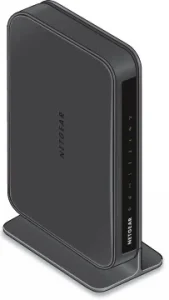
OpenWRT on a Thrift Store Router (Netgear WNDR3700 v4)

WNDR3700 v4
NETGEAR WNDR3700 v4 WiFi Router

Earlier today I stopped by a local Goodwill to see what they had in the way of electronics. Among the digital photo frames and old keyboards, I spotted two routers. I’m always on the lookout for hardware that can run Linux. One of the routers was a Netgear WNDR3700 v4. It was in its original box with the power adapter and a couple of patch cords.

Normally I’d pull out my phone and check OpenWrt support before buying, but this one looked old enough that I figured there was at least a 50/50 chance it would be an easy convert. I’m glad I grabbed it; Not only is this model supported, but flashing OpenWrt is about as painless as it gets.


Flashing with OpenWrt — No UART, no TFTP, no drama.

  1. Factory reset the router.
  2. Connect to it at http://192.168.1.1/ in your web browser. Log in with:
    Username: admin
    Password: password
  3. Go to Advanced.
  4. Download the latest OpenWrt “factory” image for WNDR3700 v4 from the OpenWrt site. *Note, maybe do this first!*
  5. Upload it via the Netgear’s firmware page, under “Advanced” in the web ui.
  6. Wait a few minutes for the flash to complete.
  7. Reconnect your computer (get a fresh DHCP lease), then visit 192.168.1.1 again.
  8. Log in with:
    Username: root
    Password: (blank)*Note, maybe do this first!*
  9. Set your own password… and you’re done!

This 2012-era router is now running a fully up-to-date Linux distribution.


In My Case…
I reconfigured mine to serve as a simple gigabit switch:

  • Disabled both Wi-Fi radios.
  • Configured the “WAN” port into another LAN / switch port.
  • Disabled the DHCP server.
  • Set the LAN bridge (br-lan) to DHCP client so it picks up an IP from my main network.
  • Gave the new router’s MAC a dhcp reservation on my main router, and added the new hostname to my hosts file.
    That way I can still log in for maintenance while it’s acting as an extra switch.

WNDR3700 v4 Hardware

CPU / SoC: Atheros AR9344 @ 560 MHz
RAM / Flash: 128 MB RAM / ~128 MB flash
Wireless: Dual-band 2.4 GHz + 5 GHz, 802.11n (N600)
Ethernet: 1× Gigabit WAN, 4× Gigabit LAN
USB: 1× USB 2.0 “ReadySHARE” port


What Can You Do With It?
Plenty. This hardware can easily run the latest OpenWrt without feeling sluggish. The USB port opens up even more possibilities:

  • Failover WWAN modem or phone tethering
  • Network printer sharing
  • USB hard drive for network storage
  • DIY internet radio streamer with a USB sound card

With OpenWrt, you’re only limited by your time and imagination.


Why Bother?
Netgear’s last firmware for this model came out in 2018. That’s seven years without security updates. OpenWrt gives you:

  • Modern kernel & drivers
  • Current security patches
  • A huge ecosystem of packages

All on hardware that cost me four bucks at a thrift store.


OpenWrt Support History for the WNDR3700

  • Original WNDR3700 (v1) launched in mid–late 2009 with Atheros hardware.
  • OpenWrt support for the series appeared within months of launch, making it a long-time favorite in the community.
  • The v4 hardware revision hit the market around June 2012.
  • Because v4 kept an Atheros chipset (AR9344) with generous RAM and flash, it was officially supported soon after release.
  • The best part: Netgear’s stock firmware for v4 accepts an OpenWrt “factory” image through the web interface. No serial cable required, no bootloader tricks, just upload and reboot.

This combination of long-term support, open-friendly hardware, and GUI-based flashing makes the WNDR3700 v4 one of the easiest budget OpenWrt targets you can find.

NETGEAR WNDR3700 on OpenWRT Wiki / TOH
OpenWRT Version 24.10 Factory Image for WNDR3700 V4 – Direct Link

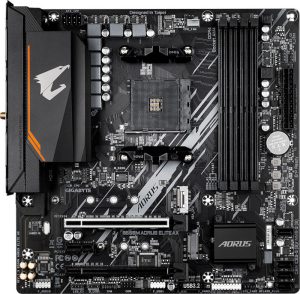
B550M AORUS ELITE AX — Replacing the lousy WiFi!

Finally decided to retire the Haswell system I’ve been using, and ordered up some AM4 goodies during the recent Prime Day sale. I grabbed an AMD Ryzen 7 5800X (8-core, 16-thread), 32 GB of DDR4-3600, and the Gigabyte AORUS Elite AX (Rev 1.3) motherboard. The CPU was the main draw — it was only $130! The board was on sale for $90 (currently $149.99 on Amazon).

Aorus Elite AX Rev 1.3

Thus far I am happy with this motherboard. It doesn’t give me the same vibe of Gigabyte superior value which I got back in the day from the likes of the classics — GA-EP45-UD3P comes to mind! — but, for under $100 it seems quite adequate.

The included WiFi leaves much to be desired though… Maybe it works fine on Windows?? On Linux, I was only seeing 2 bars and maybe 300 – 400 Mbps.

The solution? Grab yourself an AX210.
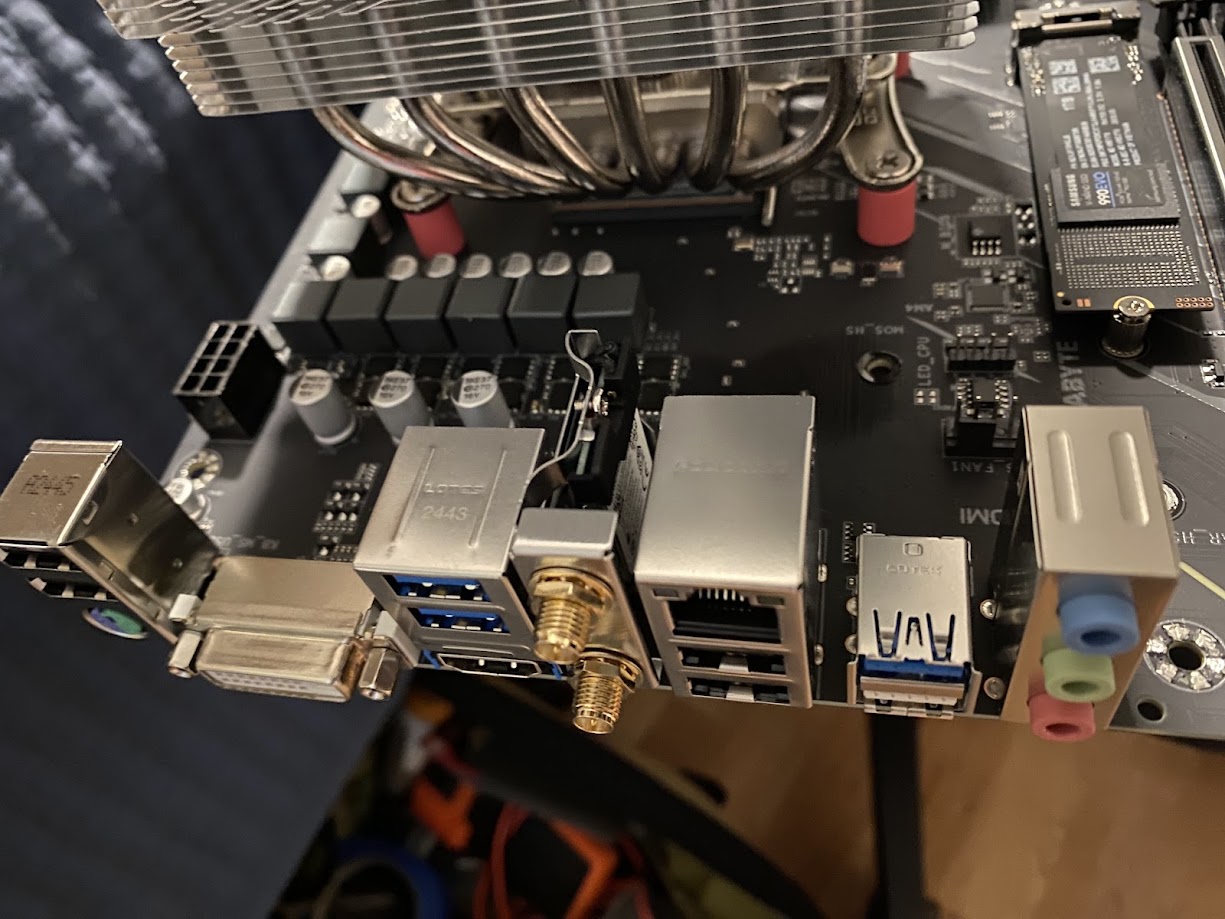
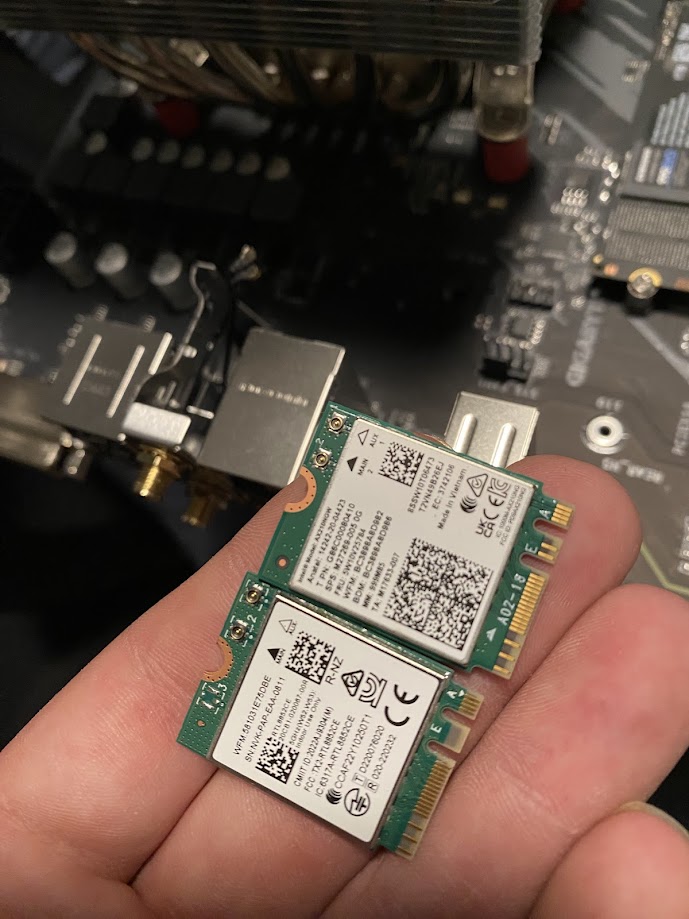
Intel wireless cards have excellent support on Linux and BSD alike. For just $20–$30 online, you can replace the built-in Realtek card. It takes about half a dozen screws to open the board and swap the M.2 module. I highly recommend tweezers for disconnecting and reattaching the tiny U.FL antenna connectors.

Where’s the Wi-Fi module located?

Motherboard WiFi
Board with VRM heatsink and shroud removed
WiFi Cards
Realtek NIC beside the new Intel AX 210

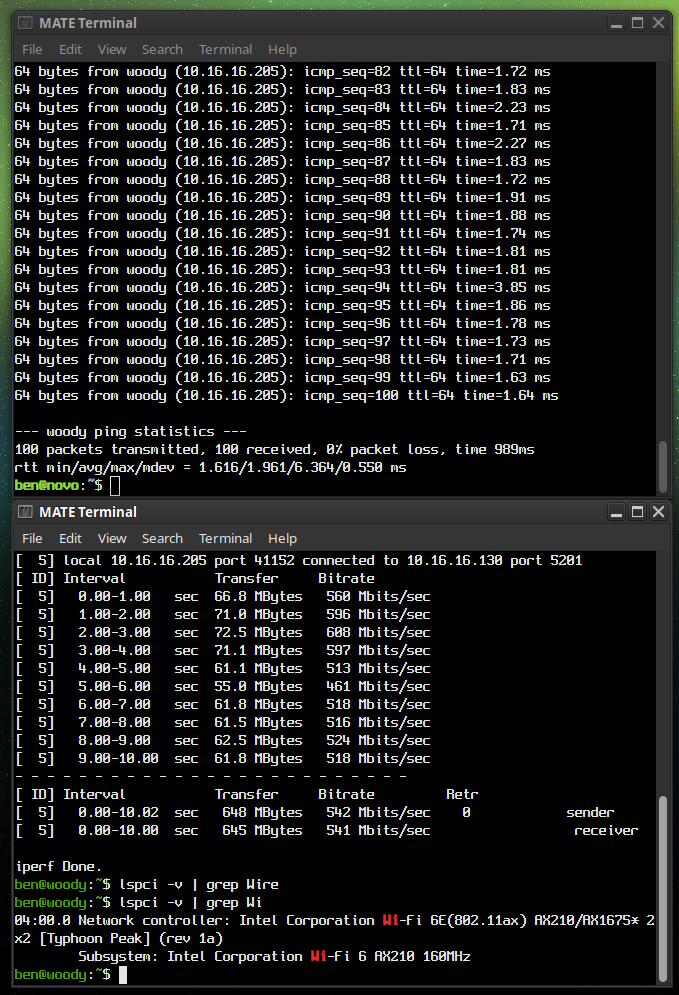
My pings are now way, better. Night and day. And the speed is a solid 100 Mbps better, or more. See for yourself!

AX 210 Results
AX210 Results: iPerf3 Test and 100 pings to my server

OpenWRT on the Dynalink DL-WRX36 WiFi 6 Router

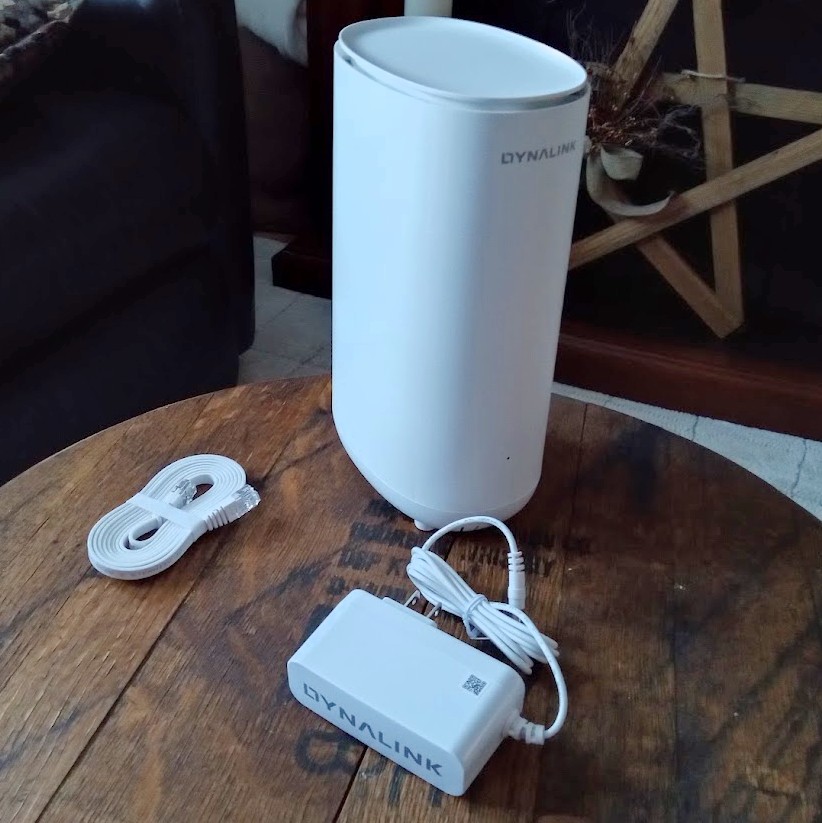
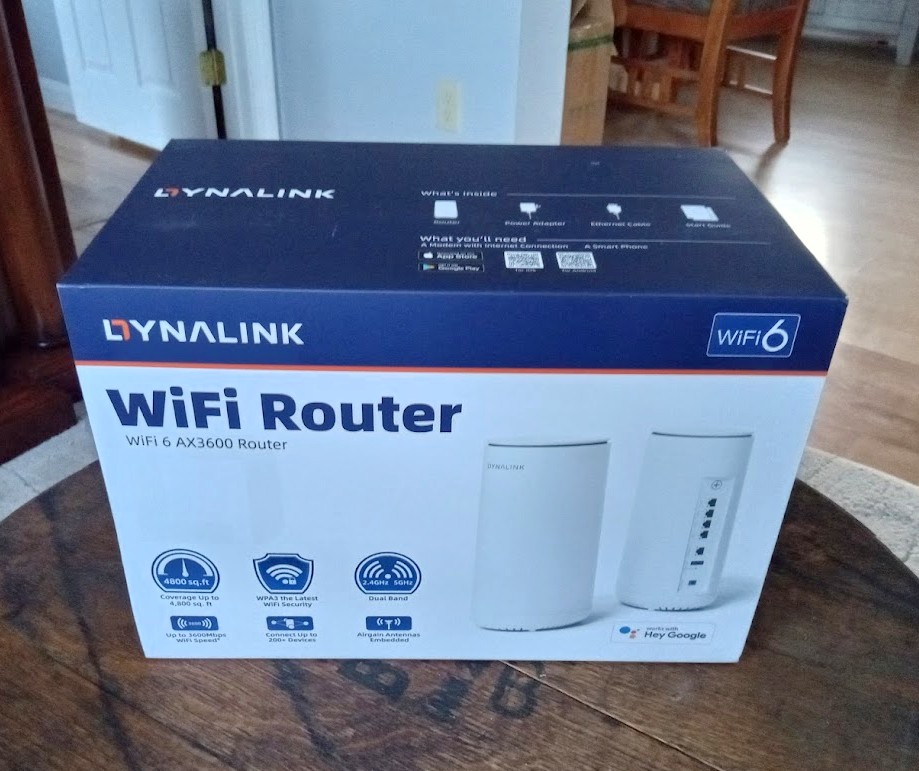
Dynalink RouterRouter Box

The Dynalink DL-WRX36 Wireless Router

I purchased my unit from Amazon about 18 months ago. I never even tried the stock firmware — I bought this router specifically because of its solid OpenWRT support and excellent bang-for-the-buck features.

For around $80 (if I recall correctly) you get:

  • Qualcomm 2.2 GHz Quad-Core CPU (ARM64 / ARMv8)
  • 1 GB RAM, 256 MB Flash (for firmware/storage)
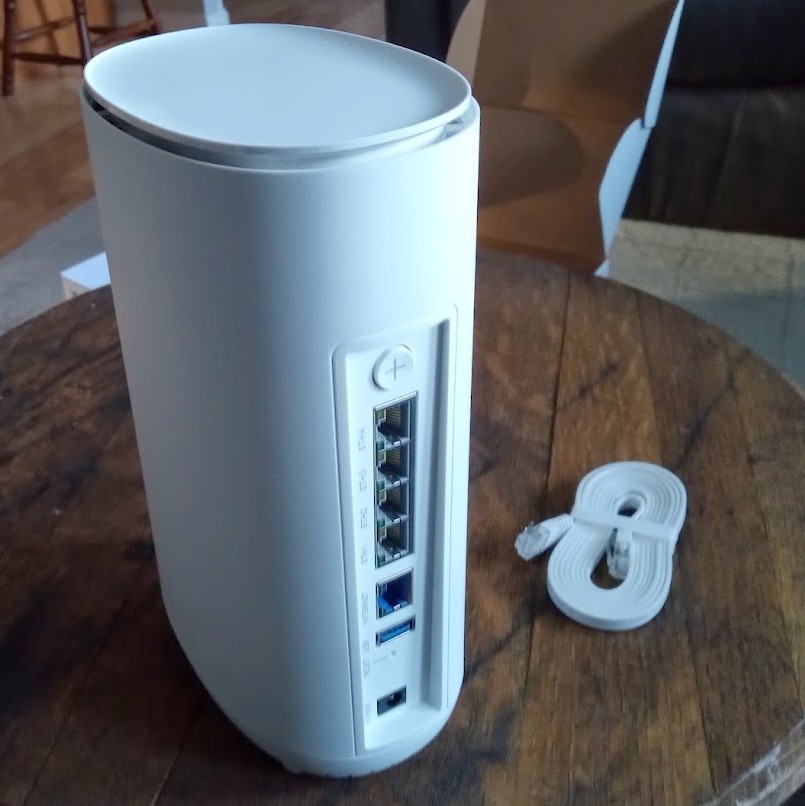
  • 2.5 Gbps WAN port, 4× 1 Gbps LAN switch ports
  • WiFi 2.4 / 5 GHz dual-band (4× internal antennas)
  • USB 3.0 port (for a USB HDD/SSD, FTP/Samba share, or cellular modem, etc.)

Rear ports

It’s a shame — I always intended to do a proper, in-depth review of this unit, along with a full guide on flashing OpenWRT. That said, the flashing process was painless and straightforward. If you’ve ever loaded DD-WRT onto an old Linksys back in the day, this is quite similar, though with a few extra steps.

I do recall some slightly ‘gray’ areas in the instructions on the OpenWRT Table of Hardware (TOH) page for the DL-WRX36, and I had made some notes. If I can dig them up, I’ll definitely update this post to include them. As I remember, nothing critical — just a couple of steps that were worded a little ambiguously. I highly recommend reading through the guide fully before starting, so you’re not left halfway through wondering what to do next.

Is it still available?
Amazon doesn’t have it in stock at the moment. Would I recommend it if it was? Absolutely. I’m very happy with mine.

Things to Note:

  • Unofficial builds exist that take advantage of hardware features on this router’s SoC. (The standard OpenWRT images don’t enable these by default — and for now, I’m sticking with the official builds. But performance is still excellent for my needs.)

For those curious, the IPQ807x SoC inside this router supports advanced hardware features like Qualcomm’s NSS (Network Subsystem) hardware acceleration, which dramatically improves routing throughput and reduces CPU load for tasks like NAT, firewalling, and VPN handling. While official OpenWRT builds don’t currently enable these proprietary modules, a few skilled community developers have published unofficial builds that do.

Personally, I run the latest stable firmware from the official OpenWRT release repository, and it’s been absolutely flawless for me. I get my full broadband speeds with headroom to spare — whether wired or over 5 GHz WiFi — and I’ve never felt limited by not having those additional offload features. This setup also ensures I have seamless access to the official OpenWRT package repository via Luci and UCI, with a stable, predictable system that updates cleanly.

That said, for the adventurous or performance-hungry tinkerers out there, those community builds with hardware offloading might be worth exploring. More details and links are listed below if you’d like to check them out.

Additionally — OpenWRT natively supports VLANs and VLAN tagging, letting you create isolated network segments, guest networks, or prioritize traffic on your LAN however you like. Combined with its firewall and routing flexibility, this makes OpenWRT an extremely versatile platform for both home and small business networks.

Performance

Since upgrading my desktop to an Intel AX210 WiFi card, I consistently get 1–3 ms pings to wired LAN machines — pretty respectable. Speeds are solid too, with ~500 Mbps transmit/receive over 5 GHz WiFi.

My configuration is simple:

  • One network for 2.4 GHz and another for 5 GHz, each with its own SSID.
  • I’ve heard of issues running both bands under a single SSID, so I avoided that.
  • IoT devices, mobile phones, TV boxes, etc. are on 2.4 GHz for better range and to keep them off the 5 GHz radio.
  • Desktops and laptops connect to 5 GHz for speed.

It works beautifully. No worries about being stuck on ancient 3.x kernels — OpenWRT keeps this thing current and reliable.

Why is OpenWRT the Cat’s Meow?

Luci, the web-based interface, is clean, solid, and well-organized. Every function accessible through the web GUI can also be executed via SSH on the command line.

If you’re a geek, you already get why this is awesome. But for everyone else: it makes quick changes a breeze — no digging through endless menus. You can configure it like a Cisco router via serial, telnet, SSH, or otherwise.

Other Perks

Packages. Tons of networking, telephony, and FOSS/Linux software packages are at your fingertips — one search away.

At the end of the day, every router is a computer of some sort. Unless it runs something exotic like VxWorks, chances are it’s powered by a Linux kernel. OpenWRT puts you in control. It’s your hardware — and you should run it your way. Suddenly that consumer-grade router feels like enterprise-grade gear.

Useful Links

Happy hacking!

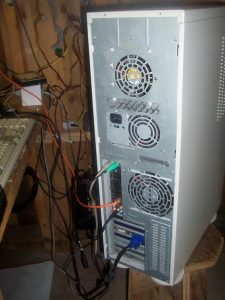
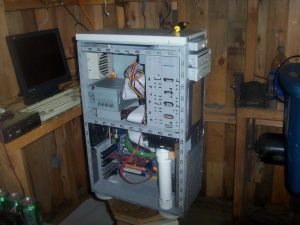
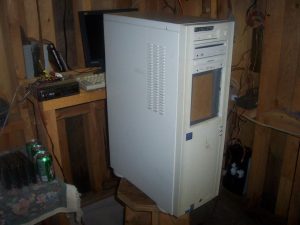
Throwback Thursday: My Water-cooled Desktop circa 2008

If I remember correctly this was:
SuperMicro Full Tower
Gigabyte EP45-UD3P Motherboard
E8400 Overclocked to 4 GHz
2x 2GB Corsair XMS 800 MHz DDR2
Radeon X300SE

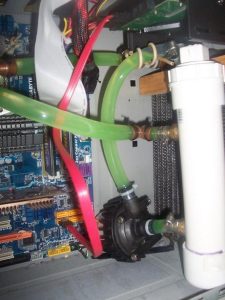
Apogee GT waterblock
MCP 655 pump
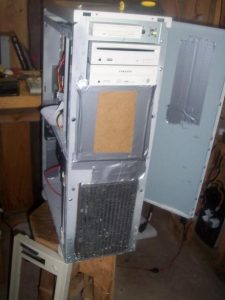
77 Bonneville heatercore
Homemade PVC reservoir tank

No fans are directly on the heatercore, but all case fans are blowing out (exhaust) to create negative pressure. The side vents, and empty drive bays were closed off, thus, forcing all intake through the radiator.

Laptop Motherboard hacked into Minimal Web Server

I had an old Core 2 based “Pentium” laptop kicking around, battery long past dead, no charger either.  Only had 2 GB of RAM, wifi card was already missing… No HDD either! I really had no use for the laptop.

Old parts we won't be needing

So, what to get rid of? Well, as you’ll see further along, I wanted to make this a more compact and simple solution. For most people it probably would make the most sense to just leave your old laptop as, well… a laptop. This thing is nothing special though. Don’t get me wrong, it is 15 years old sure, but that isn’t why it’s considered by most to be nothing more than e-waste. This 15 year old laptop specifically, was pretty poor spec’d even when it was new. New this PC was between $300 – $400, in 2009. So, that is why the battery is no longer in the mix — I have enough paperweights. This battery hasn’t held any charge in a long time. The hinges, webcam, usb ports? Save those for another project. If that’s your thing.

Also won't need these.
Underside


The furniture pads keep the board up and off my my desk so it sits with (albeit a small amount) dignity. Here we can see a dirty secret… White tape covering the blindingly bright white and orange LEDs. That little LED board also holds the power button. Kinda important. Some hot glue was used here, hot glue can make a project go south quickly but in some cases it can be forgiven. In the lower left corner you may have spotted the solution to my lacking of a hard drive.

Killer feature

Like I said, a big Raspberry Pi.  It even boots from an SD card!

    Putting an operating system on something like an SD card isn’t something I’d recommend.  However, as seen here it is quite convenient to test multiple configurations.

This is actually sort of a neat feature. It is, and it isn’t. Onboard SD card readers are usually less than stellar and this one is no exception. Bear in mind, this laptop doesn’t have any USB3 ports. Even if it was new enough to have USB3, the card reader would more than likely be USB 2.0.

Future plans include a SATA hard drive. Mechanical, SSD, who cares. But a proper hard disk will be incorporated when one falls into my lap. Till then, this website is brought to you via this FreeBSD powered franken-server. 128 GB of SanDisk goodness.

Technical Resources & Great Websites

Useful resources for geeks using BSD:

FreeBSD live boot images /w SSH enabled. Boot & use / remote installation.
Highly recommended: mfsBSD and mfslinux

FreeBSD WiFi Basic Setup / Configuration – Well put together here

Beginner BSD basics (10 page PDF)  – For people new to FreeBSD & UNIX

Installing & Configuring Grahics Drivers on FreeBSD  – Handbook Chapter 5

Installing Desktop Environments on FreeBSD – Handbook Chapter 8 BSD Daemon

NetBSD Performance and Power Management Tweaks  – Post on unitedbsd.com

Useful resources for geeks using GNU/Linux:

UC Berkley Open Computing Facility Mirror – I can get 300 Mib/sec down!
Definitely a great place to download both BSD and Linux from. They mirror many popular projects.    HTTP   HTTPS

The Debian Administrator’s Handbook  – Very well organized HTML book

Building a Debian Kernel Package – Easier than you may think Debian Wiki
Tux Penguin
Detailed rundown of Linux’s init systems (sysv, systemd) a bit outdated but quite comprehensive yolinux.com Init Tutorial

The T2 System Development Environment  – aims to support all CPU architectures, including maintaining or bringing back architectures which have been dropped in the mainline kernel.  Intel Itanium support as well as fixing drivers and other things which didn’t need to be broken or removed simply because they were “old”.
Visit t2sde.org. The developer documents much of his progress in a series of videos.


Useful resources for hardware hacking & modifications:

OpenWRT Project Table of Hardware  – List of devices supported by OpenWRT
Linksys WRT54G         The OpenWRT project is a completely free and open source linux system intended to replace the firmware on your router / wireless AP. It has tons of packages available and has a very active community and development scene.  I’ve used it for years, it is incredibly good firmware.  If you’ve never heard of it think DD-WRT but better, in my opinion.

Parkytowers.me.uk has a website dedicated to re-purposing “thin client” PCs into general purpose PCs, Linux boxes, servers, etc.  This guy has written up information on HUNDREDS of these things, and details hardware and software hacks to get more functionality out of them.  Check it out!  https://www.parkytowers.me.uk/thin/
(you click the DETAILS link and get to a page with all the OEMs down the left side)

Hacking a Sata HDD onto a SATA slim ODD connector

Adding a second SATA hard drive

by connecting it to the slim optical drive’s narrower SATA connector

    Quick and dirty hack to expand your storage. I wouldn’t do this to an expensive Second Hard Drivelaptop you just bought, but on many laptops the SATA connector PCB is separate from the motherboard. That is the case with this one, both the HDD and ODD (optical disc drive) connectors are on small PCBs connected via ribbon cable. If you screw up, replace it… That said, check to verify you can get your hands on a new one first — if you care. And if you want a prettier or more, plug and play solution then do a web search for “slim DVD to hard drive adapter”. You can buy something more elegant for under ten dollars. I did this because I could. It cost nothing. There was no risk, this is a motherboard I use as a server, so I don’t use an optical drive anyway. Some bulk storage though, without sacrificing the IOPS of the 256 GB SSD though… that’d be cool.

ODD Connector, now open-ended    So, with the modification being done here you can really use just about any SATA drive. However, unless you find a source of 12V somewhere on the laptop motherboard or come up with it somehow then you’ll probably want to avoid 3.5″ desktop size drives. Notebook HDDs and any SSD will happily run on 5 volts, as far as I know. That said, we need to get a bit creative though, because while the stock ODD connector does have power it only has 3.3 volts. That’s it, 3.3V some control pins and ground.

SATA Connector
Notice the totally different spacing?

A full size SATA power connector shown, above our slim optical drive connector. You can see I already cut into it, leaving it open-ended. Check out the picture above. Take a real good look… See, I was thinking I’d cut the end off the power connector, and BAM! Instant expansion. This is here below illustrates what NOT to do:
Don't do it like this!    Why wouldn’t that work?? Well, look back to the second to last image — the one with the two connectors. The desktop / full size power connector uses wider spacing between the pins. So while as you can see I did physically plug this into a hard drive, the pins do not each land correctly one to one on a pad. Even if they did, the pins in the power portion of the slim ODD connector only have ground and 3.3v. For notebook drives we need 5v. For fullsize drives, we need 5v and 12v.

    First things first, this connector like most PCB mounted connectors has anchor points at opposite ends. These add mechanical strength and are soldered down to the PCB so that repeated plugging and unplugging of the connector doesn’t break the solder joints to the fragile data and power pins. To do this mod, we have to remove the power portion of the slim ODD connector. In doing so we loose half our mechanical reinforcement. So at a minimum I’d recommend either putting a generous amount of hot glue behind the data portion of the connector (which we do not want to disturb). Epoxy would be better.
Flush cutters

Flush cutters I have found to work well for this purpose. Take your time, see how the material chips while cutting. When you’re close, switch to a file or sanding block — much better chance of not screwing up and going too far.

Carefully removing the pinsPart way done. I’ve stood up all the power pins, to carefully remove them without tearing PCB traces or damaging the pads. The pins were wiggled back and fourth, and fell right off.

Started removing the power portion    Finished

Above is the result of much patient clipping, and even more patient filing. Here it isn’t totally done, but 99% there.
Test fitTest fit

Not too shabby, provided you get gratification out of making your technology do things it was never intended to do. I’ve always loved hacking and modding, and for a simple home server application I’m fine with something like this. Important thing here is that the SATA data connector and lines are still the way they were from the factory. All we’re doing here is accommodating power for something other than a slim DVD burner.
I took a lazy route and just sliced up an old USB cable. This works for 2.5″ drives, but won’t work for full size desktop drives.
    There are certainly other places on a laptop motherboard to get 5 volts from. This laptop has two USB ports on board. There is also a third if used with another small PCB / ribbon. USB can supply 5 volts, and we don’t need to do anything crazy to get it. Many USB HDDs are entirely USB powered so I know that it can deliver enough for this drive as well.

In action

And there it is in action! A passively cooled Pentium N5000 quad core, 8 GB of DDR4. 256 GB WD Blue SATA M.2 solid state boot drive, and now a 500 GB WD Blue SATA spinning disk for bulk storage and backups. I have the battery connected here as-well. It can run this board quite a while without a screen especially. This lets me feel a little more confident experimenting with things like write-back cache.

© 2025 LostGeek.NET - All Rights Reserved. Powered by ClassicPress, NGINX, Debian GNU/Linux.