
My round-up of 16 different operating system options available for the new Pi 5. – May 24th, 2024
Raspberry Pi OS (Debian Bookworm) The Official Pi OS
Debian is no doubt one of the best Linux distributions available today. In fact, not many would argue if one were to say that it is the best. Raspberry Pi OS is the official operating system of the Raspberry Pi, and as such you know that it will support all the hardware correctly out of the box with no extra work required from the user. Works on ALL Raspberry Pi models. Available in 32 and 64 bit arm flavors, and you can get an image with a desktop environment included or opt for the “Lite” version at just under 500MB. As of this writing, all versions available for the Pi 5 are built on Debian 12 (bookworm) and use the 6.6 Linux kernel.
Ubuntu 24.04 LTS For Pi4 & Pi5
Ubuntu likely needs little introduction. Two builds are available for the Pi; Desktop and Server. The server image weighs in at a mere 1 GB, and desktop at 2.6 GB. 24 is an LTS release for Ubuntu, meaning five years of free security and maintenance updates, extendable to 10 years with Ubuntu Pro.
Armbian for the Pi 5
Armbian has been around awhile, and Linux on ARM is their jam. They offer builds of the Ubuntu Jammy variety, or you can go with something Debian Bookworm based. You can choose a 370 MB CLI minimal image, or pick a GUI image with your choice of any of the popular desktops. Gnome, KDE, Cinnamon, XFCE and i3 each have their own release available. At the time of writing this, they are shipping Kernel 6.6.23 in all of them. They’ve also got a few “dedicated applications” options, Home Assistant, OpenHab and Kali Linux.
Kali Linux for all Pis
Kali is a penetration testing oriented linux distribution. When I first heard of Kali the project at that time was named BackTrack. Before that, way back in 2004 it was actually called Whoopix (White Hat Knoppix). If you’re interested in pen-testing, hacking, or cyber security, check them out. Kali has images available for all Raspberry Pi models, including the new Rpi 5.
LibreElec for all Pis
LibreElec lets your instantly turn your Pi into a powerful media center which you can connect to any TV and start enjoying. It uses the Kodi media center (formerly XBMC). The latest build will work on Rasp Pi 2 and newer, but they have images of an old version still available if you happen to want to try it on your old Pi 1, or Pi Zero.
Batocera for Pi 4 & Pi 5
Recalbox for all Pis
Both Batocera and Recalbox are similar to RetroPie, if you’ve heard of that. Basically, they give you a nice easy to use full screen interface for playing retro console games. You can emulate pretty much any retro home console or home computer from the 80s and 90s. I recently helped my brother build a full-size arcade machine, and after initially going for a custom x86 debian install with RetroPie which took all night to compile from source, we ended up using RecalBox and he couldn’t have been happier with it.
Void Linux Pi 5 Support Added
From their website, “(Void is) not a fork! Void Linux is an independent distribution, developed entirely by volunteers. Unlike trillions of other existing distros, Void is not a modification of an existing distribution. Void’s package manager and build system have been written from scratch.” They don’t mention the Raspberry Pi specifically directly on their downloads page, which is why I have linked to a news post mentioning new Pi 5 support. I’d image it works on older Pis also, but may be suited to more advanced users.
OpenFyde Pi 4 & Pi 5
OpenFyde is the open-source version of FydeOS, based on Chromium OS.
Mx Linux (Rpi Respin) For Pi 4 & 5
“MX Linux is a cooperative venture between the antiX and MX Linux communities. It is a family of operating systems that are designed to combine elegant and efficient desktops with high stability and solid performance.” – mxlinux.org (Download Page)
Diet Pi For Any Pi (and other SBCs)
“DietPi is an extremely lightweight Debian OS, highly optimised for minimal CPU and RAM resource usage, ensuring your SBC always runs at its maximum potential.”
Lineage OS Unofficial Pi 4 & Pi 5 Build
“LineageOS, an open-source Android distribution, is available for several devices,
with more being continuously added thanks to the biggest, yet ever growing, Android open-source community. Join us and breathe new life in your device, be it old or new.”
The linked build is unofficial, but looks promising. Use at your own discretion.
OpenWRT Unofficial Pi 5 Build
OpenWRT is custom Linux based router firmware, for wifi routers and other embedded devices. You can also run it on Raspberry Pi boards and other SBCs. Linked above is an Unofficial Pi 5 build, with new commits just last week. I’ve also run OpenWRT on the Pi 3 and Pi 4 with excellent results – they actually can be great routers. Their wifi isn’t very good for using as an AP, but it’ll get you by in a pinch. Using another wired NIC over PCIE or USB3 though, you can get good value out of using it as a wired router. See OpenWRT.org
Arch Linux Arm Unofficial Pi 5 Guide
“It is possible to get Arch Linux ARM up and running on a Raspberry Pi 5 by removing U-Boot and replacing the mainline kernel with a directly booting kernel from the Raspberry Pi foundation. Automatic updates will even work since the replacement kernel is available as an official Arch Linux ARM package.”
FreeBSD 14 Unofficially said to work on Pi 5
User bmcdonaldjr on the FreeBSD forum reports that 14.0 runs well for him:
“The UEFI for freebsd on RPI5 MUST be used (current version is 0.3)
A USB ethernet adapter MUST be used (UEFI currently lacks driver for the onboard.
One of two methods can be used for the storage device.
An image (RPI) written to a USB stick along with a blank micro SDHC /w UEFI files.
An image (RPI) written to a micro SDHC with the UEFI files.”
And of course, FreeBSD already works on older models of the Pi which you can simply download. Namely, 14.0 works on the Pi 3, Pi 4, and many other ARM SBCs: aarch64 images
Windows 11 Arm Installation Instructions (Pi 2, 3, 4 & 5)
I don’t really condone this, but I wanted to make the list as complete as possible… so well, here it is.
For regular PCs, see the Operating Systems I use. You can read more about desktop environments and window managers over on the Packages page.


 The OpenWRT project is a completely free and open source linux system intended to replace the firmware on your router / wireless AP. It has tons of packages available and has a very active community and development scene. I’ve used it for years, it is incredibly good firmware. If you’ve never heard of it think DD-WRT but better, in my opinion.
 laptop you just bought, but on many laptops the SATA connector PCB is separate from the motherboard. That is the case with this one, both the HDD and ODD (optical disc drive) connectors are on small PCBs connected via ribbon cable. If you screw up, replace it… That said, check to verify you can get your hands on a new one first — if you care. And if you want a prettier or more, plug and play solution then do a web search for “slim DVD to hard drive adapter”. You can buy something more elegant for under ten dollars. I did this because I could. It cost nothing. There was no risk, this is a motherboard I use as a server, so I don’t use an optical drive anyway. Some bulk storage though, without sacrificing the IOPS of the 256 GB SSD though… that’d be cool.
 So, with the modification being done here you can really use just about any SATA drive. However, unless you find a source of 12V somewhere on the laptop motherboard or come up with it somehow then you’ll probably want to avoid 3.5″ desktop size drives. Notebook HDDs and any SSD will happily run on 5 volts, as far as I know. That said, we need to get a bit creative though, because while the stock ODD connector does have power it only has 3.3 volts. That’s it, 3.3V some control pins and ground.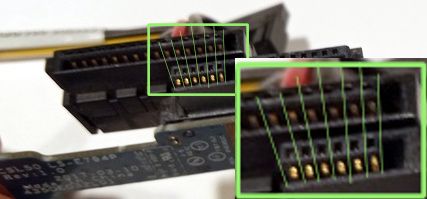
 Why wouldn’t that work?? Well, look back to the second to last image — the one with the two connectors. The desktop / full size power connector uses wider spacing between the pins. So while as you can see I did physically plug this into a hard drive, the pins do not each land correctly one to one on a pad. Even if they did, the pins in the power portion of the slim ODD connector only have ground and 3.3v. For notebook drives we need 5v. For fullsize drives, we need 5v and 12v.
 Part way done. I’ve stood up all the power pins, to carefully remove them without tearing PCB traces or damaging the pads. The pins were wiggled back and fourth, and fell right off.


